Knowledge base
1000 FAQs, 500 tutorials and instructional videos. Here, there are only solutions!
Discover the new version of the kDrive Infomaniak app
This guide explains how the new kDrive v4 application from Infomaniak works.
Introduction
- kDrive v4 is more than just a graphical update of the previous version: its interface and navigation have been completely redesigned, while retaining the main synchronization features already available.
- Most of the basic principles remain valid and should be understood to master kDrive.
A completely redesigned and more readable interface
It's here! Your kDrive v3.x app has been updated to v4, which introduces some major changes:
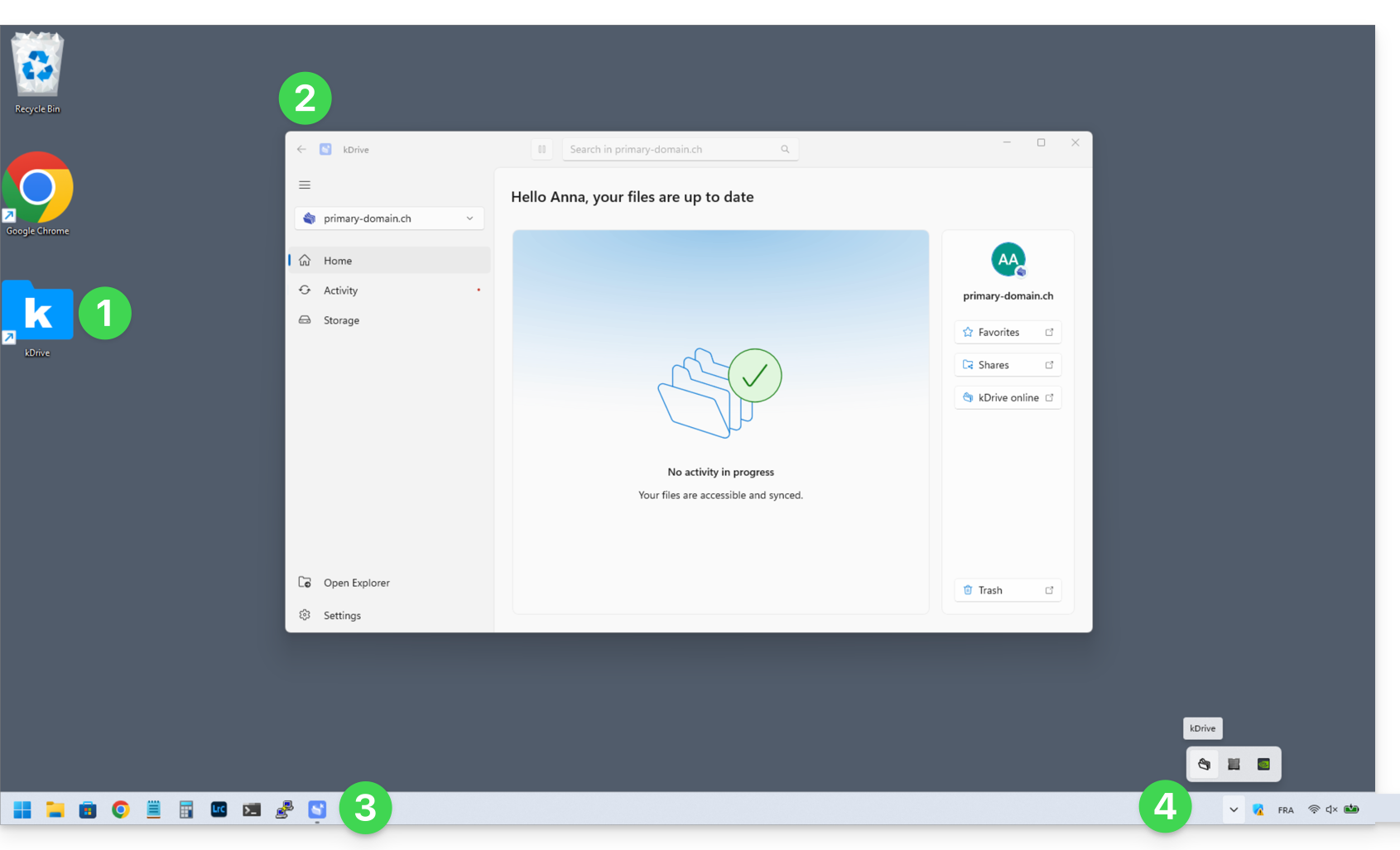
- Upon installation, the kDrive Windows application icon is added to your desktop.
- The application window can be freely positioned and resized; it provides simplified access to the status of your synchronizations.
- The icon of the open application is displayed in your taskbar (you can make it persistent via the context menu).
- Whether the main window is open or closed, kDrive continues to synchronize in the background, and for this purpose, its icon is displayed on Windows among the running services at the bottom right of your screen (without any particular color):
and at the top right on the macOS version: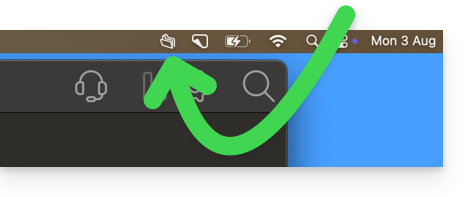
Welcome to the new Infomaniak app for kDrive
HOME menu
Click on Home to access:
- the online version (kDrive Web) of your favorites and shares
- the online version (kDrive Web) of your deleted files (still visible in the trash until it is emptied)
- file search (❓: help)
- pausing synchronization
Windows version: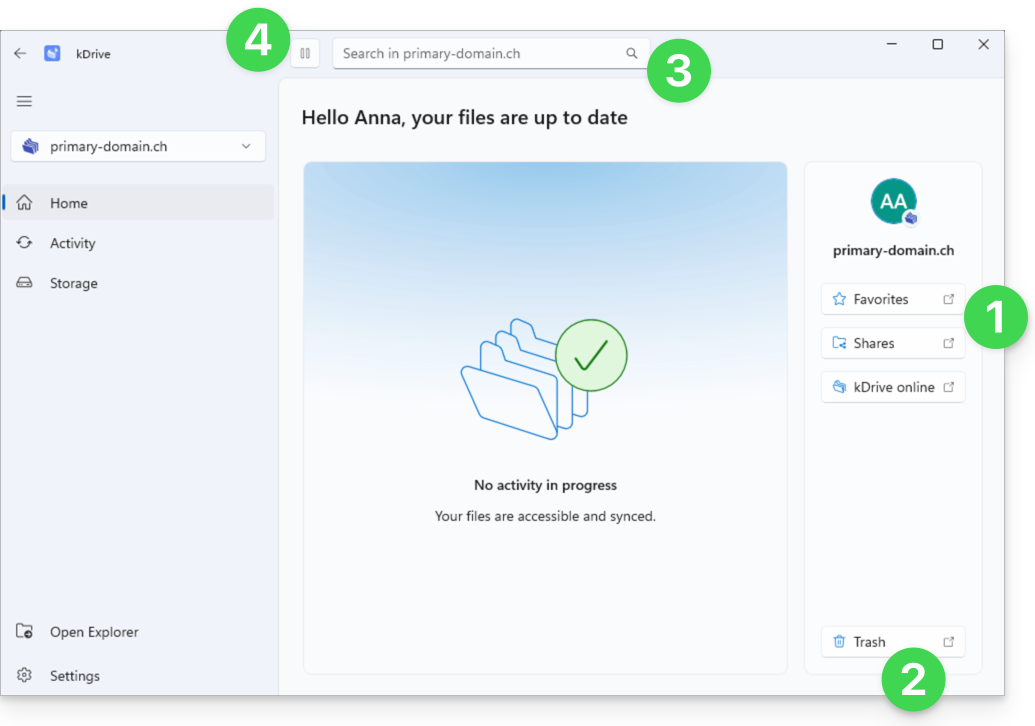
and macOS version: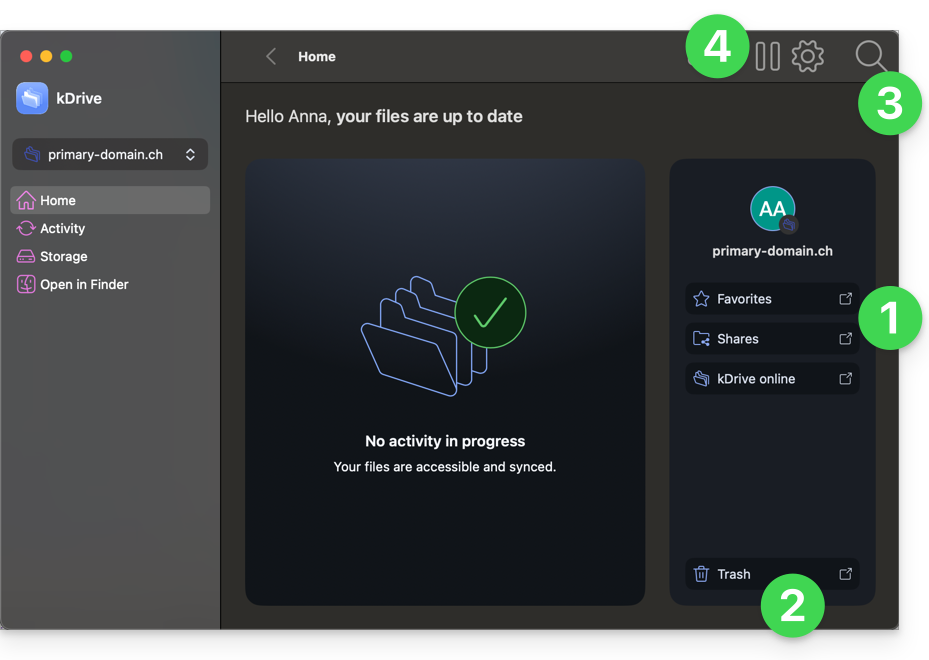
Regarding the trash, there are no particular changes to these deletion actions:
- When you delete a file in the web app, it is moved and becomes visible in the web app's trash:
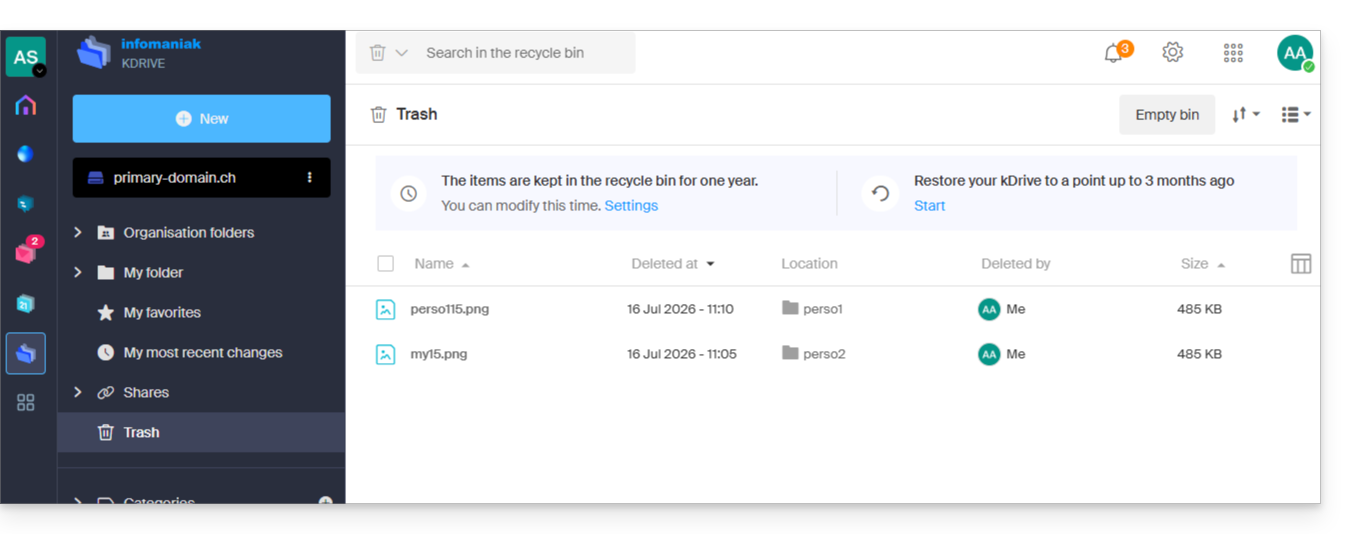
- This action is synchronized, so the file will also be moved to the trash on synchronized devices.
- When you delete a file from the synchronized data on your macOS/Windows device, it is moved and becomes visible in the macOS/Windows trash:
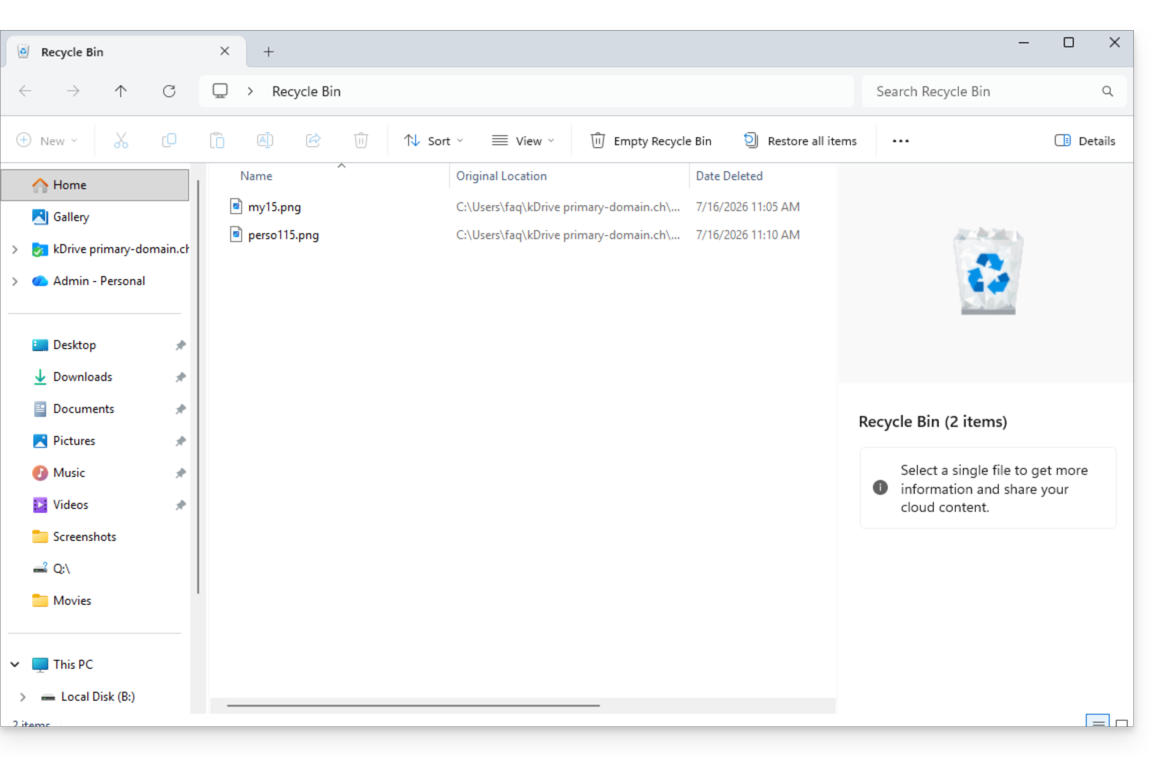
- This action is synchronized, so the file will also be moved to the kDrive web app's trash.
ACTIVITY Menu
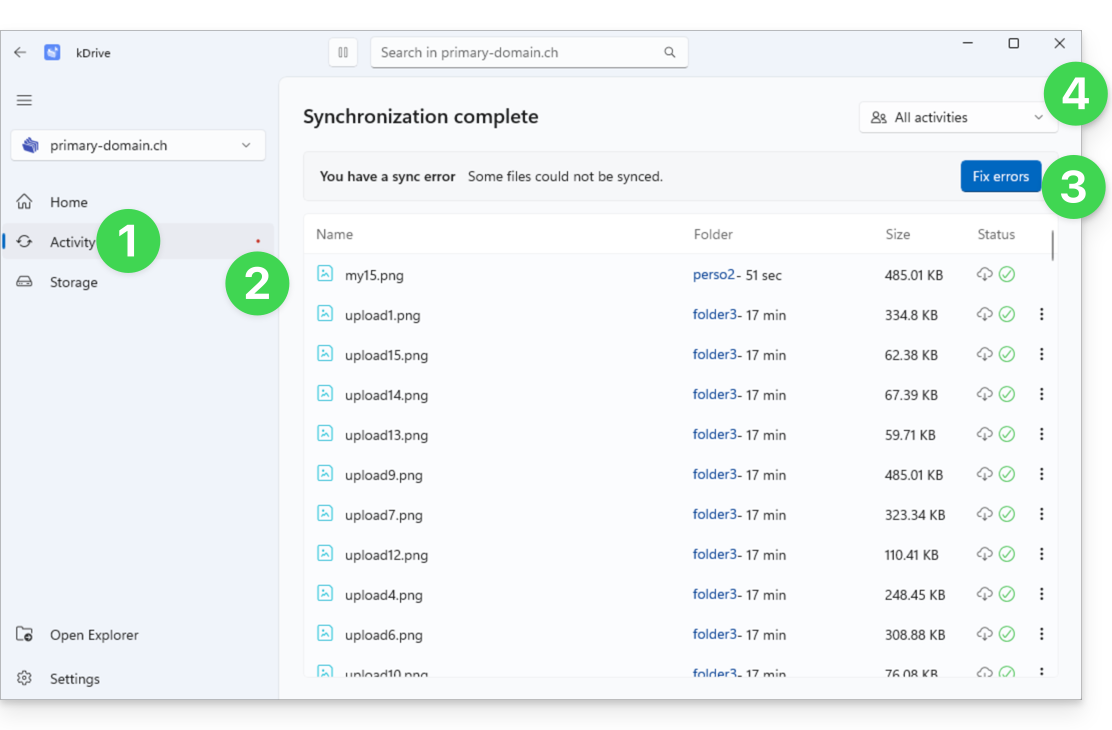
Click on Activity to access the view dedicated to operations and any synchronization issues:
- The Activity menu displays the latest operations that have occurred (new file synchronization, deletion, etc.).
- A red dot indicates warnings related to potential synchronization errors.
- The button to correct errors provides details about the current issues.
- A menu allows you to filter activities based on your personal usage:
STORAGE Menu
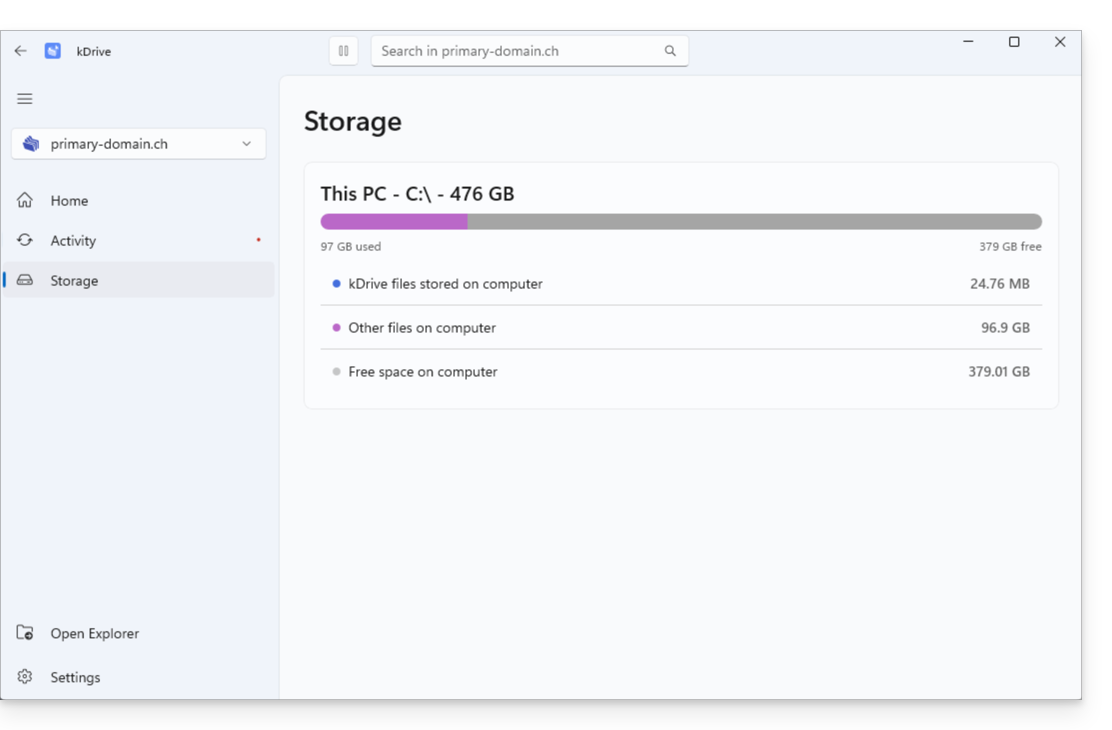
Click on Storage to access a clear overview of the space occupied by your data:
- The Storage menu allows you to view the space occupied by kDrive on your hard drive (which will be more or less depending on whether Lite Sync is enabled or not) and to see the available space on your computer:
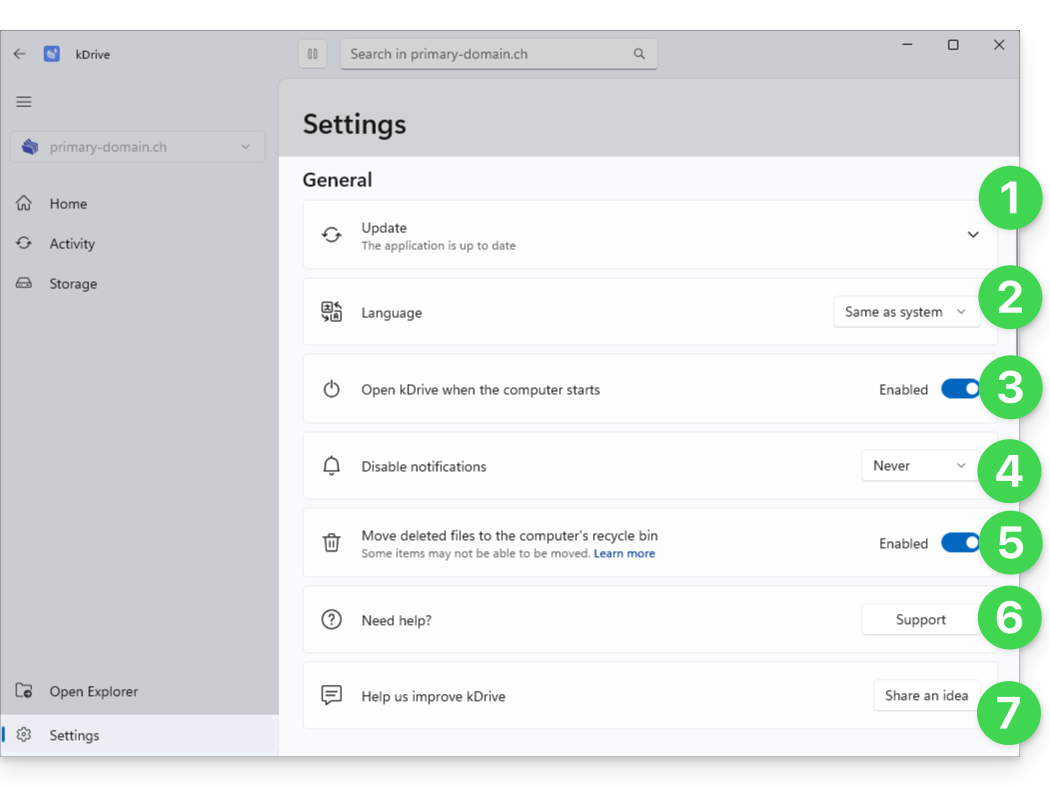
SETTINGS: General
To help you quickly set up your kDrive (or kDrives):
- Version and update, Beta program
- Language settings
- Automatically start kDrive when the computer starts
- Manage notifications in case of an event.
- To choose whether deleting a file on the web app or the mobile app should move the file synchronized with this desktop app to the computer's recycle bin, activate the toggle switch.
- Link to Infomaniak support
- Suggest an improvement idea:
SETTINGS: Account & synchronization management
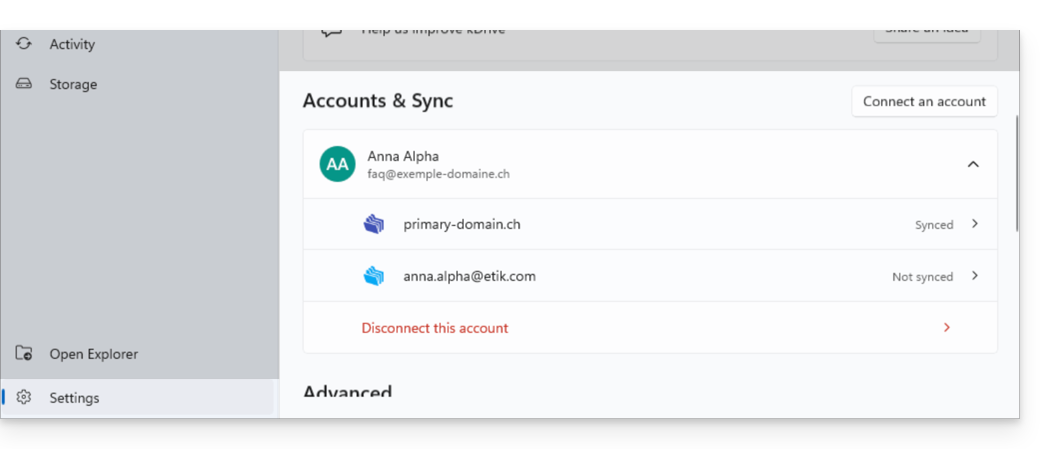
Centralized navigation between your different kDrive accounts:
- One login ID can be used for multiple kDrive accounts (and you can choose which ones to synchronize).
- Other login IDs can be entered to synchronize more kDrive accounts on the same device:
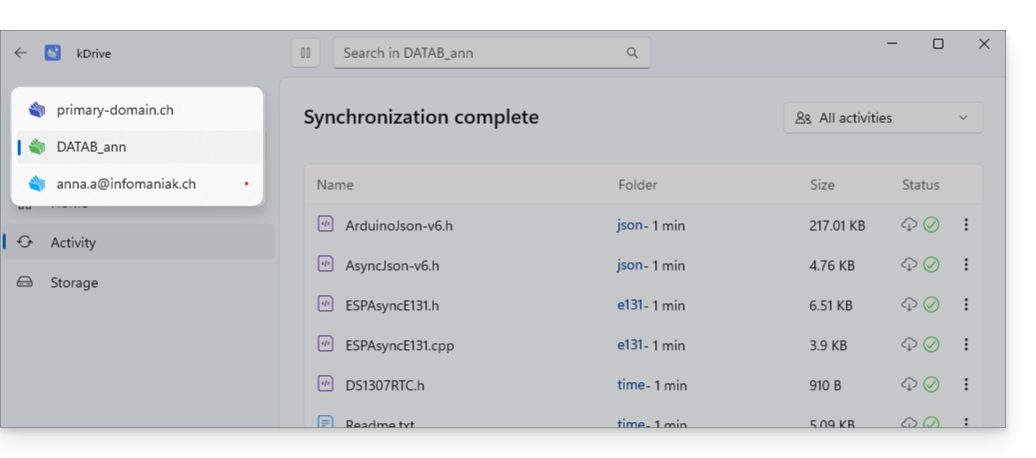
- Once identified, the different kDrive accounts are accessible at the top left of the interface:
- They can be managed directly from the settings:
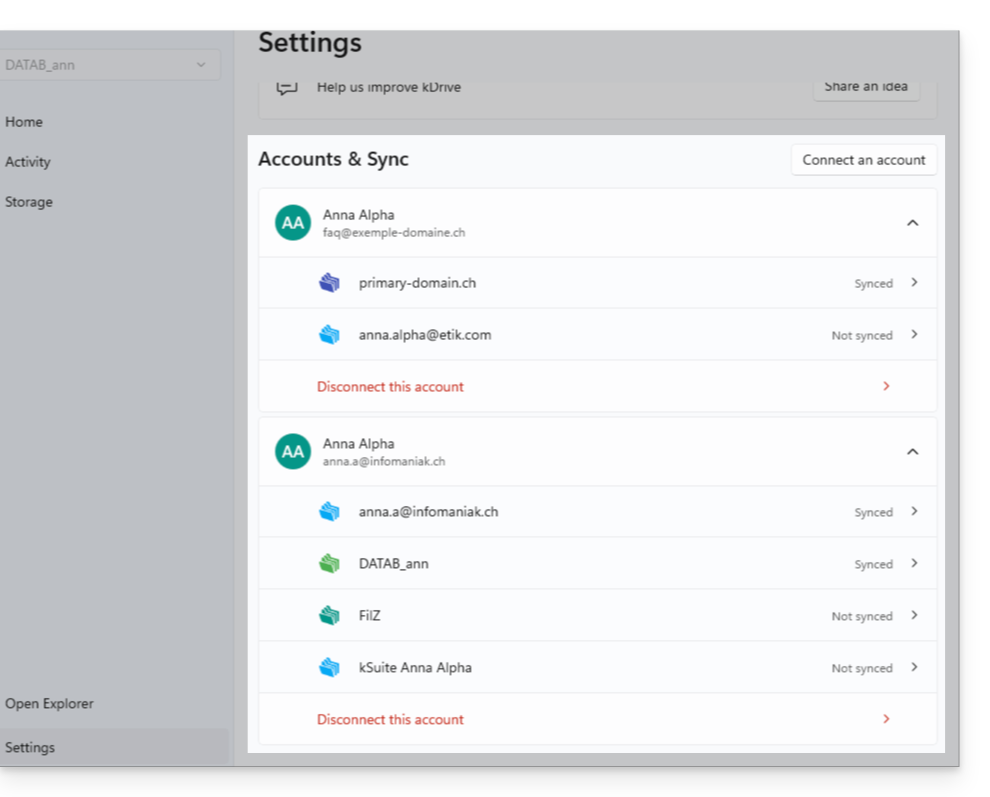
- They can be managed directly from the settings:
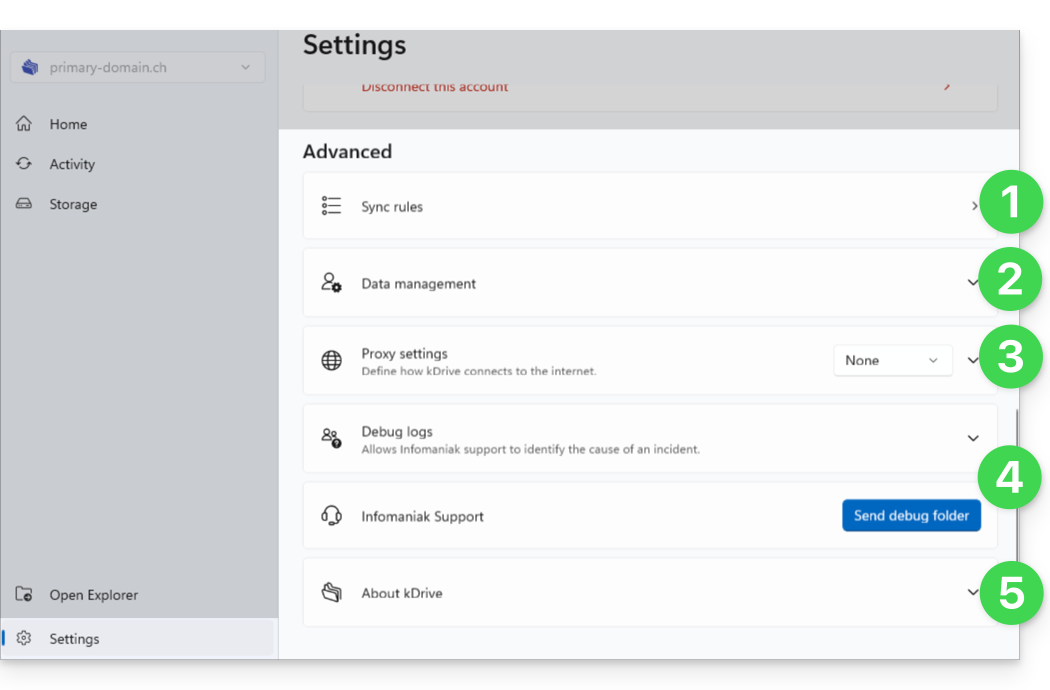
Advanced settings
Useful for gathering information in the event of a problem:
- Synchronization rules (see the dedicated chapter at the bottom of this guide)
- Tracking information and settings
- Proxy configuration (optional)
- Log management / Debug
- Version number & licenses:
Finding your synchronizations after the update
Your kDrive folders, accessible from the File Explorer in Windows (on the left below) and their synchronized equivalent on Infomaniak's servers (on the right below), are accessible in one click from the home page: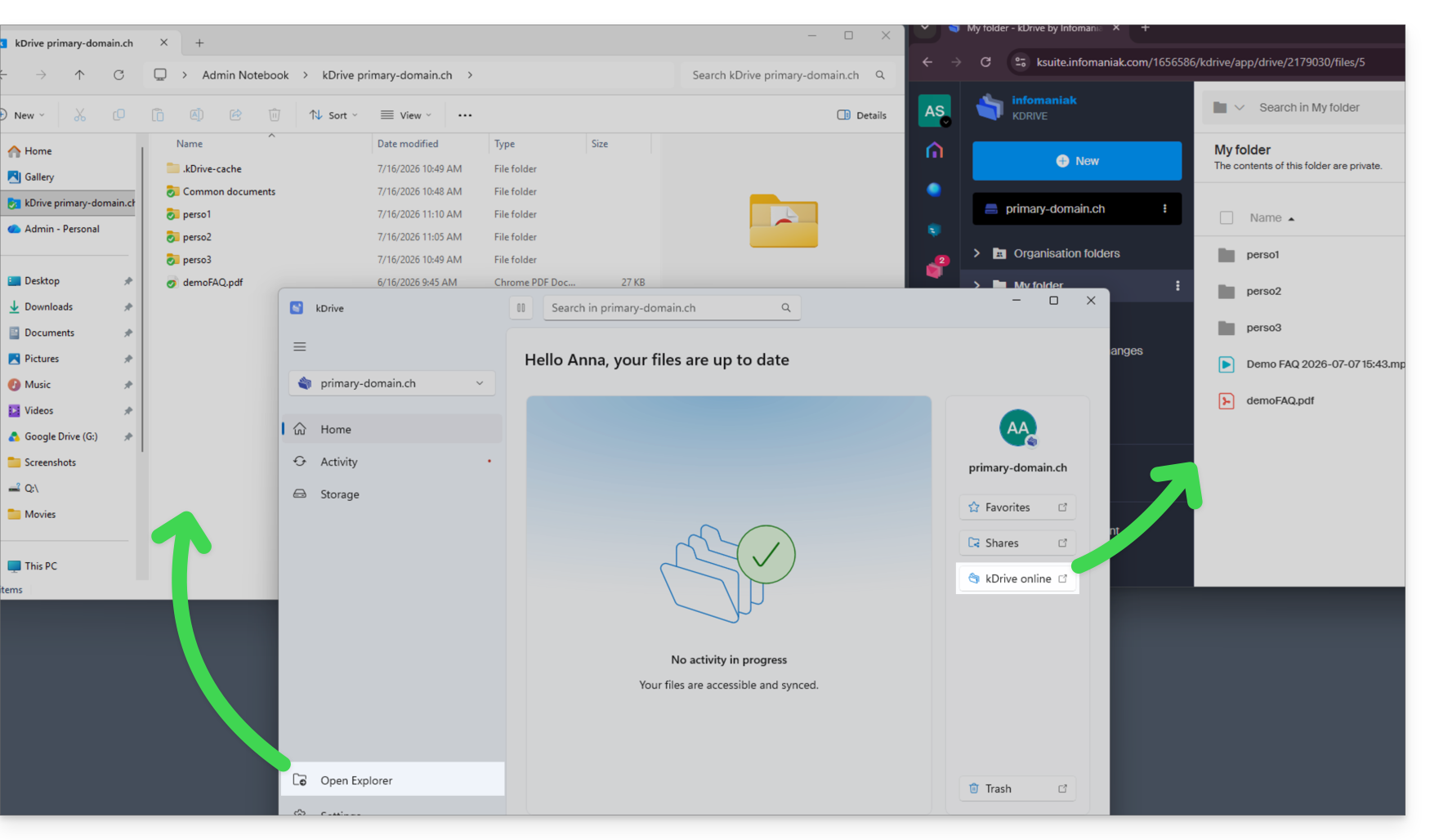
The principle is the same on macOS.
Troubleshooting a missing file issue
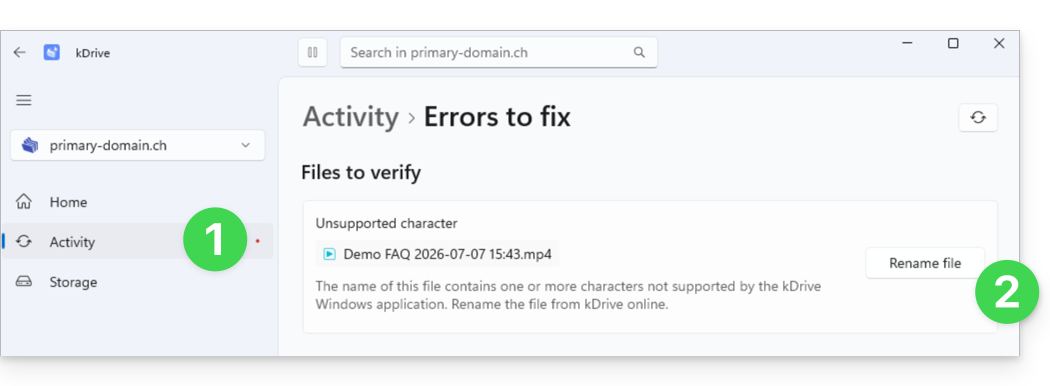
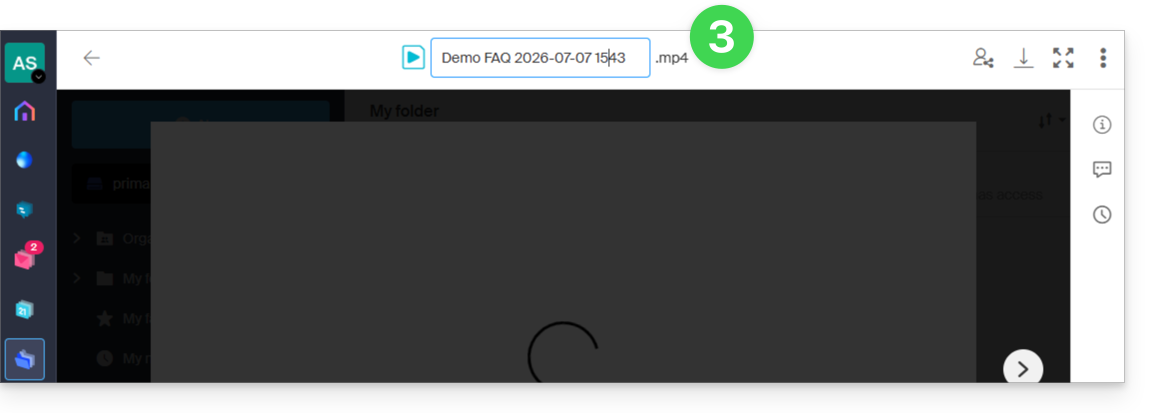
In this example, you will notice a video file present in the online version on the right, but absent on the synchronized device on the left. This is normal: the file name, originating from the macOS environment, is incompatible with Windows because it contains the forbidden character “:”. If you encounter this type of problem, open the Activities section to view the operations in progress, the recently processed files, and any errors reported by the application:
- A red dot therefore appears on the kDrive Windows app…
- A solution is proposed: rename the file:
- Clicking the button takes you to kDrive Web so you can rename the file:
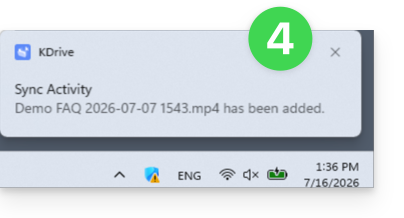
- Once renamed, the missing synchronization will occur, and an activity notification will appear in the bottom right corner of your screen:
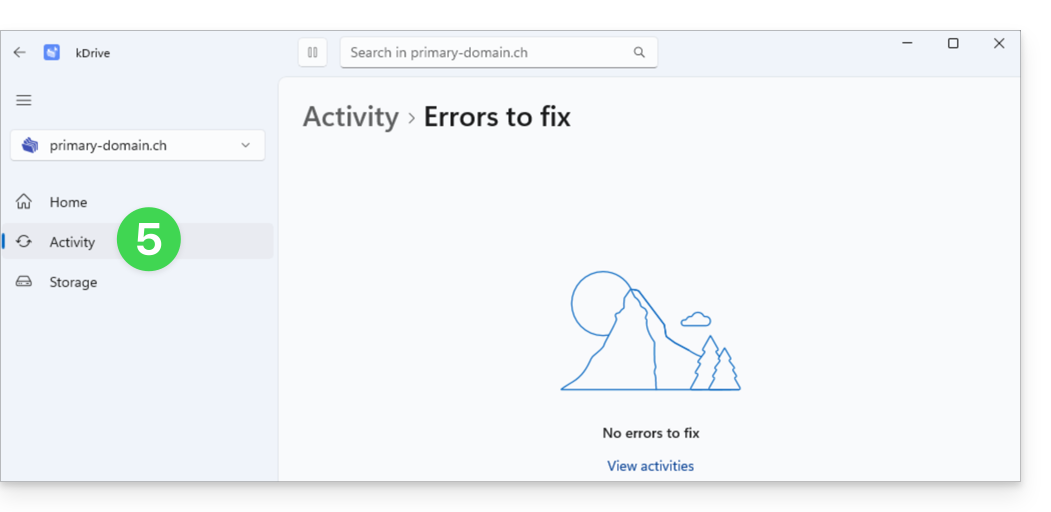
- The error will disappear in the Activity section of the kDrive Windows app:
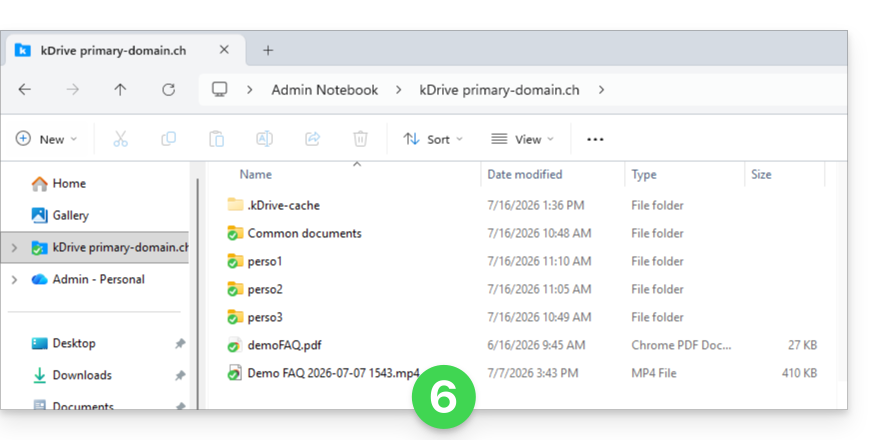
- The file is now synchronized and therefore visible on all devices:
This information will be gradually added to the existing guides — these will be updated as soon as possible during the deployment of kDrive v4.
Link to this FAQ: https://faq.infomaniak.com/2923
Has this FAQ been helpful?