Knowledge base
1000 FAQs, 500 tutorials and instructional videos. Here, there are only solutions!
Mention a contact in Mail Infomaniak
Update 10/20/2026
This guide details the feature that allows you to tag (identify/mention) contacts when composing a new message in the Infomaniak Mail web app (online service ksuite.infomaniak.com/mail).
Introduction
- It is possible to insert contacts from the existing address books within the organization (❓: help), but only those with a valid email address.
- It is also possible to enter an email address that is not listed in any address book.
- The contact or email address mentioned while writing will be automatically added to the email recipients.
- It will be visually identified in the text by an
@followed by the name/first name or email address in the case of a non-existent contact. - The recipient mentioned in an email is also distinguished in their inbox by a specific
@icon. Please note: removing a contact mention from the message being written does not remove their email address from the recipients (and vice versa).
Notify a contact/email address in an email
To tag (identify/mention) contacts:
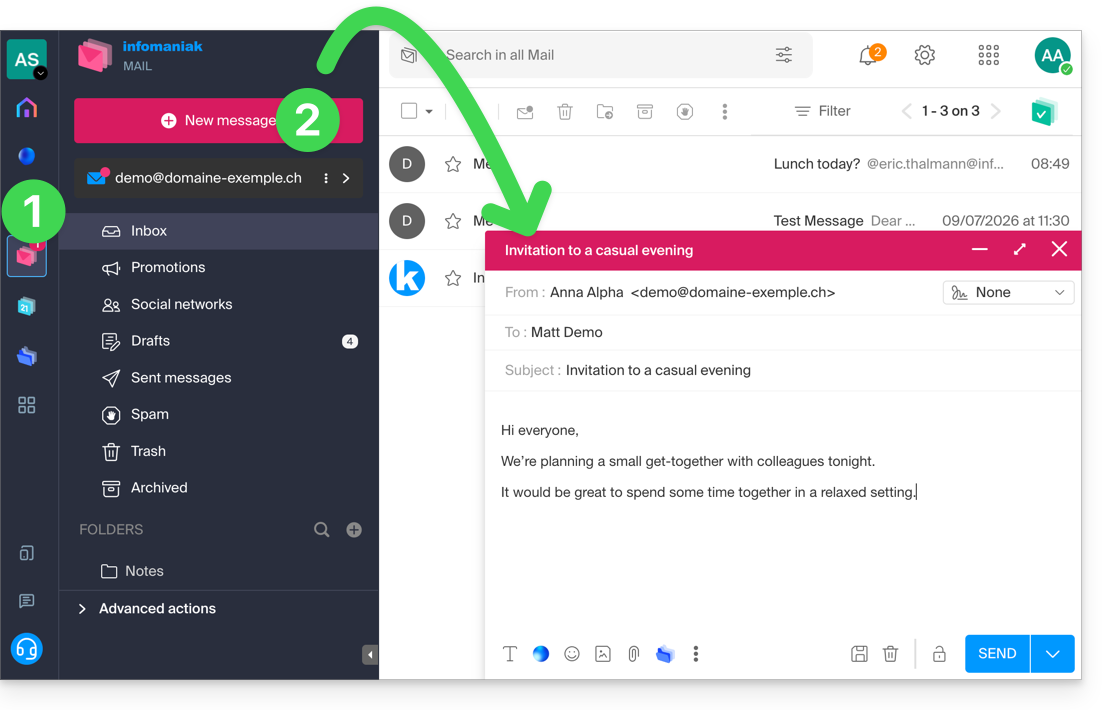
- Click here to access your emails on your Infomaniak kSuite (❓: help).
- Compose a new message:
- In your message, type the at symbol (
@) followed by the first letters of a contact or email address: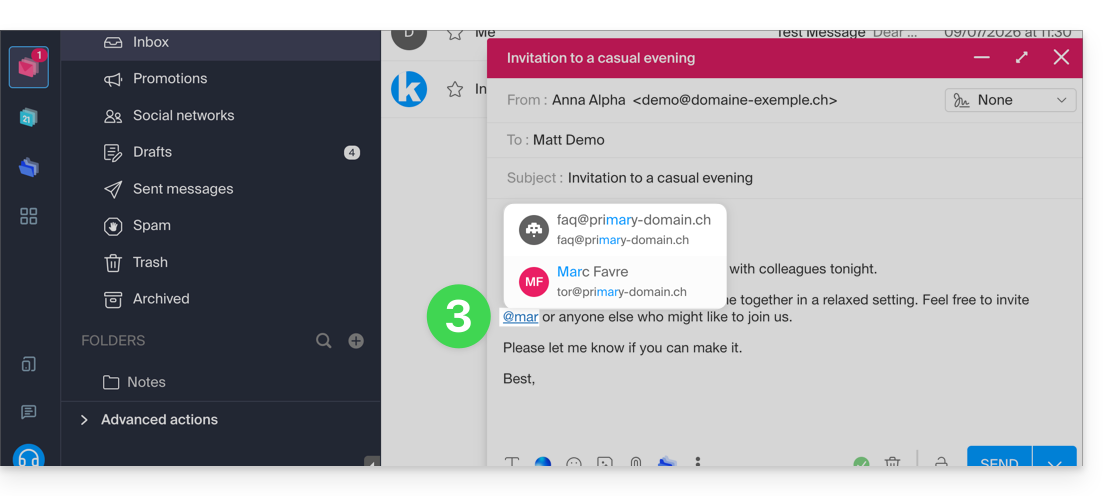
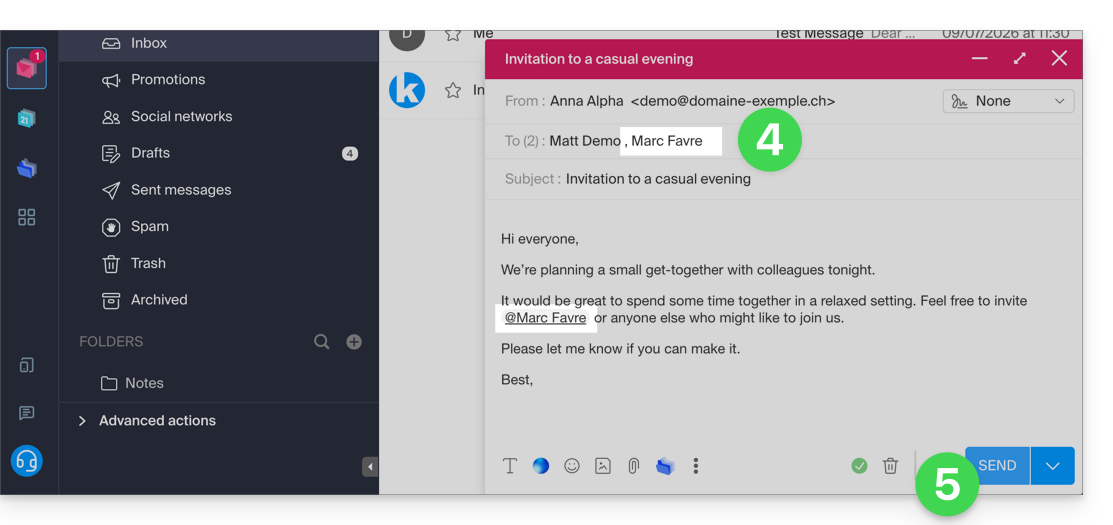
- The selected user is added to the email recipients.
- You can send the message to the recipients:
- The message is delivered to the recipients, with a specific
@mention that is visible when the message is unread: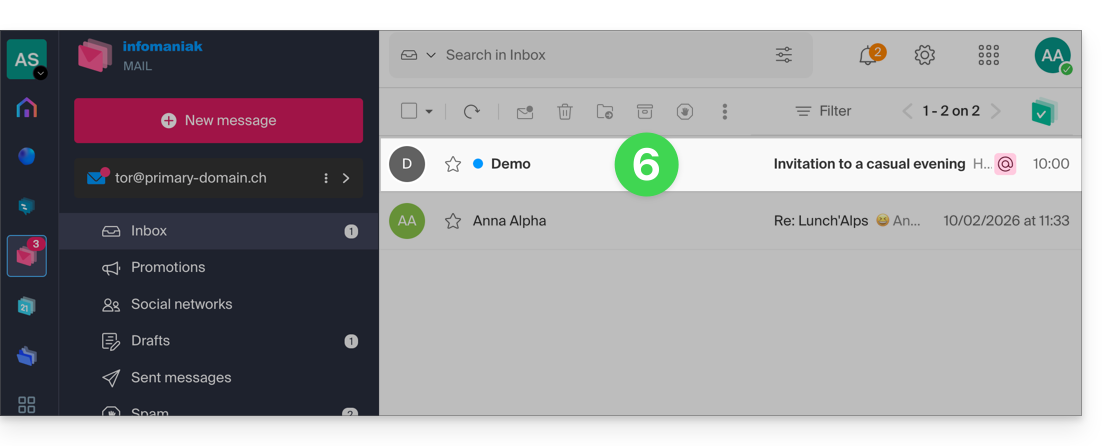
- The message content clearly mentions the added recipient and highlights it with a specific color for the reader if they are the recipient:
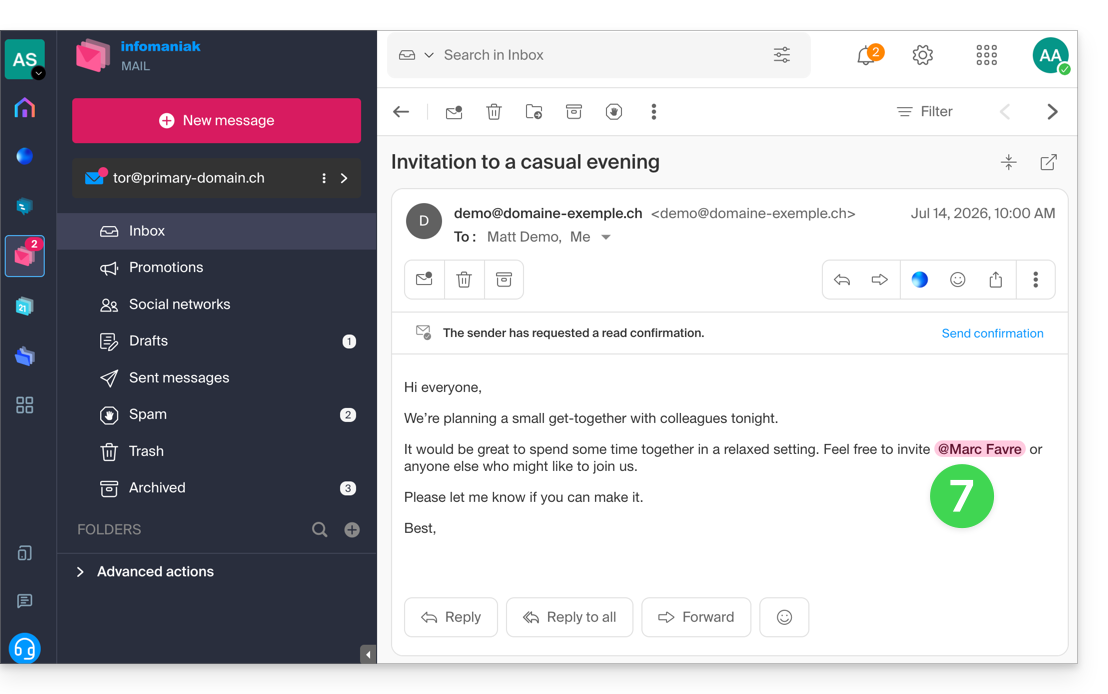
- If other mentioned recipients are added, their highlight color is different:
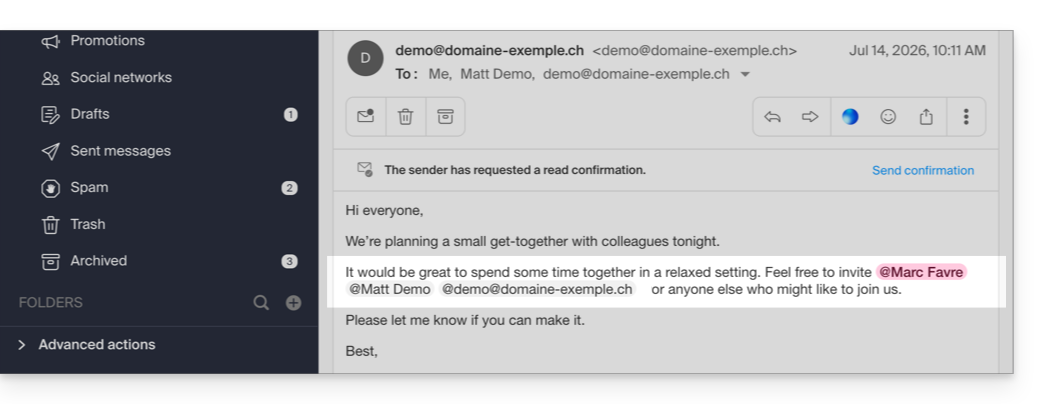
- If other mentioned recipients are added, their highlight color is different:
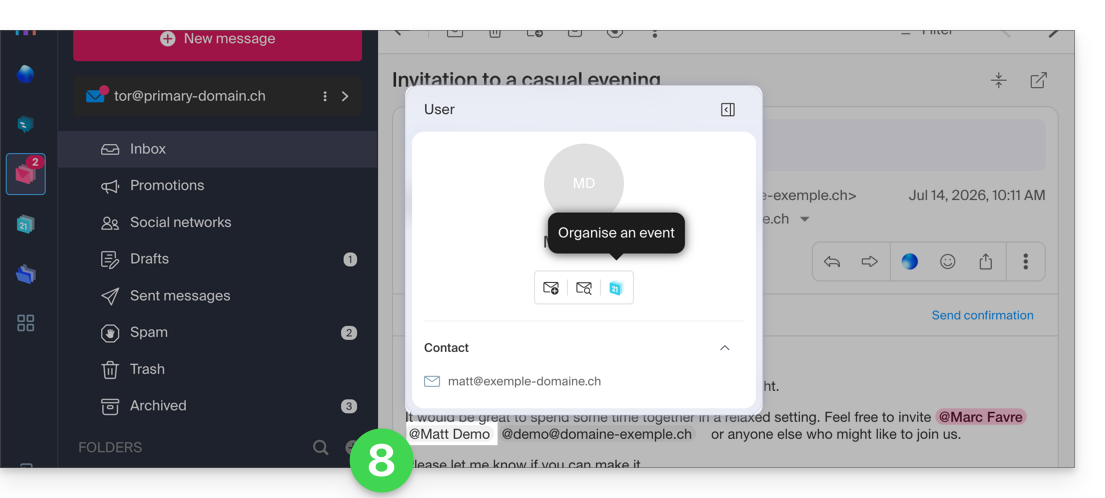
- Click on a user mention to get additional information and actions, such as reviewing previous email exchanges with that user, or scheduling a new event:
Link to this FAQ: https://faq.infomaniak.com/2921
Has this FAQ been helpful?