Knowledge base
1000 FAQs, 500 tutorials and instructional videos. Here, there are only solutions!
Manage Euria conversations
Update 10/12/2026
This guide details how to use Euria, and more specifically, how to manage conversations within Infomaniak's AI application.
Getting started with Euria and creating different conversations
To do this:
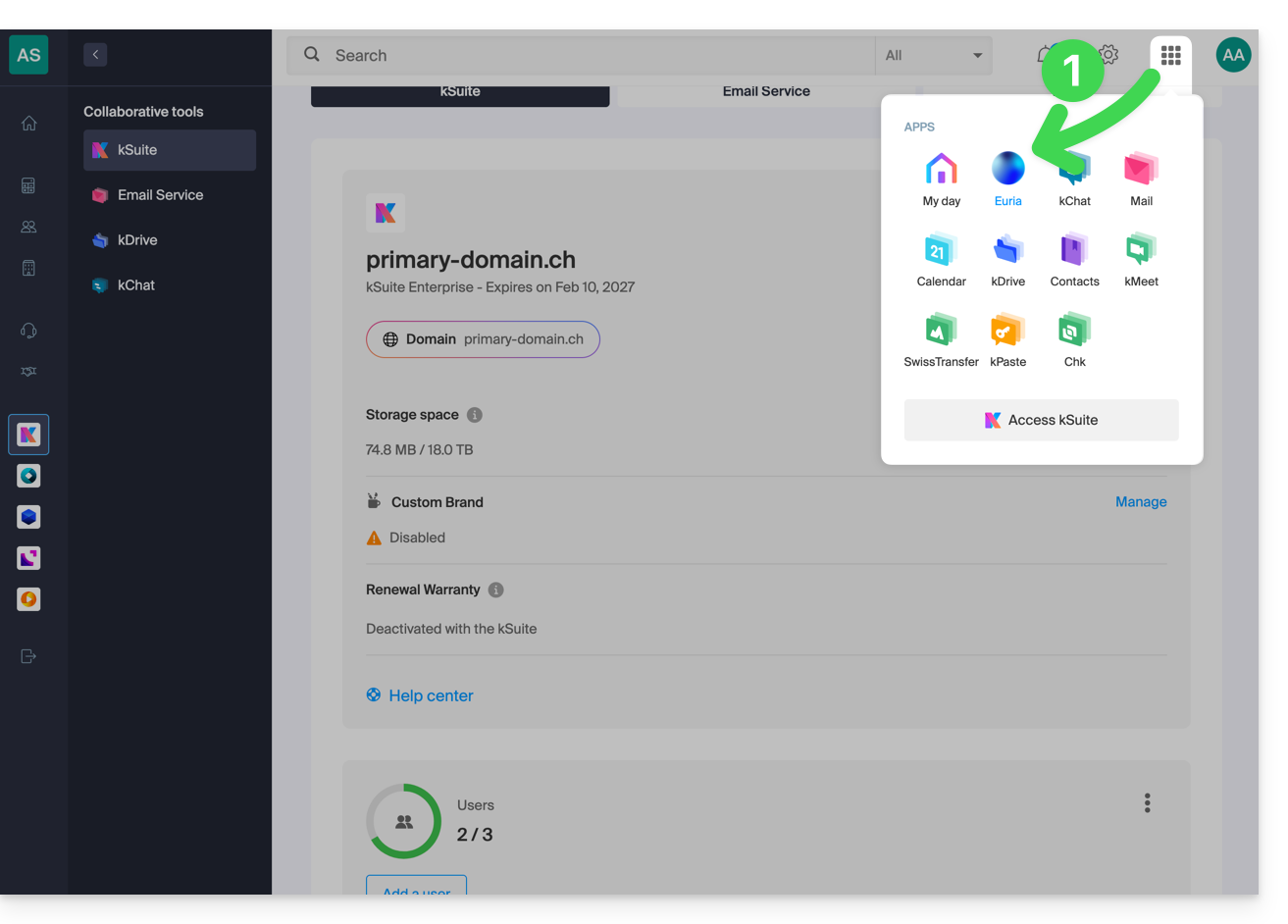
- Click here to access the Euria web app (online service ksuite.infomaniak.com/euria) or open the Euria mobile app (application for iOS/Android smartphones or tablets):
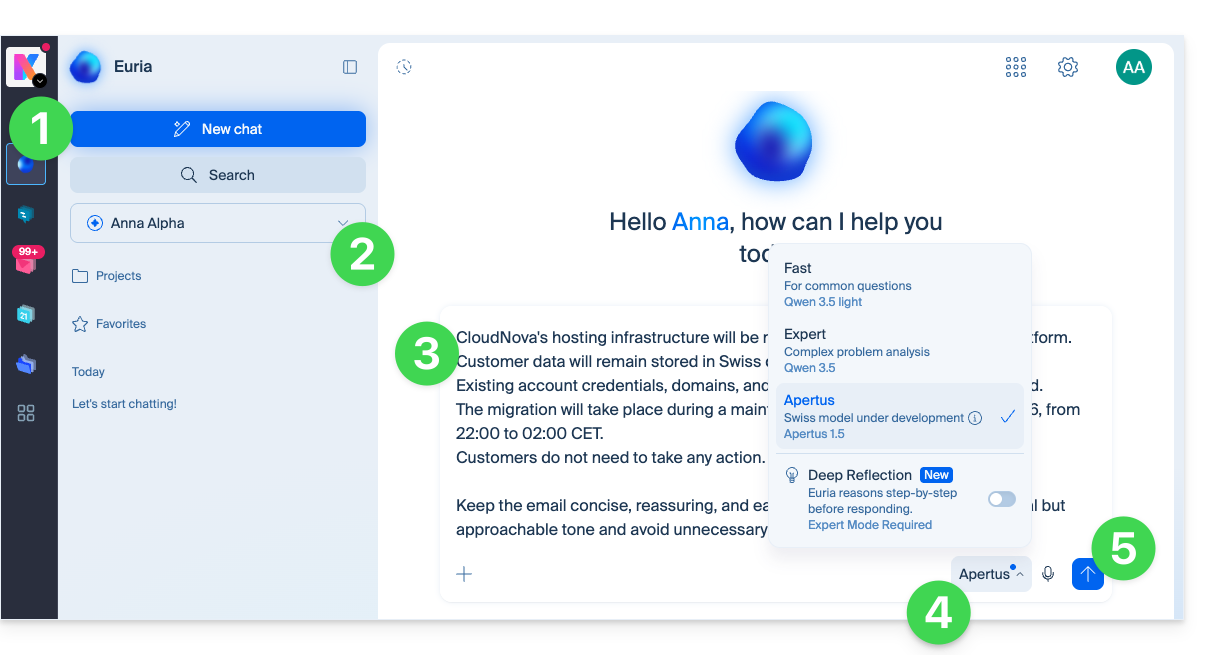
- Check or select the relevant Organization from the dropdown menu in the left-hand sidebar.
- Start a conversation by typing your message, request, or prompt.
- Select the reasoning mode that the AI should use to process your request.
- Click the button to start the conversation with Euria:
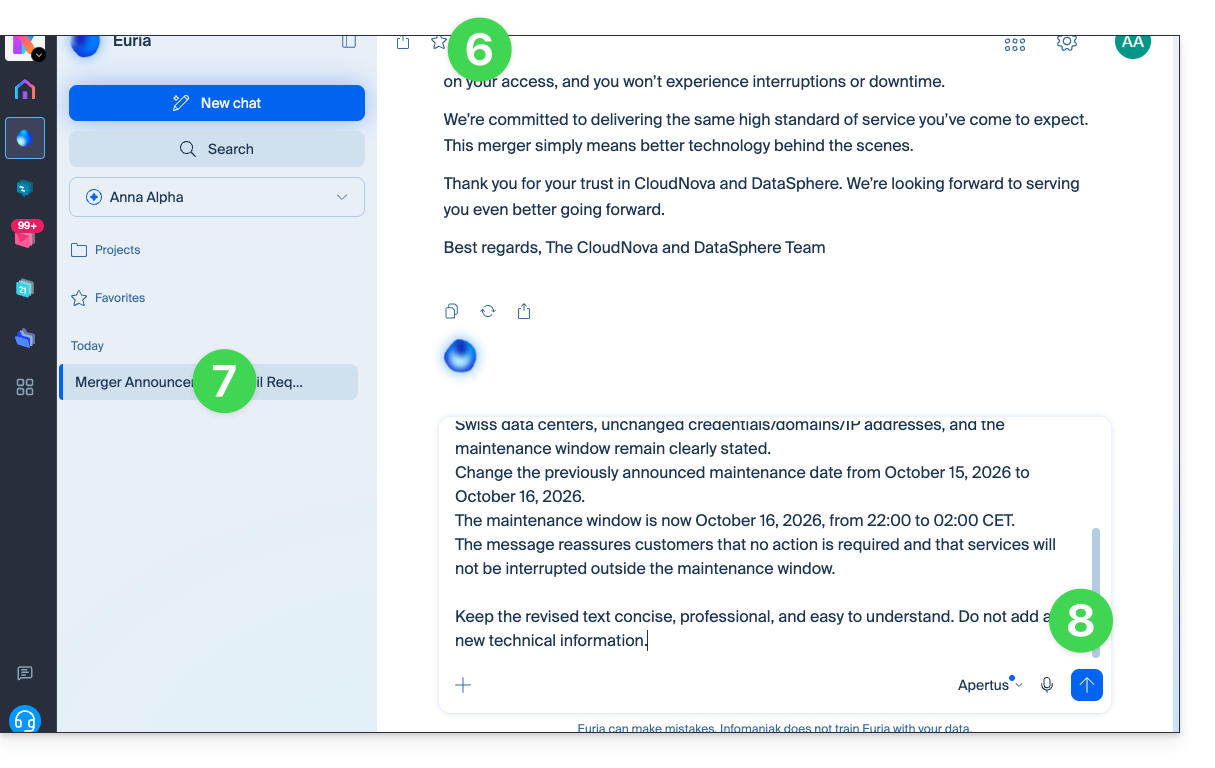
- A response from Euria is displayed.
- The conversation is now available in the left-hand menu, and clicking on it will allow you to return to it at any time.
- You can add elements and continue the discussion:
- Click the New Chat button to start a brand new discussion on a different topic.
- Type your message, request, or prompt and press send:
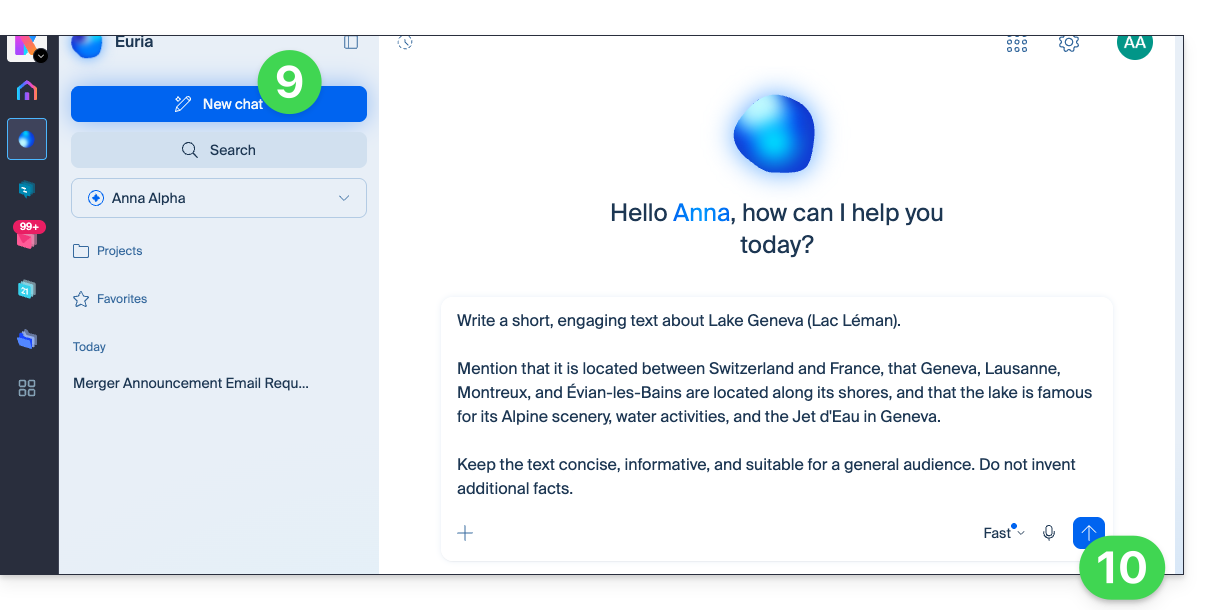
- Euria's response is displayed, and a second conversation is created in the left-hand menu; clicking on it will allow you to return to it at any time and continue the discussion with the associated history:
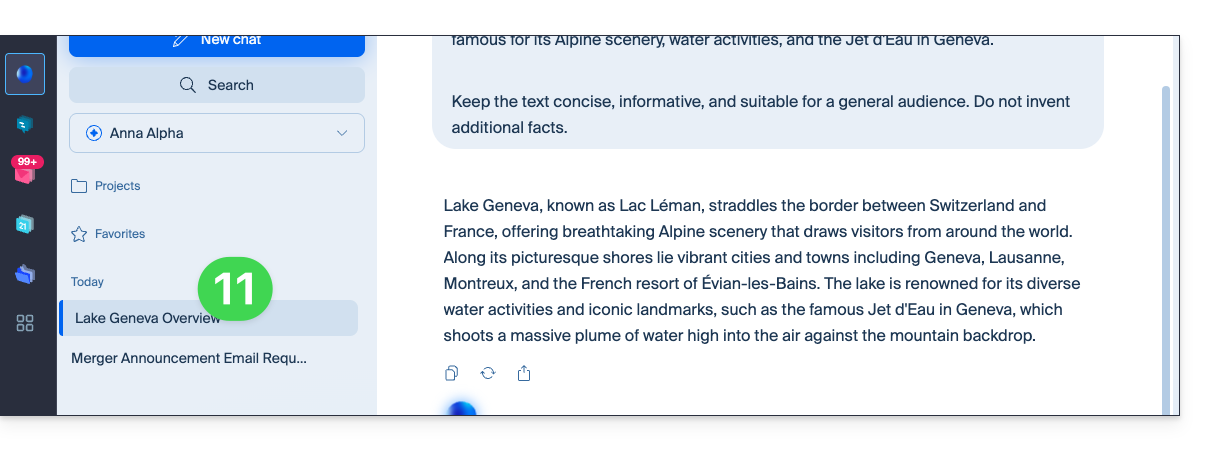
Archiving
Archive a specific conversation
Archiving a conversation removes it from the main page. It can still be shared.
Archived conversations are also deleted when the entire Euria history is cleared.
To archive a conversation:
- Hover over the conversation in the left-hand menu of Euria.
- Click on the action menu ⋮ located to the right of the item in question.
- Choose Archive:
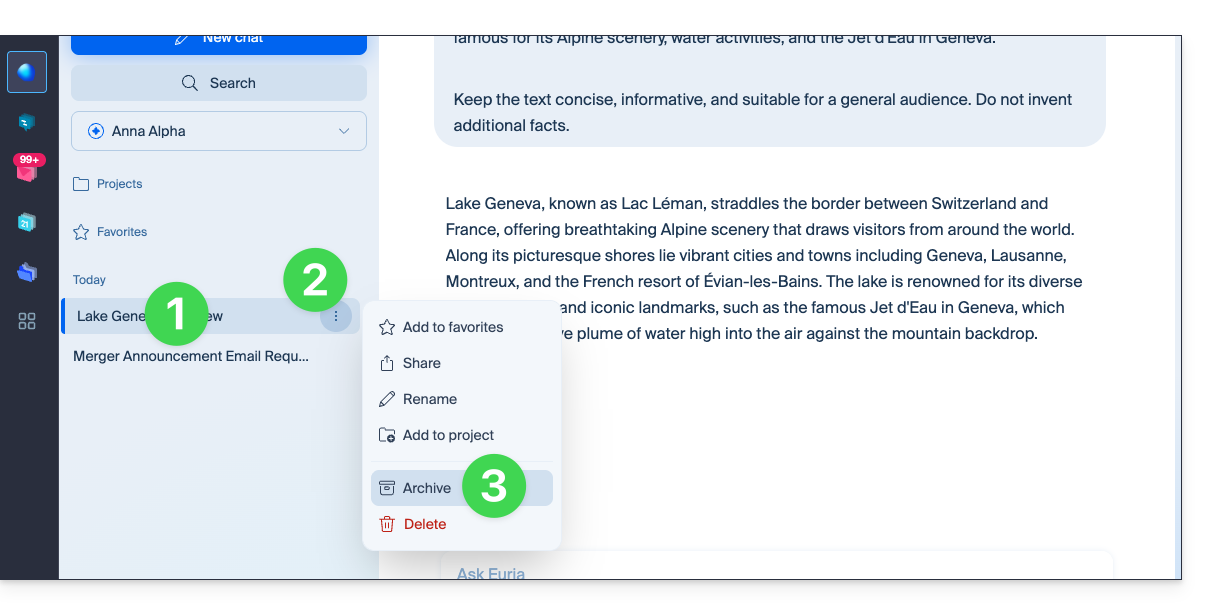
- It is archived immediately.
Archive all user conversations
To archive all conversations visible in Euria:
- Click on Settings in the top right corner.
- Check or select the relevant Organization from the dropdown menu in the left-hand sidebar.
- Click on Archive conversation history:
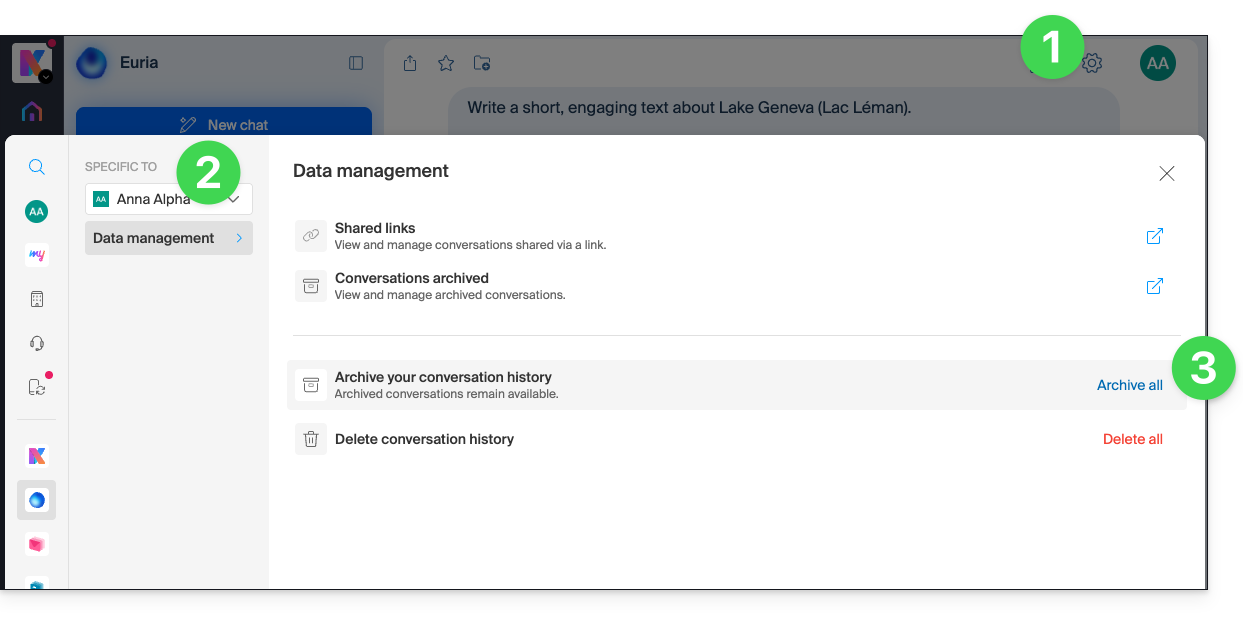
- Confirm the operation:
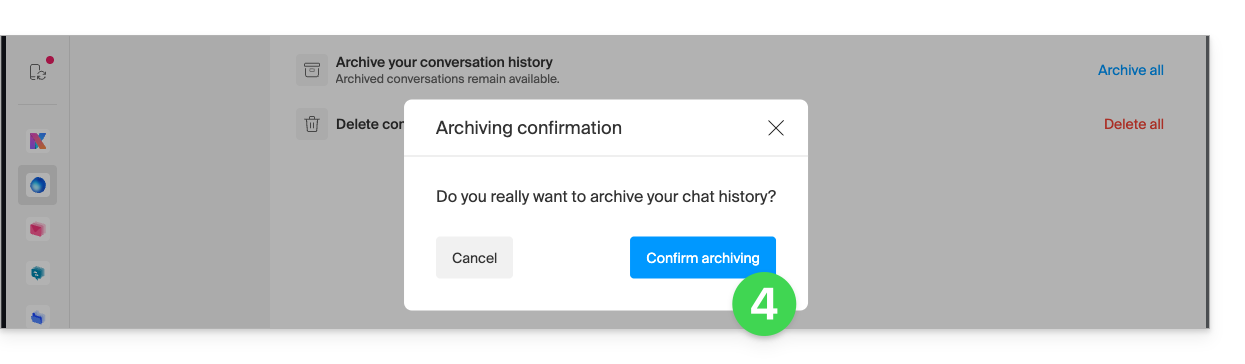
- All conversations will be deleted…
Manage archived conversations
To access archived messages:
- Click on Settings in the top right corner.
- Check or select the relevant Organization from the dropdown menu in the left-hand menu.
- Click on the archived conversations:
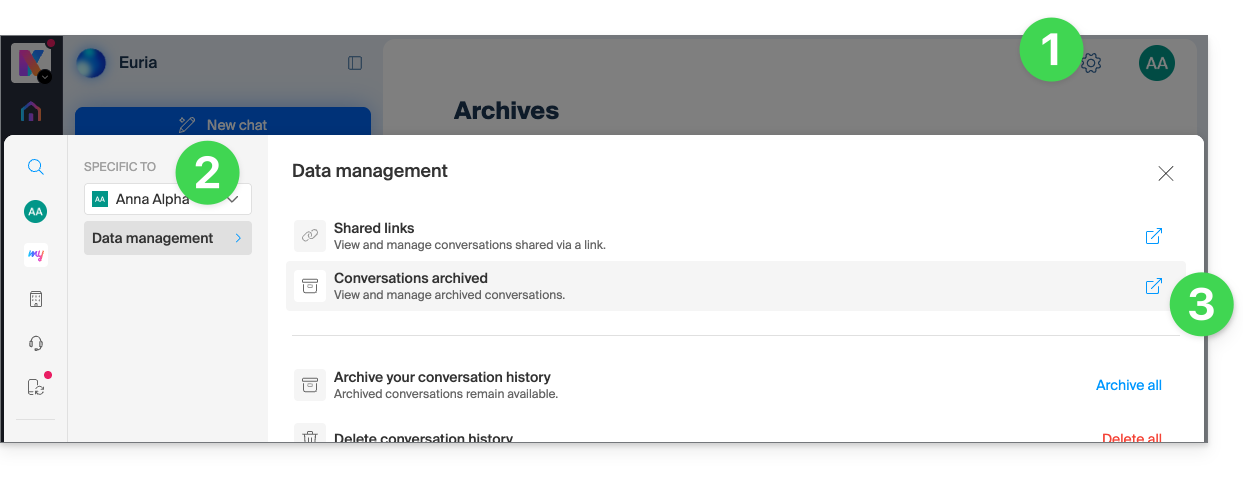
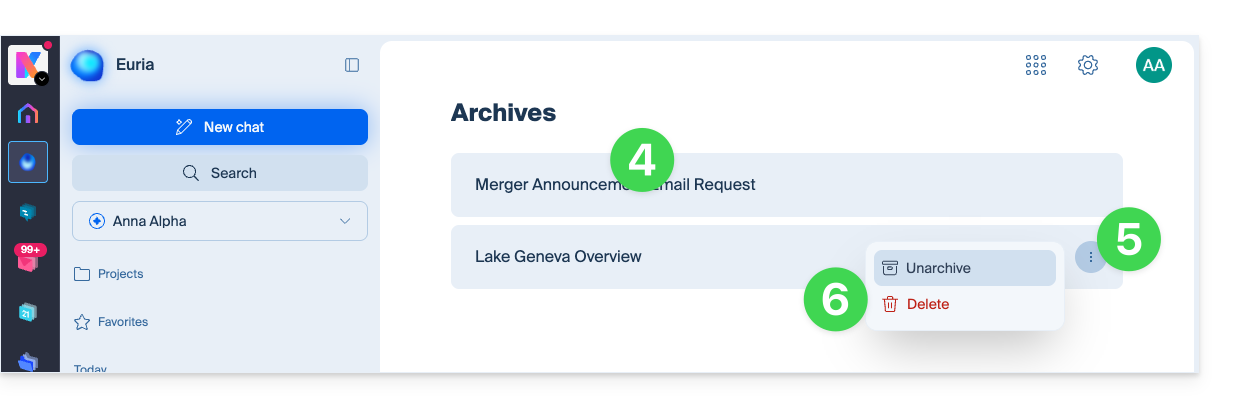
- The titles of the different archived conversations are displayed; click on them to view them.
- Otherwise, click on the action menu ⋮ located to the right of the item in question.
- If necessary, choose whether to unarchive the conversation in question or to delete it permanently (after confirmation):
Deletion
Delete a specific conversation
To delete a specific conversation:
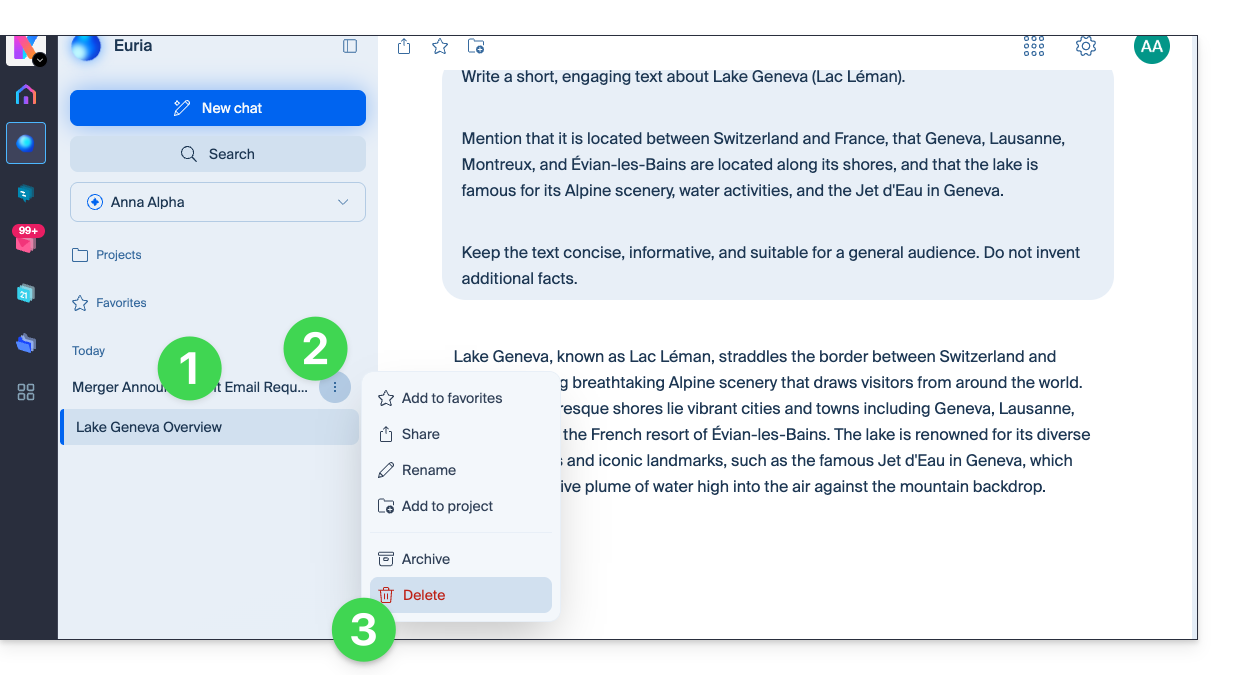
- Hover over the conversation in question in the left-hand menu of Euria.
- Click on the action menu ⋮ located to the right of the item in question.
- Choose Delete:
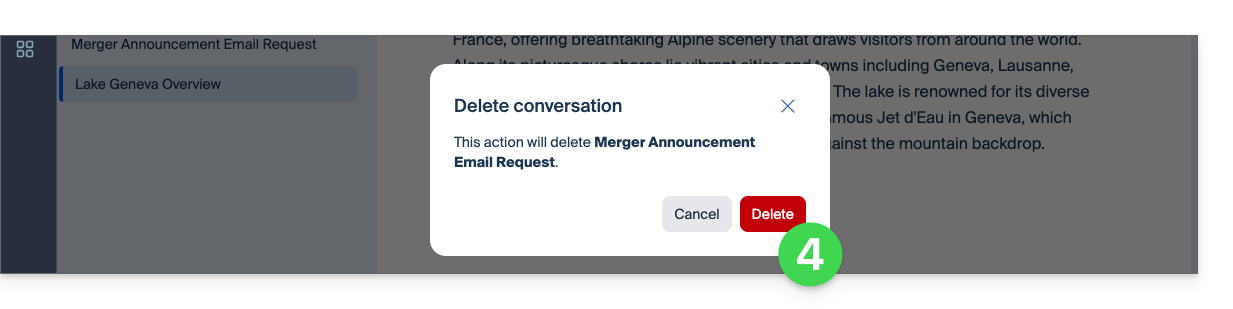
- Confirm the operation:
Delete all user conversations
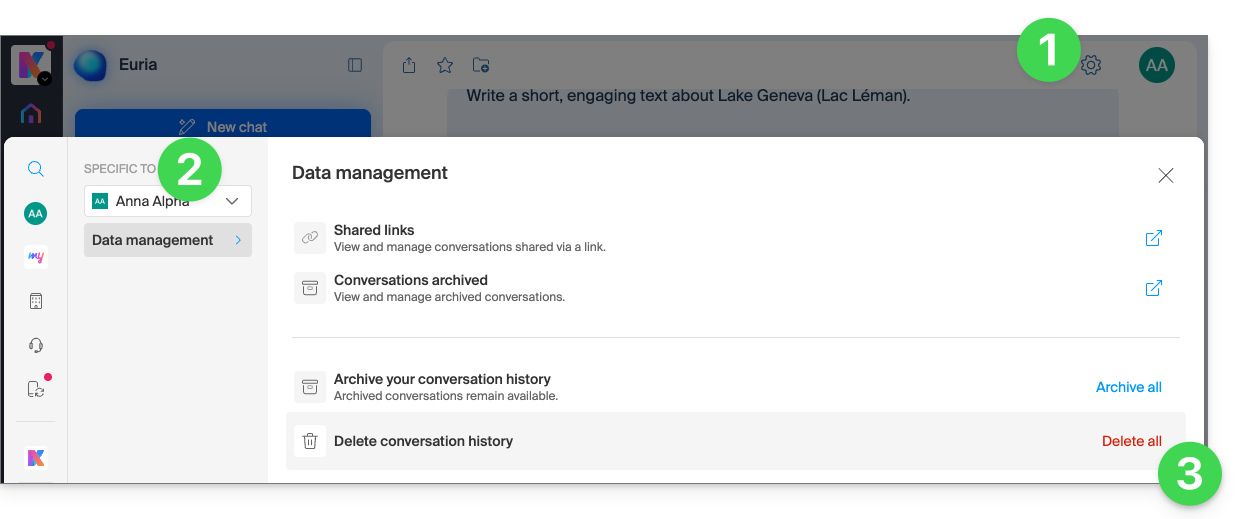
To delete all conversations, including archived conversations:
- Click on Settings in the top right corner.
- Check or select the relevant Organization from the dropdown menu in the left-hand sidebar.
- Click on Delete conversation history:
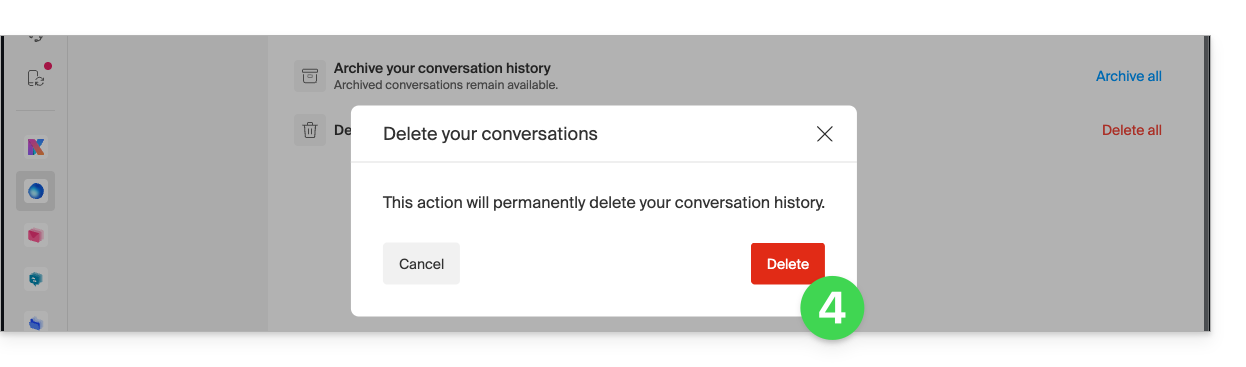
- Confirm the operation:
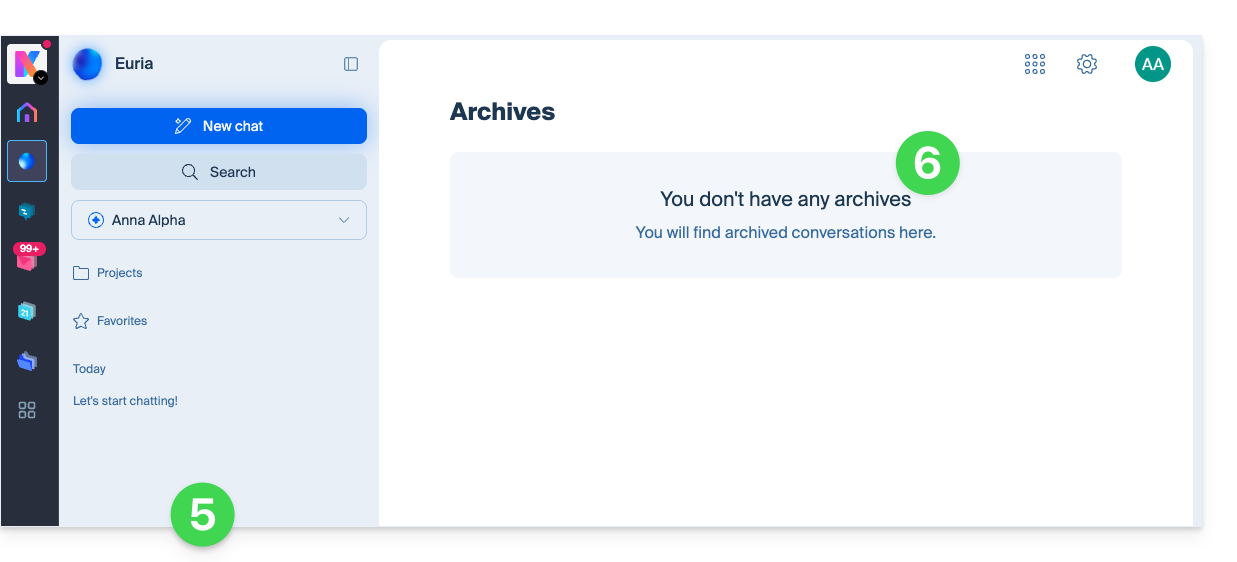
- All conversations will be deleted…
- … including archived messages:
Link to this FAQ: https://faq.infomaniak.com/2915
Has this FAQ been helpful?