Knowledge base
1000 FAQs, 500 tutorials and instructional videos. Here, there are only solutions!
Ticketing: manage on-site payment methods
This guide explains how to set up an on-site payment method (within the Infomaniak ticketing system).
Introduction
- This payment method will allow your customers to pay for their order on-site.
- Regardless of the payment method, you will be the one to receive the money.You will therefore need to manually approve the order.
Enable the payment method in the Ticketing system
To do this:
- Click here to access the management interface for your product in the Infomaniak Manager (need help?).
- Click directly on the name assigned to the ticketing system for the event.
- Click on Sales in the left-hand menu.
- Click on Payment methods in the left-hand menu:
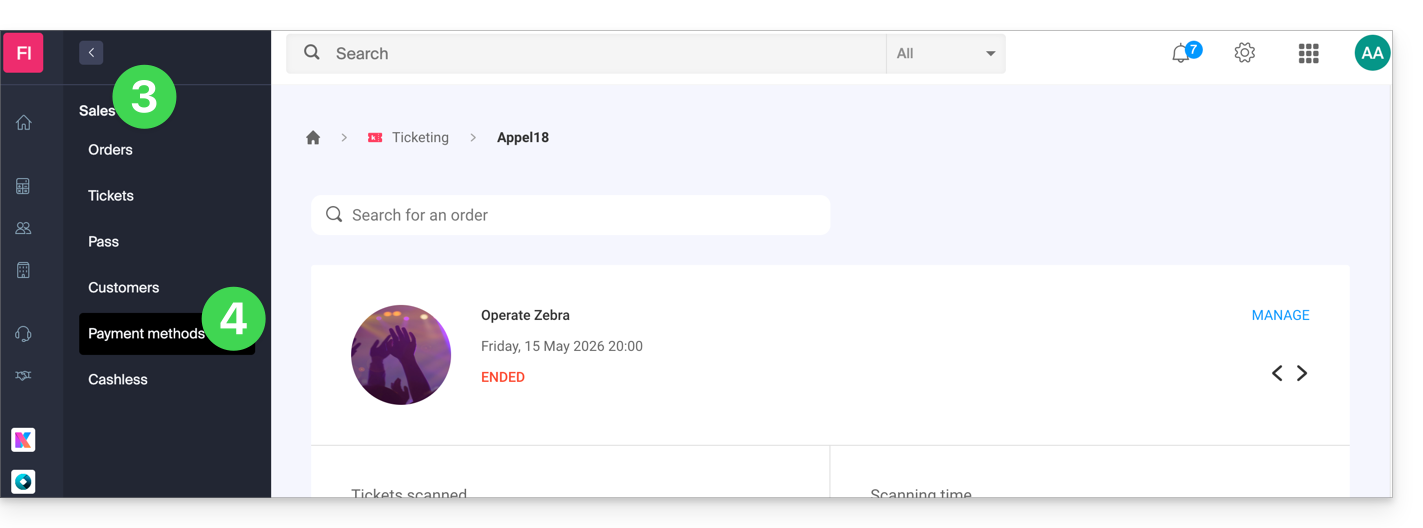
- Toggle the switch to ON to the right of the On-site item:

Configure the method
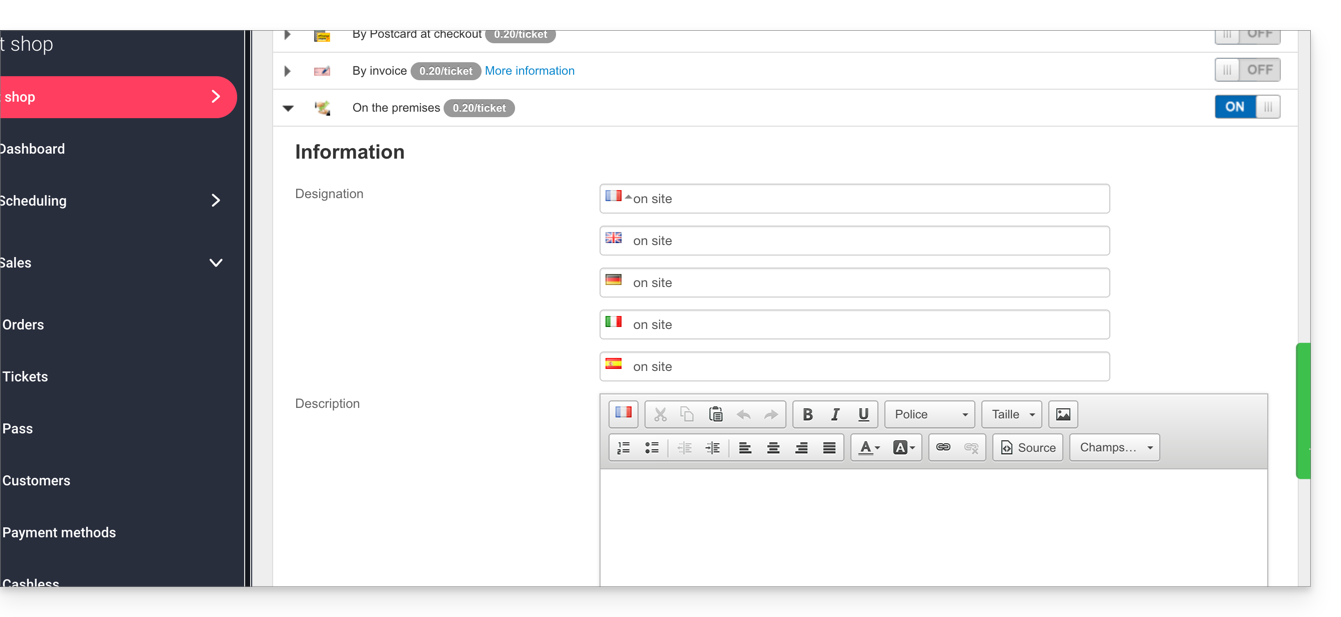
Click on the arrow to the left of the On-site mode:
- The first section allows you to define the name of this payment method, add a description, and add a message to the end of the generated document:
Customize the payment method on site
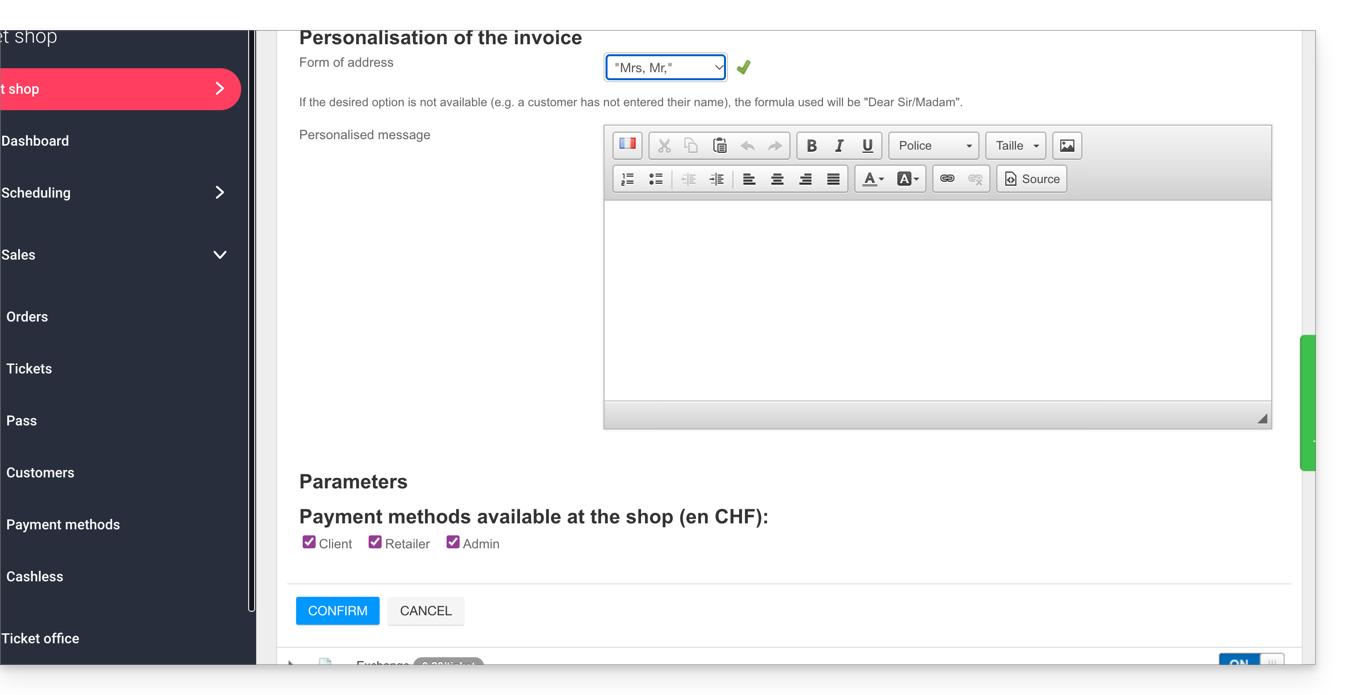
You can customize the invoice to address it to the customer and include a personalized message:
- If you want to address the invoice directly to the customer, in the form Mr. Smith, please ensure that the customer records have the Title and Name fields filled in.
The following settings allow you to manage the option to enable this payment method:
- customer: for online orders placed by visitors
- reseller and administrator: for the web and mobile interface:
Validating an order awaiting payment
There are several ways to validate a payment method:
From the Infomaniak Manager
- Click here to access the management of your product in the Infomaniak Manager (need help?).
- Click directly on the name assigned to the ticketing system for the event.
- Click on Sales in the left-hand menu.
- Click on Orders in the left-hand menu.
- Click on an order awaiting payment.
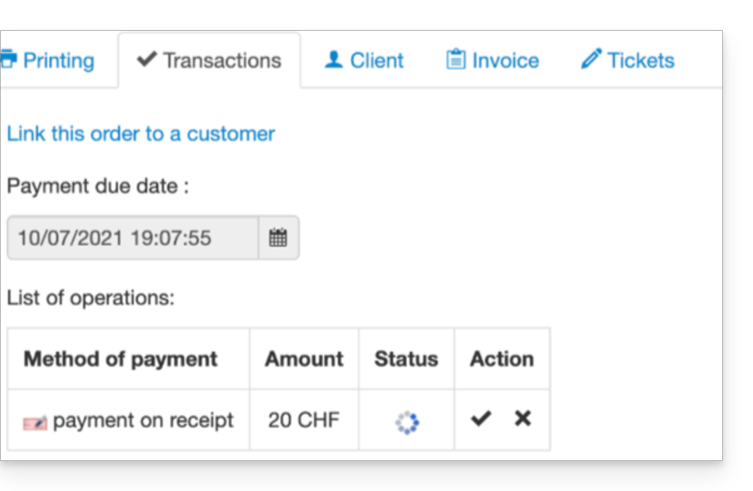
- Click on the Transactions tab, hover over the unpaid invoice payment, and click on the Validate icon.
Via the Web Control Panel
- Log in to the Web Control Panel.
- Start a search for pending payment orders by:
- Order number
- Customer name
- Click on the pending payment order.
- Go to the Transaction tab and click on the Validate icon:
From the Mobile App
- Log in to the Mobile Portal.
- Start a search for pending payment orders.
- From the list of payment methods, choose the one to validate and select Confirm.
Link to this FAQ: https://faq.infomaniak.com/2911
Has this FAQ been helpful?