Knowledge base
1000 FAQs, 500 tutorials and instructional videos. Here, there are only solutions!
Manage my kSuite passwords (ik.me, etik.com, ikmail.com)
This guide details how to use a my kSuite account, and it is important to distinguish between the Infomaniak account password and the passwords for the my kSuite address (ik.me, etik.com, ikmail.com).
1. Registration: creating the login and password
When you registered for my kSuite, you chose an email address, which is also your login ID, in the format xxx@ik.me or xxx@ikmail.com, etc., as well as a login password: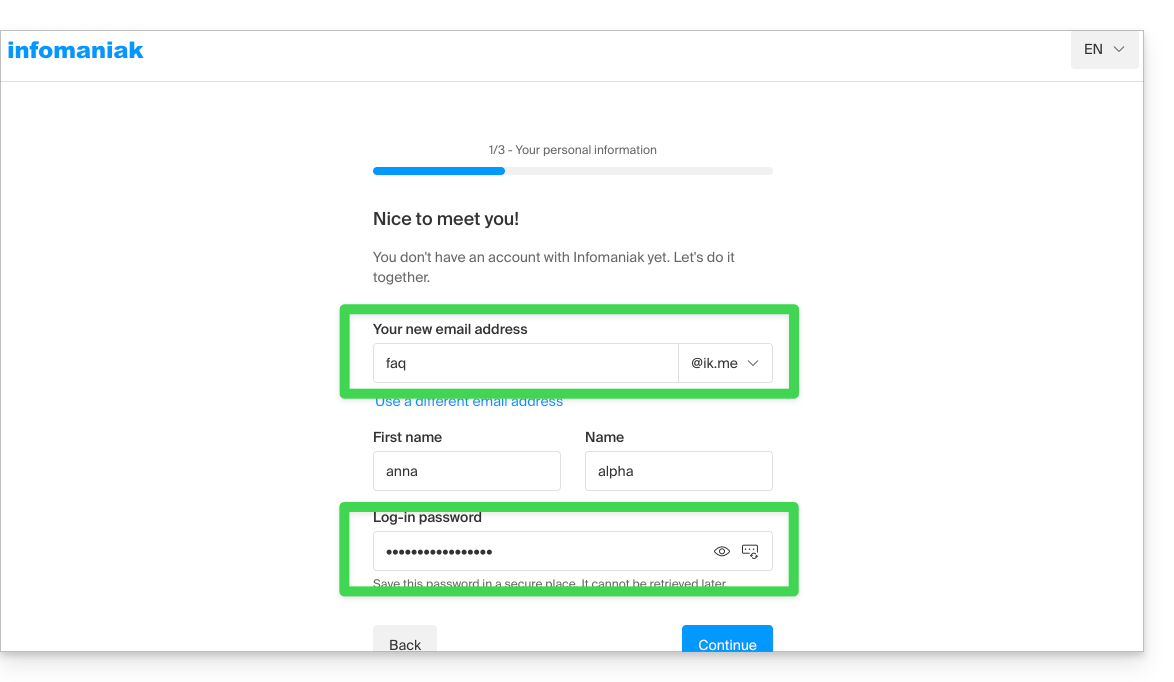
Once registered, you can go to ksuite.infomaniak.com/mail and use the email service: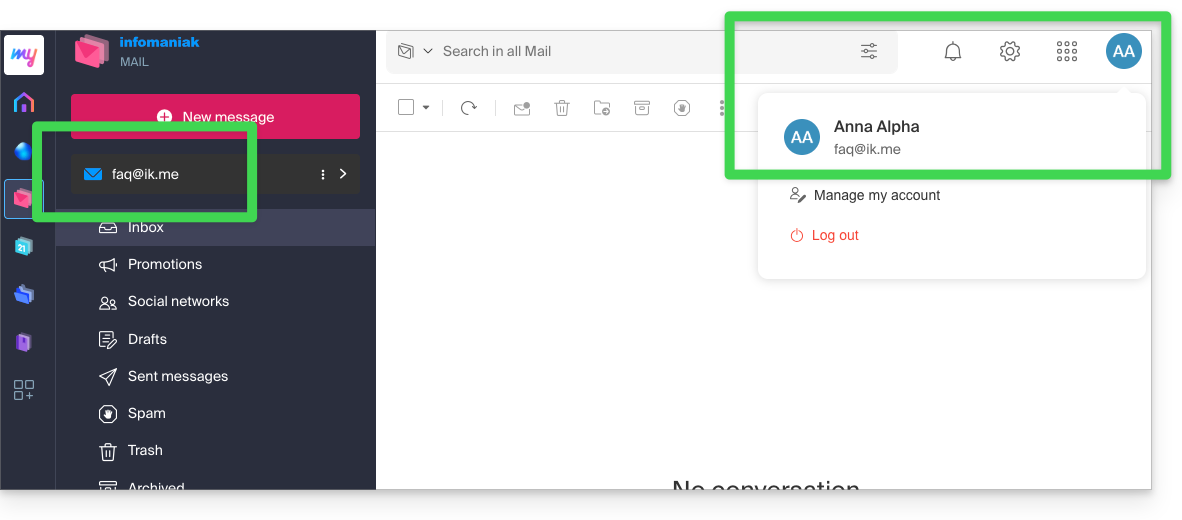
2. Reconnecting: using your username and password
On another computer or after reopening your browser, simply go back to ksuite.infomaniak.com/mail (or ik.me) and reconnect using the credentials you created and obtained (see point 1 above):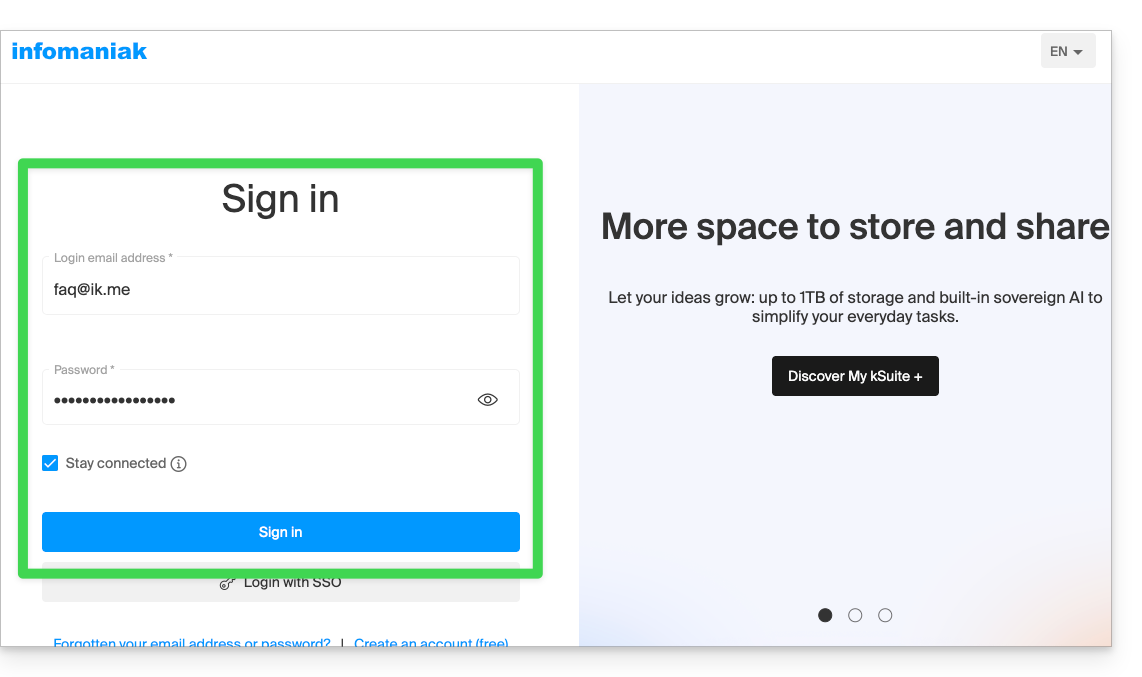
You will then access your email within the my kSuite Infomaniak interface: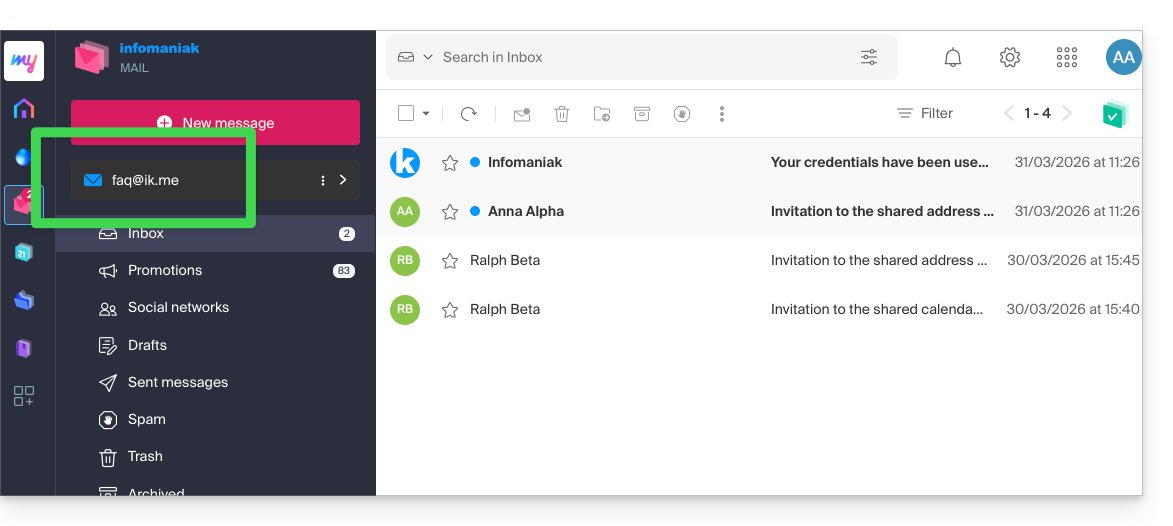
3. Using the email address outside of Infomaniak
To synchronize your email address with a mail client such as Outlook or Thunderbird, or even on an iPhone or Apple Mail on macOS, you need to create an additional password (= “a device”) because the password for your Infomaniak account (points 1 & 2 above) will not allow you to configure the address outside of Infomaniak.
To add a device (= “create an additional password”) and use it in your IMAP/SMTP configurations:
- Log in to your my kSuite account as described in step 2 above.
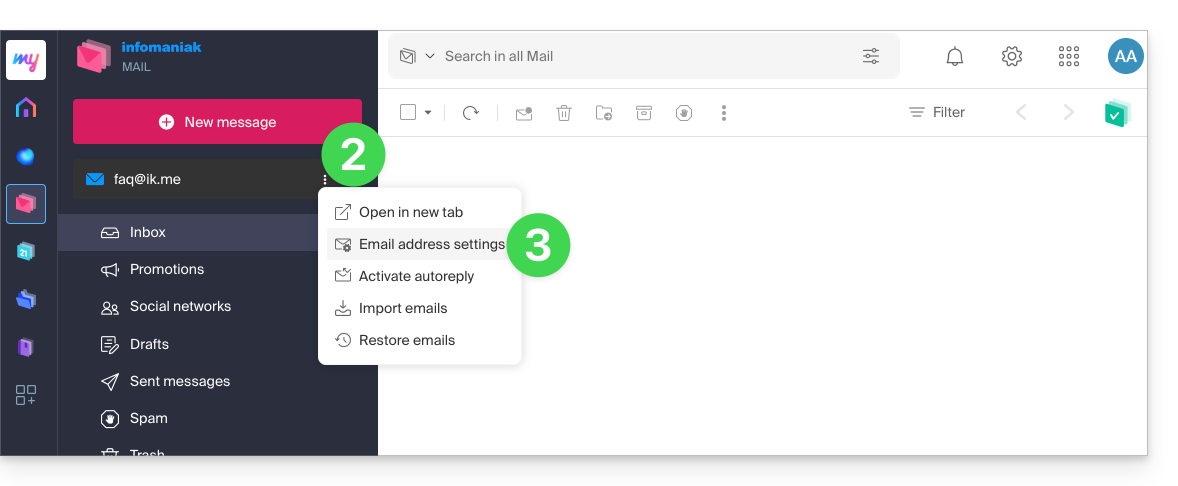
- Click the action button ⋮ to the right of your my kSuite address.
- Click on the settings for the email address:
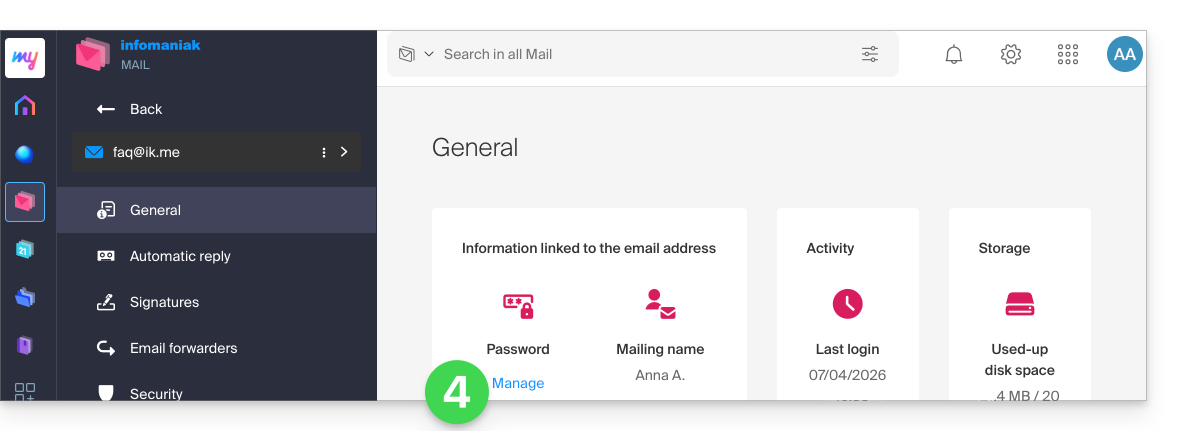
- Click on Manage password:
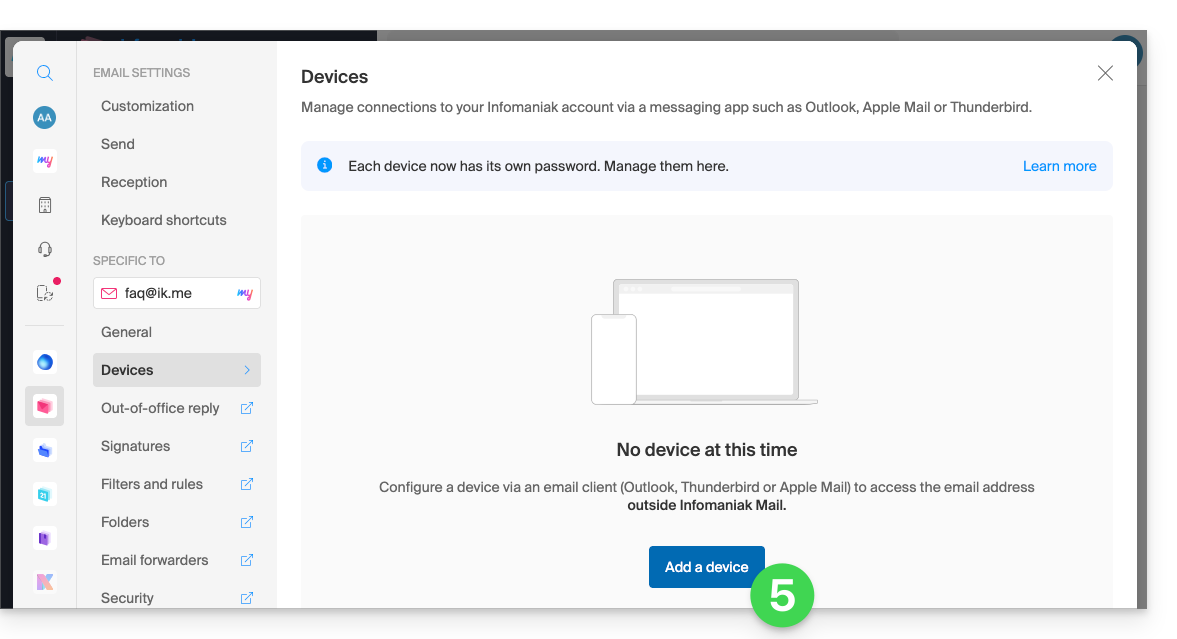
- Click on Add a device:
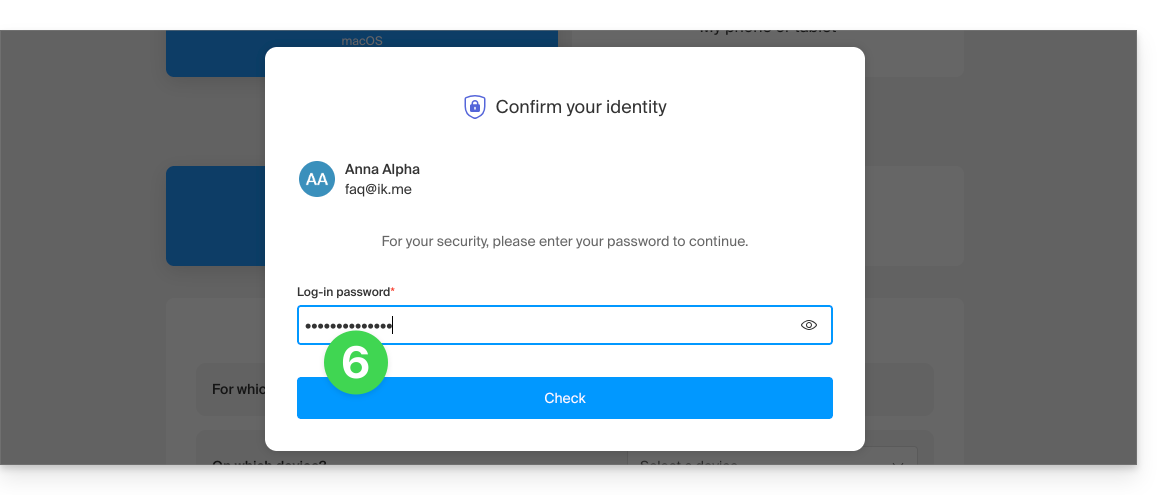
- Enter the login password if required for security purposes:
- Follow the wizard according to your needs, until a new device is created:
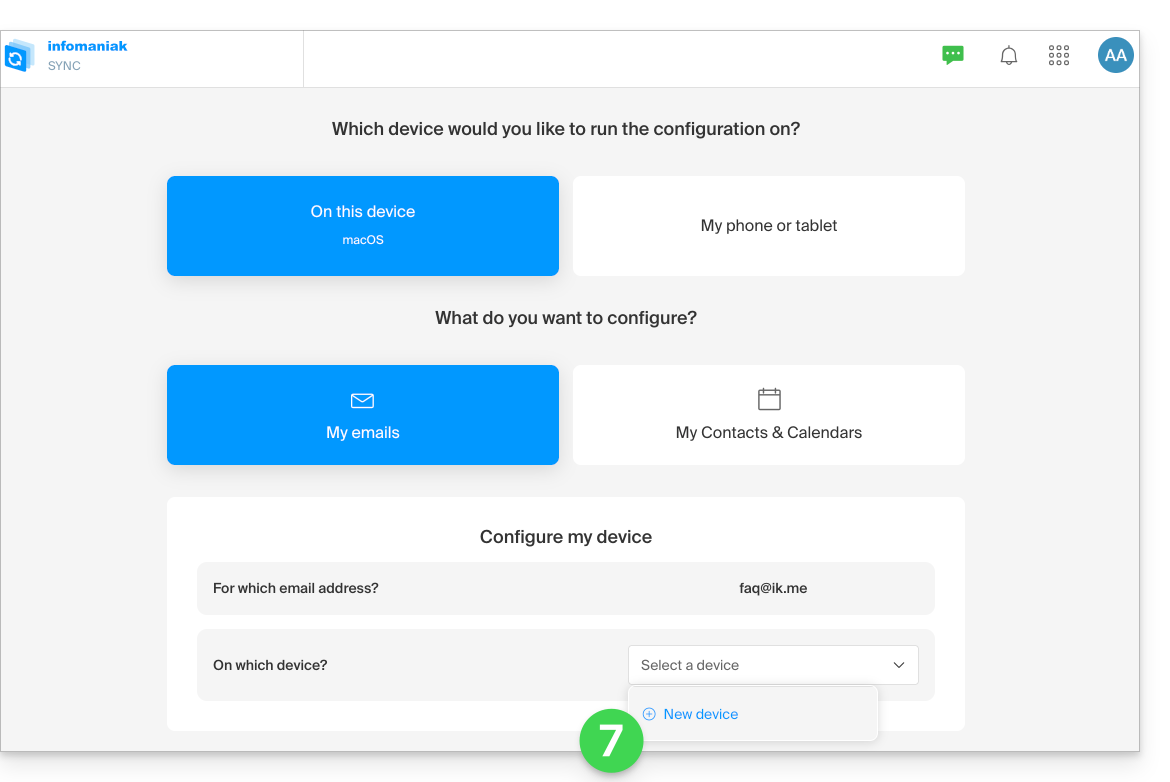
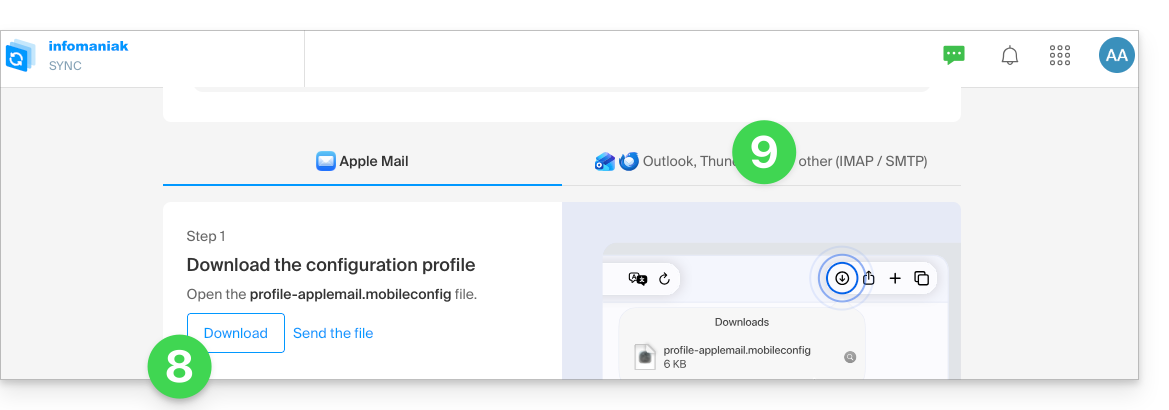
- The wizard will offer you to download an Apple profile, depending on your device (refer to this other guide for macOS or this one for iOS), and then create a new secure password to enable synchronization via the profile.
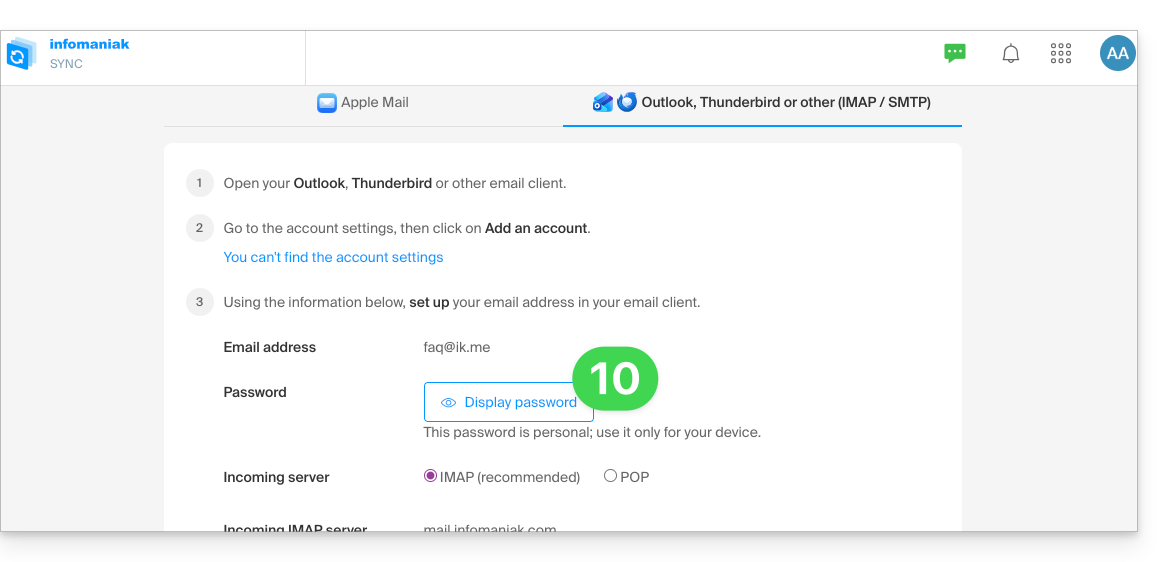
- To simply create a new password and configure the tool of your choice (refer to the configuration guides), click on the IMAP / SMTP tab:
- You can then generate a new secure password to use in your configuration:
Link to this FAQ: https://faq.infomaniak.com/2904
Has this FAQ been helpful?