Knowledge base
1000 FAQs, 500 tutorials and instructional videos. Here, there are only solutions!
Manage my kSuite passwords
This guide details how to use a my kSuite account, and it is important to distinguish between the Infomaniak account password and the passwords for the my kSuite address (ik.me, etik.com, ikmail.com).
1. Registration: creating the login and password
When you registered for my kSuite, you chose an email address, which is also your login ID, in the format xxx@ik.me or xxx@ikmail.com, etc., as well as a login password: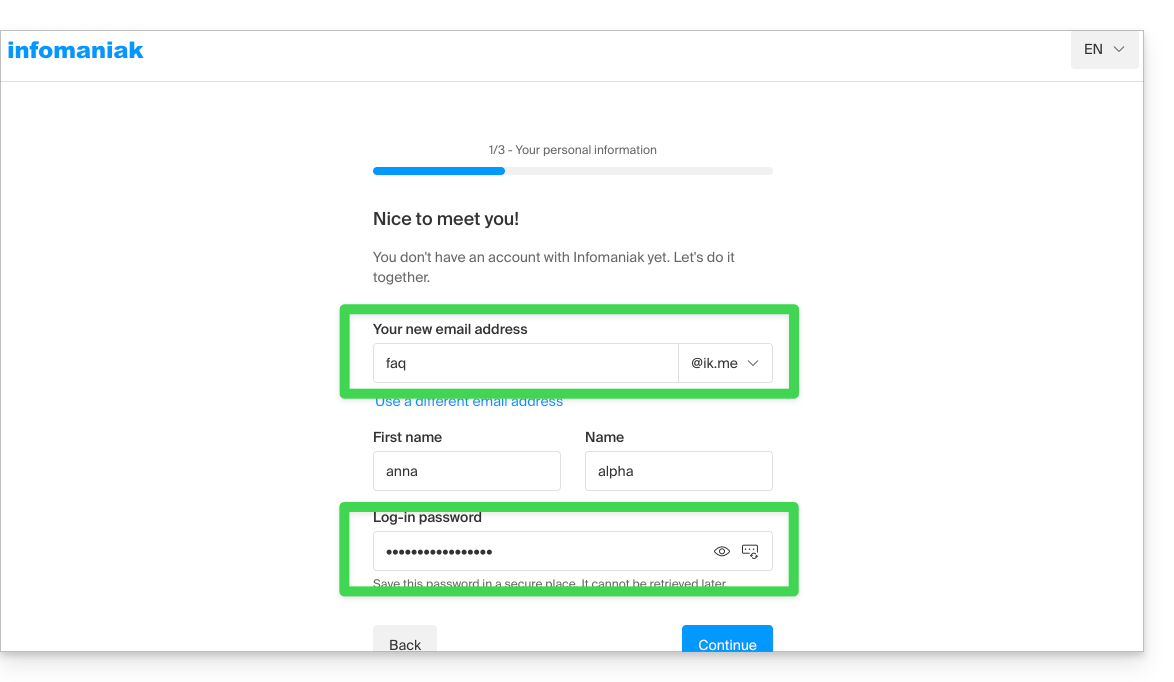
Once registered, you can go to ksuite.infomaniak.com/mail and use the email service: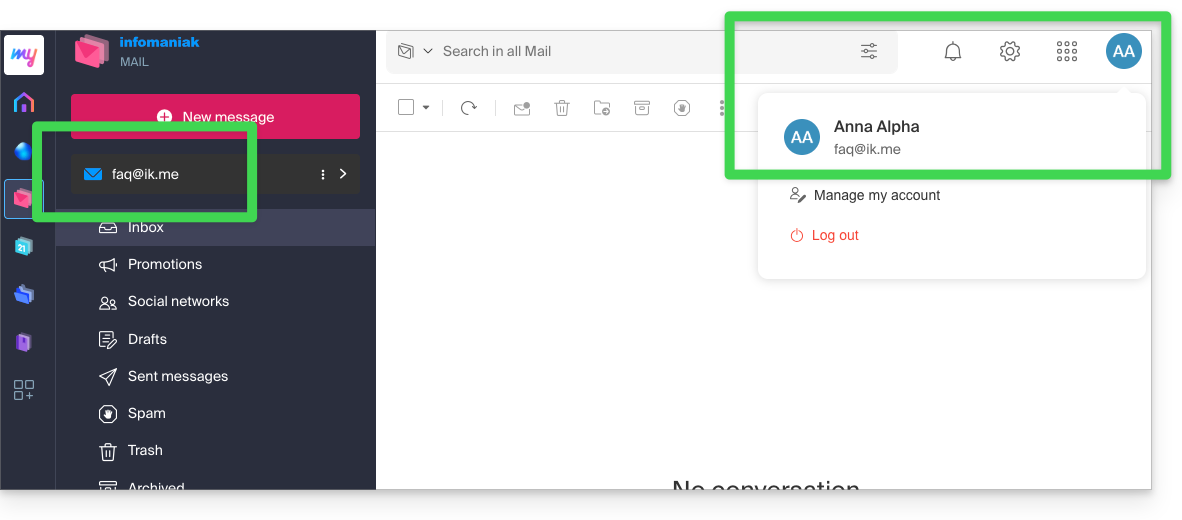
2. Reconnecting: using your username and password
On another computer or after reopening your browser, simply go back to ksuite.infomaniak.com/mail (or ik.me) and reconnect using the credentials you created and obtained (see point 1 above):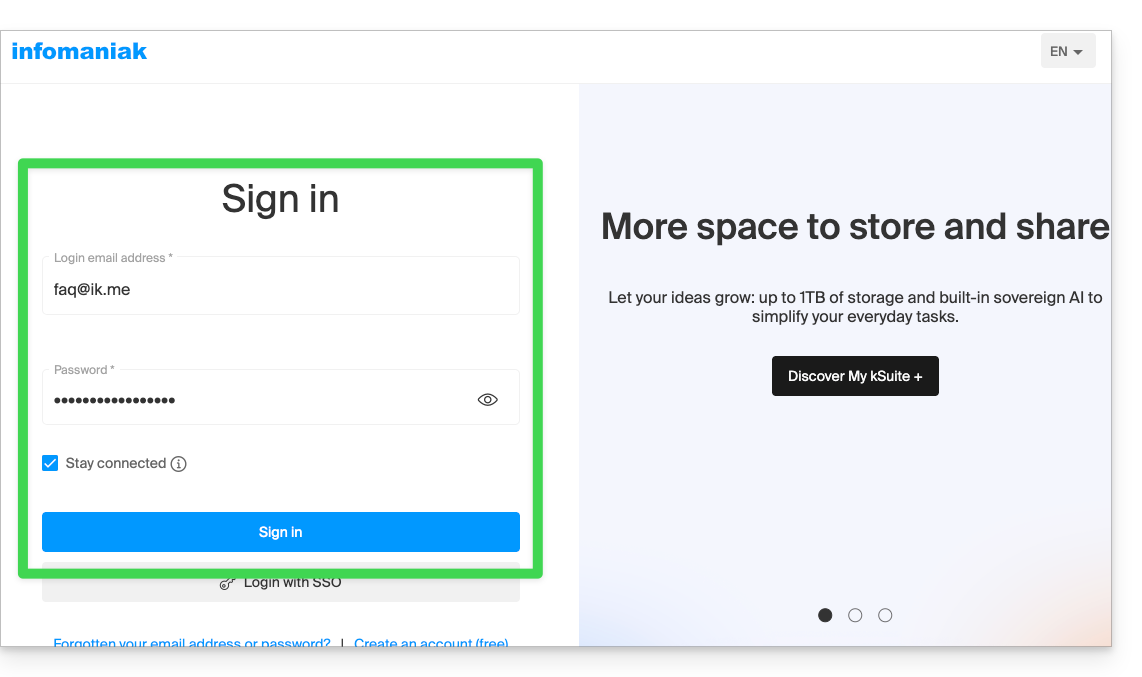
You will then access your email within the my kSuite Infomaniak interface: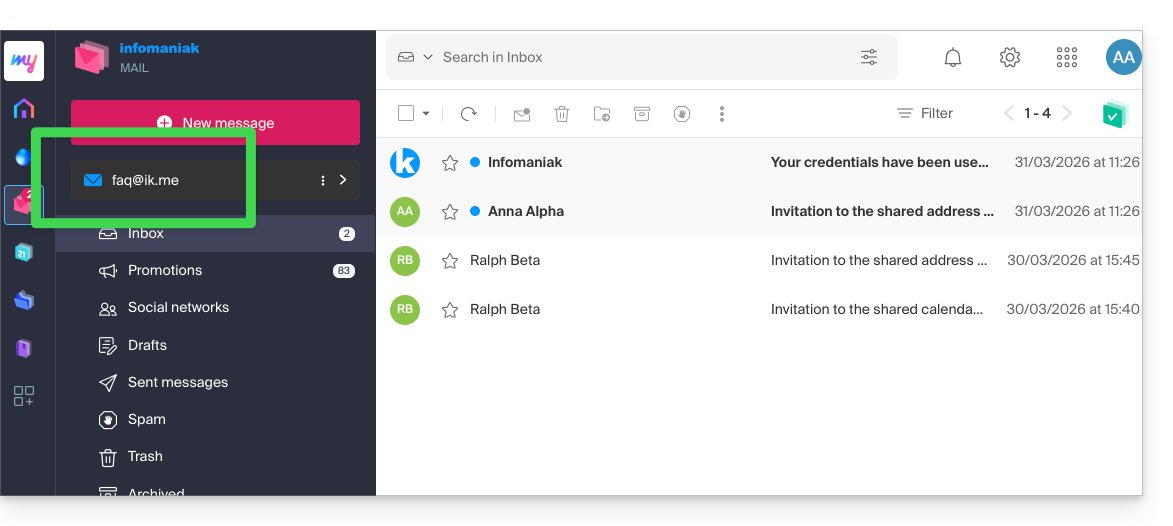
3. Using the email address outside of Infomaniak
To synchronize your email address with a mail client such as Outlook or Thunderbird, or even on an iPhone or Apple Mail on macOS, you need to create an additional password (= “a device”) because the password for your Infomaniak account (points 1 & 2 above) will not allow you to configure the address outside of Infomaniak.
To add a device (= “create an additional password”) and thus use it in your IMAP/SMTP configurations:
- Log in to your my kSuite account as described in step 2 above.
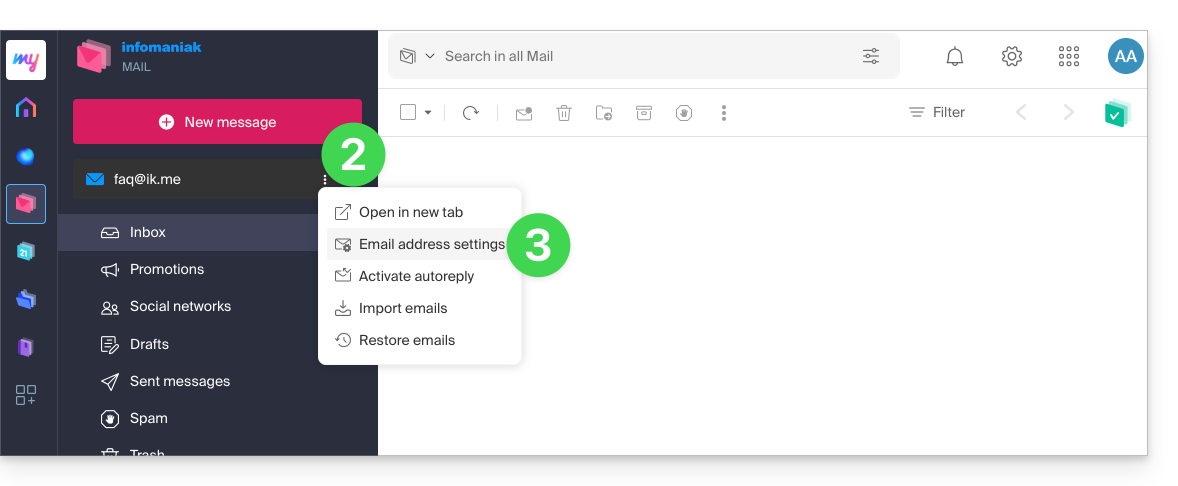
- Click the action button ⋮ to the right of your my kSuite address.
- Click on the settings for the email address:
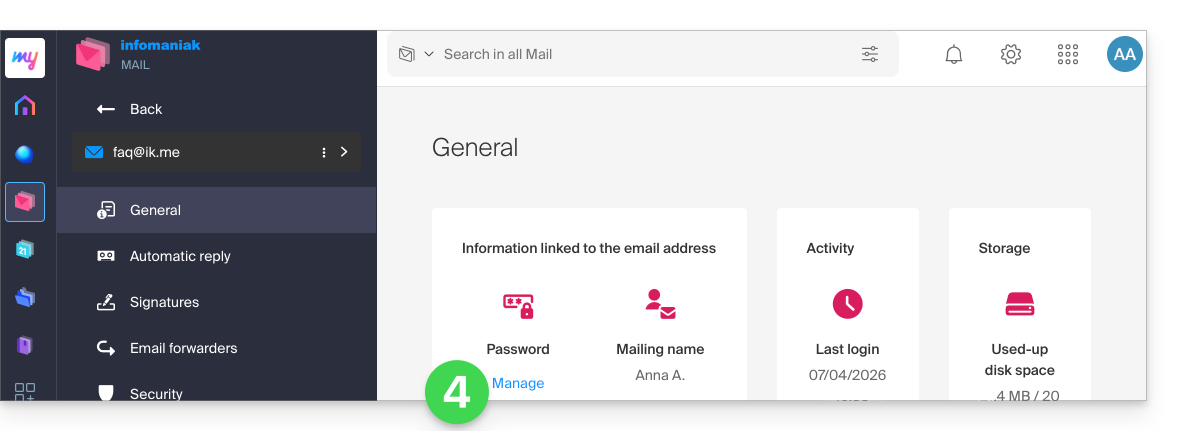
- Click on Manage password:
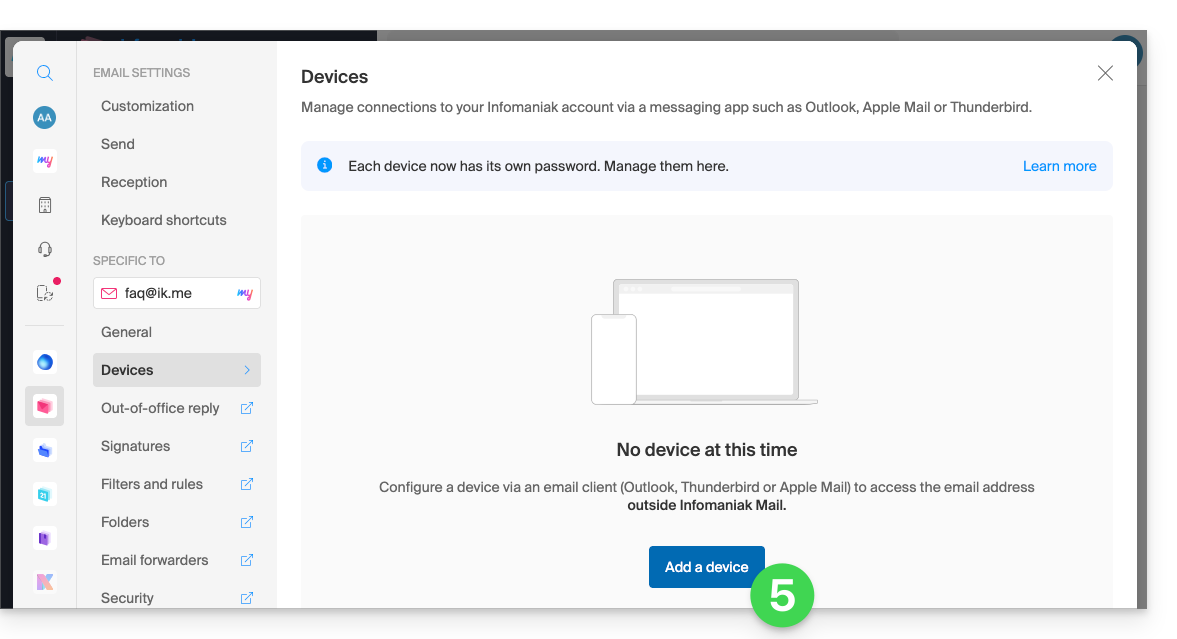
- Click on Add a device:
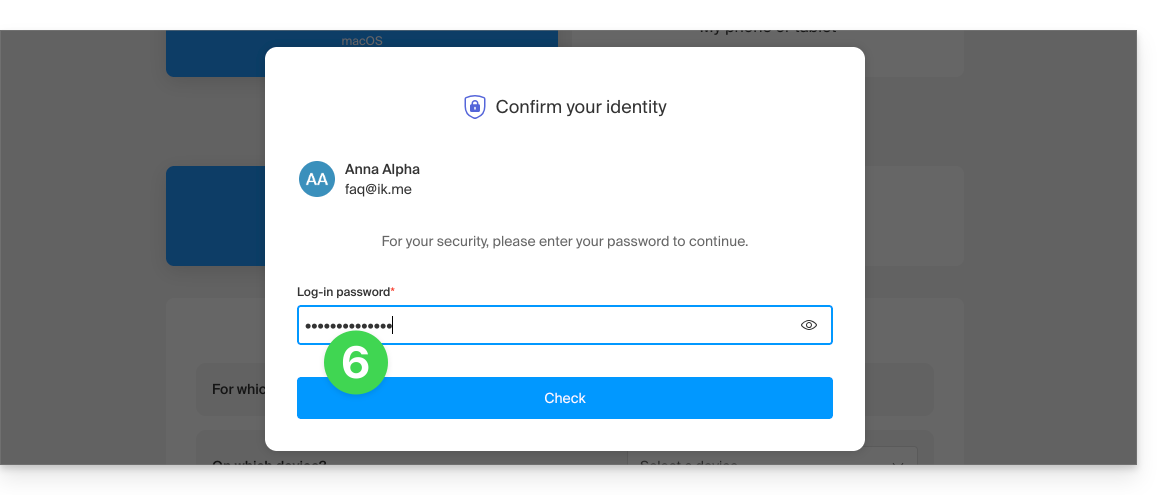
- Enter the login password if required for security purposes:
- Follow the wizard according to your needs, until a new device is created:
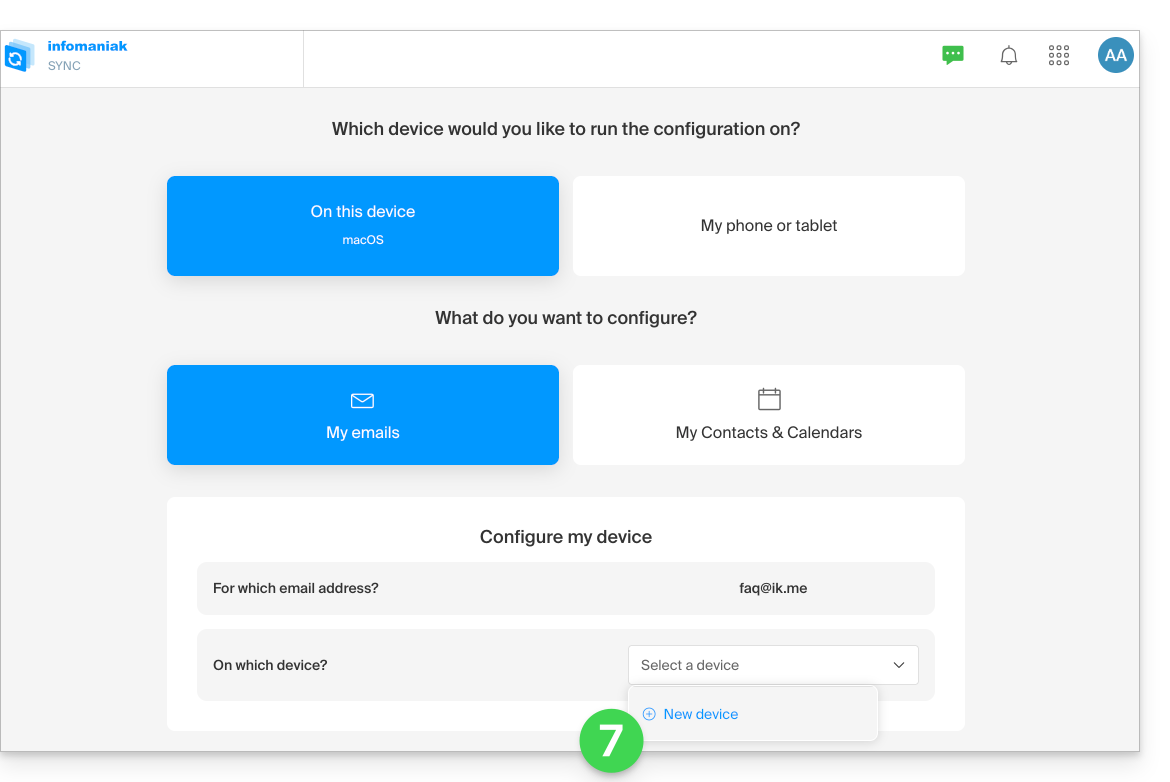
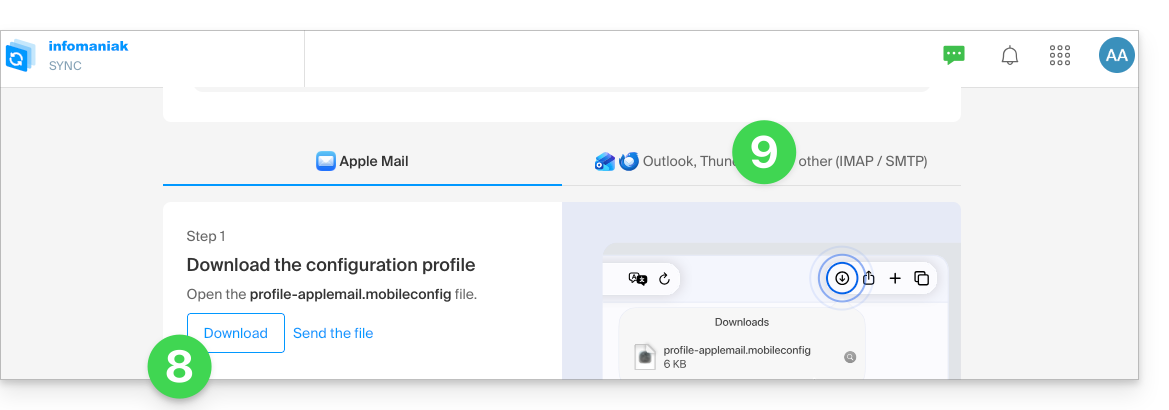
- Depending on your device, the wizard will offer you the option to download an Apple profile (refer to this other guide for macOS or this one for iOS), and then it will create a new secure password to enable synchronization via the profile.
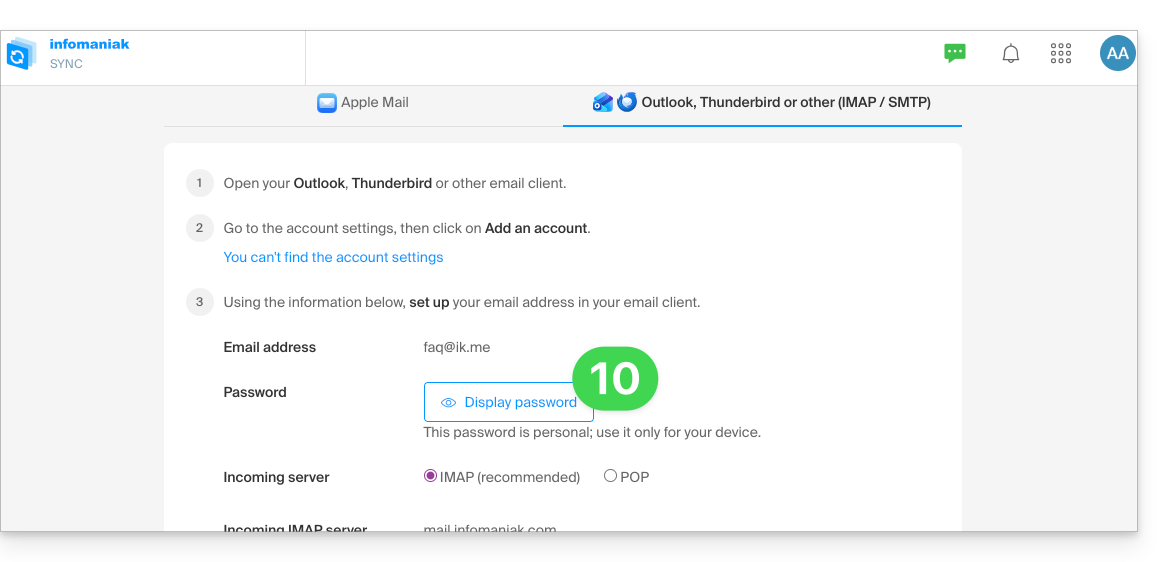
- To simply create a new password and configure the tool of your choice (refer to the configuration guides), click on the IMAP / SMTP tab:
- You can then generate a new secure password to use in your configuration:
Link to this FAQ: https://faq.infomaniak.com/2904
Has this FAQ been helpful?