Knowledge base
1000 FAQs, 500 tutorials and instructional videos. Here, there are only solutions!
Create a mail forward
Redirection settings are configured directly from the Mail Service in the Infomaniak administration interface (Manager):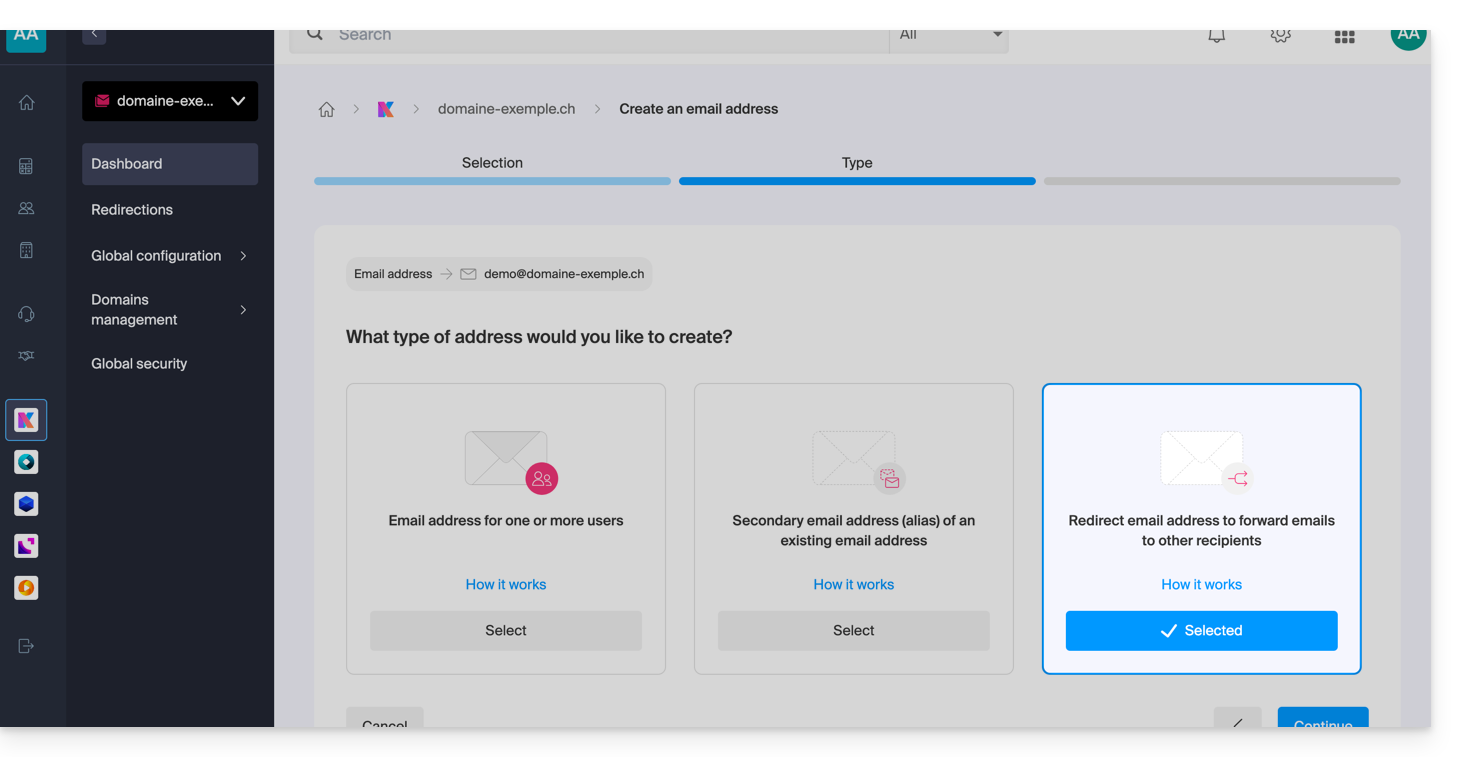
How to redirect mail traffic?
Redirection involves configuring a mail address to automatically forward received messages to one or more other destinations.
There are two main scenarios:
Redirection from an existing address
- The address has its own inbox, but copies or forwards messages to other accounts.
- For example, emails sent to
contact@domain.xyzare automatically redirected tojohn@domain.xyzandresponsables@domain.xyz. The “responsables@…” address can itself be redirected to other people as well… - Refer to this other guide for more information.
Redirection address (virtual address)
- The address does not have its own storage space and only serves as a relay to the destination addresses.
- Refer to this other guide for more information.
Why use redirections?
This system offers great flexibility in managing communication flows:
- Centralization of messages: in the event of a change of address or the departure of an employee, redirection allows you to continue receiving messages at a single point of contact without losing information.
- Multiple distribution: a single incoming message can be distributed simultaneously to multiple recipients, facilitating collaborative work.
- Eco-friendly management: the administrator can choose to automatically delete emails from the original address after they have been redirected. This avoids storing duplicate data and optimizes server resource usage.
If the goal is simply to create a variation for a main address (for example, a common spelling mistake or a different extension), it is best to use the alternative email addresses (aliases) system. Redirection is preferred for automatically sending emails to external accounts or separate mailboxes.
Link to this FAQ: https://faq.infomaniak.com/2903
Has this FAQ been helpful?