Knowledge base
1000 FAQs, 500 tutorials and instructional videos. Here, there are only solutions!
Create a primary email address for one or more users
Creating and managing standard email addresses is done directly from the Mail Service in the Infomaniak administration interface (Manager):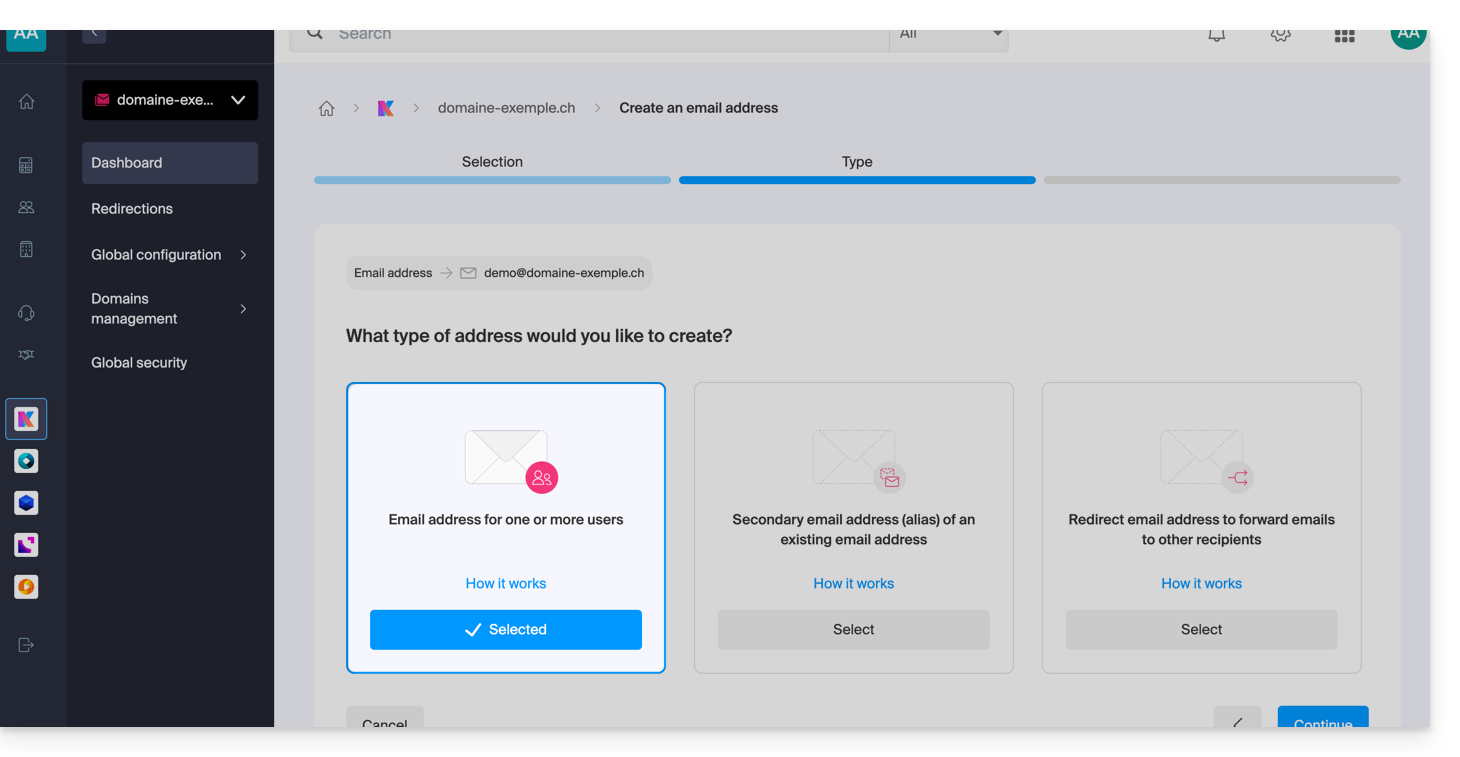
Create a primary email address
Prerequisites
- Read the preliminary guide for Add and choose the name for the email address
Next:
- Select the first box for (visible above: email address for one or more users).
- Click the Continue button in the bottom right corner.
Choose who will be able to view the address
Click in the text field to choose who will be able to view the email address: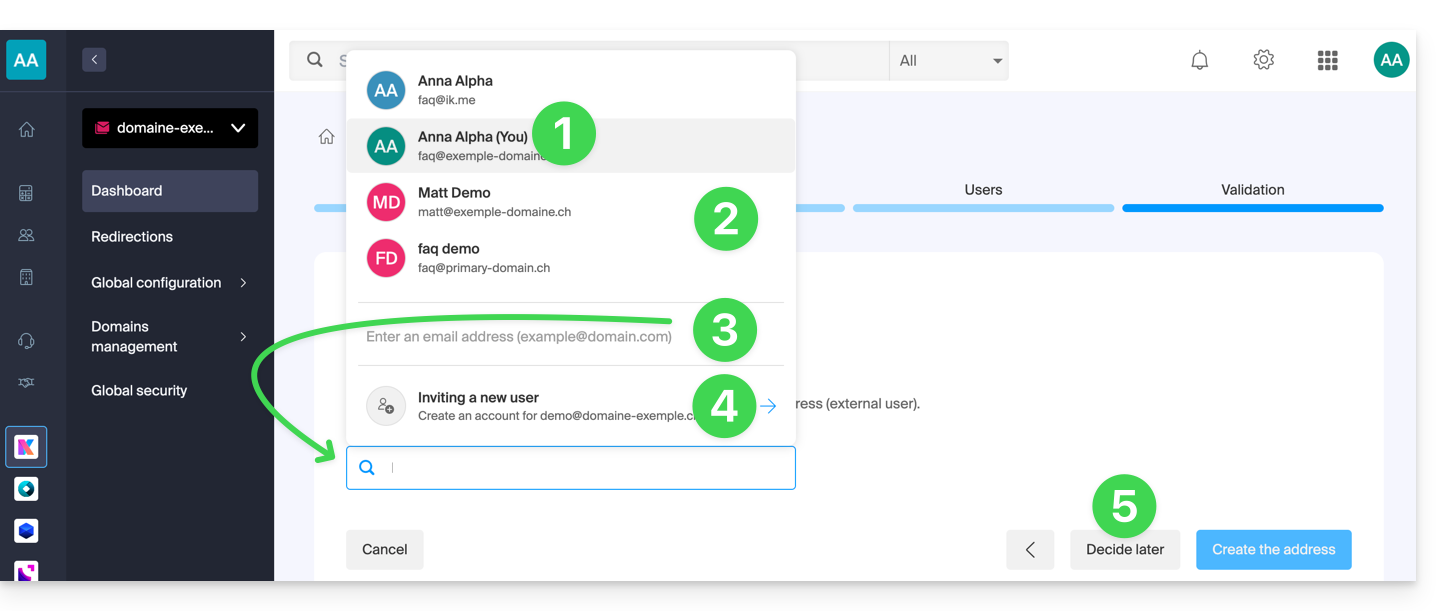
- You (you will be able to directly access and use the email address on the Mail Infomaniak apps - Web, mobile, …).
- Existing users in your Organization (they will be able to directly access and use the email address on the Mail Infomaniak apps - Web, mobile, …).
- An external user who already has an email addressto whom you send an invitation link to the email address you must specify in the field below.
- An external user who does not yet exist for whom you will create an Infomaniak account that will have the same login ID as the address you want to create.
- YOU and/or a new user to whom you will subsequently send an invitation link using your own means (the address will not be visible anywhere initially).
Option 1: Yourself (your login ID)
In the list of users, you click on your login ID (yourself):
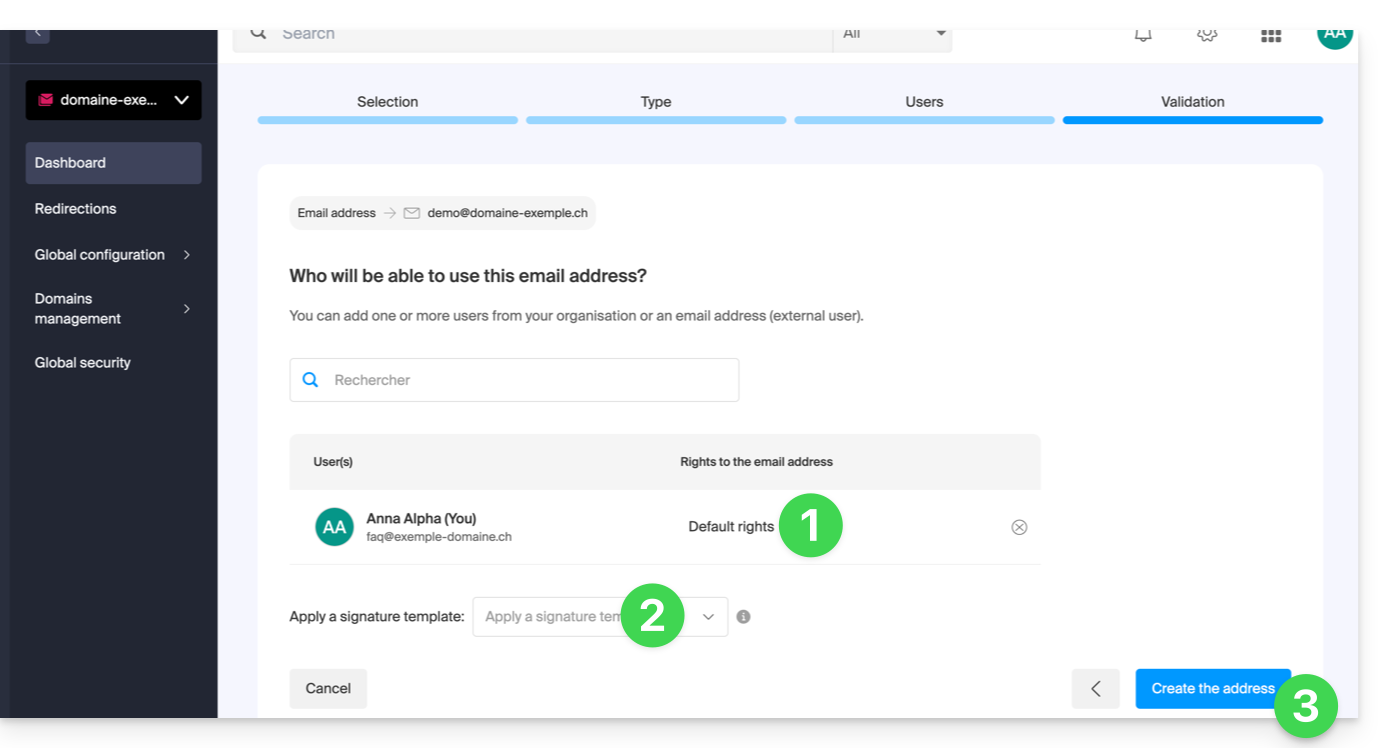
- Manage your access rights to voicemail, device addition, etc. by clicking on “Default Rights”.
- Choose an optional signature template.
- Click on Create address:
- That's it:
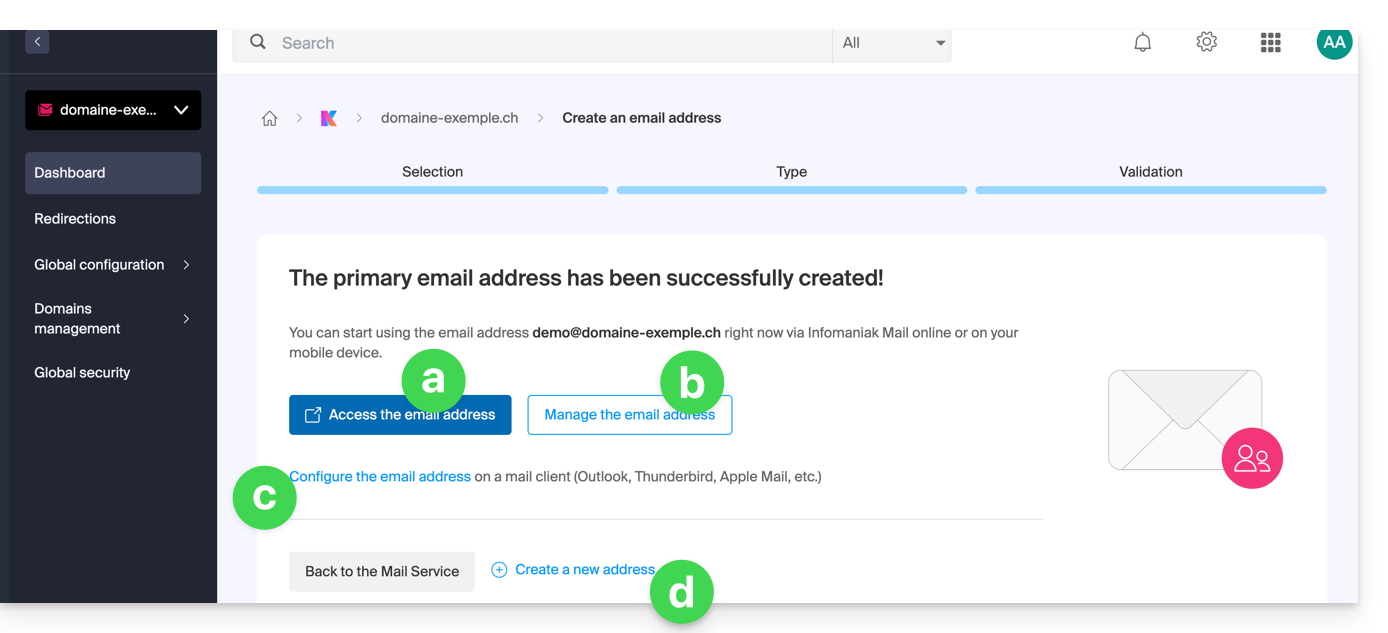
- The email address is now visible in the Infomaniak Mail apps (ksuite.infomaniak.com/mail, mobile app, etc.); click on the created address if necessary to view it:
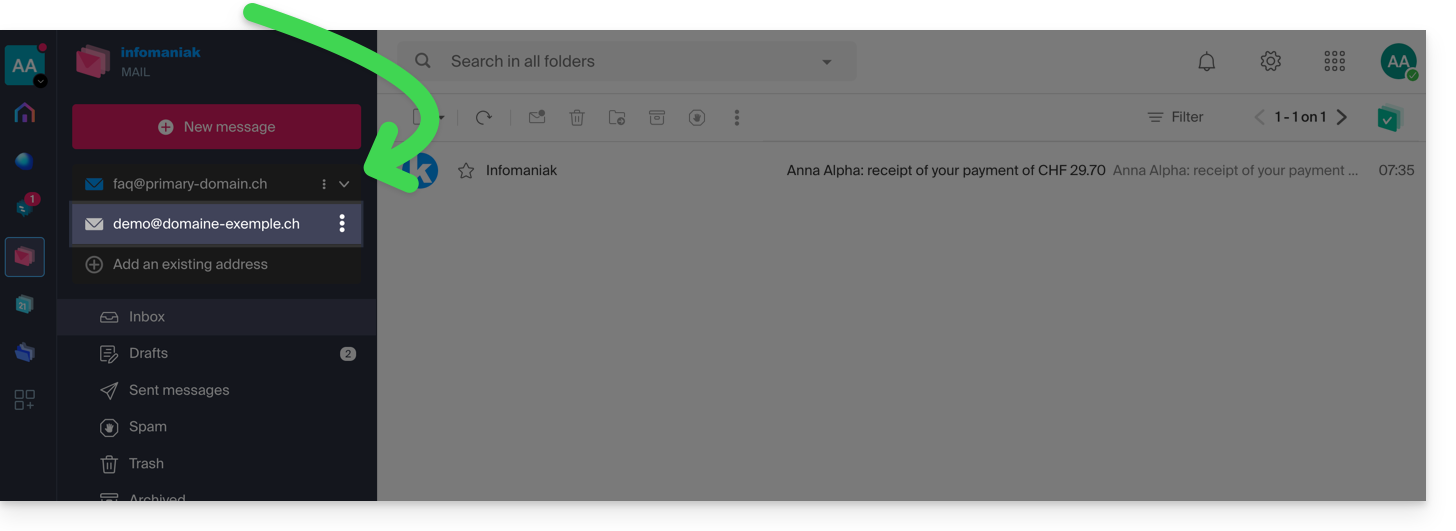
- Manage the options for your address (such as the out-of-office message, filters, etc.).
- If necessary, configure different devices to also access this email address.
- Create additional addresses as needed.
- The email address is now visible in the Infomaniak Mail apps (ksuite.infomaniak.com/mail, mobile app, etc.); click on the created address if necessary to view it:
Option 2: Select other users from the Organization
In the list, you select other existing users within the Organization:
- Manage their possible access rights to the voicemail, device addition, etc. by clicking on “Default Rights”.
- Click on Create address:
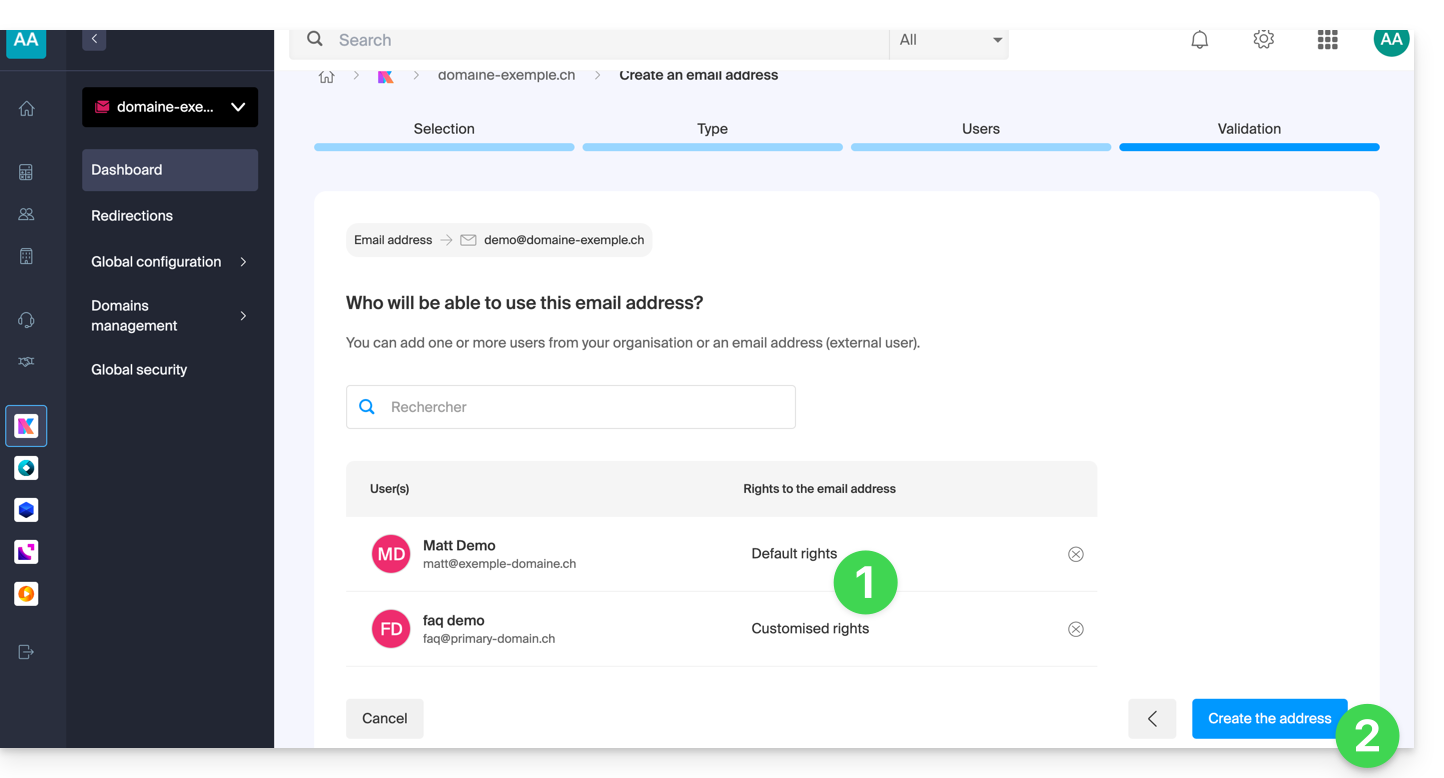
- That's it: the email address is now visible in their Infomaniak Mail apps (ksuite.infomaniak.com/mail, mobile app, etc.).
Option 3: Invite an external user who already has a personal email address
You want to enter theexisting email address of a contact, colleague, etc. so that you can grant them access to the new email address you are creating:
- Enter the user's email address (whether they already have an Infomaniak account or not) in the search field.
- Click on the line to add them as a user:
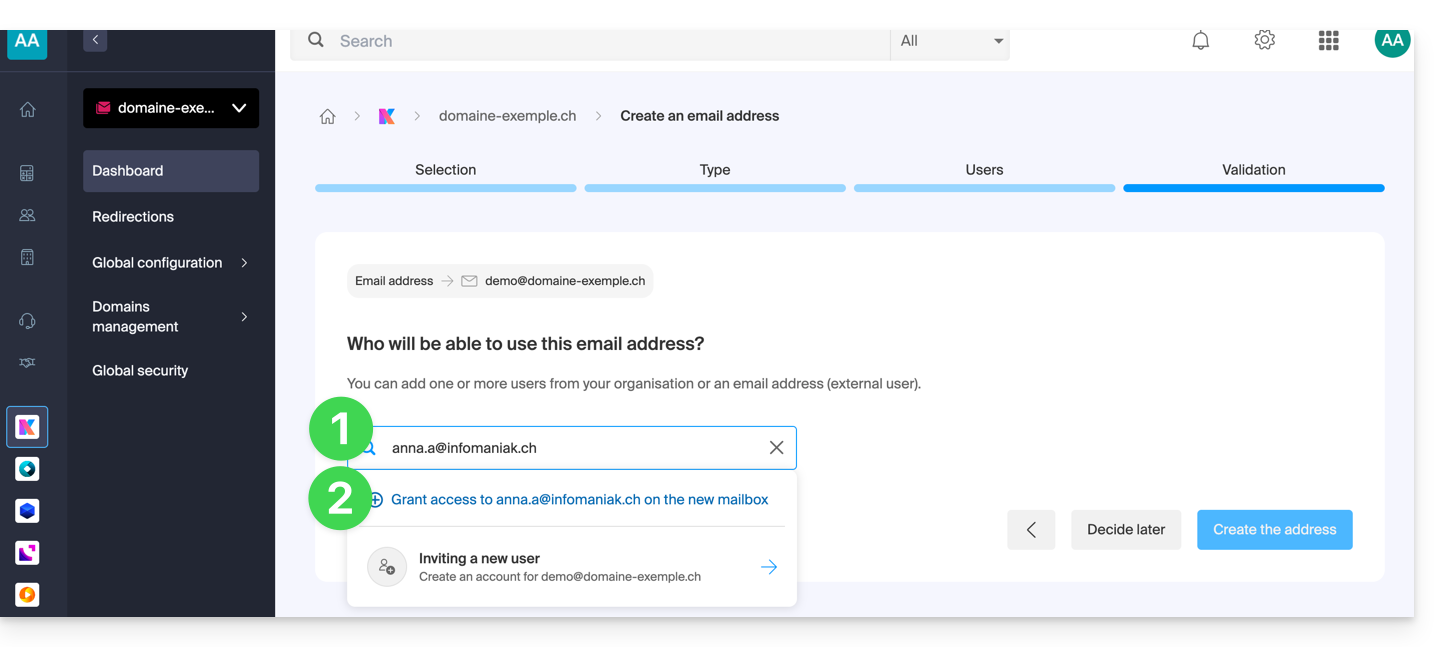
- Manage any access rights to the voicemail, device addition, etc. by clicking on “Default Rights”.
- Click on Create the address:
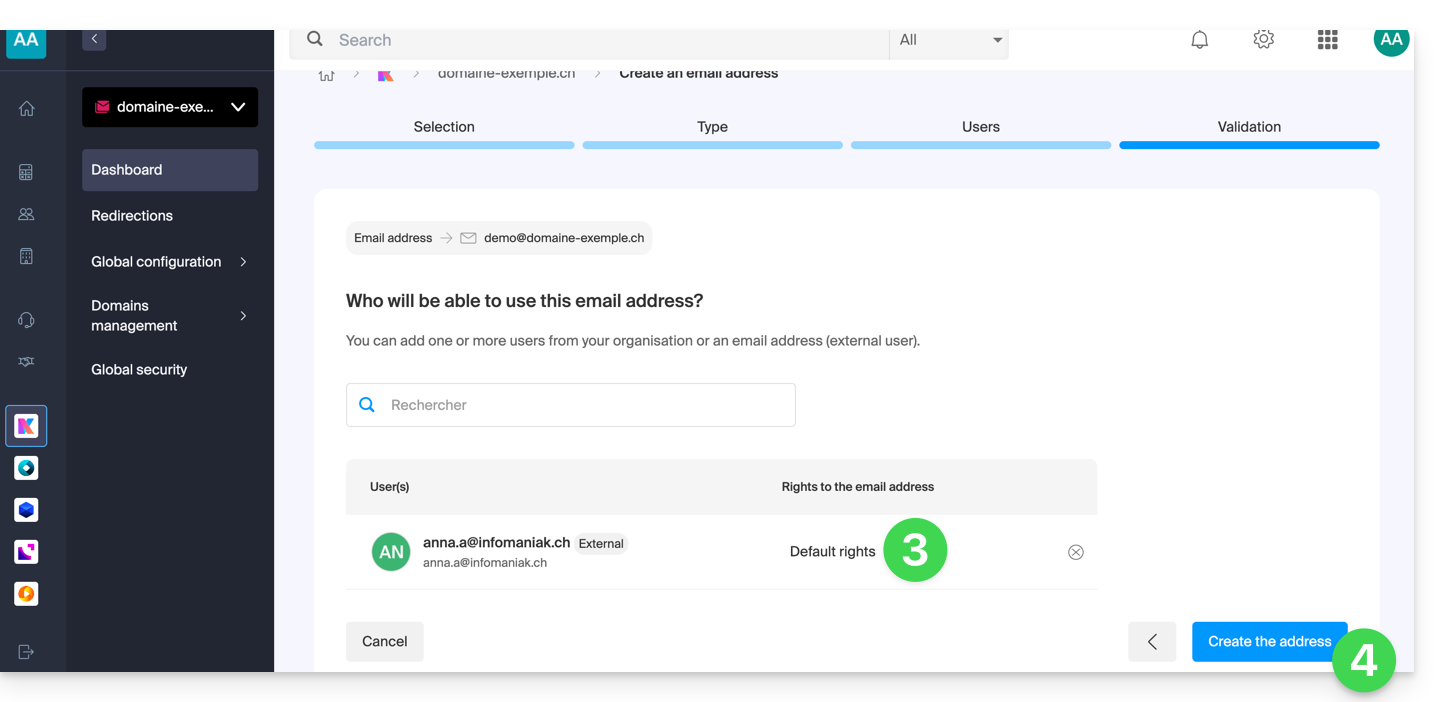
- That's all:
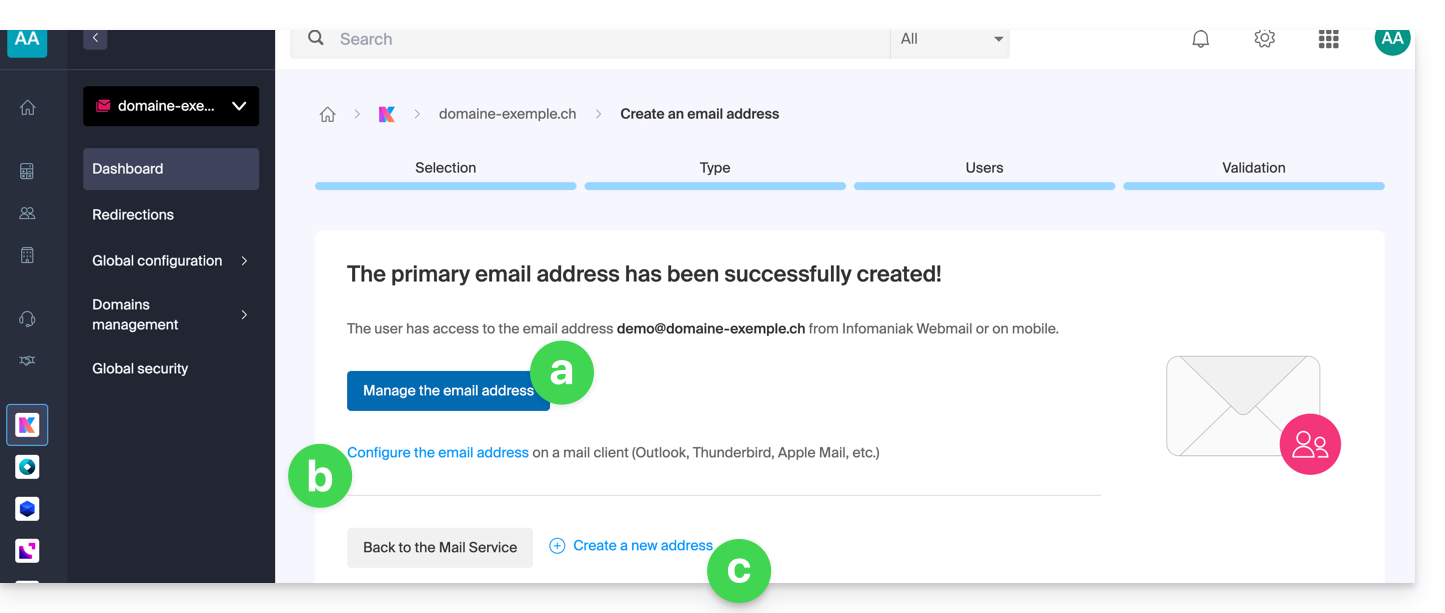
- Manage the address options (such as the out-of-office message, filters, etc.).
- If necessary, configure different devices to also access this email address.
- Create additional addresses as needed.
- The user receives an invitation to access the email address, valid for 30 days:
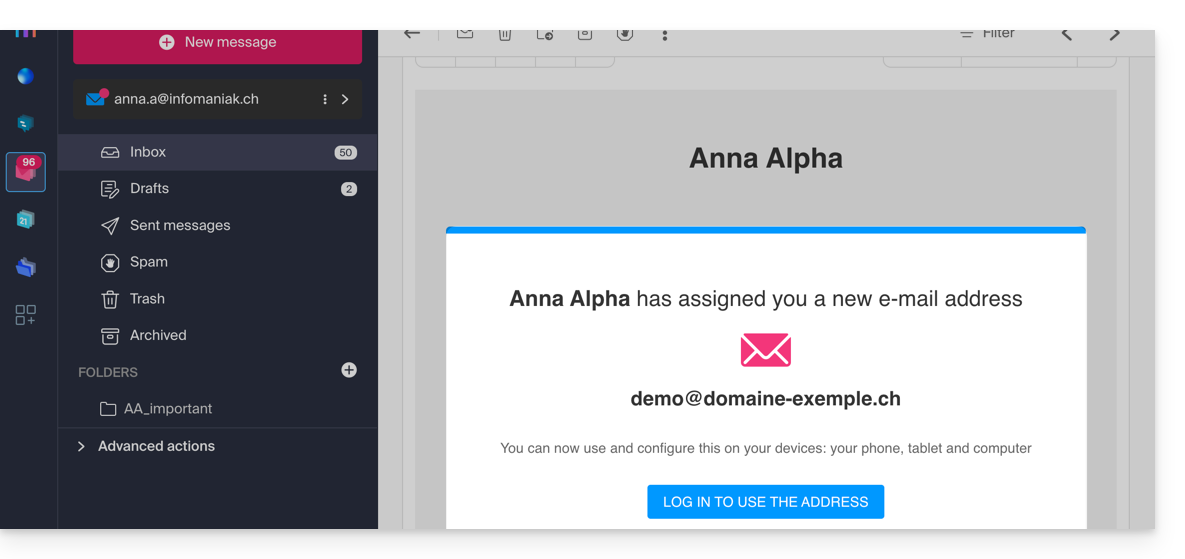
- The button takes the user to a page where they can either create a new account or log in to an existing account they already have with Infomaniak. Once completed, the address will be automatically visible in their Infomaniak Mail apps (ksuite.infomaniak.com/mail, mobile app, etc.).
- The current invitation is visible in the email address management section of your Mail Service:
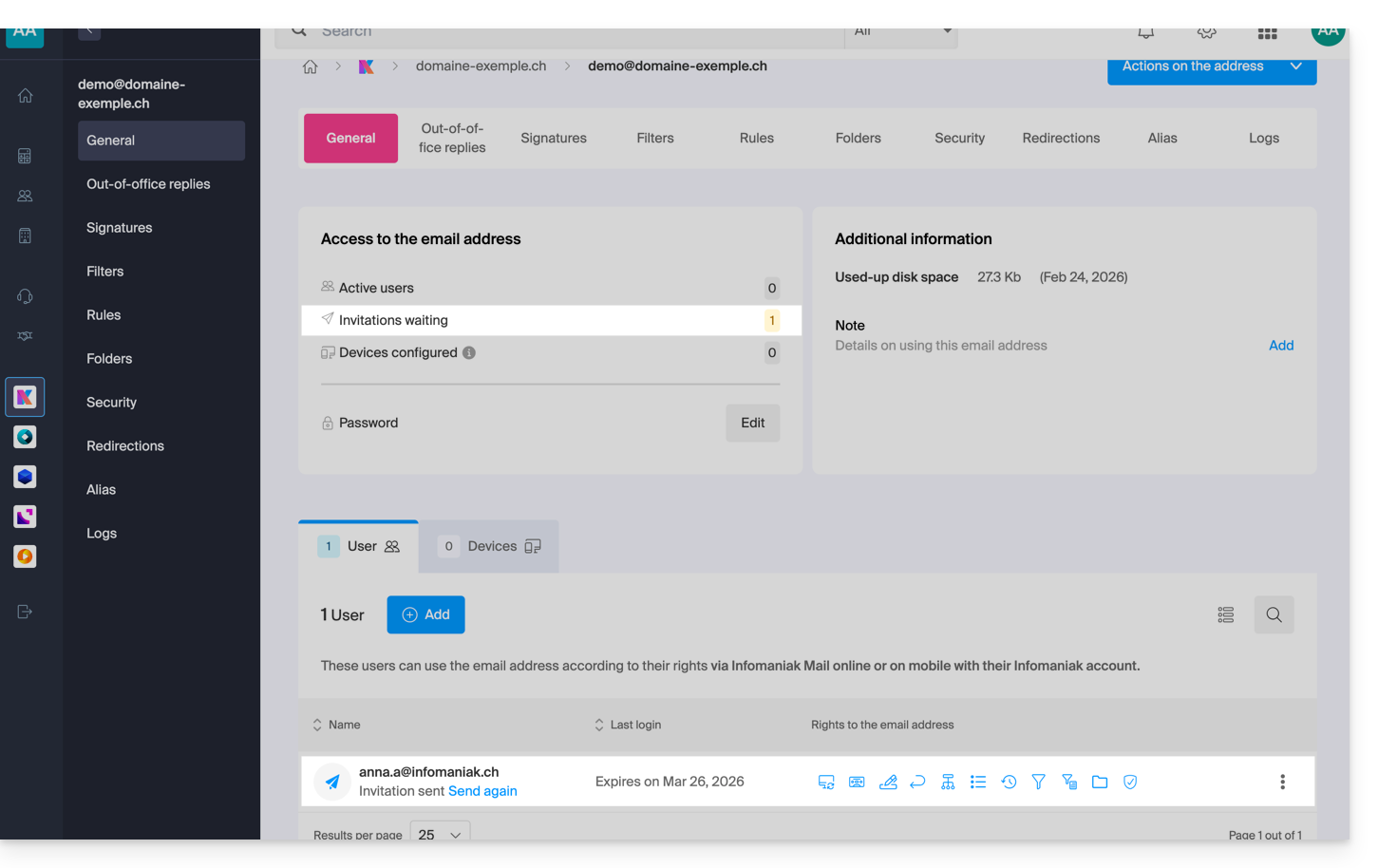
- By clicking on Resend, you can view the link in order to copy it and/or resend it.
Option 4: Create a brand new Infomaniak account associated with the new email address
You will be redirected to the user creation page within the Organization, which will allow you to add the user from scratch and create the desired email address at the same time. Some restrictions may apply: please refer to this other guide for more information.
Option 5: Decide later
- The email address is created directly (still without a password, and this time without any user, so the address will not be visible anywhere initially) and is fully functional.
- You can, of course, manage users and passwords directly from the email address management interface.
Link to this FAQ: https://faq.infomaniak.com/2901
Has this FAQ been helpful?