Knowledge base
1000 FAQs, 500 tutorials and instructional videos. Here, there are only solutions!
Stream a video with OBS Studio
This guide details the steps required to configure OBS Studio to stream a live feed to the Infomaniak Video Streaming platform.
Preamble
- OBS Studio is a free and open-source, multi-platform software widely used for video recording and live streaming.
- Thanks to its flexibility and numerous configuration options, it allows you to easily manage audio and video sources, scenes, and advanced streaming parameters.
- It does not have an official mobile version, but third-party apps allow you to stream from a smartphone or use it in conjunction with OBS on a computer.
Configure OBS Studio
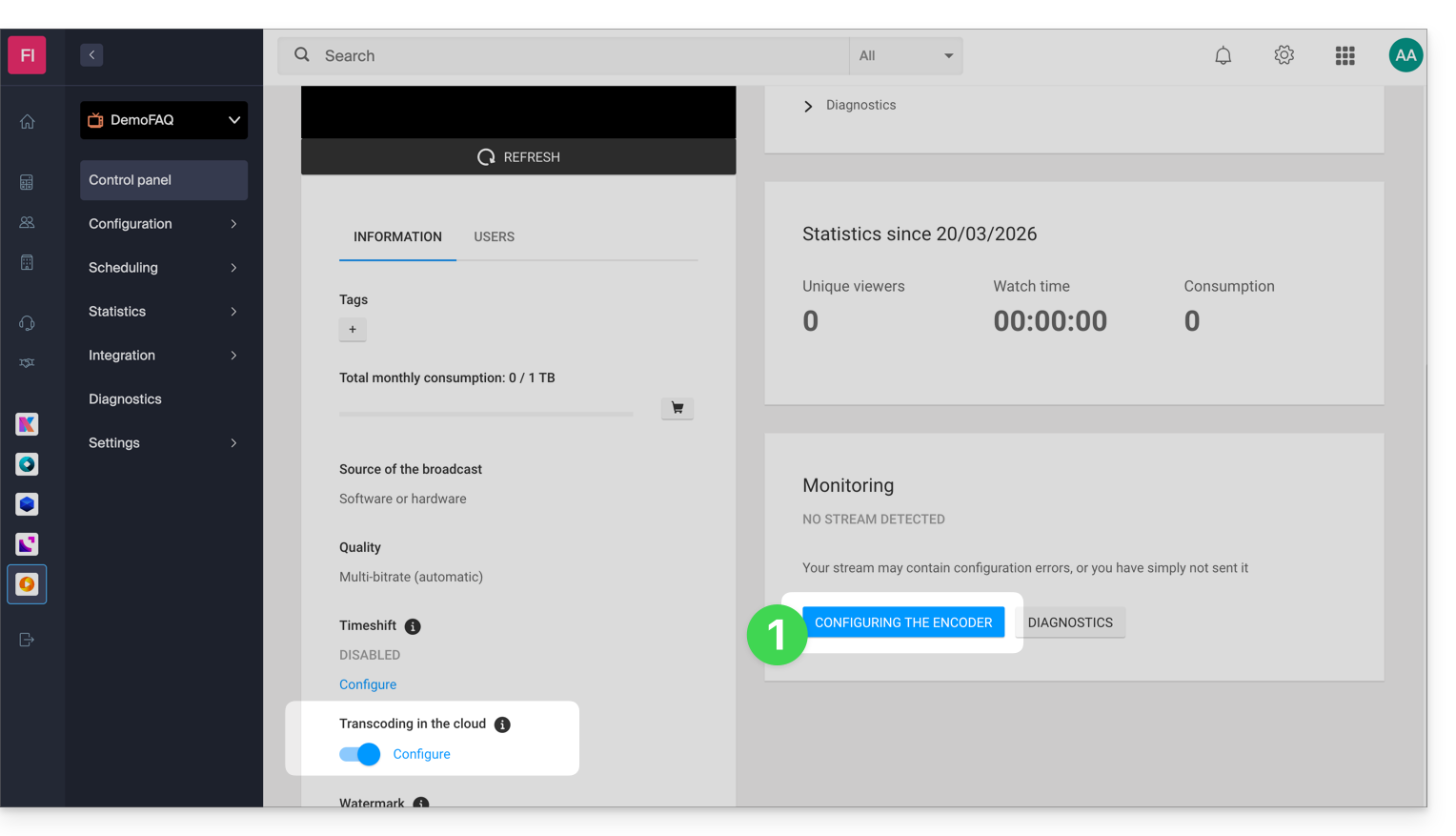
On the Infomaniak side, you have a stream and have activated the Cloud transcoding option.
- Click the button to access your streaming settings:
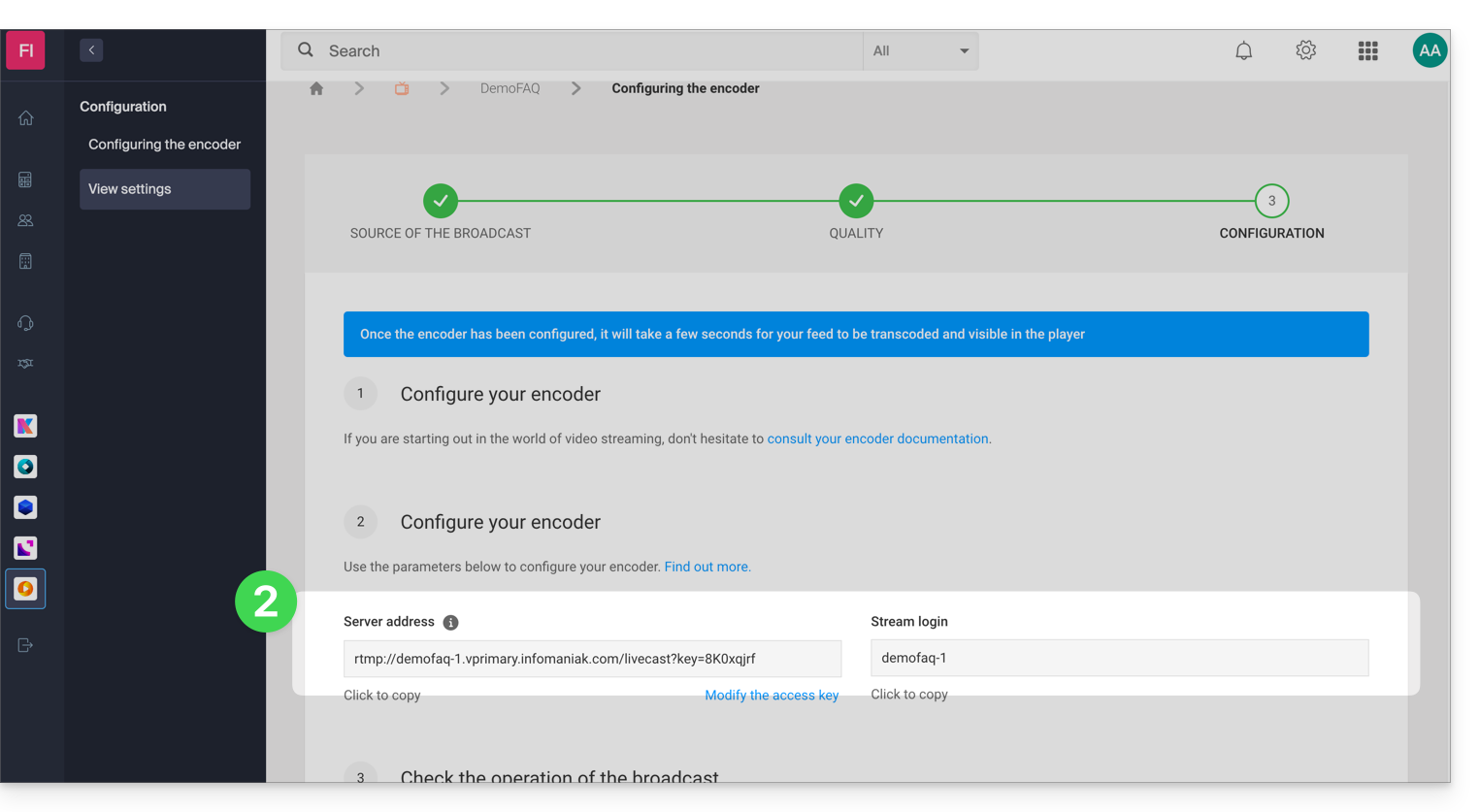
- Copy the login information:
- Paste this information into the custom settings of your OBS stream, as in the example below (
Stream login=Stream key):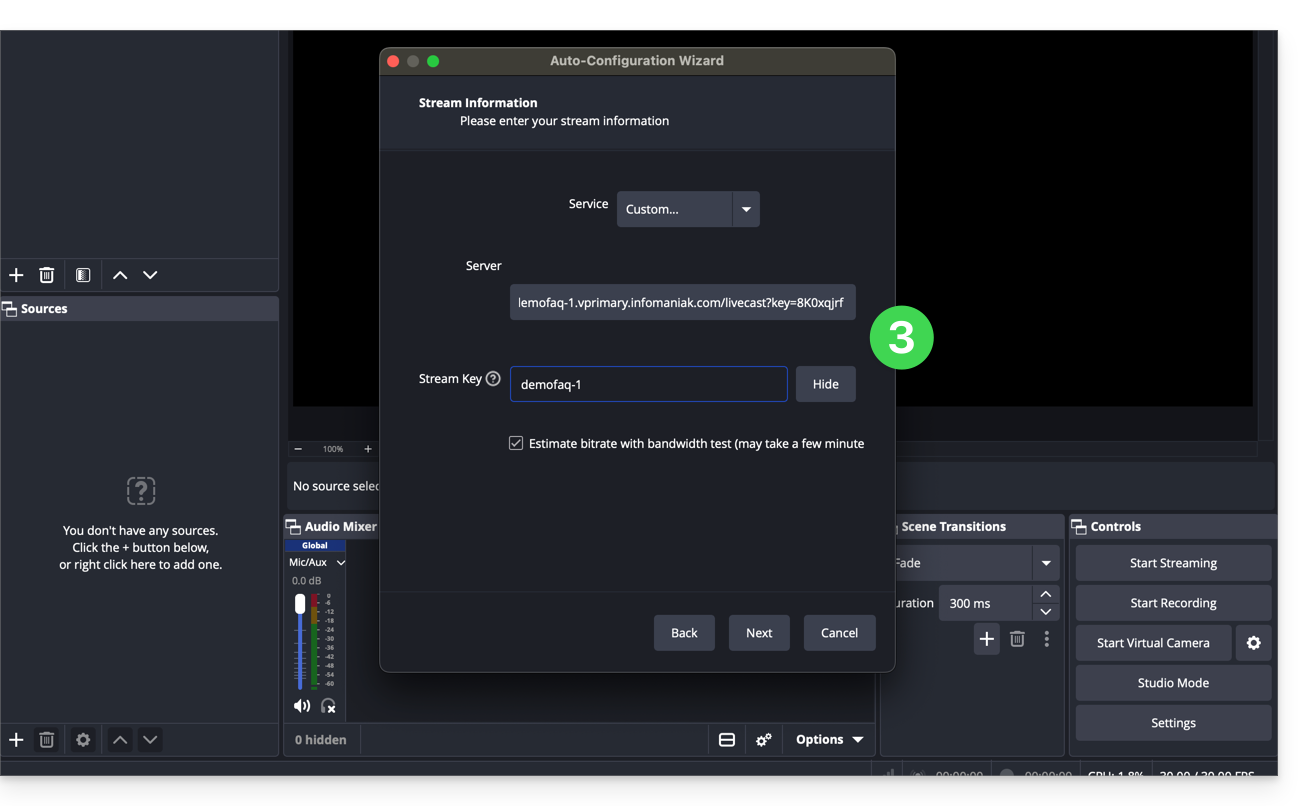
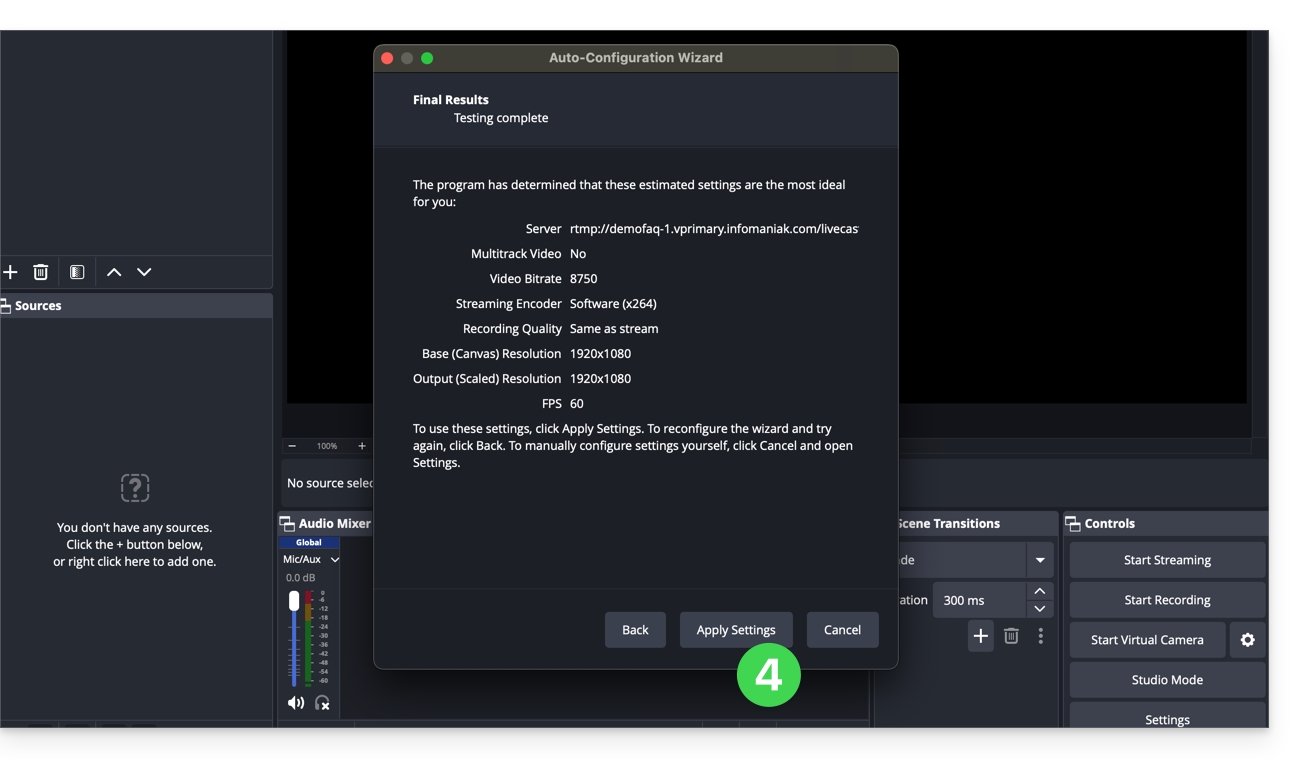
- Validate the streaming settings:
- Then add a streaming source.
- Click on Start Streaming:
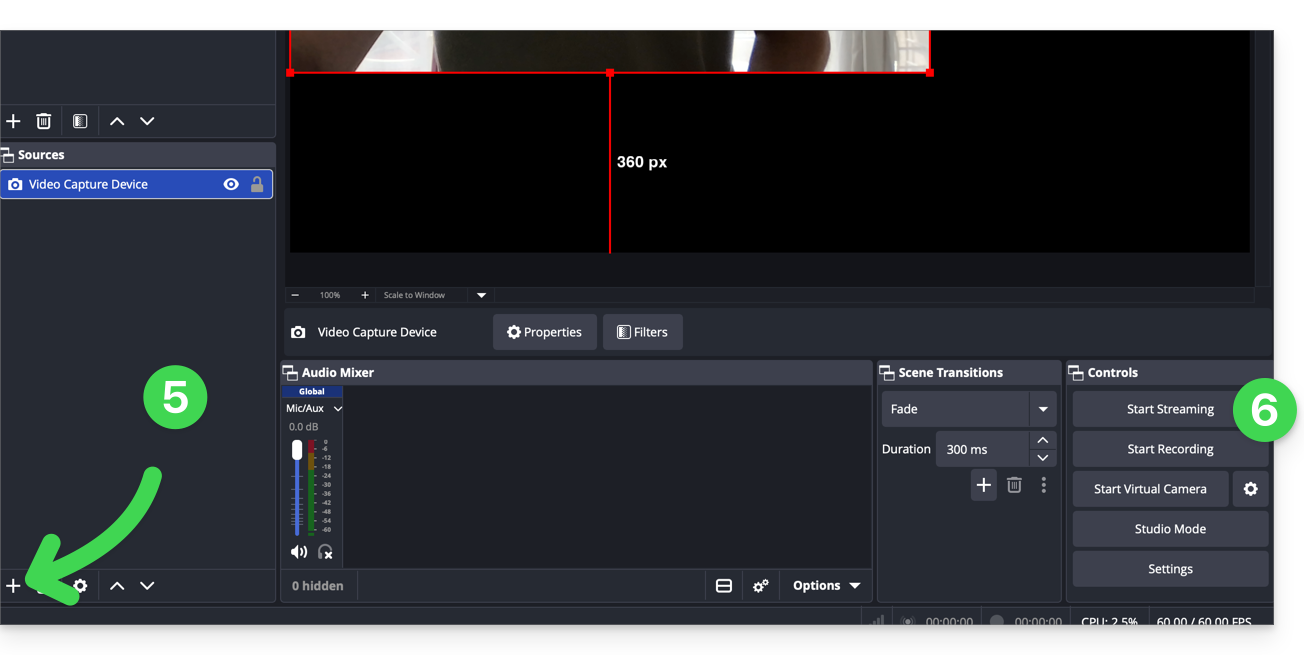
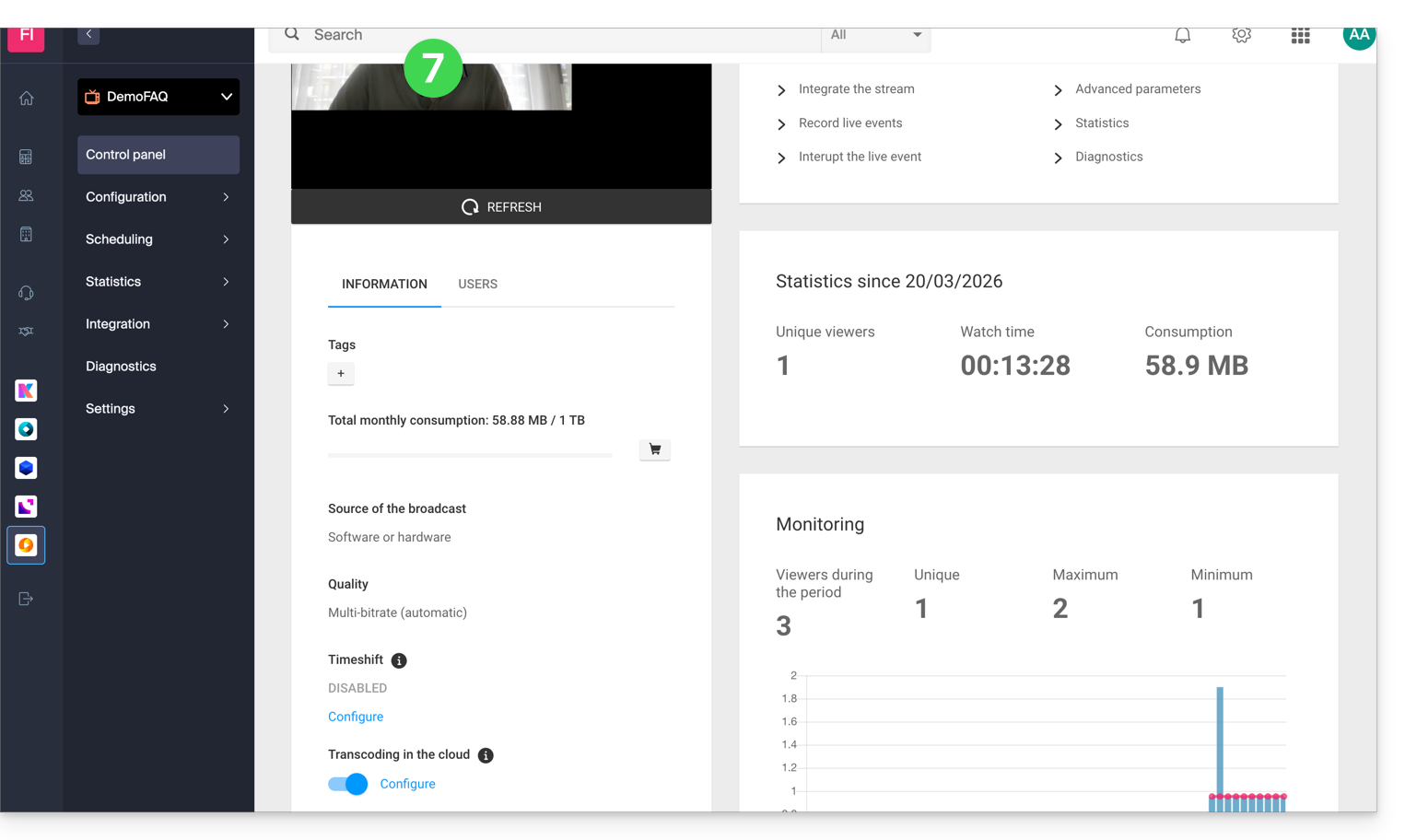
- There you go, the stream is displayed on the Infomaniak side, you can then configure a Player to get the information needed to share your stream:
Link to this FAQ: https://faq.infomaniak.com/2900
Has this FAQ been helpful?