Knowledge base
1000 FAQs, 500 tutorials and instructional videos. Here, there are only solutions!
Schedule a kMeet meeting
Update 10/13/2026
This guide explains how to schedule an online meeting with kMeet, Infomaniak's ethical and free video conferencing solution.
Introduction
- To learn more about creating and using virtual meeting rooms, please refer to this other guide.
- You can also simply add a kMeet link to any event created in your Infomaniak calendar: please refer to this other guide.
Schedule a virtual meeting
To do this:
- Click here to access kMeet in your Infomaniak kSuite (or launch the mobile/desktop app — ❓: help).
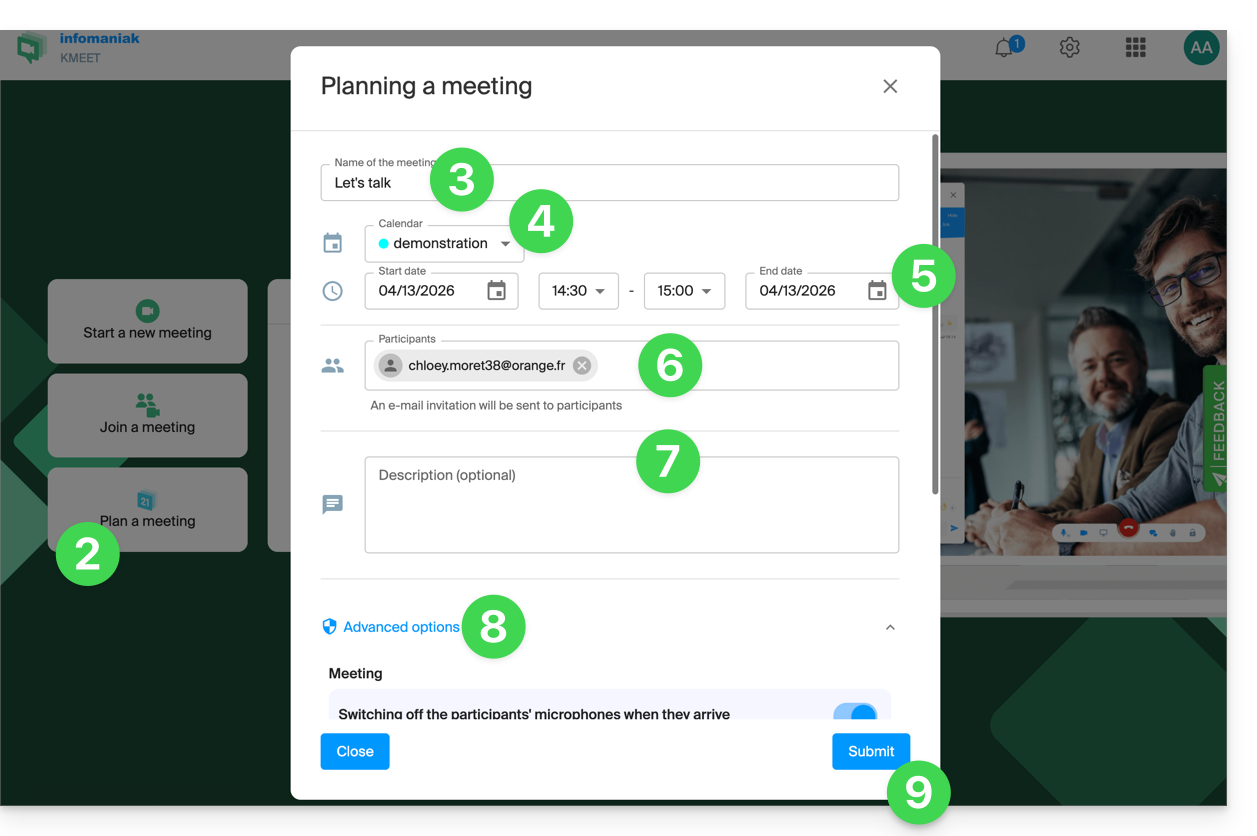
- Click to schedule a new meeting.
- Enter a name for your meeting room.
- Choose the calendar that will contain the details of your scheduled event.
- Choose the date and time for the meeting (timeslots are in 15-minute intervals).
- Specify the email addresses of the participants.
- Specify a description for the meeting.
- Enable the following advanced options:
- start with microphones muted
- start with the administrator's video enabled
- start with the video of each participant enabled
- enable participant control
- enable a password
- enable a custom encryption key.
- Click the button to save the scheduled event:
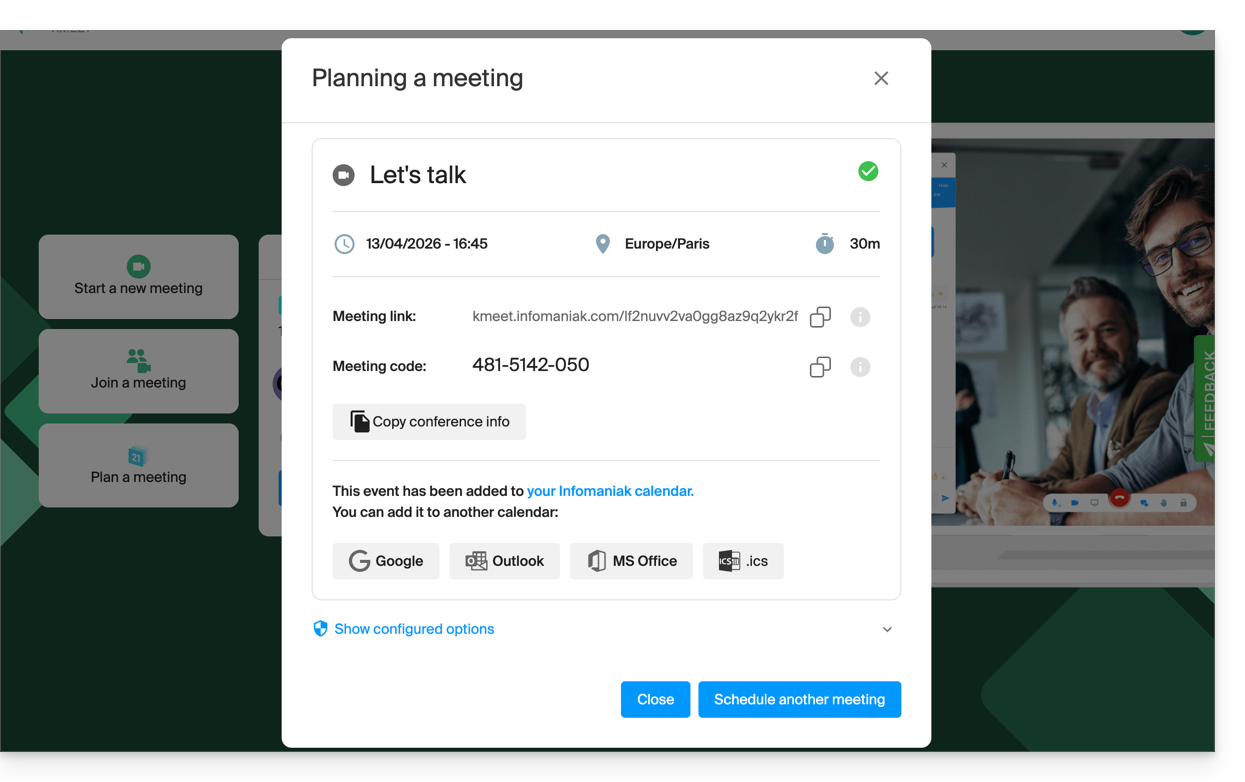
- The event is added to the selected calendar, but you can also add it to other calendar types. The summary displayed also allows you to review the configured options:
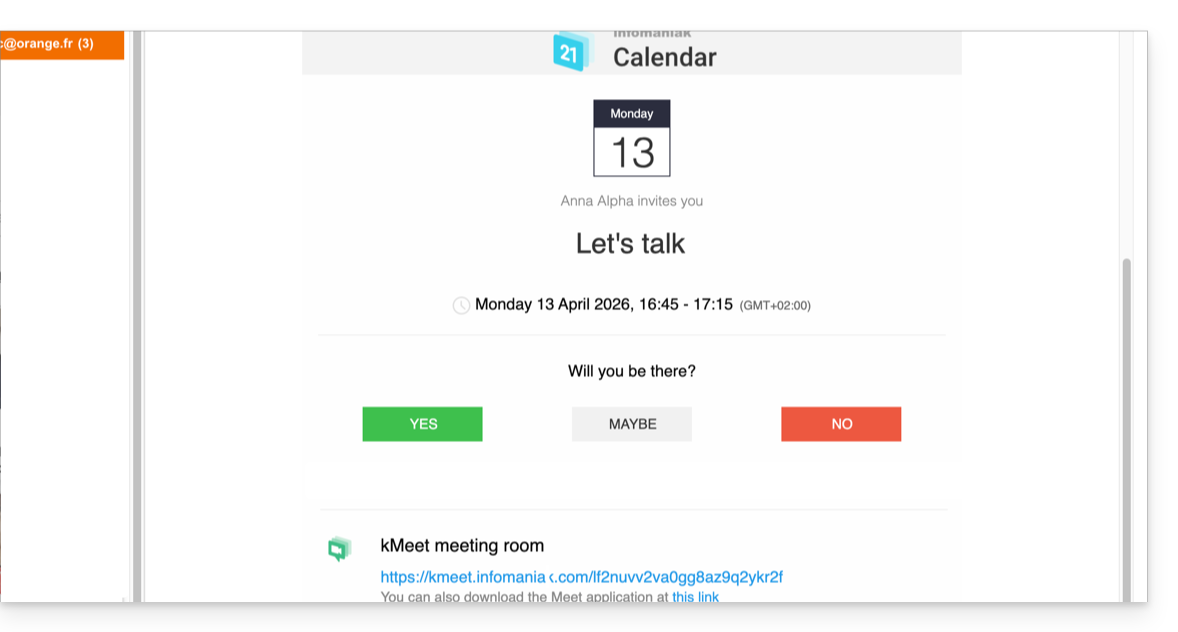
- Meanwhile, invitations are sent to the participants:
Link to this FAQ: https://faq.infomaniak.com/2897
Has this FAQ been helpful?