Knowledge base
1000 FAQs, 500 tutorials and instructional videos. Here, there are only solutions!
Replace Skype with Infomaniak
Infomaniak offers you the possibility of replacing Skype with its own solutions, whether for individual calls, remote meetings, or group discussions.
kMeet, the video conferencing solution for individuals & businesses
Despite its initial success, the Skype communication platform has seen its usage decline with the emergence of solutions better integrated into new collaborative practices.
One of the easiest ways to replace Skype is to adopt kMeet:
- Unlimited audio and video calls
- Access without registration
- Compatibility with Web, mobile, and desktop
- Integrated chat & reactions (emoticons, sounds)
- Screen sharing with drawing and remote control tools
- Sub-commission rooms (breakout rooms)
- Integration with the calendar (create a video call link)
- Integration with kDrive for storing meeting recordings
- Integration with kChat for video calls
- Privacy-focused (no advertising, hosting in Switzerland)
- Security with AES-256 encryption
- Eco-friendly (renewable energy, CO₂ compensation)
Replace Skype with kMeet
The kMeet alternative to replace Skype can be implemented in several ways:
To start a private conversation between several people on the Internet, simply have one of them go to kMeet and then share the meeting link with the others. Here is the step-by-step procedure:
- Enter kmeet.infomaniak.com in a browser such as Brave, Chrome, Edge, Firefox, Opera, Safari….
- Start a meeting (❓: help):
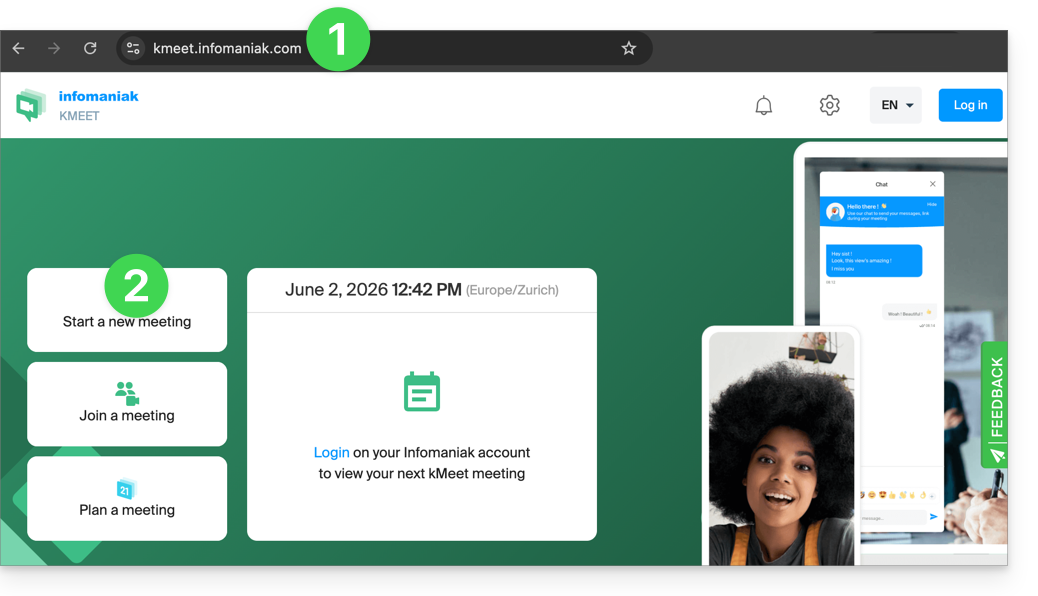
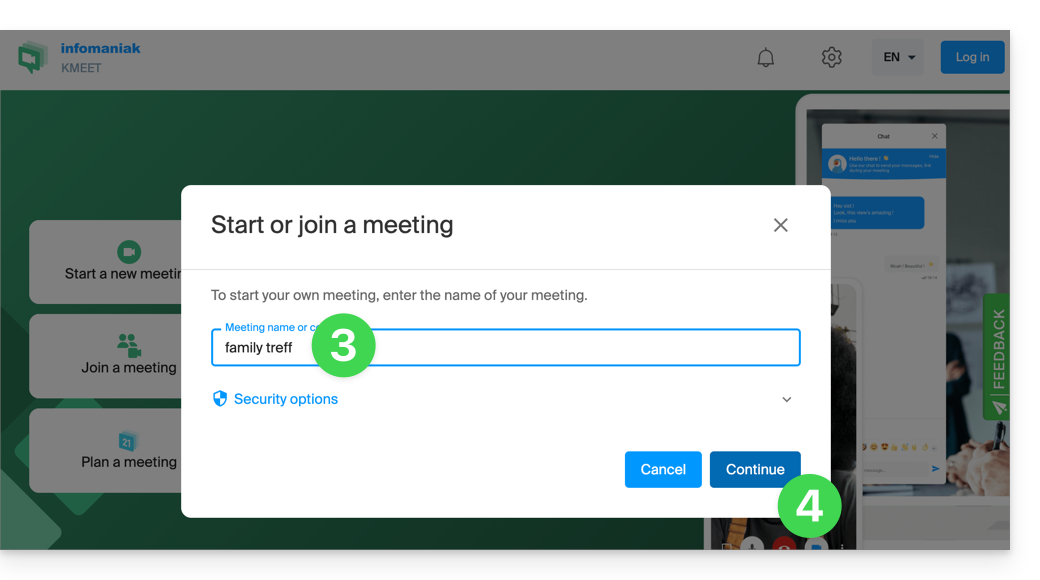
- Enter a name for the meeting, which will indicate to future participants the subject of the discussion they are joining.
- Click the button to Continue:
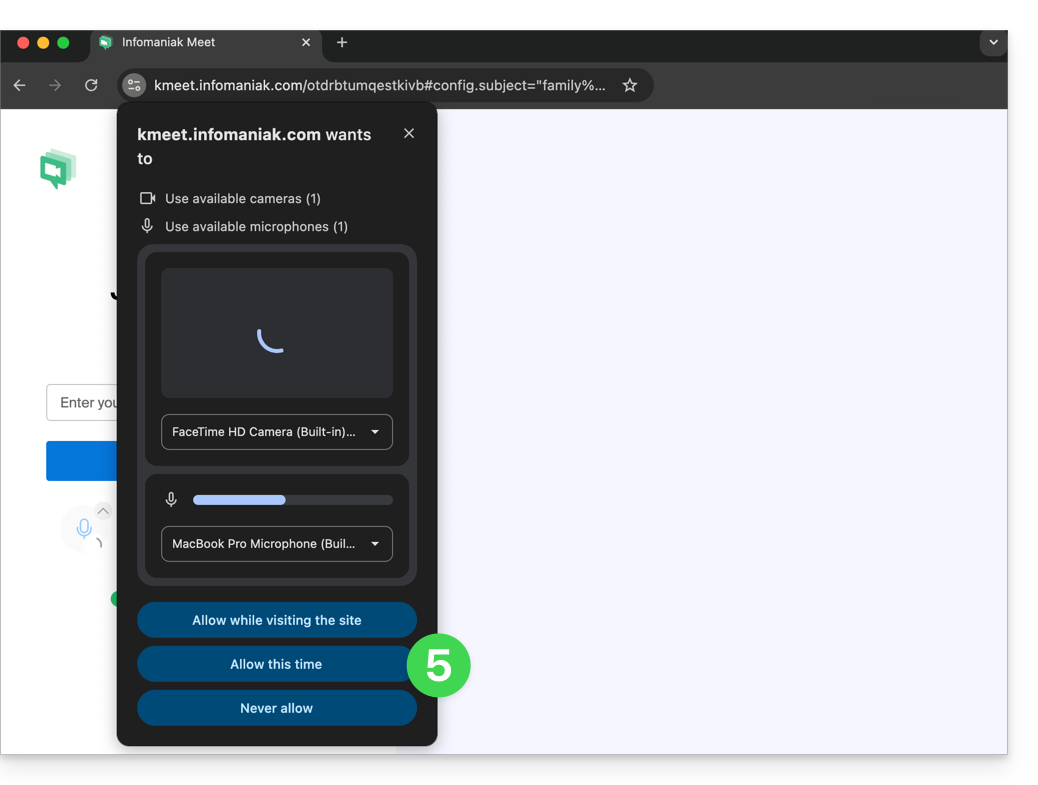
- Grant the necessary permissions to kMeet:
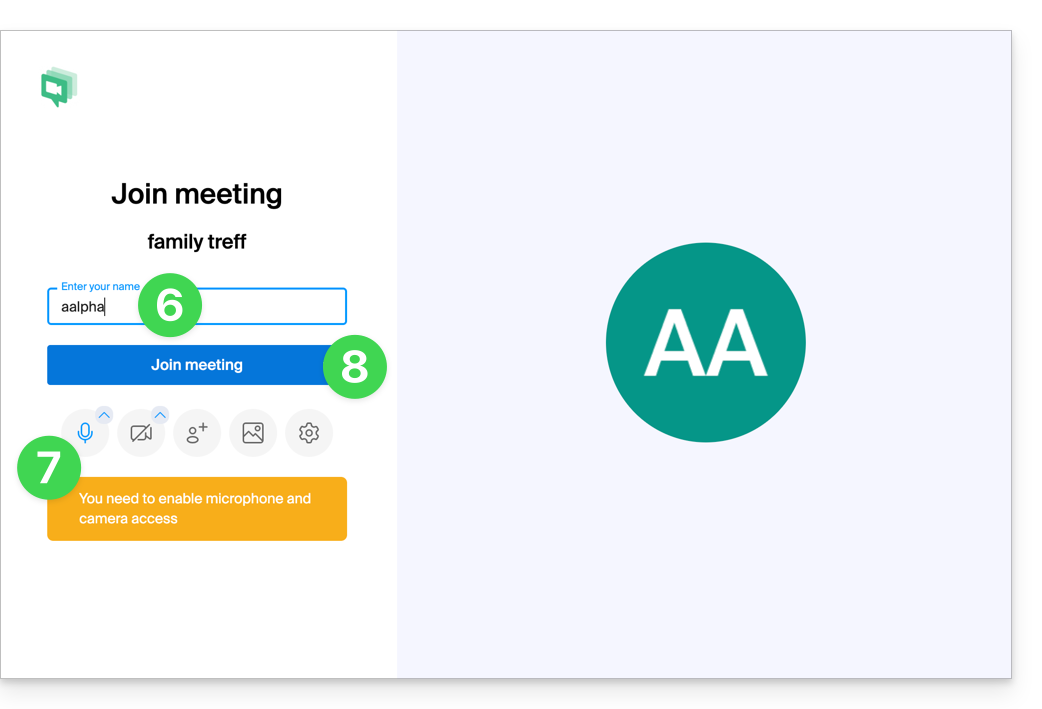
- Enter your name, which will be visible to other participants.
- Enable or disable any communication methods if they should not be used at this time.
- Click the button to join the virtual meeting room (as the first participant, since no one else has been invited yet):
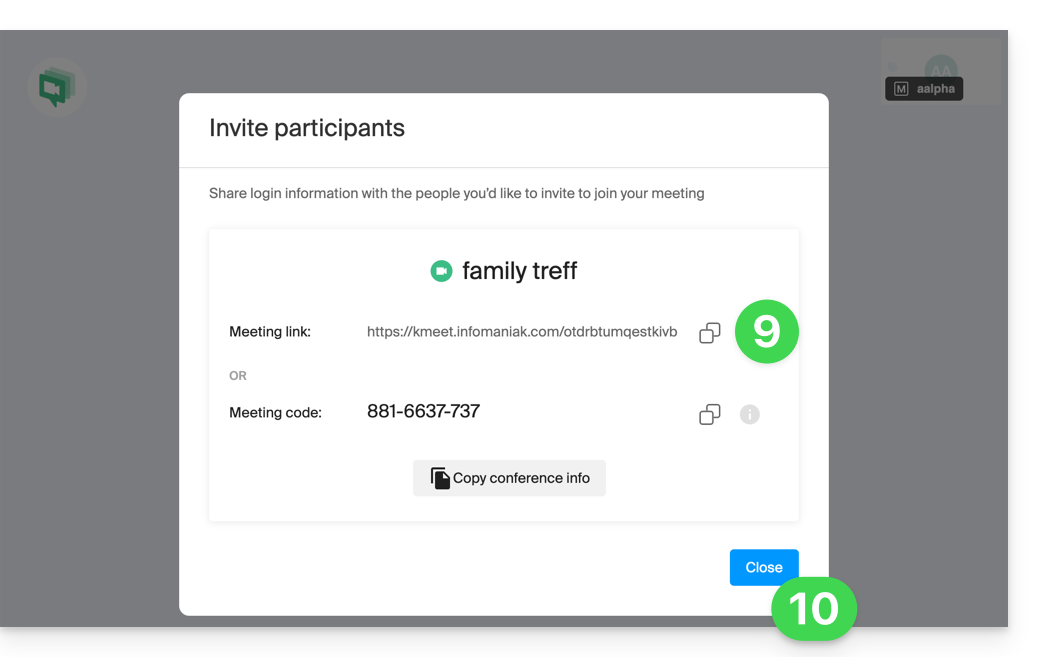
- Done, the room has been created, and you can now copy the information about this session and send it to the contacts so they can join you (they will only need to click the link you send them).
- Close the information window so that you can all chat together:
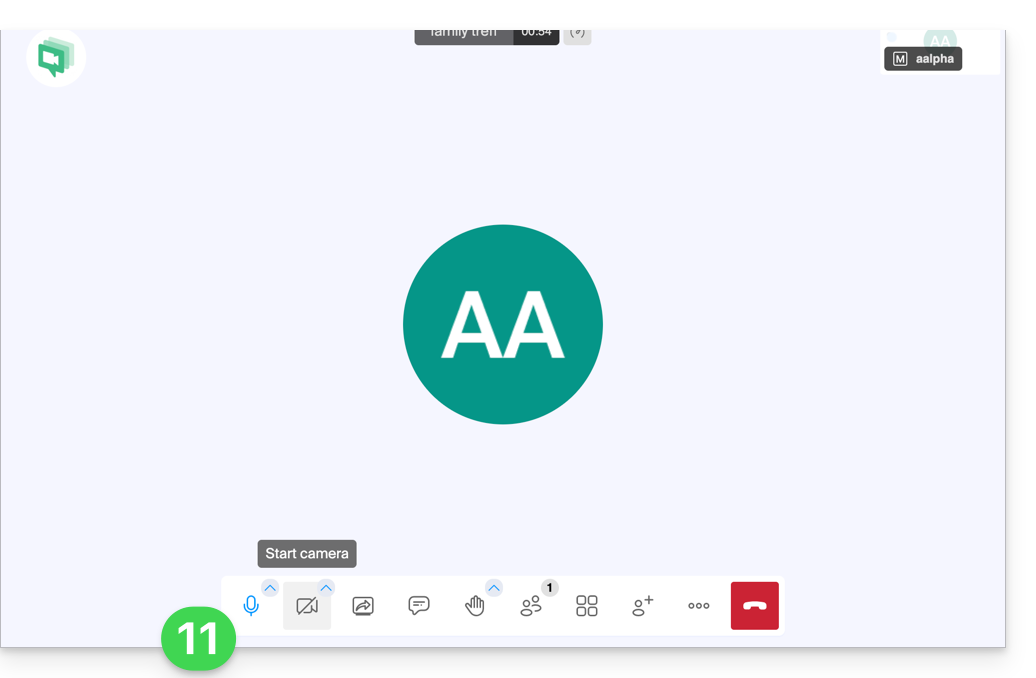
- The toolbar at the bottom of the screen allows you to enable or disable the microphone, camera, etc.:
To discover all the possibilities offered by kMeet, consult this other guide.
2. Scheduling and invitations with my kSuite
To work efficiently, kMeet can be directly linked to your professional calendar. This means that every time you create an event in your calendar…
- … a video conferencing link is automatically generated…
- … participants receive the invitation by email with all the information…
- … and on the day, they can join the meeting with a single click, without registration or the need to install any software.
Benefit: you centralize meeting management, reduce forgotten appointments, and simplify organization, all from a single interface.
To implement this solution:
- Sign up for free to my kSuite to get a mail address, for example
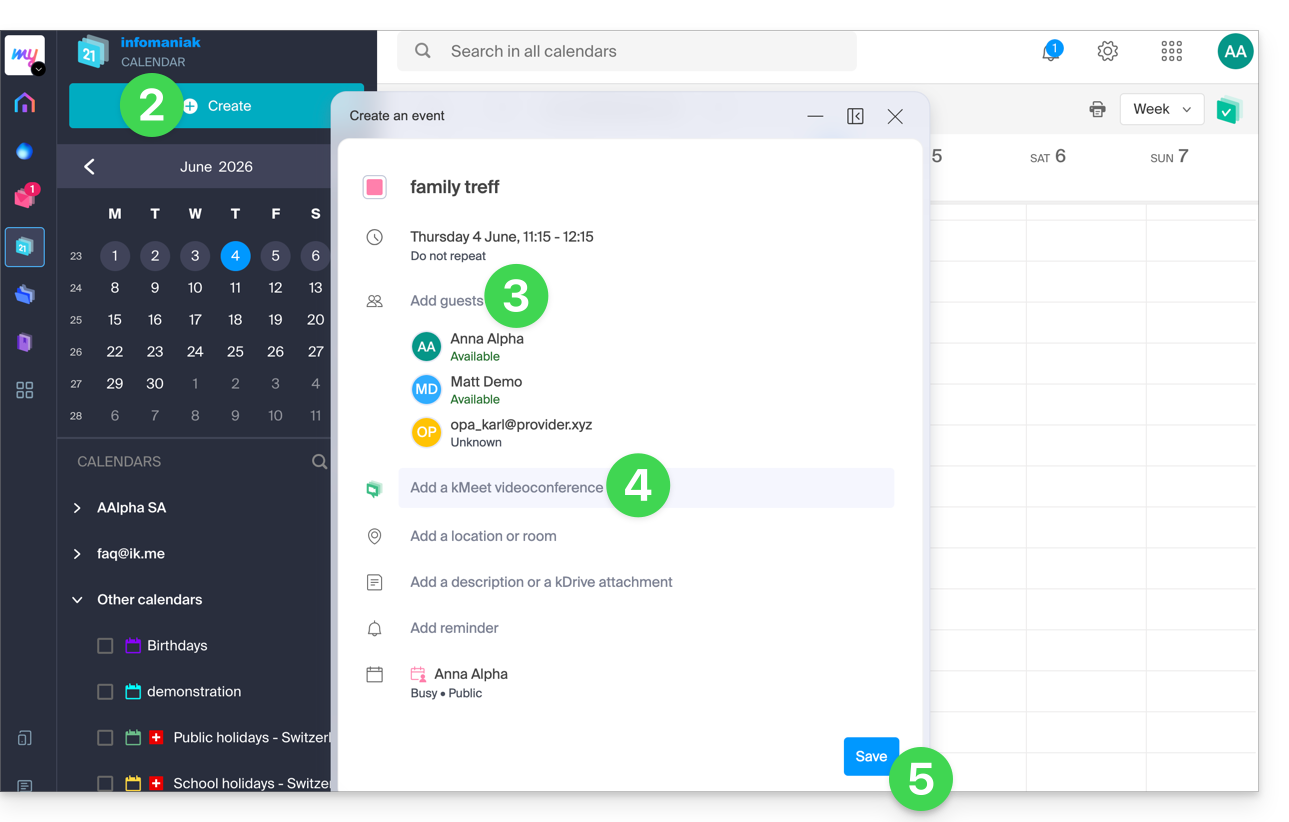
anna.alpha@ikmail.com, and especially access to Infomaniak services. - Connect to the calendar at ksuite.infomaniak.com/calendar, then create an event on the day of your choice.
- Add participants to the event, even if they are not Infomaniak customers.
- Click the green button to automatically generate a kMeet link that will be added to the event.
- Click the button to save your event:
- Answer YES to the prompt to send notifications to the guests.
- Invitations will then be automatically sent to participants via email, containing the clickable kMeet link that allows them to join the online discussion when the time comes:
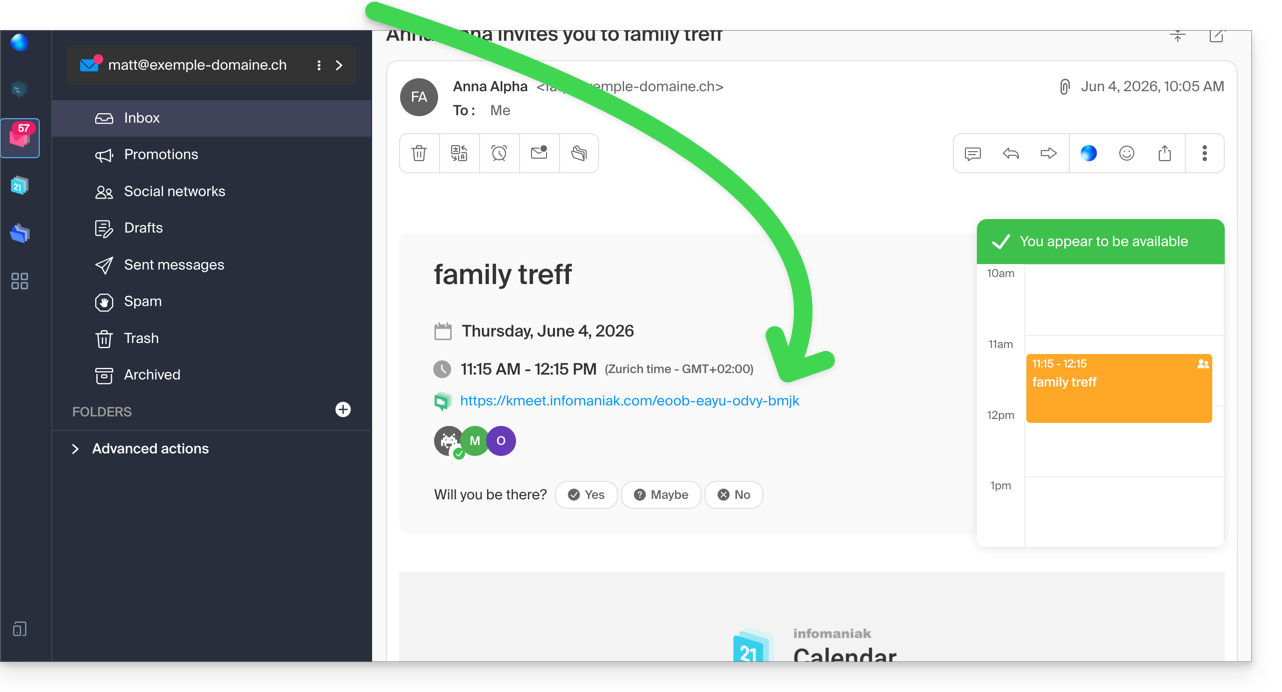
- The kMeet meeting link is also visible directly on the event in the calendar.
3. Call your contact as you would with Skype
To start a conversation at any time with a contact that you have previously saved in your address book, both of you need to have kChat, which is available within the kSuite from Infomaniak. To set up this solution, which can also be extended to an entire group of contacts:
- Register for kSuite to gain access to the corresponding Infomaniak services.
- Configure users (these can even be external) in kSuite.
- Install the kChat app or go to the URL https://ksuite.infomaniak.com/kchat
- A user can then be called via kChat, which will make the recipient's device ring:
- = browser if the kChat URL is open in it, or computer/mobile device if the kChat app is installed.
- Refer to this other guide to learn more about video conference calls on kChat.
- Your contact can then respond; the call will be made using kMeet technology within kChat or on the kMeet app if it is installed.
Link to this FAQ: https://faq.infomaniak.com/2890
Has this FAQ been helpful?