Knowledge base
1000 FAQs, 500 tutorials and instructional videos. Here, there are only solutions!
Resolve an issue on kMeet
This guide explains how to resolve any potential issues during a meeting with kMeet, Infomaniak's secure, unlimited, and free videoconferencing service.
For a problem specific to the video, refer to this other guide; for the audio, this other guide. In all cases, it is recommended to use the desktop app kMeet (desktop application) on macOS / Windows / Linux if a problem occurs with the kMeet Web app Infomaniak (online service kmeet.infomaniak.com) or vice versa.
Unable to see or hear the correspondent
If the conference is started, your correspondent has turned on the webcam and their microphone, but you still cannot see/hear them, ask them to check for the presence of a potential firewall on their machine or corporate network.
A firewall may allow solutions like Google Meet or Microsoft Teams without necessarily allowing kMeet streams.
In your firewall settings, here is what you need to allow:
- UDP protocol:
443. - For the turn server (recommended), add the TCP port
443. - Allow the following IP addresses:
185.125.24.0/24(TCP)185.125.24.0/24(UDP)
You can also switch connections (from WiFi to 4G/5G, for example) to check if it is indeed a firewall causing the desynchronizations.
Screen sharing impossible
When using the kMeet videoconferencing solution, if the button to share your screen is not available and/or remains grayed out, check the security settings on your computer/operating system regarding…
- … the kMeet application
- … the browser (if you are using kMeet directly online without going through the application):
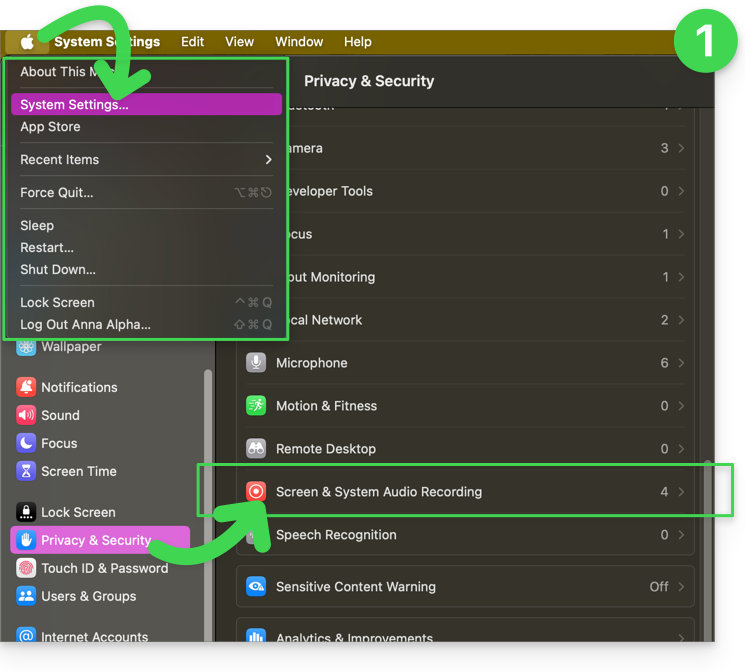
For example, on macOS, check and then activate the required permissions:
- Go to System Settings under Privacy and Security then Screen Recording:
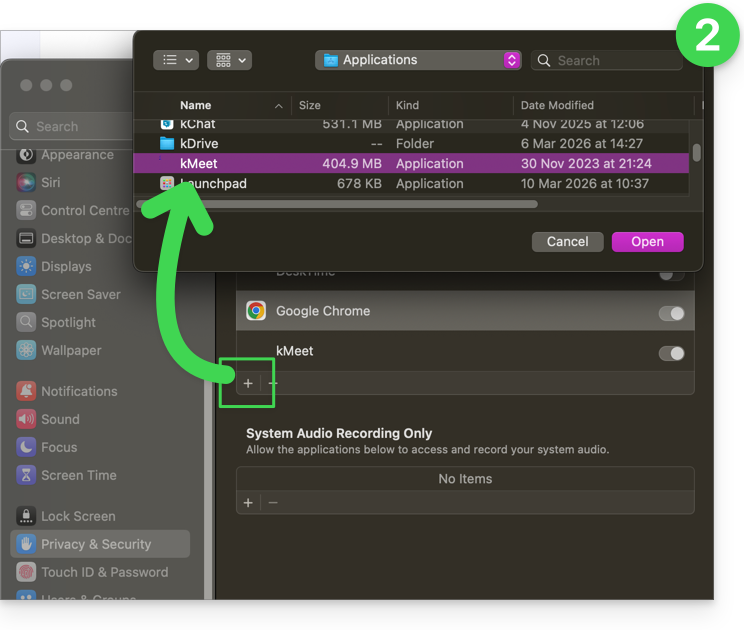
- Add your browser if necessary, or even kMeet if you have the desktop app on your computer:
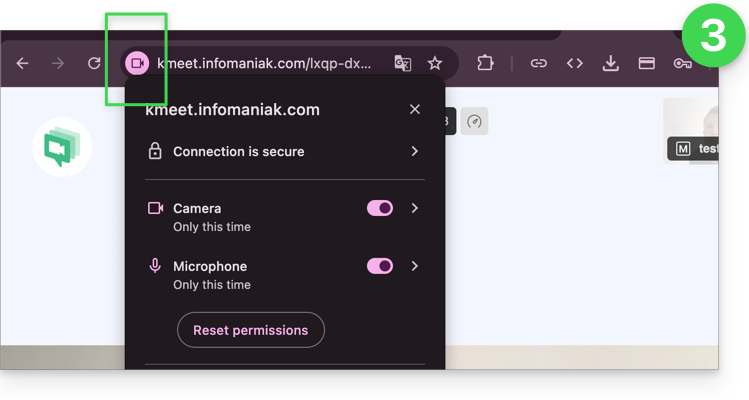
- Then also check the icons present in your browser's address bar and detect any potential authorization issue by clicking on the symbols:
Link to this FAQ: https://faq.infomaniak.com/289
Has this FAQ been helpful?