Knowledge base
1000 FAQs, 500 tutorials and instructional videos. Here, there are only solutions!
Edit a PDF file in the kDrive web app
This guide explains how to edit a file in PDF format on the kDrive web app (online service ksuite.infomaniak.com/kdrive).
✘ UNAVAILABLE with
kSuite Free
my kSuite (ik.me, etik.com, ikmail.com)
Introduction
- The kDrive web app natively integrates an editor that allows you to edit a PDF document online.
- Your files are never analyzed and are exclusively stored in Switzerland.
- Refer to this other guide if you are looking for information on editing other file formats.
Edit a PDF file
To access kDrive and edit the PDF document:
- Click here to access the kDrive web app (online service ksuite.infomaniak.com/kdrive).
- Click on the PDF document in question to open it:
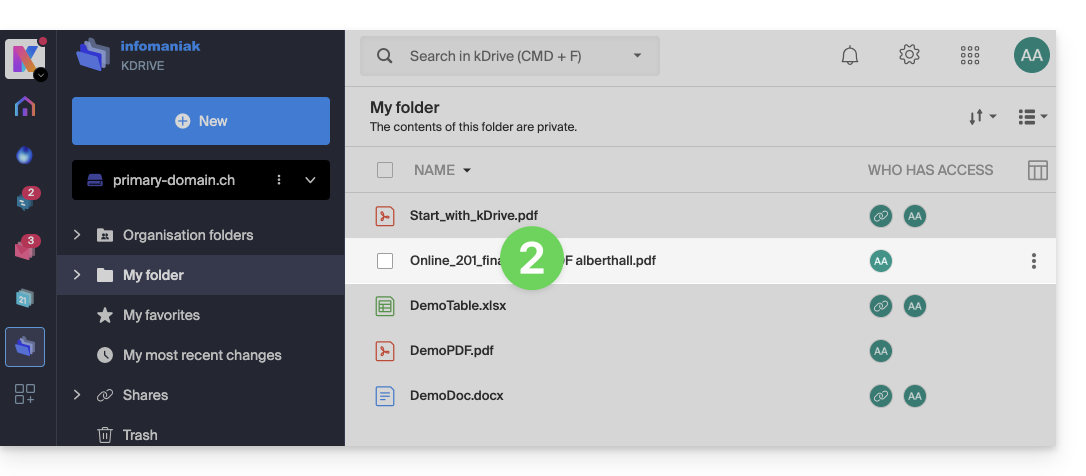
- Click on the Edit button at the top of the document to access the file editor:
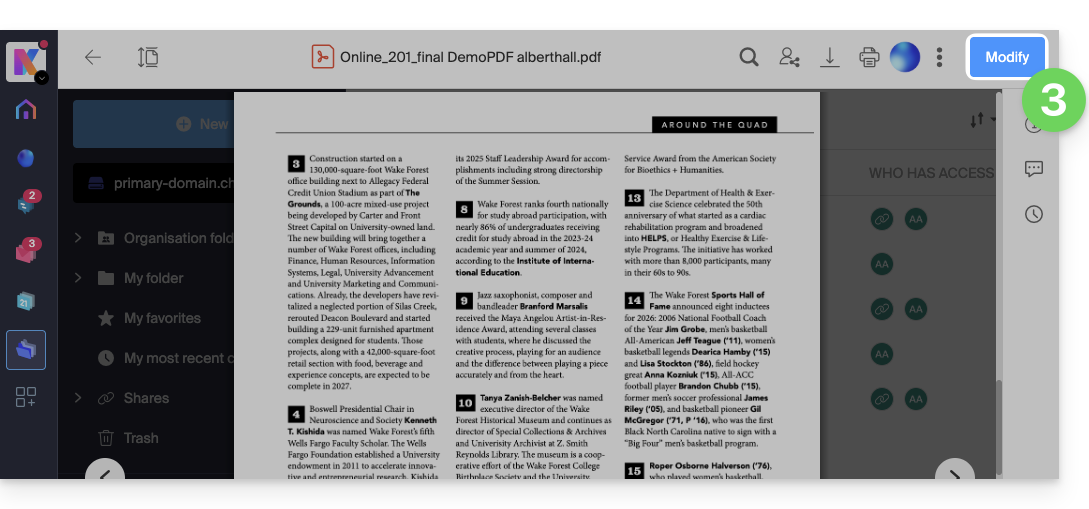
- Toadd text at the location, size, and color of your choiceusing the PDF editor:
- Click on the TEXT button in the toolbar.
- Click on the page and enter text as desired.
- Then click on the buttons that have appeared to adjust the size or color of the text.
- Click on the Trash can button to delete your selected text blocks:
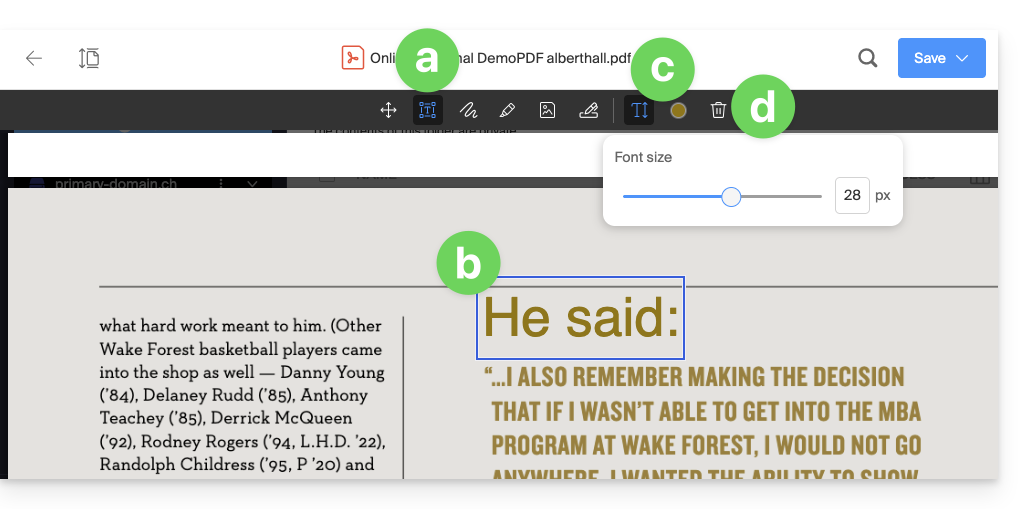
- To draw in the location, size, and color of your choiceusing the PDF editor:
- Click the DRAW button in the toolbar.
- Click on the page and draw as desired.
- Then click on the buttons that have appeared to adjust the size or color of the lines.
- Click the Trash can button to delete your selected lines:
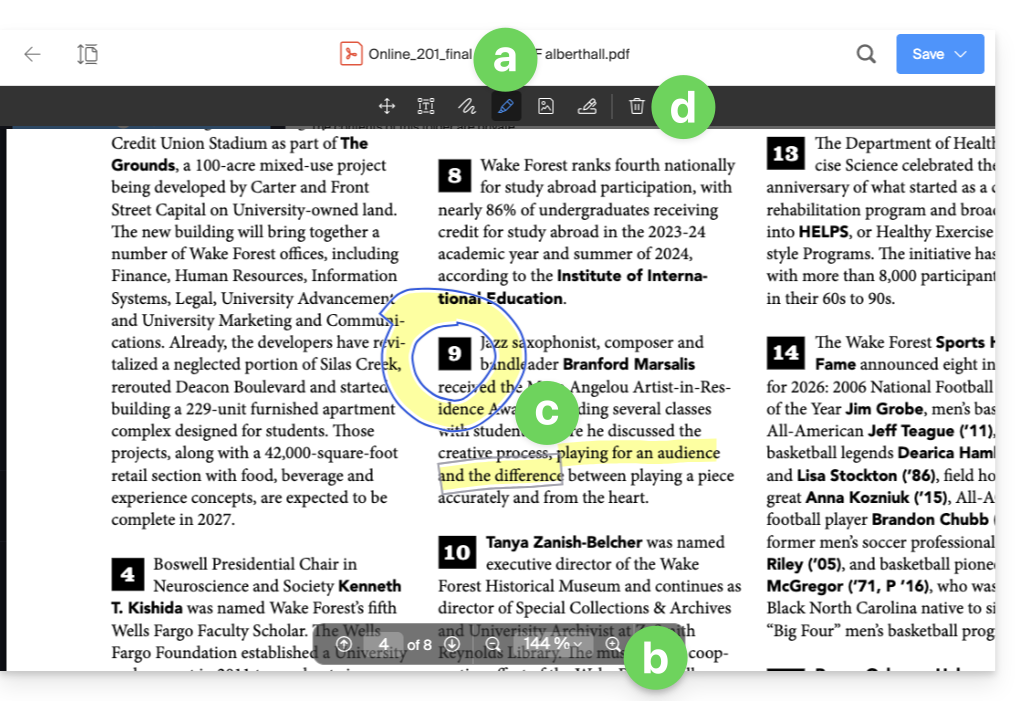
- To highlight text using the PDF editor:
- Click on the PENCIL button in the toolbar.
- If necessary, increase the display size using the zoom tools at the bottom of the screen.
- Highlight your text as desired.
- Click on the TRASH CAN button to delete the selected highlights:
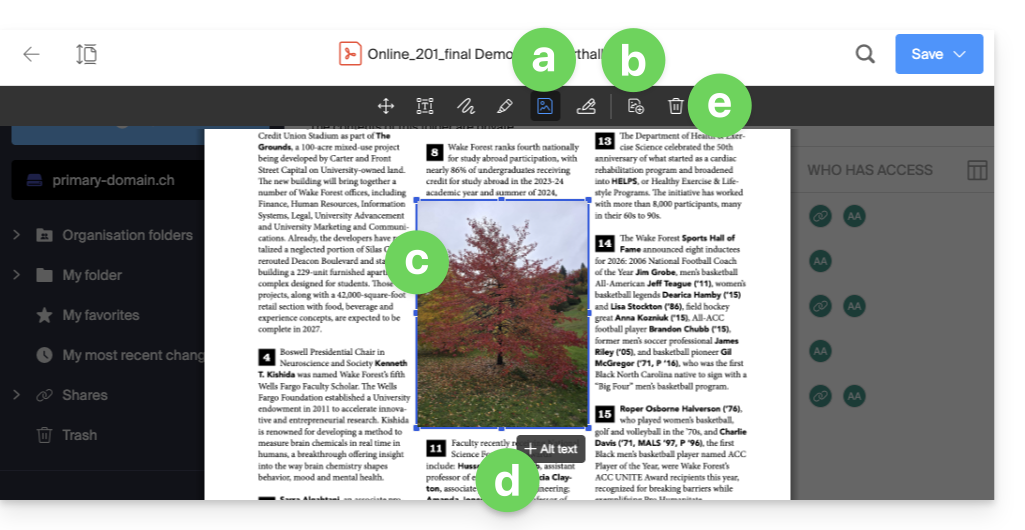
- To insert an image using the PDF editor:
- Click on the IMAGE button in the toolbar.
- Then, click on the button that appears to import an image from your device.
- Place and resize the image as desired.
- Add alternative text (optional).
- Click on the TRASH CAN button to delete the inserted image:
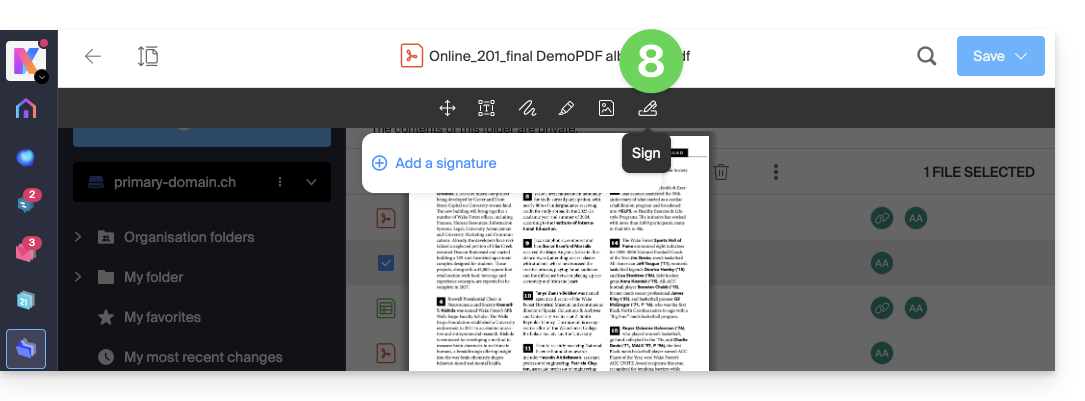
- To create a signature and then sign documents, refer to this other guide:
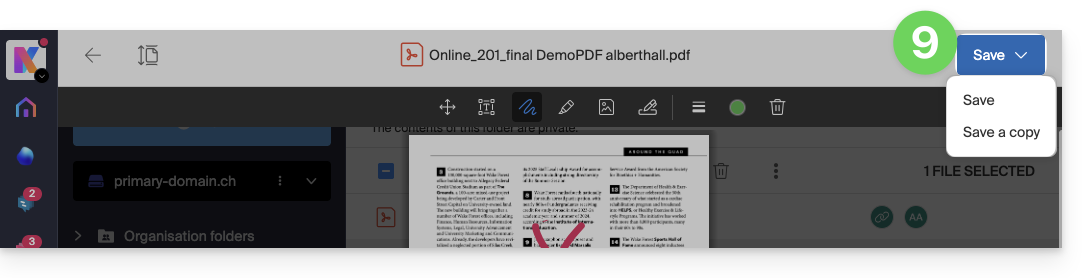
- Once finished, save the changes and choose whether to create a copy of the modified document or overwrite the existing file:
Rename a file (PDF or other)
You can rename any file:
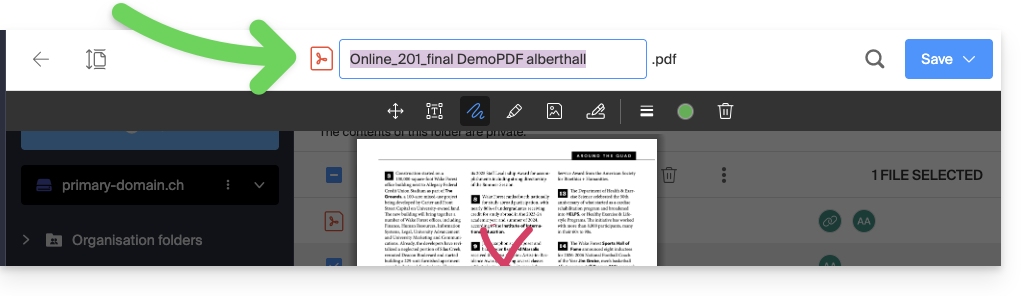
- from the editor or file preview, by double-clicking on the document name:
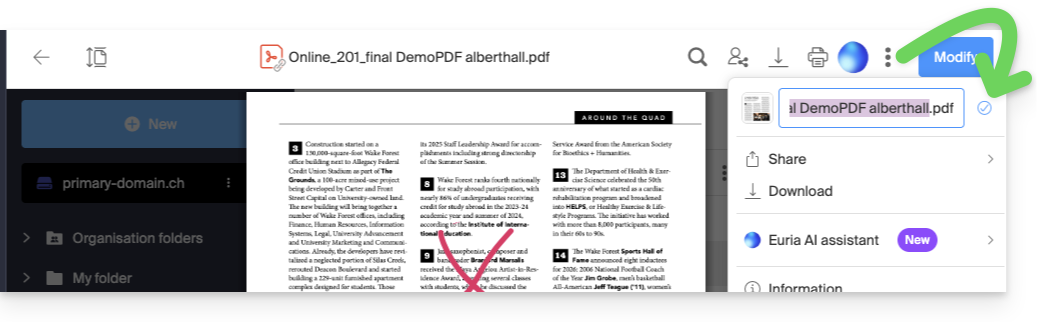
- from the preview, by clicking on the action menu ⋮ and then on the pencil icon:
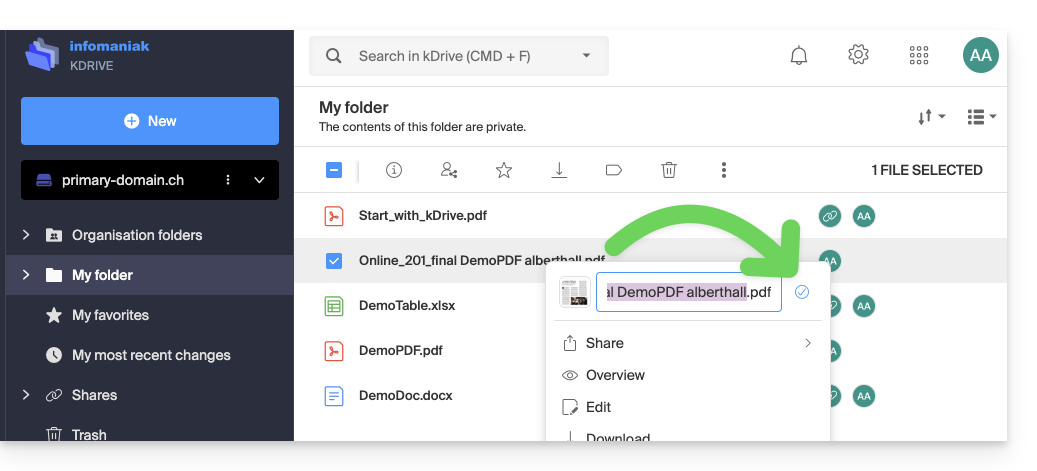
- from the kDrive file structure, by clicking on the action menu ⋮ located to the right of the item in question (or by right-clicking) and then on the Pencil icon:
Link to this FAQ: https://faq.infomaniak.com/2885
Has this FAQ been helpful?