Knowledge base
1000 FAQs, 500 tutorials and instructional videos. Here, there are only solutions!
Ticketing: duplicate an event (on the second ticketing system)
This guide explains how to duplicate an event from one ticketing system to another within the Infomaniak ticketing system.
Introduction
- The duplicated event will include all information and settings from the original event, except for information related to the general settings for ticketing and dates.
- Please carefully check all information that requires manual updating.
- If necessary, consult this other guide about duplication (one-time or recurring) of an event within the same ticketing system.
Duplicate an event
Prerequisites
To duplicate an event from one of your ticketing systems to another, go to the ticketing system from which you want to duplicate the events, season, or previous edition:
- Click here to access the management of your product on the Infomaniak Manager (need help?).
- Click directly on the name assigned to the ticketing system where the event to be duplicated is located:
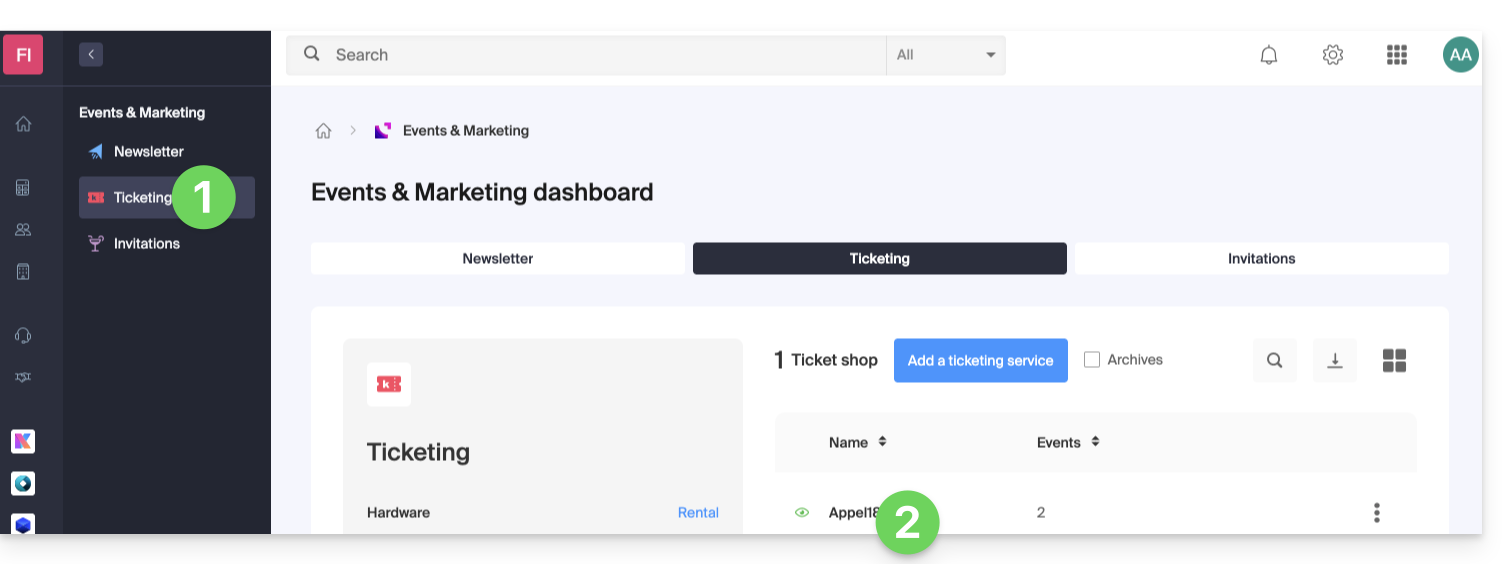
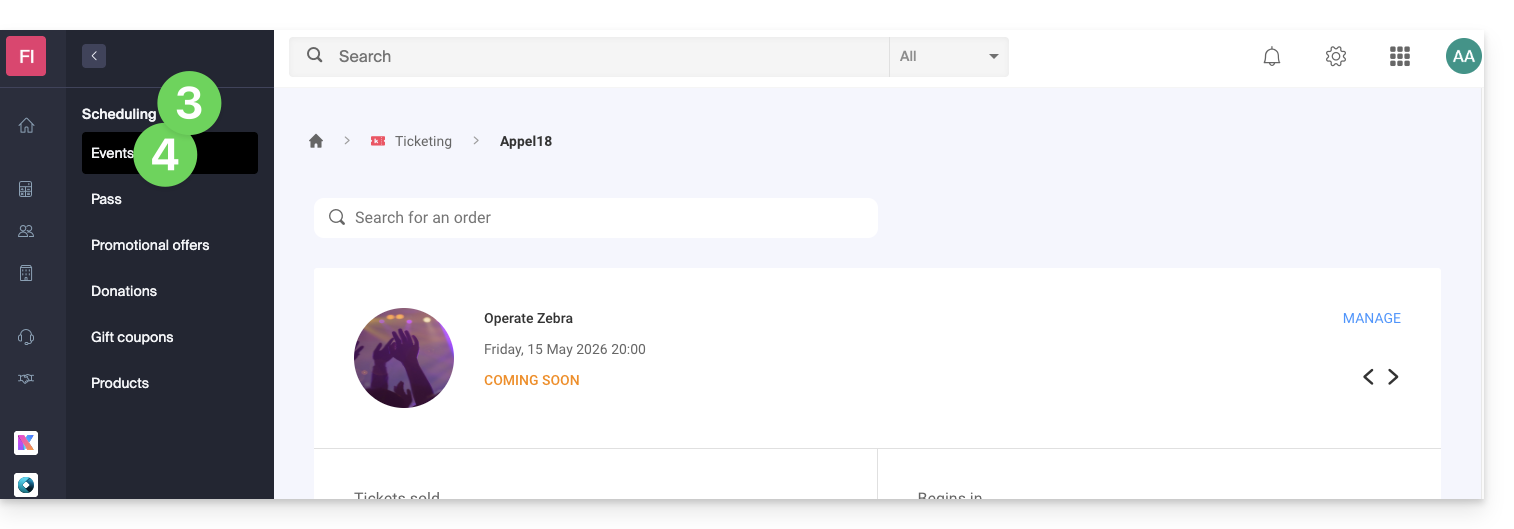
- Click on Schedule in the left-hand menu.
- Click on Events in the left-hand menu:
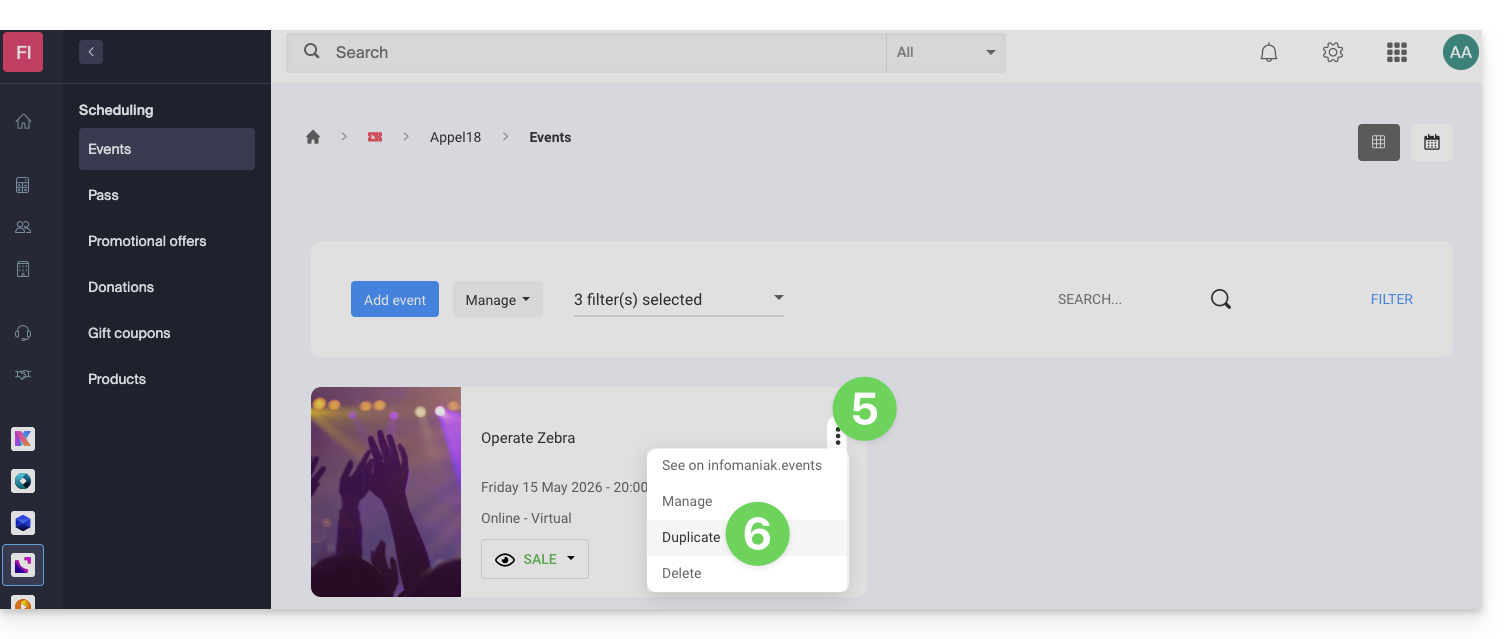
- Click on the action menu ⋮ located to the right of the event to be duplicated.
- Click on Duplicate:
- In the window that appears, enable the Duplicate to another ticketing system option and choose which one:
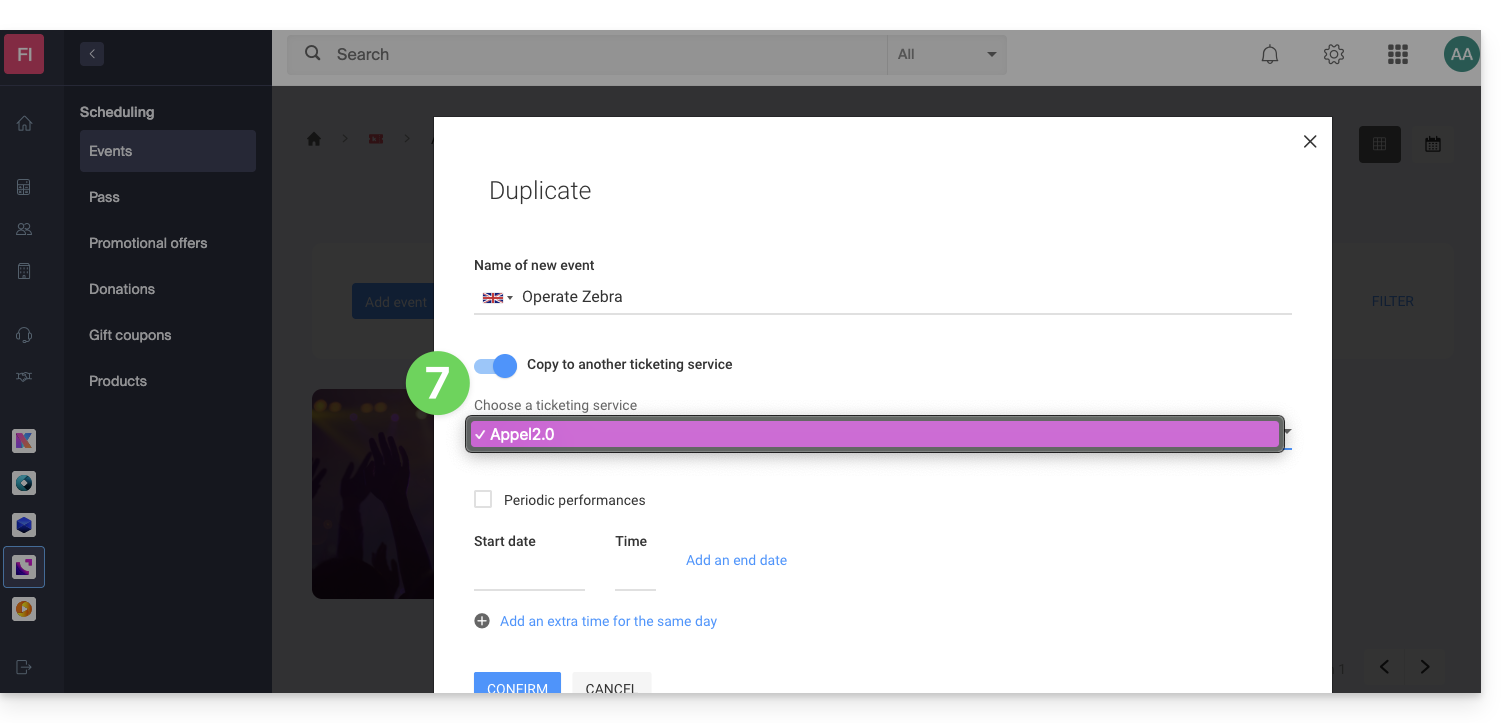
- If necessary, specify the new name of the event, the new dates, and other display settings for your event.
- Click Confirm to start the duplication.
Link to this FAQ: https://faq.infomaniak.com/2883
Has this FAQ been helpful?