Knowledge base
1000 FAQs, 500 tutorials and instructional videos. Here, there are only solutions!
Manage the sender address for invitations in the Guest Manager
This guide explains how to manage the email address used to send your invitations with Infomaniak's Guest Manager tool.
Introduction
- Any of your email addresses can be specified for sending invitations from the Guest Manager.
- There will be no issues with an email address already configured for use with Infomaniak.
- For a mail address from a generic domain such as
outlook.frorgmail.com, the mail addressno-reply@infomaniak.comwill be automatically used as the alternative sending address, and the same applies to all domain addresses for which you cannot modify the SPF (see below). - However, any replies will be sent to the mail address you have provided.
- For an email address on a custom domain that is not yet configured to work with Infomaniakand where you can access the DNS zone, please refer to the guide below to add the appropriate SPF record.
Specify the sending email address
The email address from which your invitations will be sent must be entered in the first step of configuring your invitations (after creating your subscriber lists):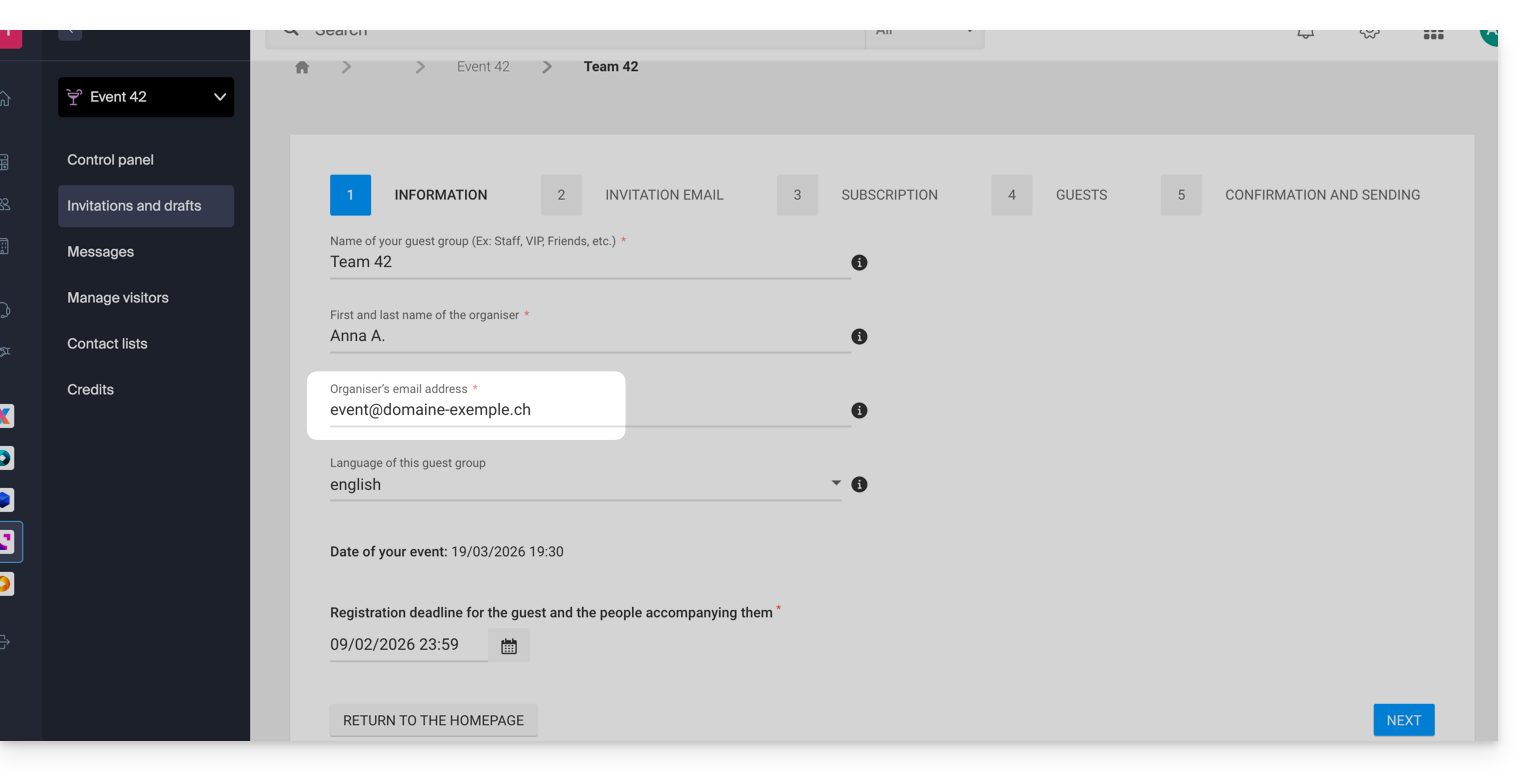
Depending on the email address specified, a pop-up will appear when you click on Next, warning you that SPF must be configured correctly for emails to be sent from the specified address. Otherwise, the invitations will be sent from a no-reply@infomaniak.com address.
You can still review and modify the address in the final step by clicking on the pencil ✎ icon: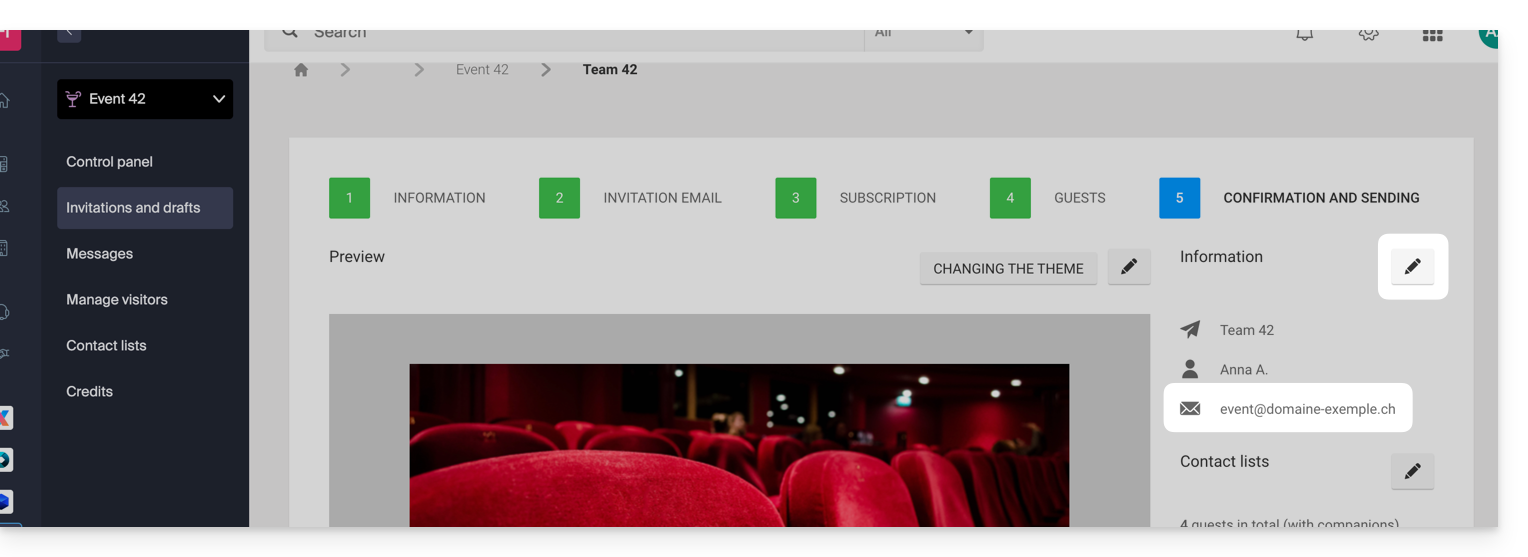
Add the Infomaniak SPF record to the DNS zone
If you want to use a custom email address to send invitations, you need to check and, if necessary, modify your domain's SPF record to allow Infomaniak to send emails on your behalf.
Please refer to this other guide, especially the chapter “Add multiple SPF records”, so that you don't replace your existing SPF record but simply add Infomaniak's: v=spf1 include:spf.infomaniak.ch -all
Link to this FAQ: https://faq.infomaniak.com/2881
Has this FAQ been helpful?