Knowledge base
1000 FAQs, 500 tutorials and instructional videos. Here, there are only solutions!
Manage error pages with Site Creator
Update 10/13/2026
This guide explains how to redirect visitors arriving on non-existent pages (e.g., old pages from a previous website) when your website is currently managed with Infomaniak's Site Creator.
Prerequisites
- Know the web address (URL) of the page that is no longer available.
- Access Site Creator:
- Click here to access the management of your product on the Infomaniak Manager (need help?).
- Click directly on the name assigned to the Site Creator in question.
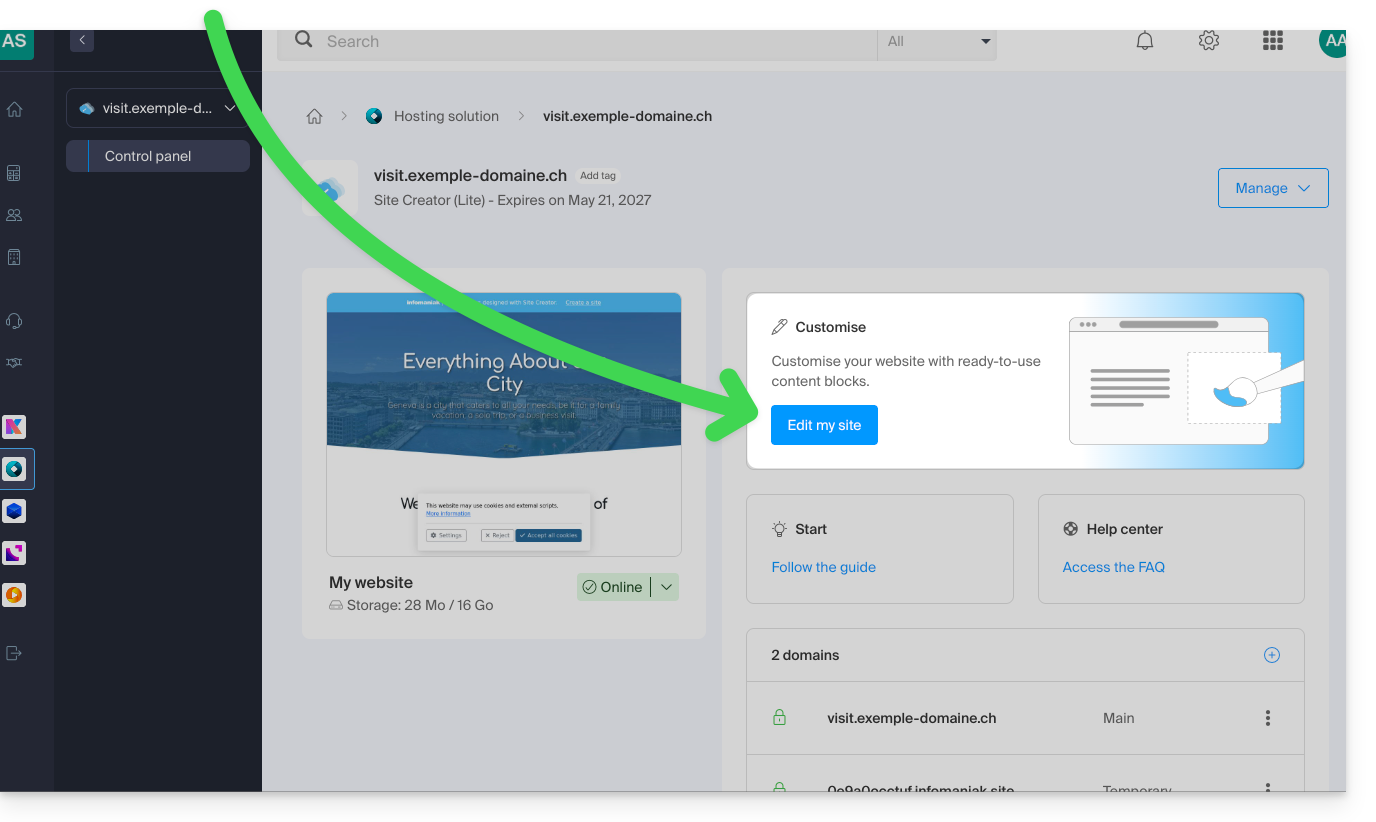
- Click on the Edit my site button to launch the editor:
Redirect visitors to the new Site Creator page
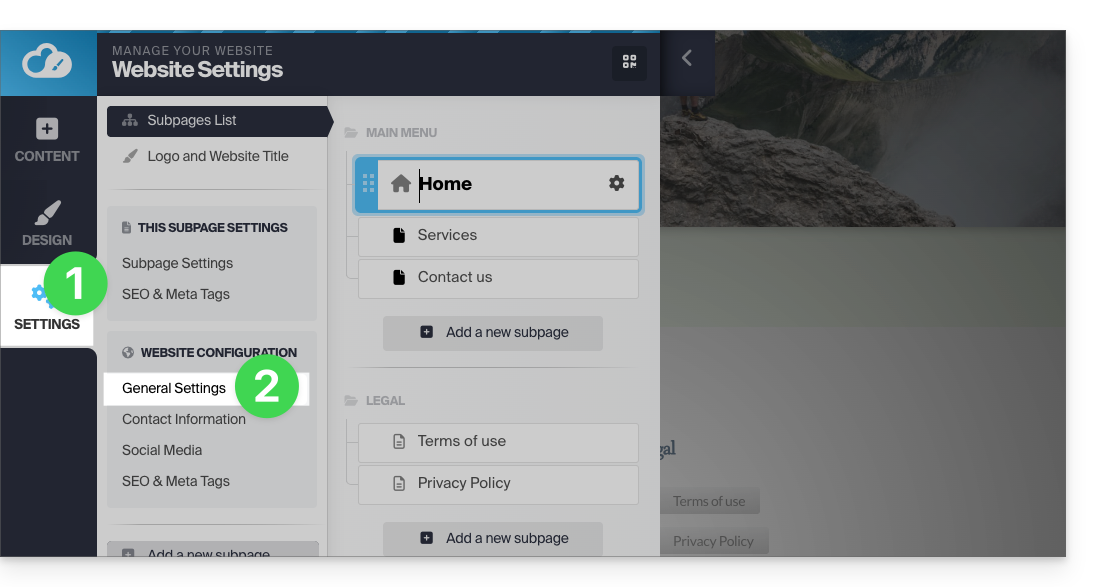
In the left-hand menu of Site Creator:
- Click on Settings.
- Click on General settings:
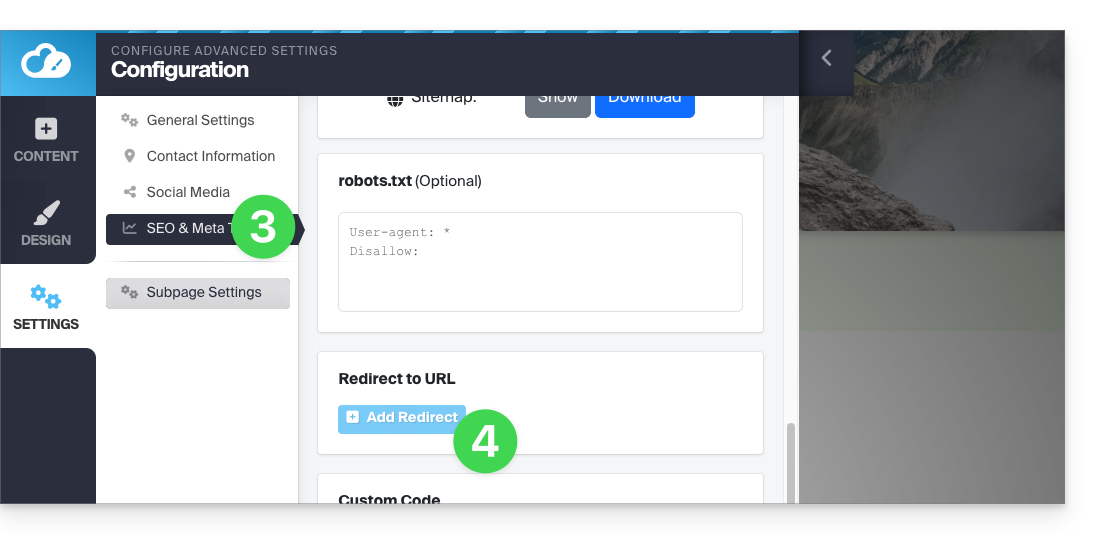
- Click on SEO & Meta Tags.
- Click on Add a redirection:
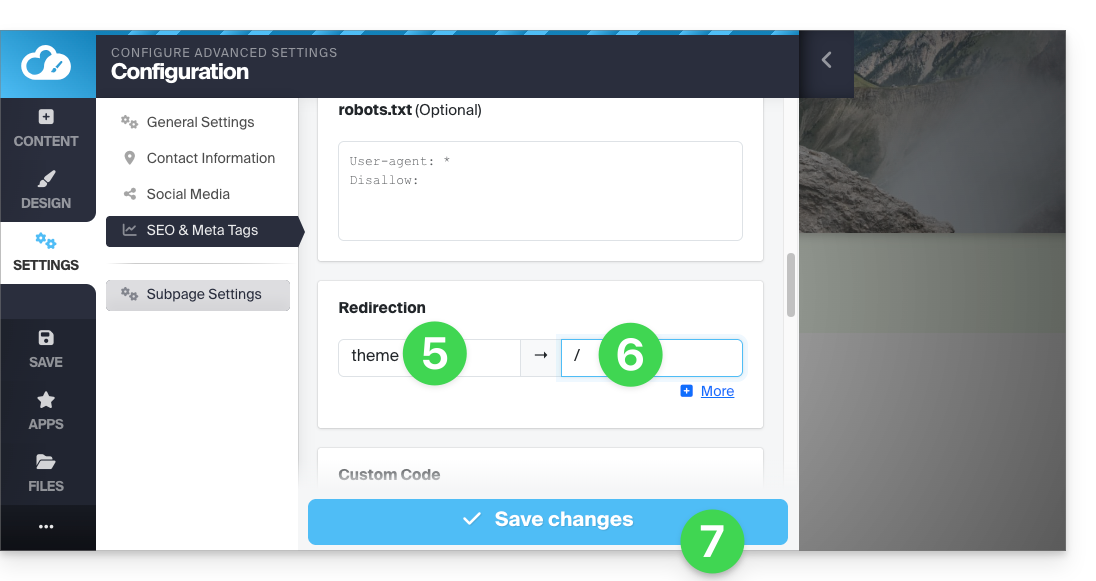
- Enter the address of the old page (without your site name) under Redirection.
- Enter the address of the new page (or
/to redirect the visitor to the root of your site, i.e., the homepage). - Back up using the blue button at the bottom of the page:
For example:
- Your previous website contained a contact page at the address
domainxyz.com/company/contact.html. - Now your contact page is located at
domainxyz.com/about. - You must therefore enter
company/contact.htmlin the field on the left… - … and
aboutin the field on the right so that visitors who still arrive at the old address (due to outdated search engine indexing or clicking on a bookmark, for example) are automatically redirected to the new page.
An alternative method is to add a new Site Creator page with the name of your old page, then specify a redirect to the URL of your choice, and make it invisible using the toggle switch located below the redirect field: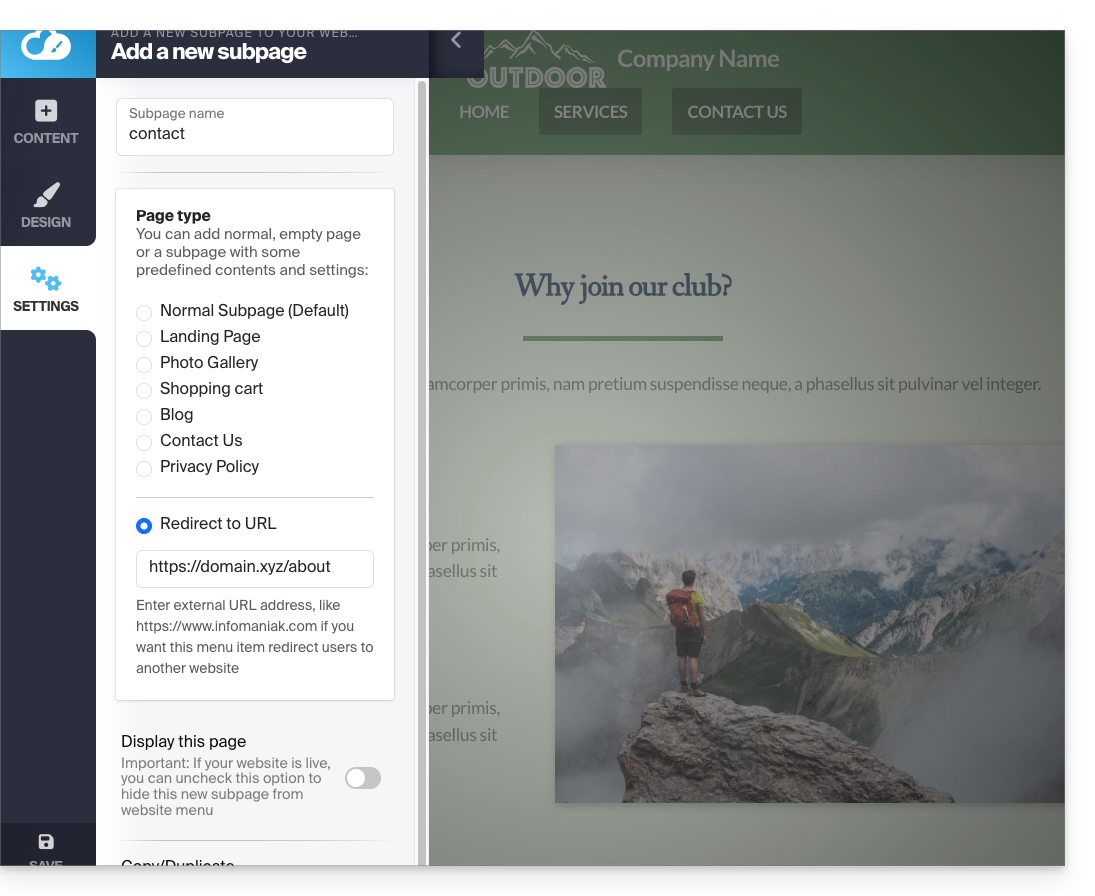
Link to this FAQ: https://faq.infomaniak.com/2875
Has this FAQ been helpful?