Knowledge base
1000 FAQs, 500 tutorials and instructional videos. Here, there are only solutions!
Create a desktop app (e.g., based on Infomaniak Calendar)
This guide explains how to obtain and install an application on your computer from certain Infomaniak interfaces, such as the kSuite interface or those that allow you to directly manage your calendars or your address books.
Introduction
- A Progressive Web App (PWA) is an application designed for the web and offering an experience similar to that of a native application.
- PWAs are fast, accessible directly from your browser, and can offer features such as offline operation or sending notifications.
- Installing a PWA allows you to create an independent application on your computer, without going through a traditional store.
Install a progressive web app (PWA)
To download the PWA app (example here with Mail Infomaniak), depending on the browser used:
- Click here to access the Calendar Infomaniak web app.
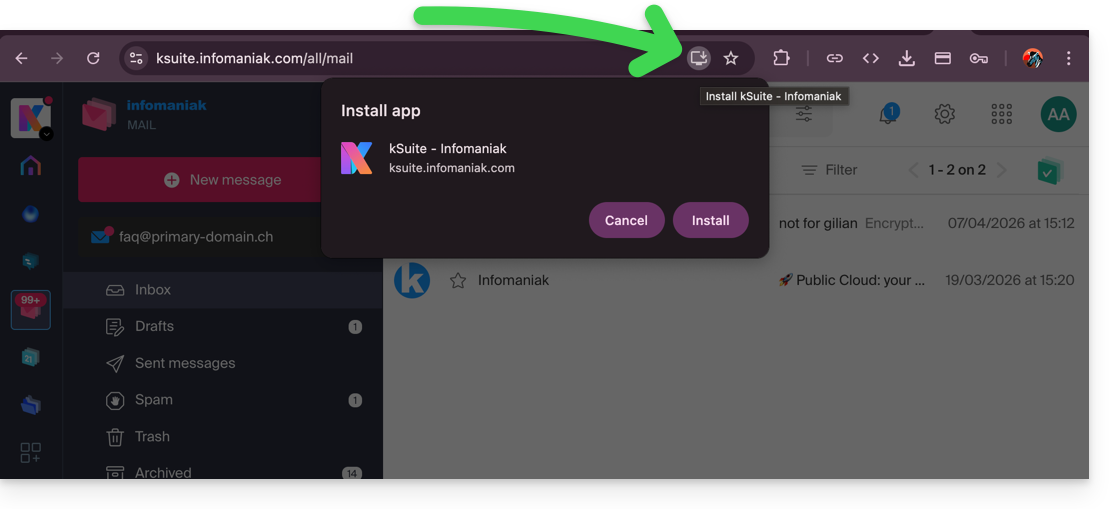
- Once the page has loaded, check for the installation icon in the browser's address bar (often represented by a screen with a “+”):
- Google Chrome / Chromium :
Click on the installation icon in the address bar, or open the ⋮ menu and click on Install [application name]. - Microsoft Edge :
Click on the Applications icon in the address bar or open the ⋯ menu, then select Applications > Install this site as an application. - Mozilla Firefox :
The installation of PWAs is not fully supported natively. However, it is possible to use alternative solutions (extensions or shortcuts) to simulate similar behavior. - Safari (macOS) :
From recent versions of macOS, open the File menu and click on Add to Dock to create a web application.
- Google Chrome / Chromium :
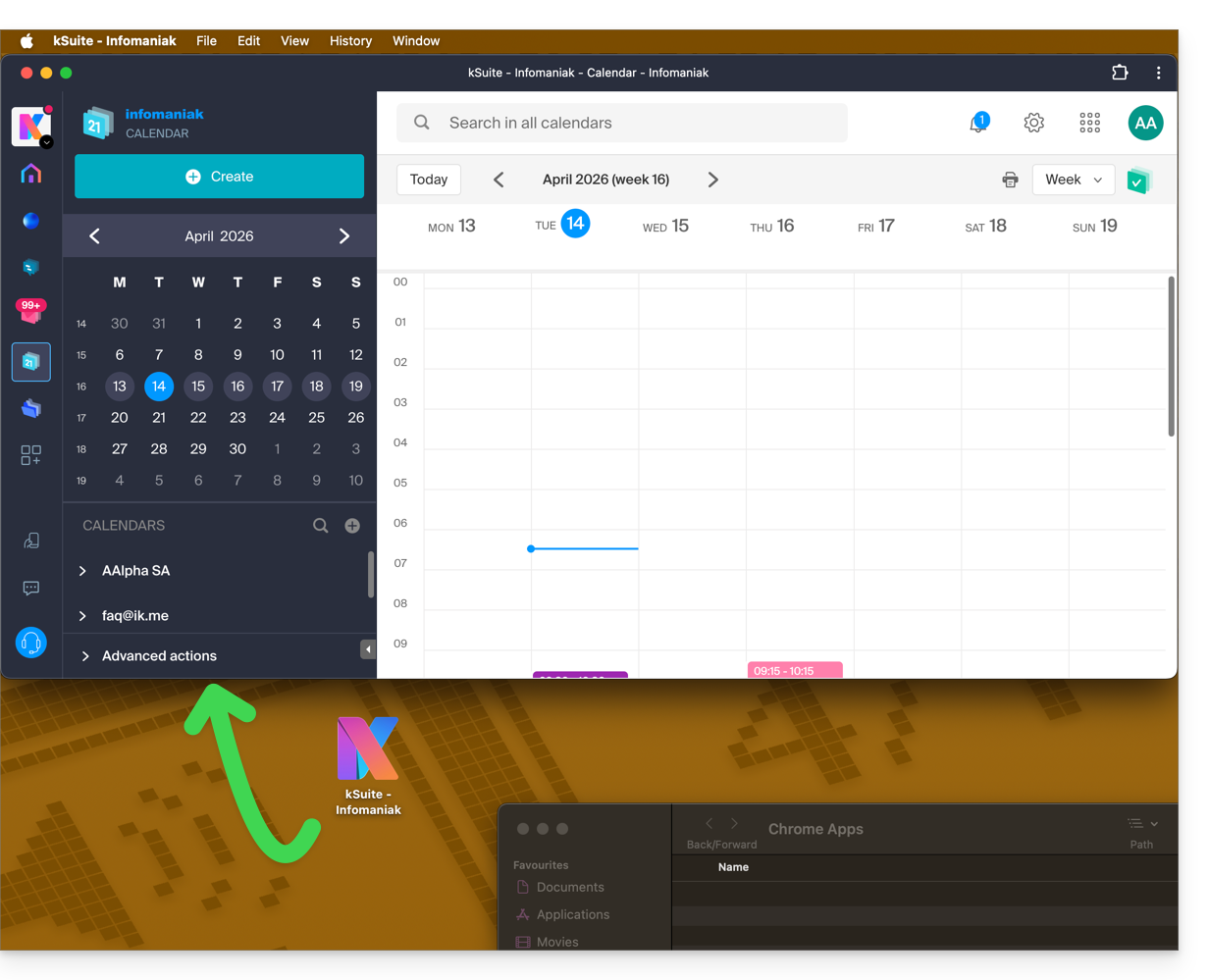
- The app is then available on your computer (example here with Calendar Infomaniak) and allows you to open the data while being completely independent of the browser:
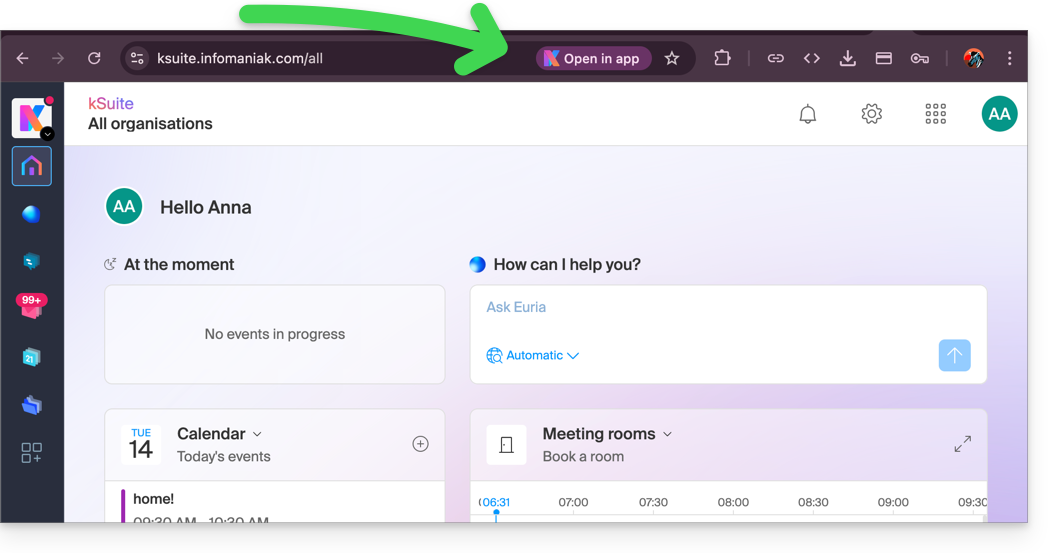
- When the app is detected on your computer, you can easily return to the app from the browser when you are on other Infomaniak pages (example here with a kSuite user space):
Remove the Infomaniak “PWA” app
To remove this local application system:
- Open the application you previously installed.
- Click on the action menu ⋮ or ⋯, depending on your browser.
- Select Uninstall or Remove app.
- Confirm the removal if necessary.
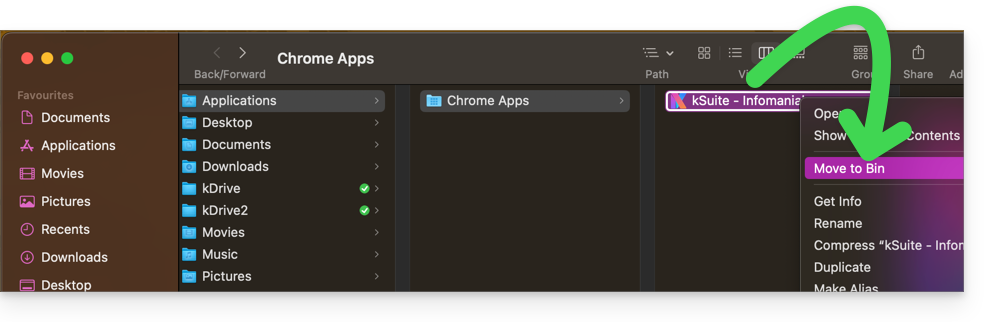
- You can also delete the application directly from your operating system (like any other application) or move the icon to the trash:
Link to this FAQ: https://faq.infomaniak.com/2872
Has this FAQ been helpful?