Knowledge base
1000 FAQs, 500 tutorials and instructional videos. Here, there are only solutions!
Force kDrive to exclude files & folders
Update 08/27/2026
This guide explains how to exclude files and folders from a kDrive synchronization on your computer, and which types of files are already excluded by default.
Manage files excluded from kDrive
To do this:
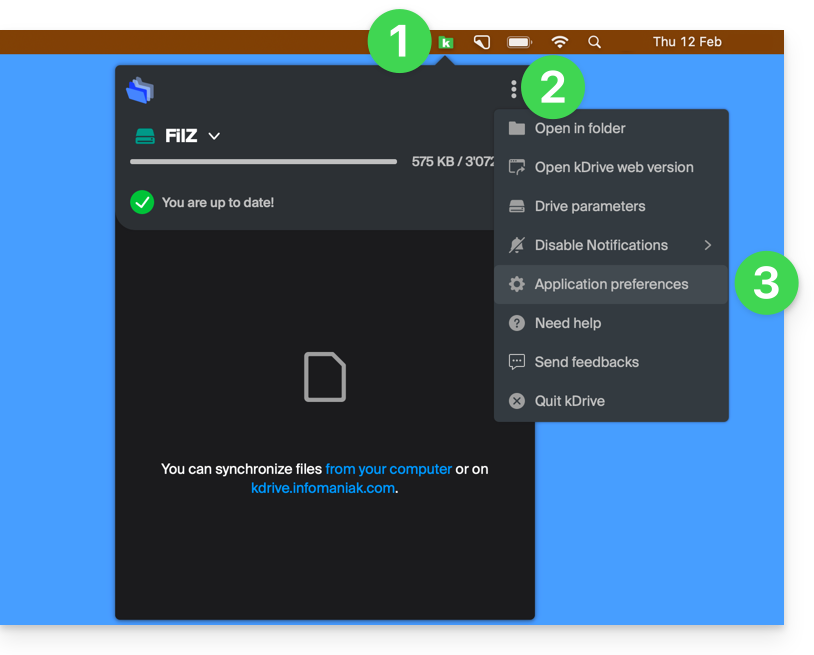
- Click on the desktop app icon in the notification area of your computer (top right on macOS, bottom right on Windows, and double-click in the taskbar on Linux).
- Click on the action menu ⋮ in the top right corner of the application.
- Click on Preferences:
- Click on Files to exclude (in the Advanced section).
- To add files to exclude, click on the Add icon and then enter the name.
- To exclude a collection of files, specify, for example,
*.bak(asterisk "wildcard" preceding the file extension in question). - If you add the name of a folder, it will no longer be synchronized, including its content, subfolders, etc.
- To exclude a collection of files, specify, for example,
- To remove files/folders that you added in order to exclude them from synchronization, click on the Trash icon Delete at the far right of the corresponding line.
- You can hide synchronization warning messages for excluded files by checking the box to the right of the excluded file.
- Click on the blue Save button:
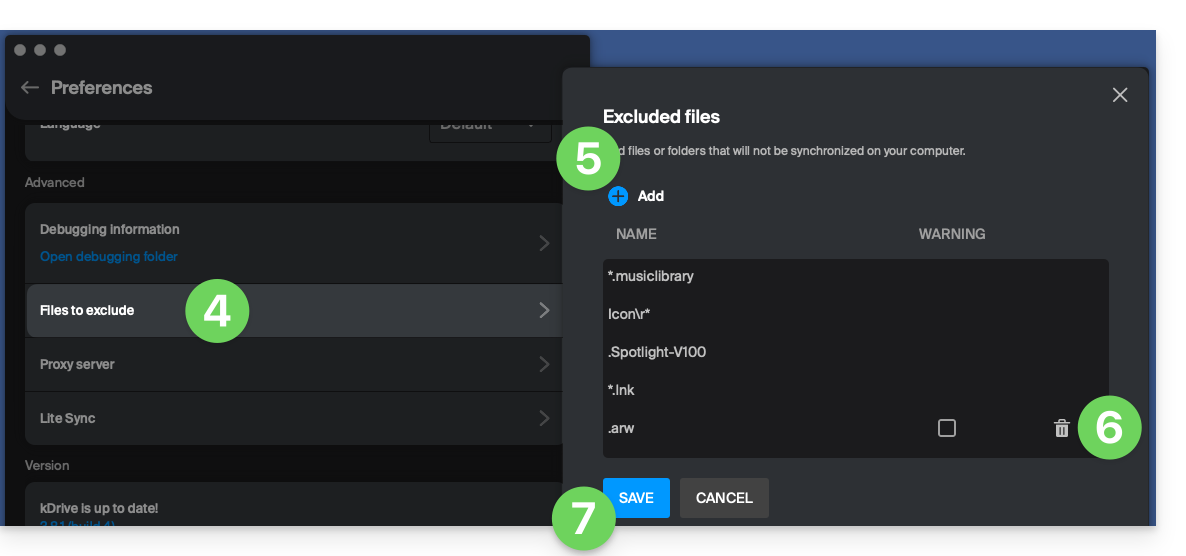
Files that are excluded by default (items in the list that cannot be deleted) vary depending on the operating system and are excluded because they pose a risk of synchronization errors.
Link to this FAQ: https://faq.infomaniak.com/2871
Has this FAQ been helpful?