Knowledge base
1000 FAQs, 500 tutorials and instructional videos. Here, there are only solutions!
Understanding kDrive sharing (Web / Desktop app)
This guide explains how Infomaniak kDrive shares are displayed, depending on the type of share and the application used (Web or Desktop), including internal shares (between users of the same kDrive) and external shares (to users outside of kDrive).
Introduction
- Internal shares (between users of the same kDrive, point A below) are synchronizable on the desktop app.
- Shared folders appear in a “Shared” folder on the desktop app and can be enabled/disabled in the synchronization settings.
- Do not move or rename the “Shared” folders locally – this may break the synchronization.
- External shares (to users outside of kDrive, point B below) are not synchronizable on the desktop app.
- They have certain limitations.
A. Internal sharing (between users of the same kDrive)
It is possible to share files or folders from your personal folder with other users of your kDrive, without using the organization folders (shared folders). This allows you to precisely control access to your private data.
Steps for sharing a folder/file internally
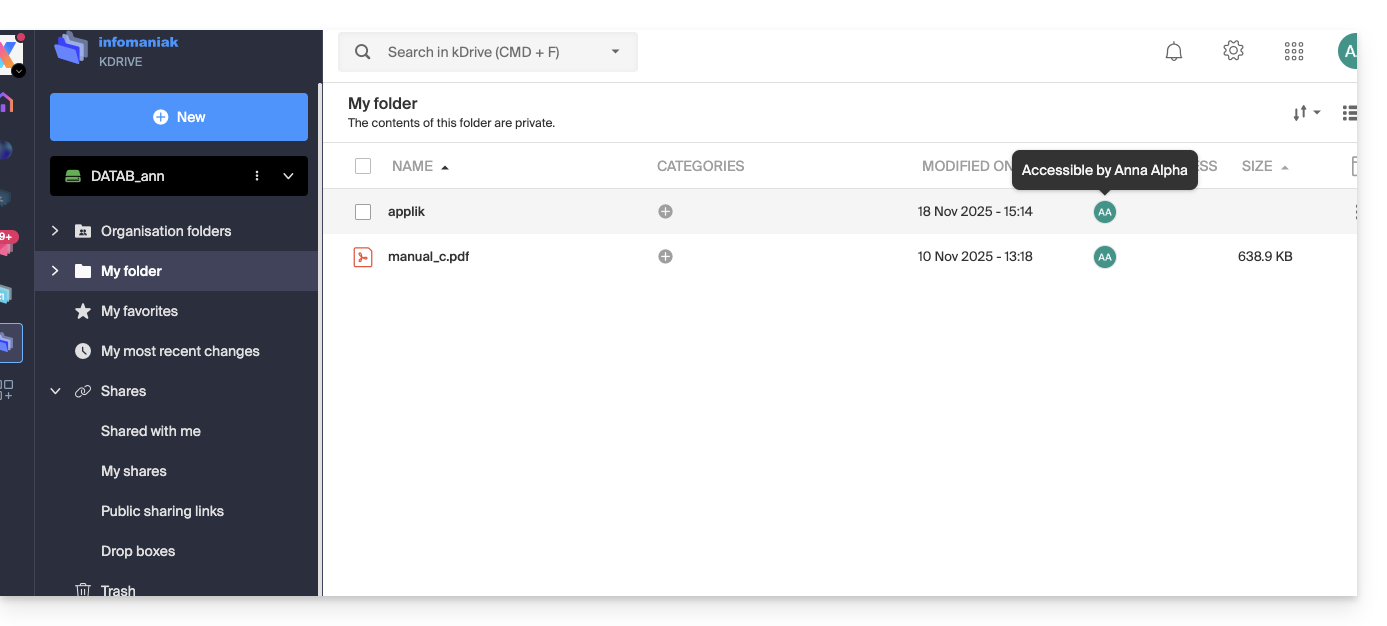
- In the kDrive web interface, one of the kDrive users right-clicks on the folder or file to be shared:
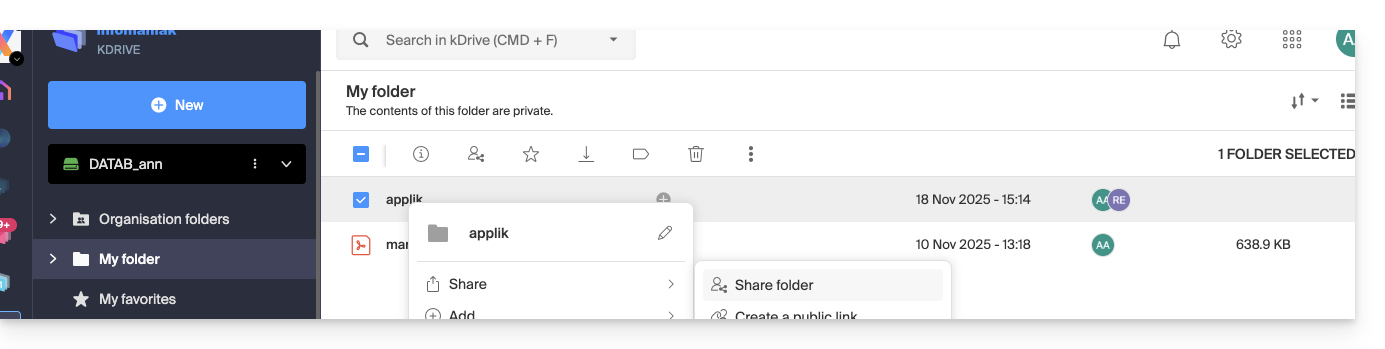
- Select “Share folder”:
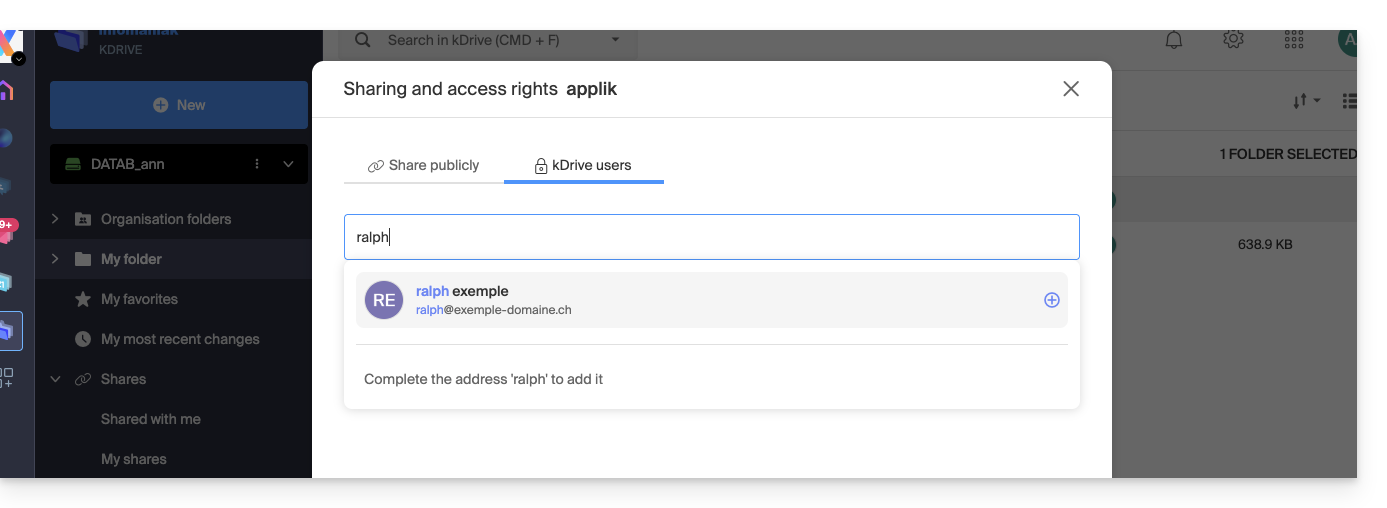
- In the “kDrive Users” tab, enter the name of another user of the same kDrive:
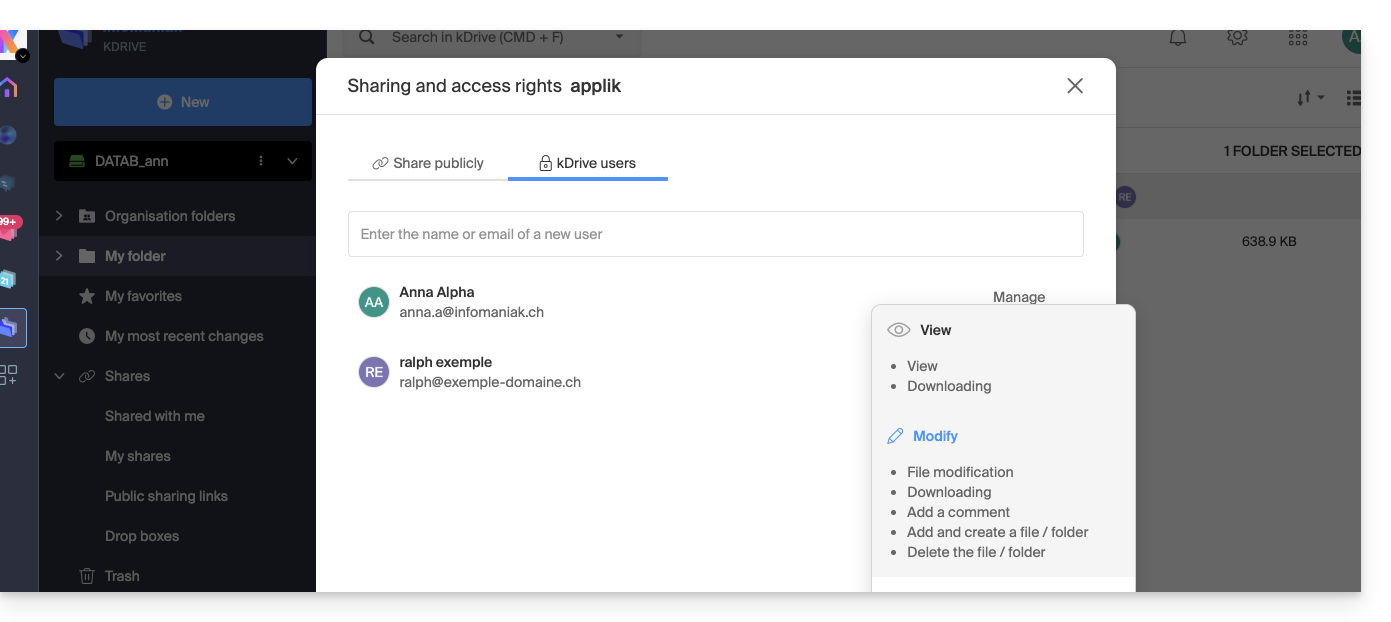
- Choose the permissions:
- Close the sharing window.
Behavior in the desktop app
When an internal share is performed as described above, a folder named “Shared” automatically appears in the local file structure of the desktop application for the user in question, as shown here on macOS: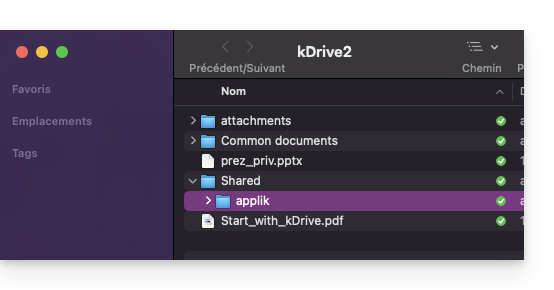
This folder contains all shared items and will therefore be synchronized with any subsequent changesby the user who shared their data.
You can enable or disable the synchronization of this folder from the desktop application settings, by clicking on the chevron next to the name of the synchronization folder (kDrive2 in the example below) to expand the tree of synchronized files, and by unchecking the “Shared” folder (don't forget to save the changes):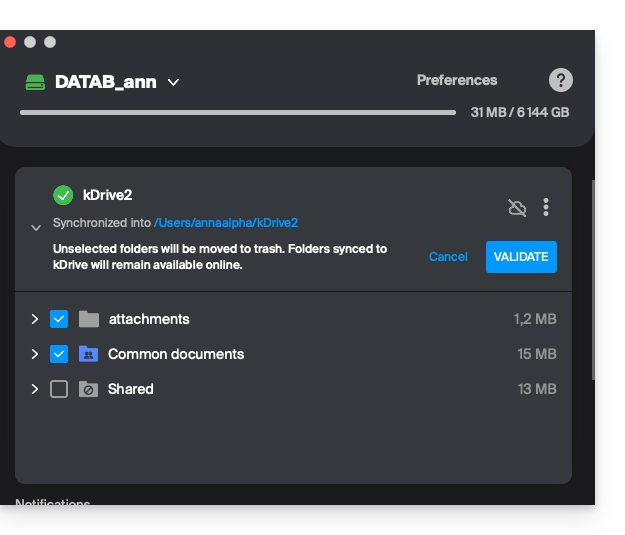
B. External shares (to users outside the kDrive in question)
You can also share files or folders with people who are not part of your kDrive. These shares are called external shares.
Important: The external user must have an Infomaniak account (free or paid) to access the shared content. This is not a public link accessible to anyone.
Steps to share a folder/file externally
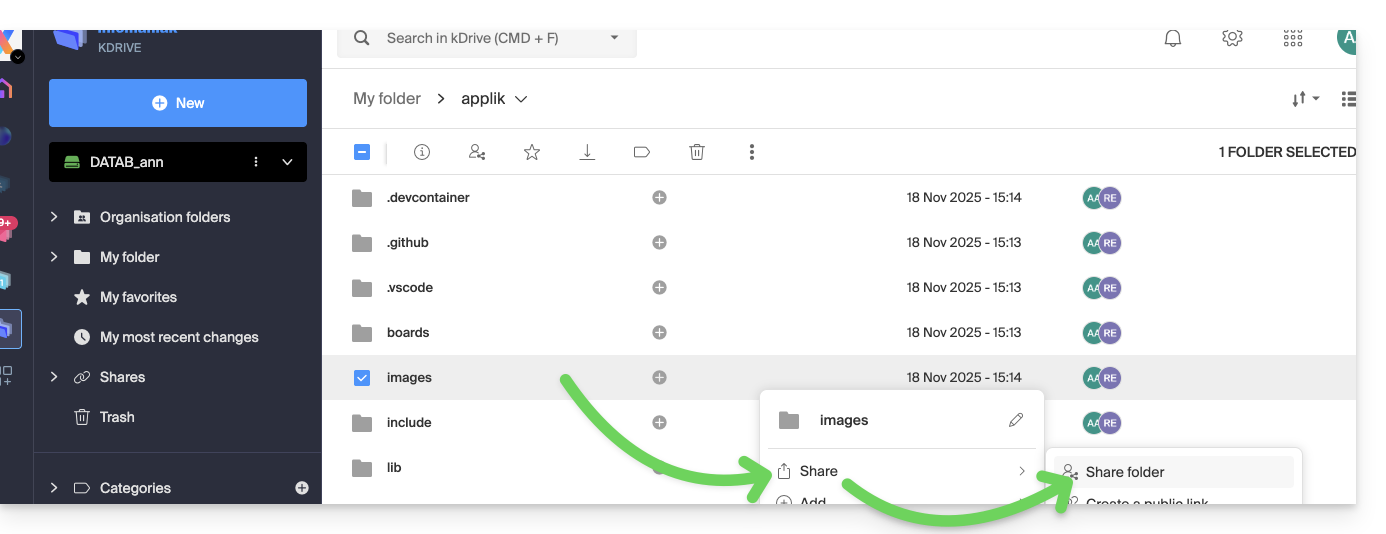
- In the kDrive web interface, one of the kDrive users right-clicks on the folder or file to be shared (for this example, a subfolder of a folder that has already been shared (as in point A above) will be shared; this has no impact).
- Select “Share folder”:
- In the “kDrive Users” tab, enter the email address of the external person (
faq@ik.mein this example):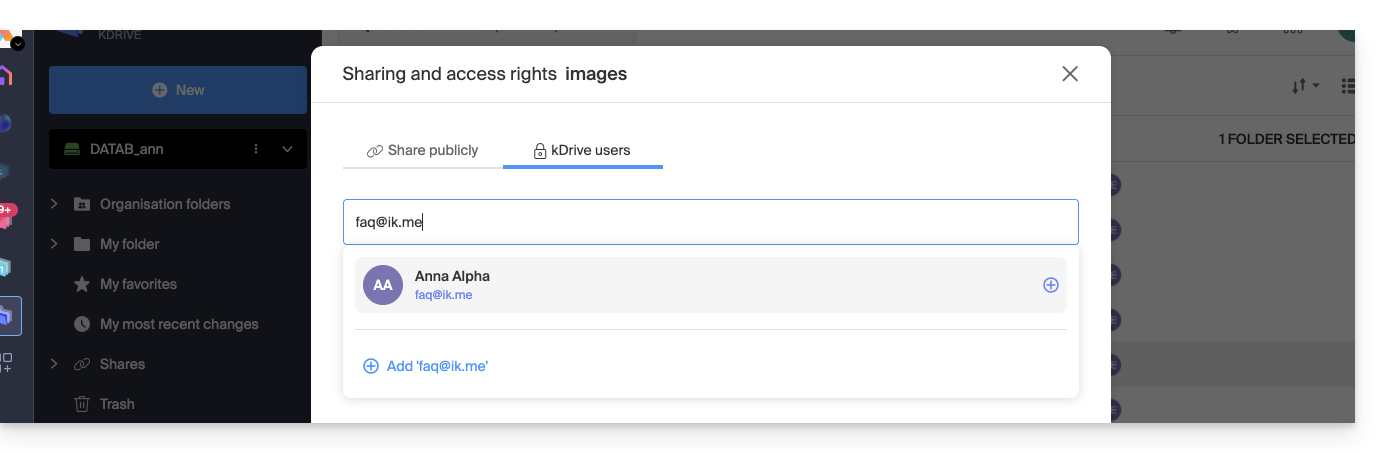
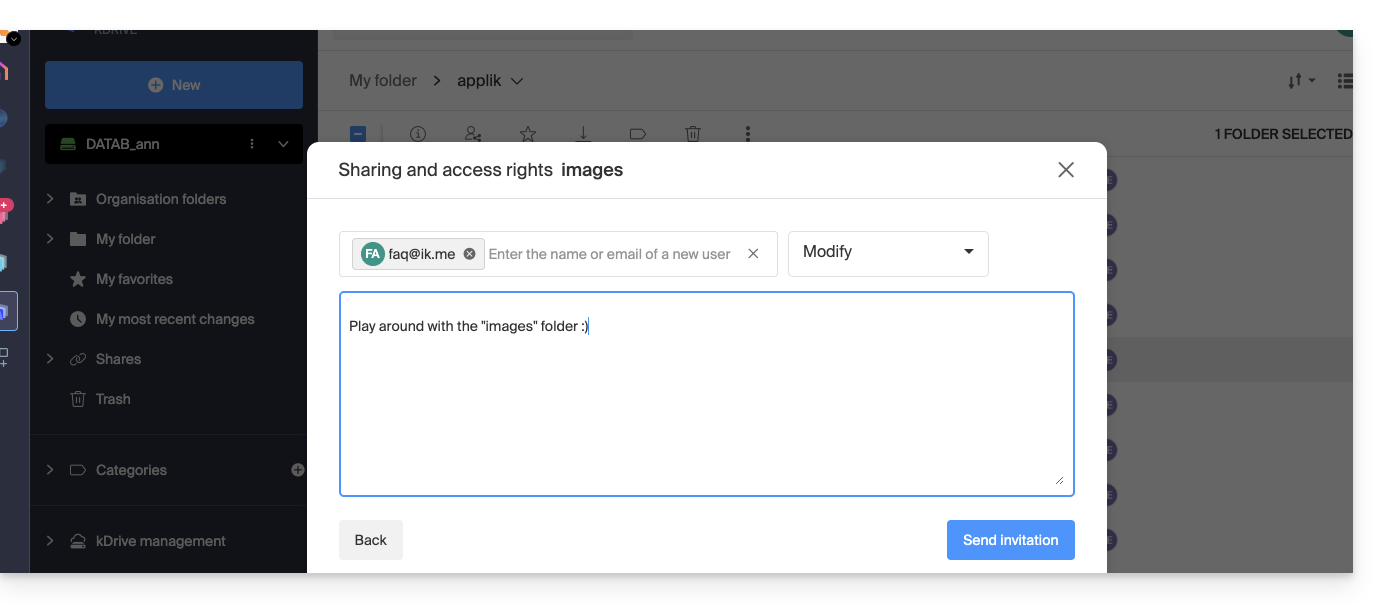
- Click on the email address to add it, choose the permissions for the user and an optional message, then click on the button in the bottom right corner:
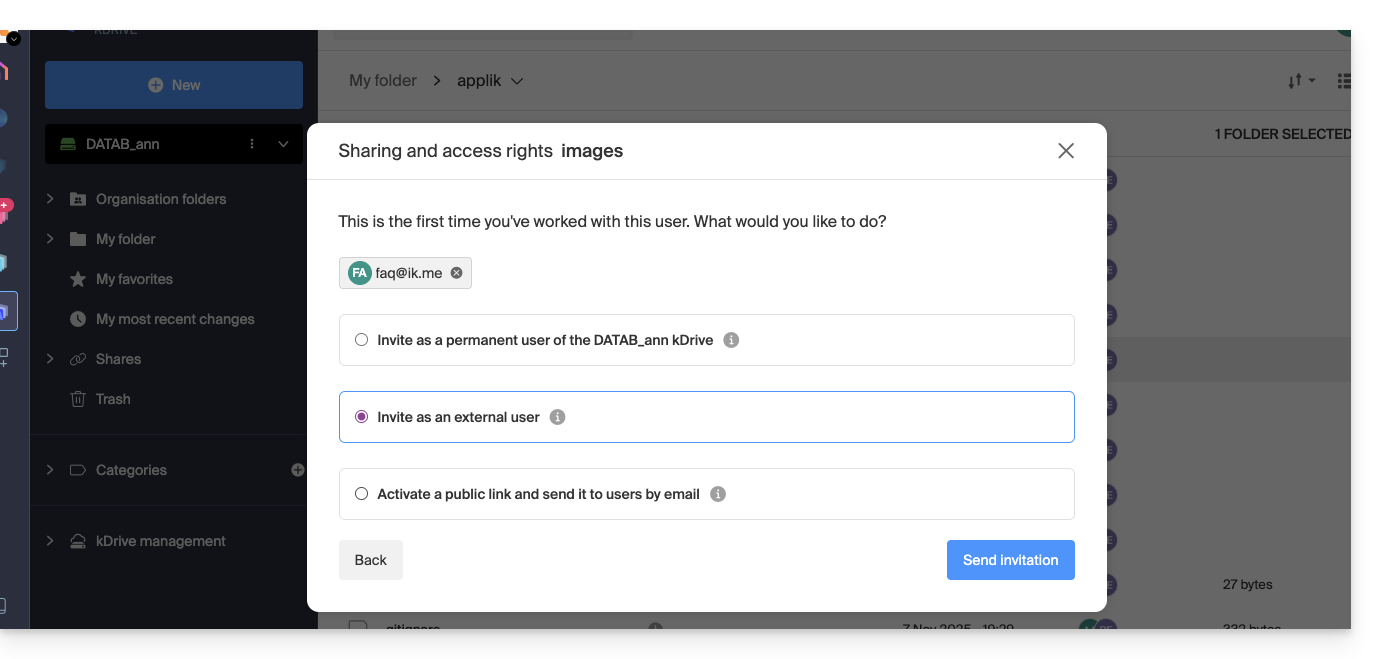
- Select “External user” and click the button in the bottom right corner to send the invitation:
- Close the sharing window.
Behavior in the web (and desktop) app
As long as the user does not view their emails, nothing will happen, and kDrive will not appear, either in the web app or the desktop app: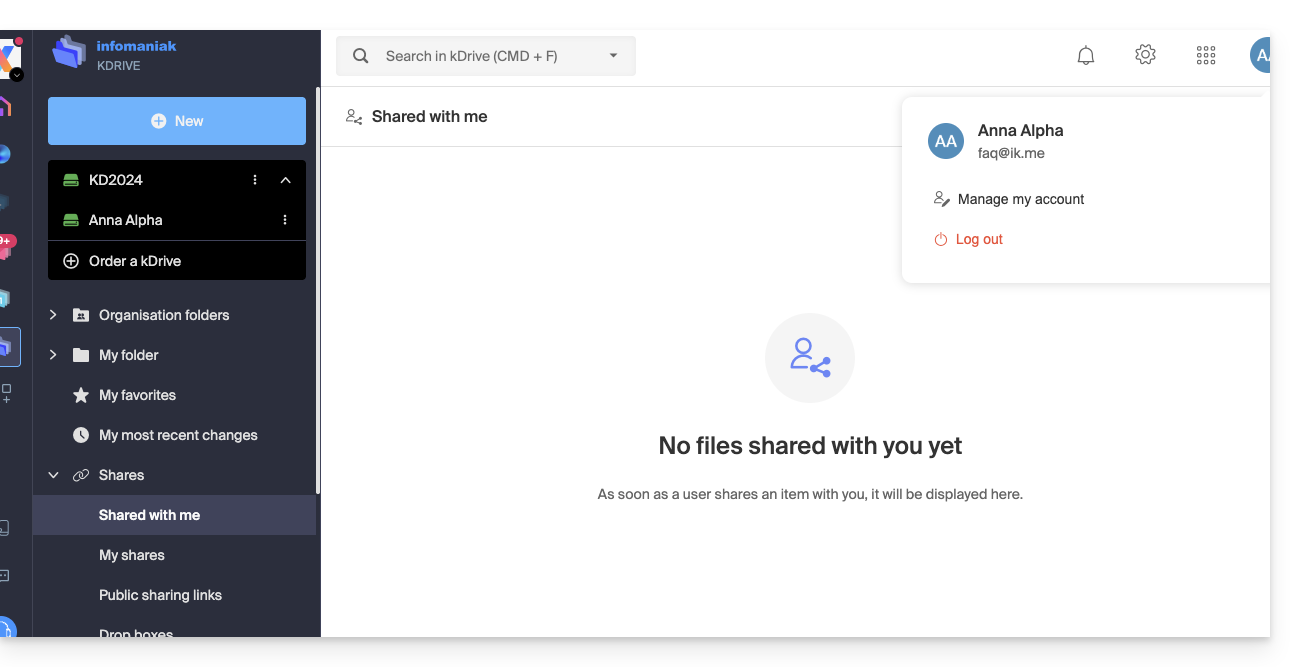
The user faq@ik.me, whose emails can be viewed as follows: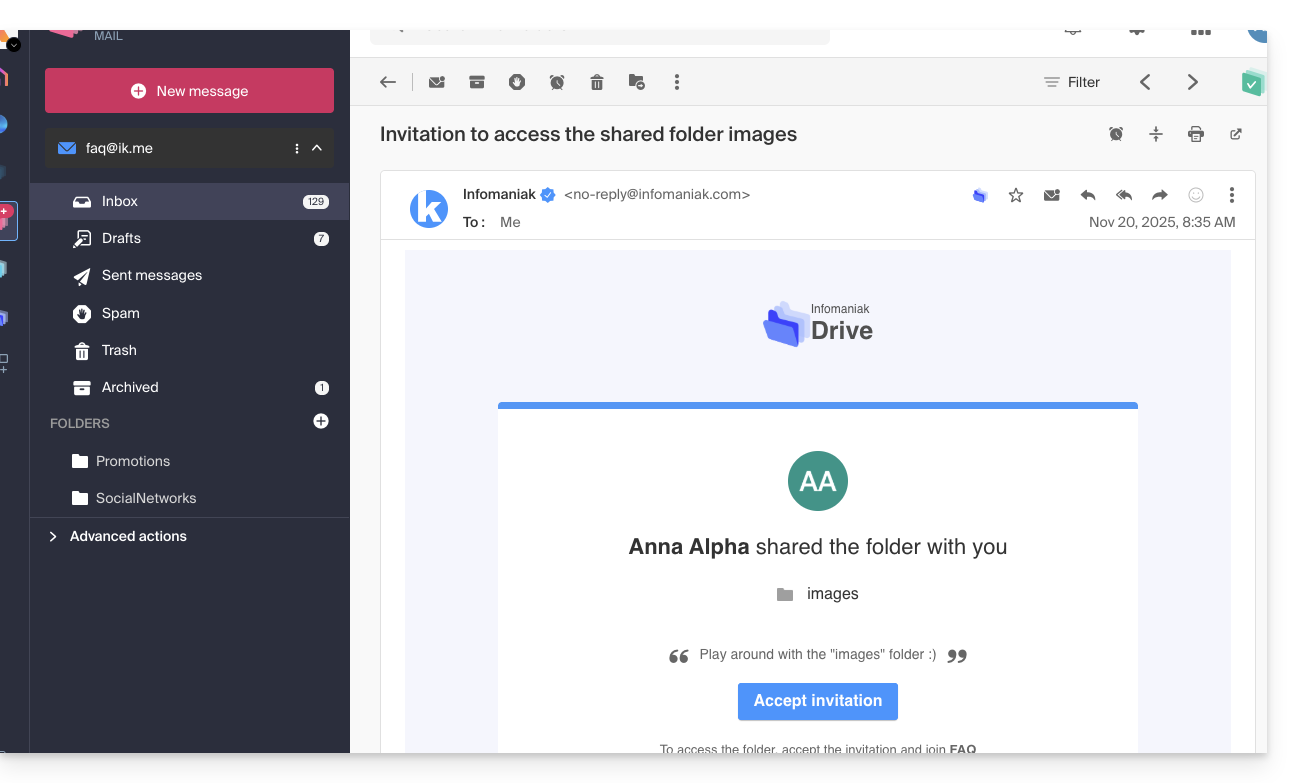
Once the sharing is accepted:
- The user is redirected to the shared data page within a restricted kDrive:
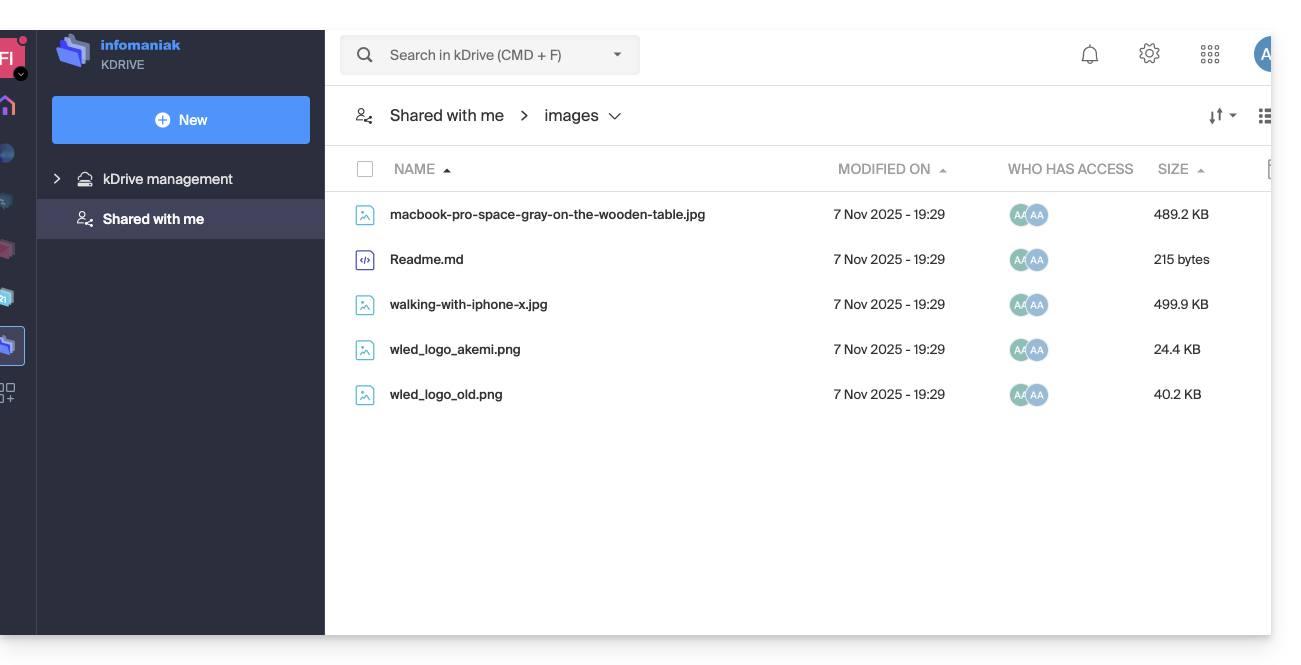
- To find it again later, it may be necessary to switch back to the relevant Organization to make the shared data reappear, as it may not be linked to the kDrives of Organizations that the user already had access to.
- Then, the shared data will be visible in the “Shared with me” section:
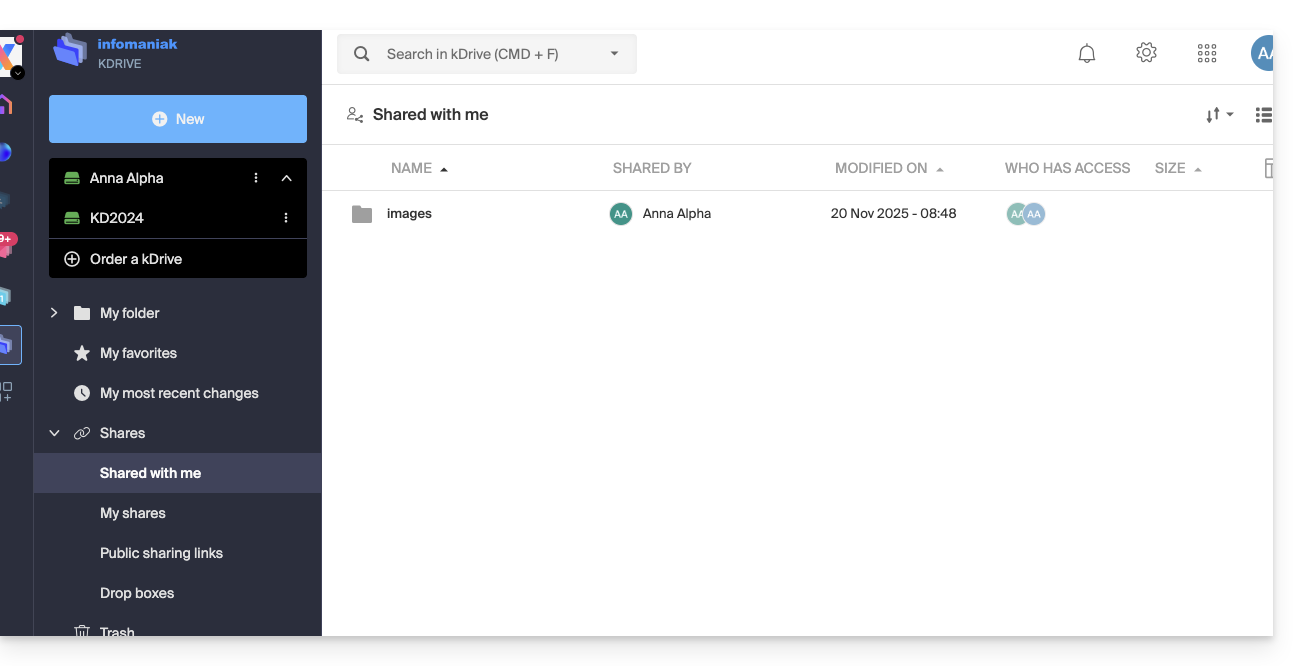
These external shares are NOT synchronizable via the desktop app. No “Shared” folder appears locally for these shares.
External users can only access files via the kDrive web interface (after logging into their Infomaniak account).
This ensures the security of data shared with third parties while limiting synchronization load on local devices.
Link to this FAQ: https://faq.infomaniak.com/2859
Has this FAQ been helpful?