Knowledge base
1000 FAQs, 500 tutorials and instructional videos. Here, there are only solutions!
Move the local kDrive location
Update 09/03/2026
This guide explains how to change the local location used by the desktop app kDrive (desktop application on macOS / Windows / Linux) in order to, for example, store the synchronized data on a different hard drive when the first drive chosen no longer has enough space.
Introduction
- Indeed, if the Lite Sync option is not enabled, all the existing data on the web app kDrive (online service ksuite.infomaniak.com/kdrive) is also present locally on the synchronized device and takes up storage space.
- As the volume of data can be very large, you may need to store the data on a different hard drive than the one initially chosen.
- Never move a folder used for kDrive synchronization (
/kdrive,/kdrive2, etc.) either when the kDrive application is open or when it is closed or uninstalled in order to be reinstalled.- If everything is synchronized, you must delete the folder and recreate it as explained below.
- If you proceed differently by using a folder that already contains your data, you expose yourself to file conflicts.
Change the local directory used by kDrive
To define a new folder for kDrive synchronization when the first folder chosen initially should no longer be used, follow this procedure:
- Make sure all your data is synchronised and that it exists and is visible in the kDrive web app (online service at ksuite.infomaniak.com/kdrive).
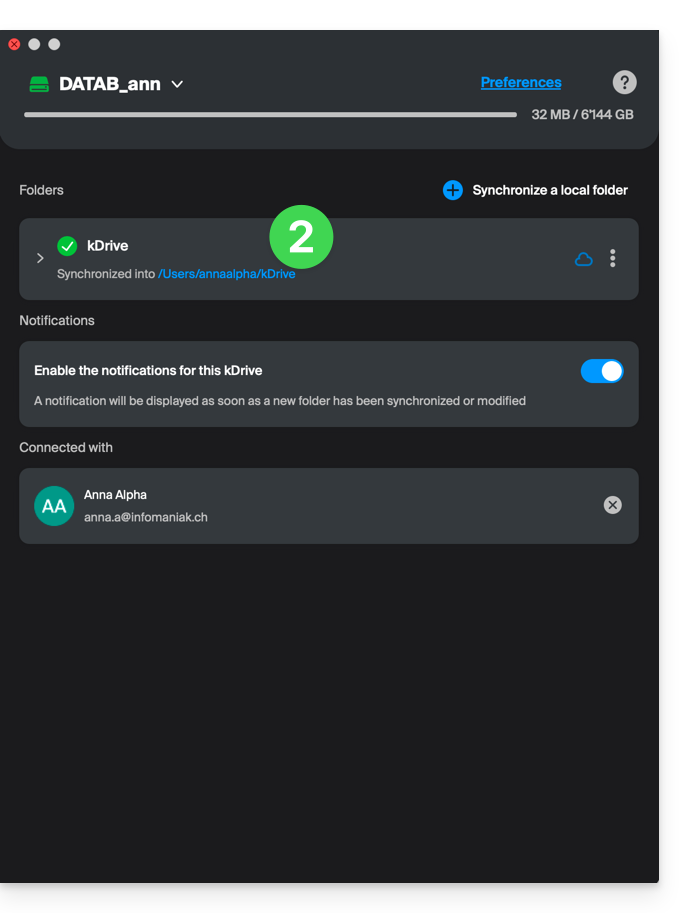
- If necessary, locate the folder currently used by the kDrive desktop app (click on Drive Settings from the application, then click on the blue URL displayed under Folders to open the local folder and identify its location):
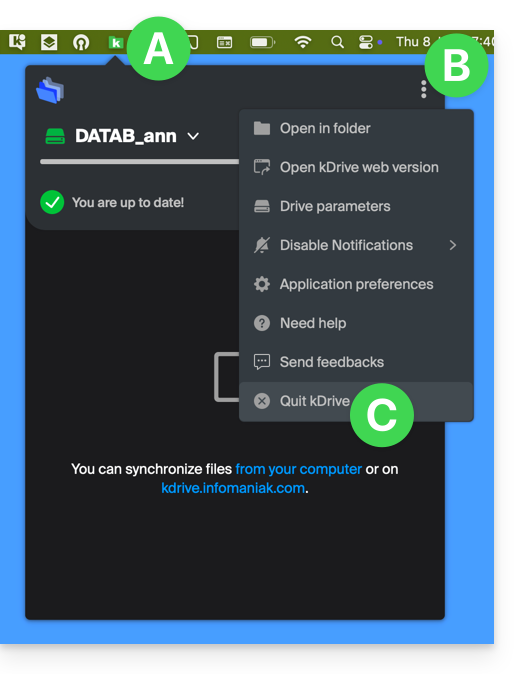
- Quit the kDrive desktop app on the device where you want to change the folder used:
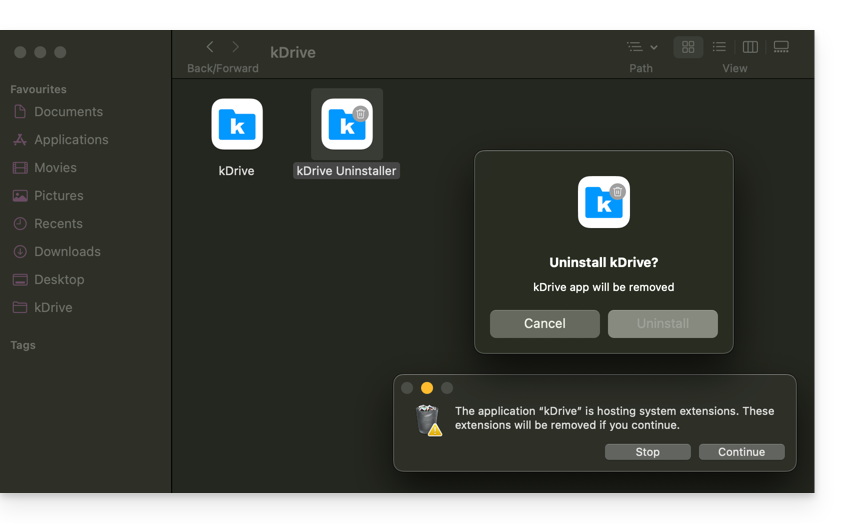
- Completely uninstall the kDrive desktop app by deleting all configuration/settings data, etc. – on macOS, use the kDrive Uninstaller in the Applications/kDrive folder):
- Delete the
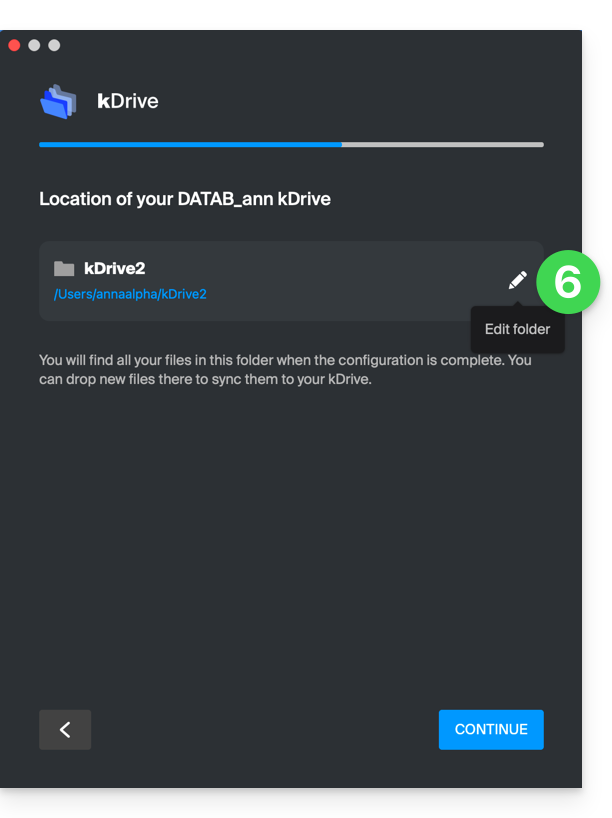
kDrivefolder (orkDrive2, etc. located in step 2). - Reinstall the kDrive desktop app, and when you connect to your Infomaniak account, click on the pencil ✎ icon at the folder selection step:
- Choose the new hard drive as the location for the new folder (name it as you wish):
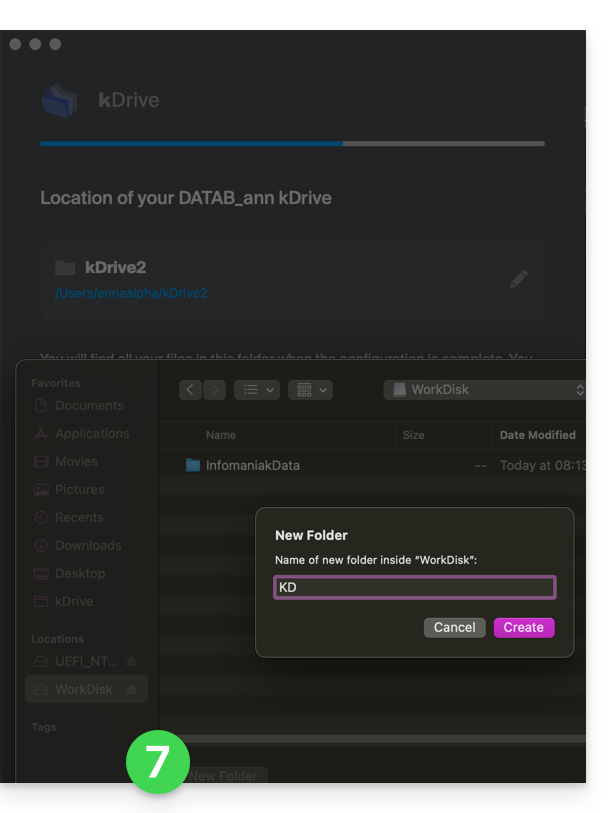
- Complete the configuration:
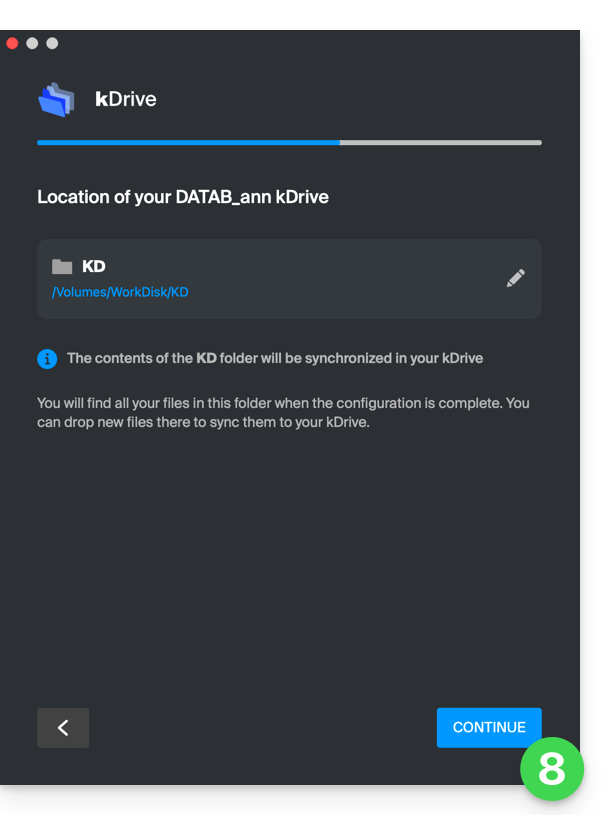
- The download of the kDrive data stored on Infomaniak servers will begin and continue entirely in the background.
- Refer to this other guide to download only specific folders.
Link to this FAQ: https://faq.infomaniak.com/2856
Has this FAQ been helpful?