Knowledge base
1000 FAQs, 500 tutorials and instructional videos. Here, there are only solutions!
Manage application passwords
This guide explains how to manage application passwords from the Infomaniak Manager.
Introduction
An application password is not an device password - it will not allow you to synchronize an email address.
- Application passwords allow you to establish an authenticated connection between certain tools and services, even if two-factor authentication (2FA) is enabled.
- To synchronize, for example, your Infomaniak account's contacts and calendars with a mobile device or email software/client, follow the steps in the guide below to generate a new password specific to this application.
- It is possible to generate multiple specific passwords (e.g. 1 for contacts and 1 for calendars) or to use the same password for synchronizing both services.
Create an application password
To do this:
- Click here to access the application password management section in the Infomaniak Manager.
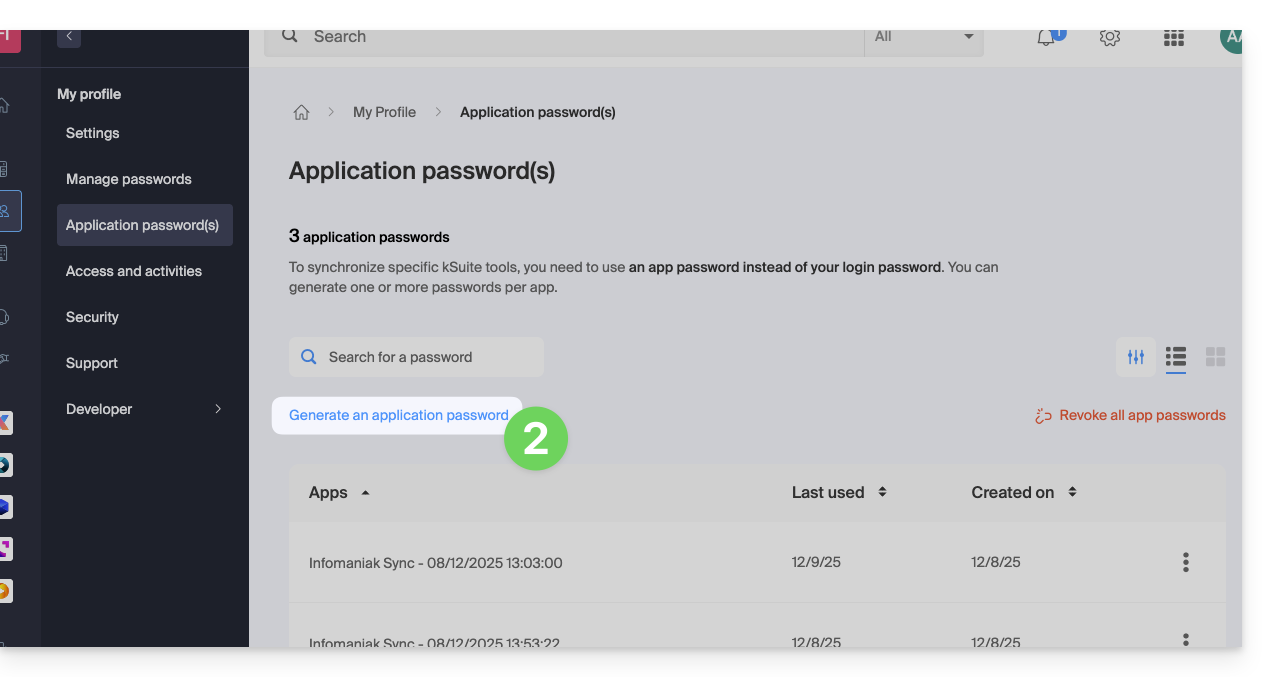
- Click on Generate an application password:
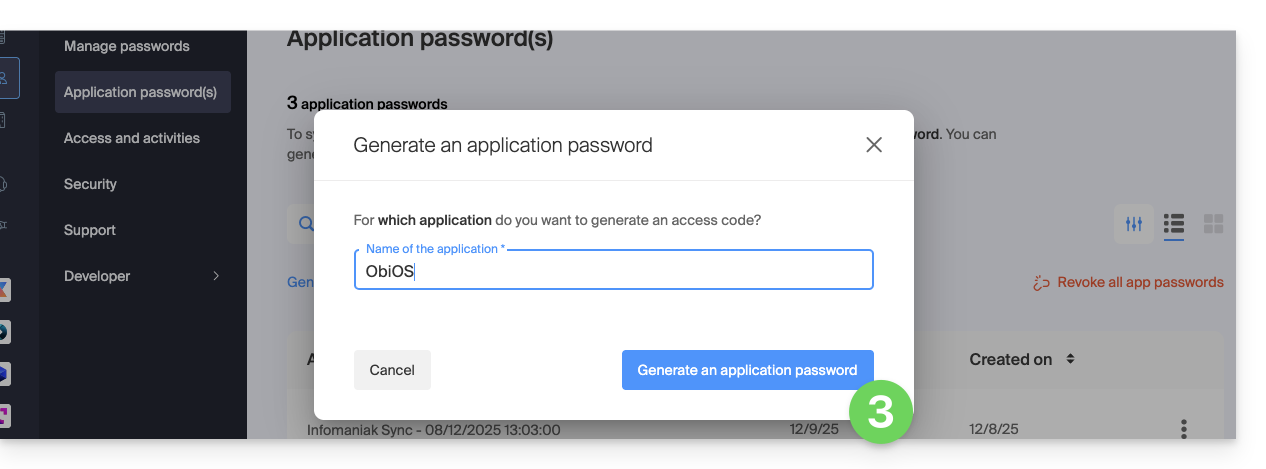
- Enter a name for the application password in the dialog box, then click on Generate an application password:
- Copy and save the generated application password in a safe but accessible location, it will no longer be accessible once the window is closed.
Revoke application passwords
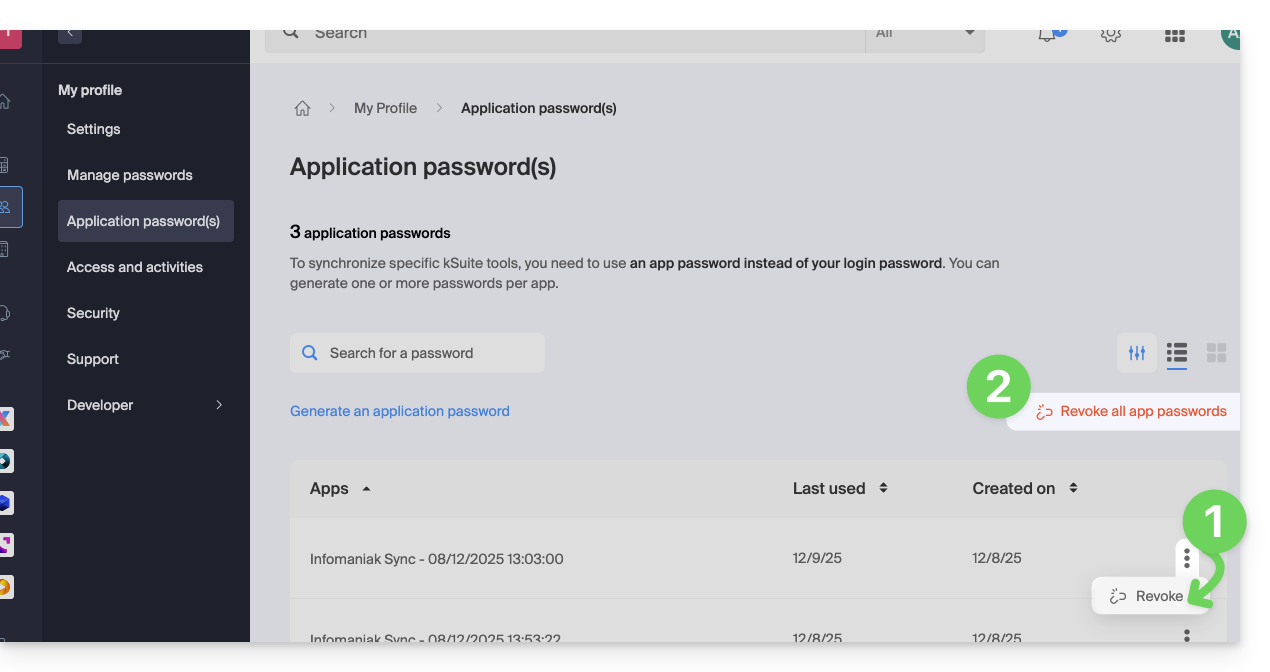
In the same location, you can delete one or more application passwords when they are no longer needed:
- Click on the action button ⋮ to the right of each password, then revoke them…
- or click on Revoke All at the top of the table:
Link to this FAQ: https://faq.infomaniak.com/2855
Has this FAQ been helpful?