Knowledge base
1000 FAQs, 500 tutorials and instructional videos. Here, there are only solutions!
Troubleshooting a "Your connection is not private" error
This guide helps you diagnose and resolve the "Your connection is not private" error (or NET::ERR_CERT_AUTHORITY_INVALID). This security alert can affect both the visitors to a website and its administrators.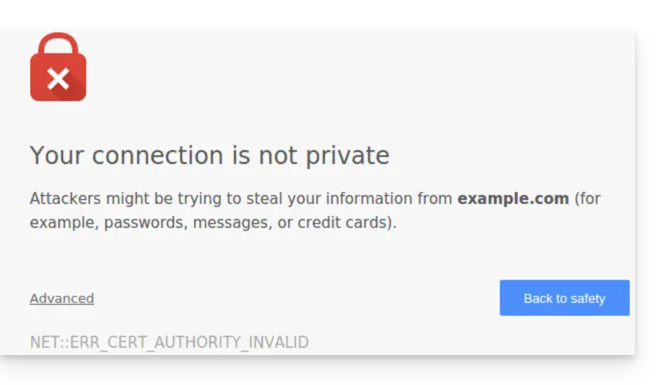
Introduction
- This alert is a security mechanism for your browser.
- It indicates that a secure connection could not be established with the server for one of the following reasons:
- The site does not have an SSL/TLS security certificate.
- The installed certificate is expired or incorrectly configured.
- The connection between your device and the server is being intercepted or disrupted.
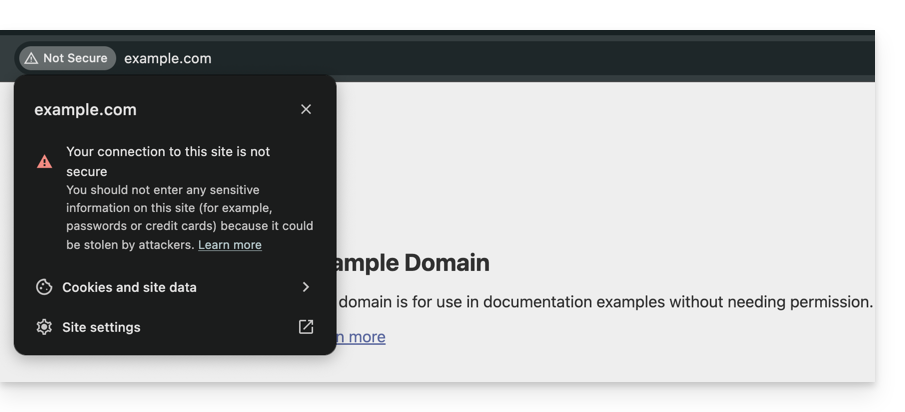
- Warning: on a site displaying this error, the data you enter (passwords, credit card numbers) is not encrypted and may be intercepted by third parties.
Solutions for visitors
If you encounter this error on a website that you do not manage, the problem may sometimes be due to your own configuration. Here are the points to check:
- Check your device's time: if your computer or smartphone is not set to the correct date/time, certificate validation will consistently fail.
- Test in private browsing mode: if the error disappears, clear your browser's cache and cookies.
- Check your network: avoid public Wi-Fi networks that may force their own login portals.
- Antivirus and Firewall: some security software analyzes HTTPS connections and may cause false positives.
Solutions for website owners hosted at Infomaniak
If you are the website administrator, you must ensure that your SSL certificate is active and valid to cover all of your domain names.
1. Is the SSL certificate installed?
If your website is still using HTTP, you need to generate a certificate (free via Let's Encrypt or paid). Learn about the certificates available from Infomaniak.
Important: If you have added aliases (secondary domain names) to your website after installing the SSL certificate, you need to update the certificate to include them.
2. Check Validity and Expiration
At Infomaniak, certificates are automatically renewed, but a technical issue may sometimes occur. To check the status of your certificate:
- Click here to access your certificate management in the Manager (need help?).
- Check the status and expiration date in the dashboard:

3. Enforce HTTPS and fix "Mixed Content"
If your certificate is valid but the error persists (or the padlock is not green), it is possible that your site is still loading some elements (images, scripts) over HTTP. To fix this, please refer to this other guide.
Link to this FAQ: https://faq.infomaniak.com/2833
Has this FAQ been helpful?