Knowledge base
1000 FAQs, 500 tutorials and instructional videos. Here, there are only solutions!
Copy Infomaniak email content internally
Update 10/26/2026
This guide explains how to copy the content of one or more Infomaniak email addresses (all email messages, folders, subfolders, in short, the entire structure of your mailbox) to one or more of your existing addresses, also hosted with Infomaniak (regardless of the Mail service), thanks to the Infomaniak import tool!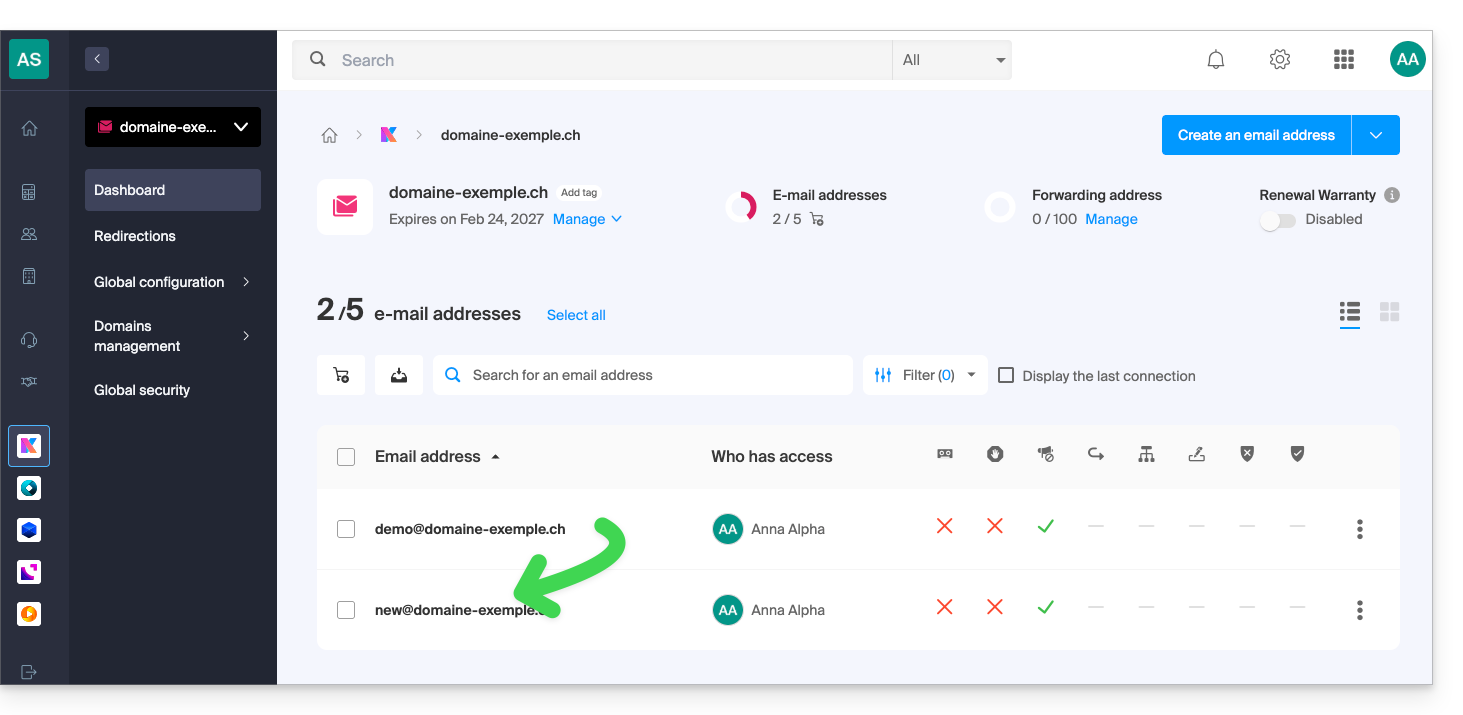
Introduction
- The email address spelling does not need to be the same.
- Once the import process has started, it is no longer possible to interrupt it.
- The entire external mailbox will be imported:
- This operation does not affect the data already present in the destination address, nor the data in the source address.
- Any potential duplicates are handled: identical content will only be copied once.
- There are alternatives to this process (❓: help).
Copy emails from one Infomaniak mailbox to another
Prerequisites
- Add a device password (❓: help) to the source address (the one from which the content must be retrieved):
- The login password for the Infomaniak account with the same name is not the expected one.
- You need a password specific to the email address in question = a device password:
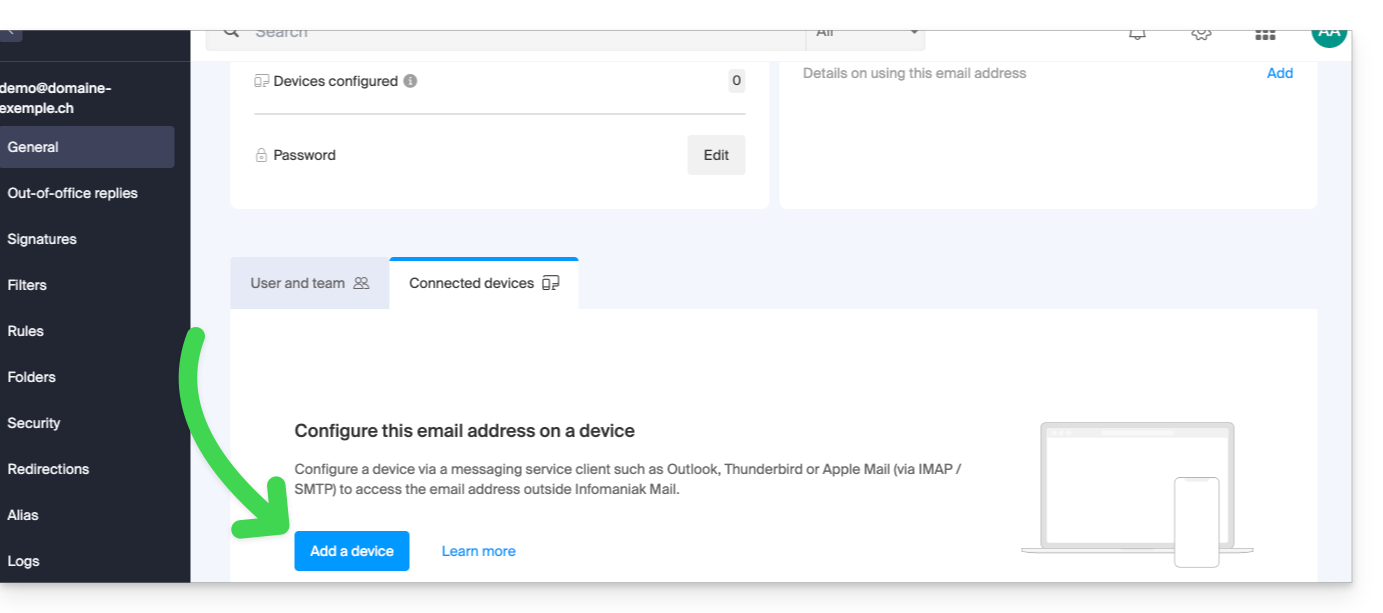
- The destination email address must be linked to the user (= the Infomaniak account) you are using (❓: help).
Next, to import your email content:
- Click here to access the import tool (online service https://import-email.infomaniak.com).
- If necessary, log in to your Infomaniak account for the relevant organization; the import will be done to one of the email addresses associated with the Infomaniak Mail web interface (online service ksuite.infomaniak.com/mail) of the Infomaniak account you are using.
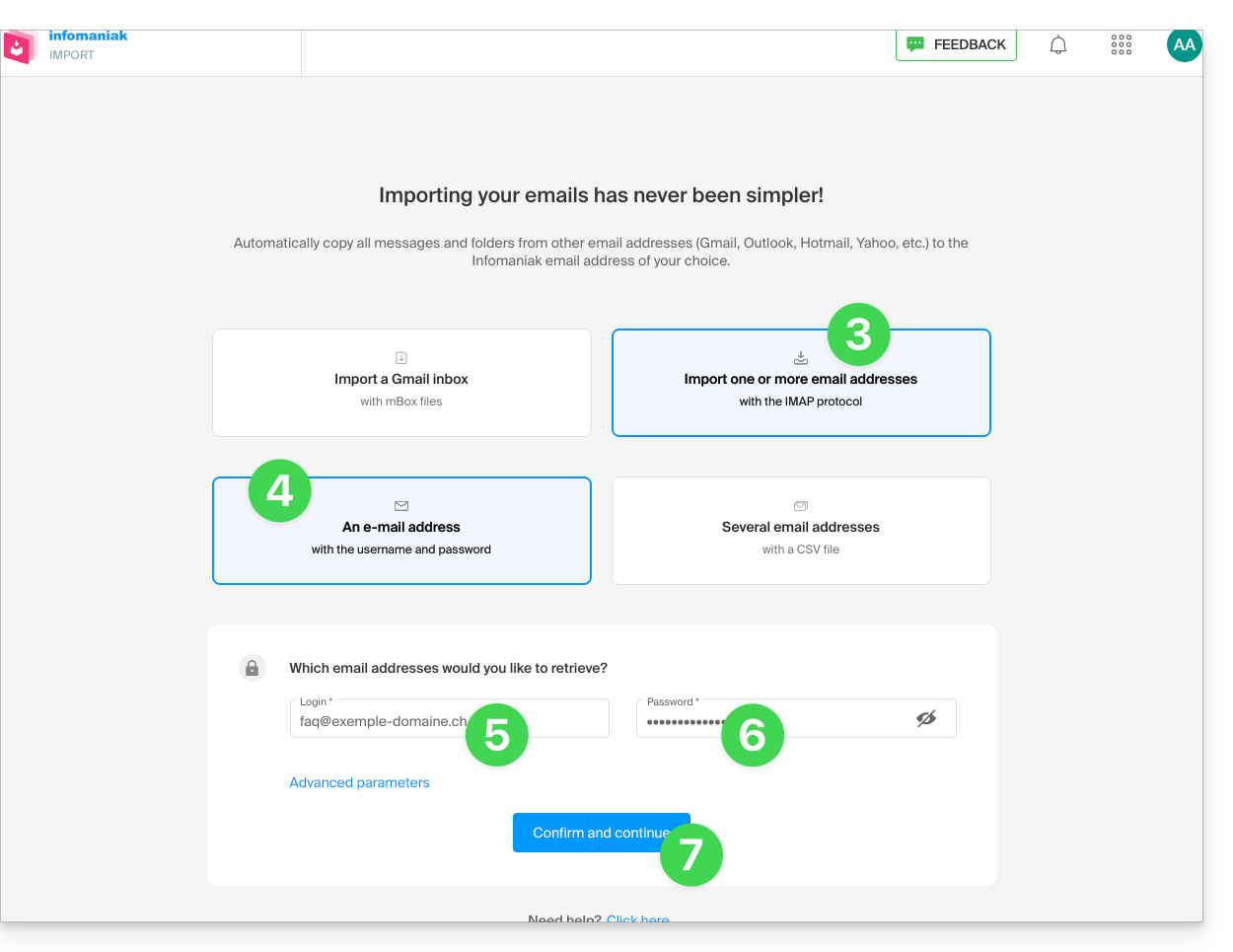
- Click on the import via IMAP.
- Click on one-time import.
- Fill in the field on the left with your source email address (from which the content will be copied).
- Fill in the field on the right with the password for this same source email address (see prerequisites).
- Click on Confirm:
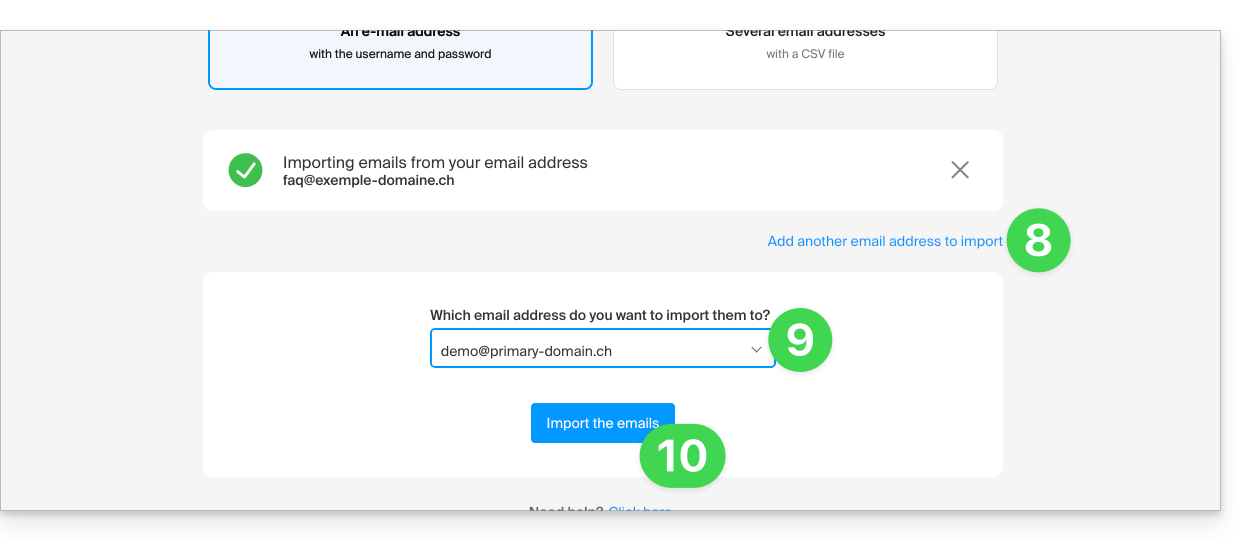
- If necessary, enter a second email address to be imported at the same time.
- Choose the email address to which the emails will be imported; the drop-down menu lists the email addresses currently associated with your Infomaniak Web Mail interface (online service ksuite.infomaniak.com/mail) of the Infomaniak account you are logged into.
- It is obviously impossible to copy emails to the same address as the source.
- After selecting the desired destination address from the list, click the blue Import Emails button:
- The copy process begins. You can wait and see the result on the page once the import is complete, or close the window (the import continues in the background, and progress can be tracked - see below):
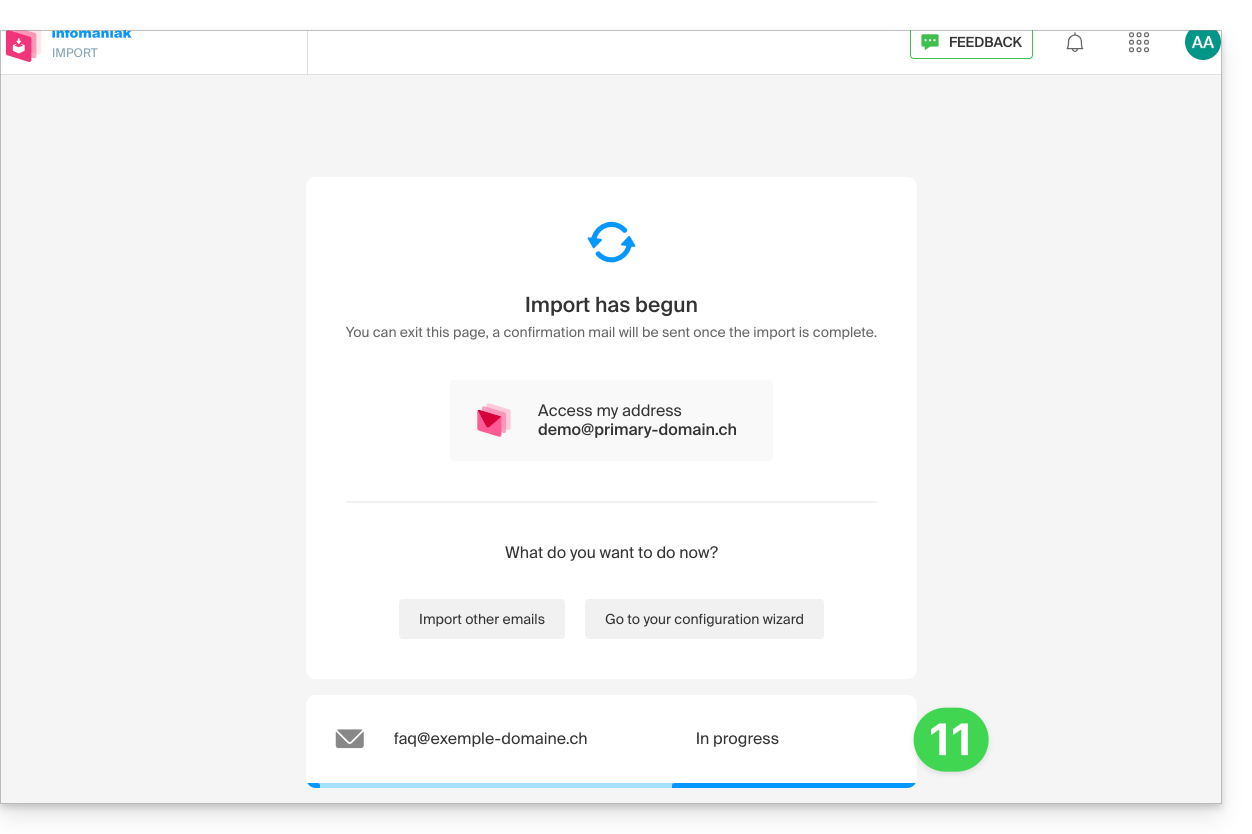
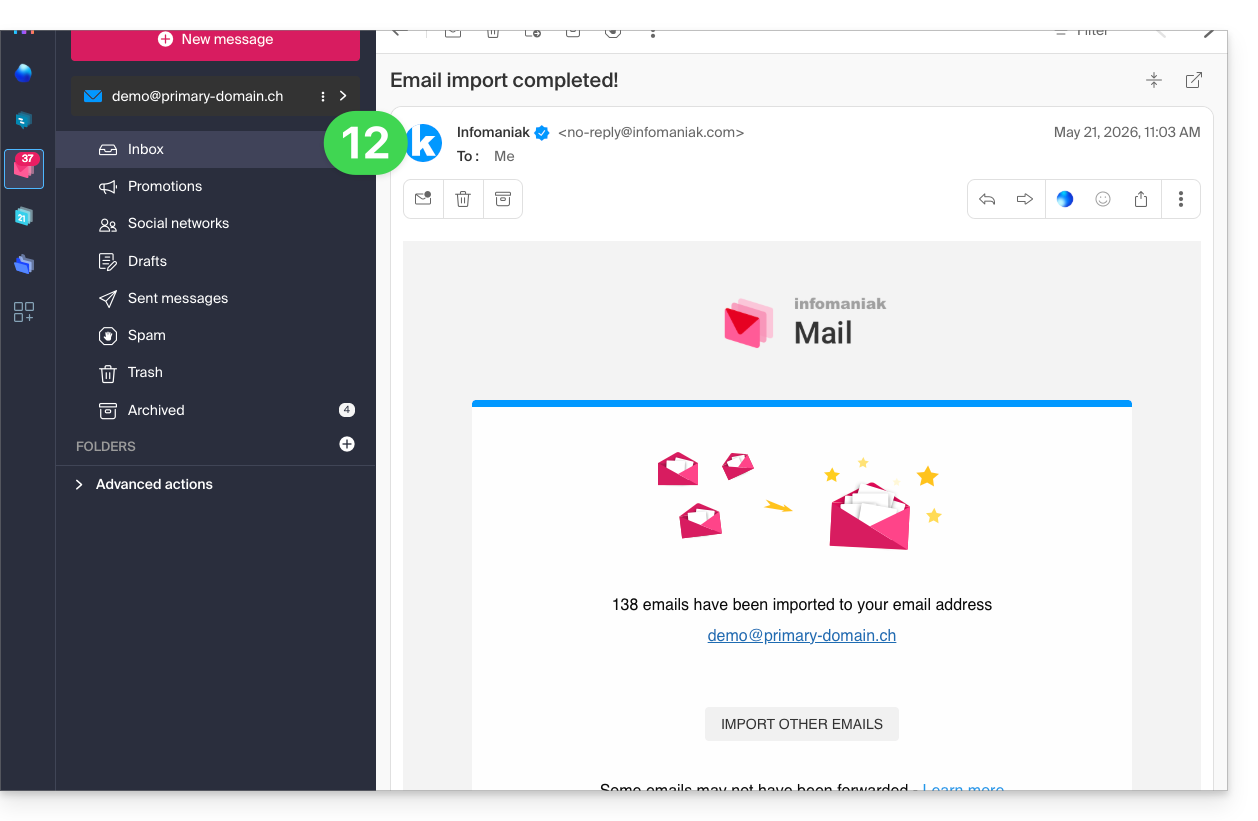
- A confirmation email will be automatically sent to all email addresses involved in the operation once the import is complete, indicating the number of messages copied:
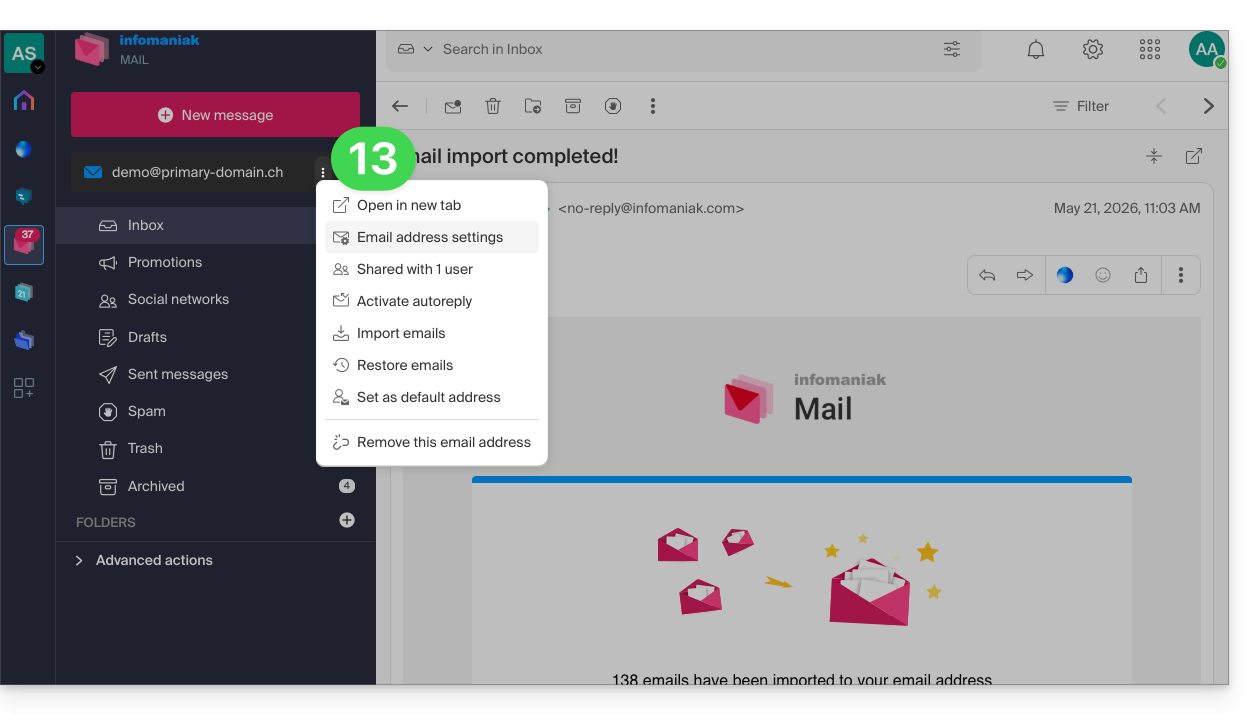
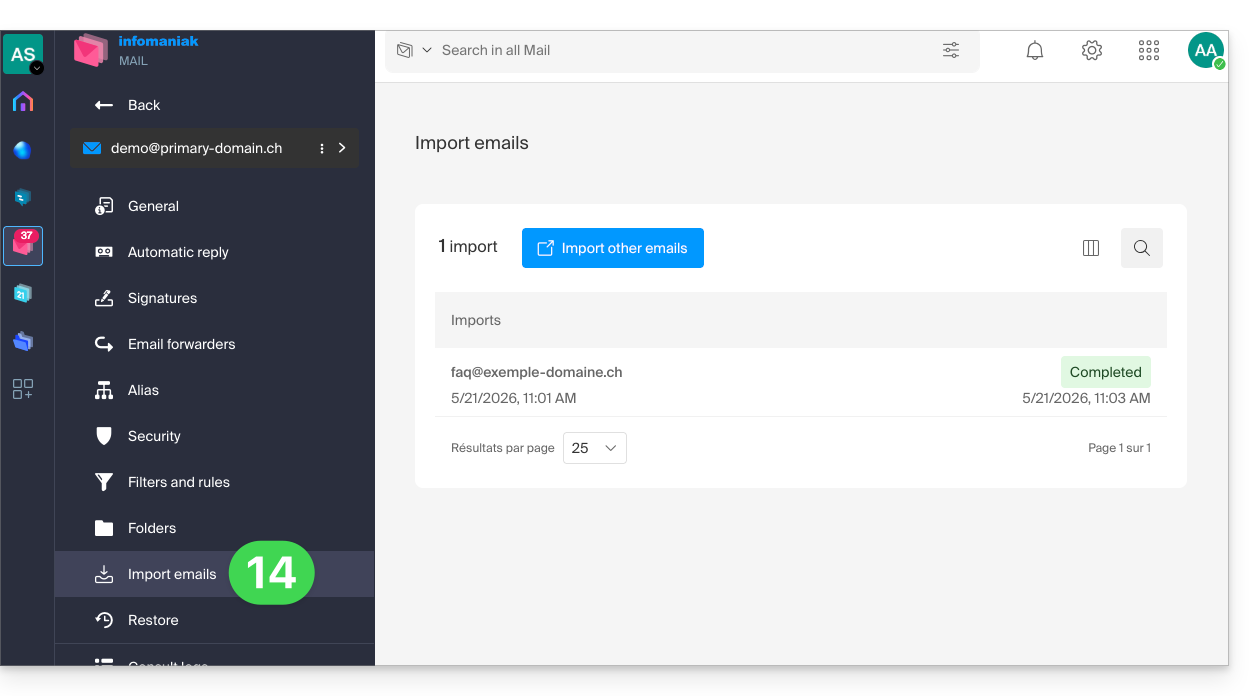
- Progress can be monitored in the settings of the destination email address, on the web app Mail (online service ksuite.infomaniak.com/mail) only:
- The tracking feature allows you to view the import history for the address in question:
Copy the content from multiple Infomaniak addresses in bulk
Prerequisites
- Add a device password (❓: help) to each Infomaniak source address (the ones from which the content needs to be retrieved):
- The login password for the Infomaniak account with the same name is not the one expected.
- You need a password specific to each email address = one device password per address.
- The destination email addresses must be associated with the user (i.e., the Infomaniak account) you are using (❓: help).
To import the content of multiple Infomaniak email addresses (maximum 25 at a time) to one or more destination email addresses:
- Click here to access the import tool (online service https://import-email.infomaniak.com).
- If necessary, log in to your Infomaniak account for the relevant organisation; the import will be done to one of the email addresses associated with the Infomaniak Mail web interface (online service ksuite.infomaniak.com/mail) of the Infomaniak account you are using.
- Click on IMAP import.
- Click on advanced mode: Import multiple email addresses from a CSV file (
.csvformat). - Download the example
CSVtemplate: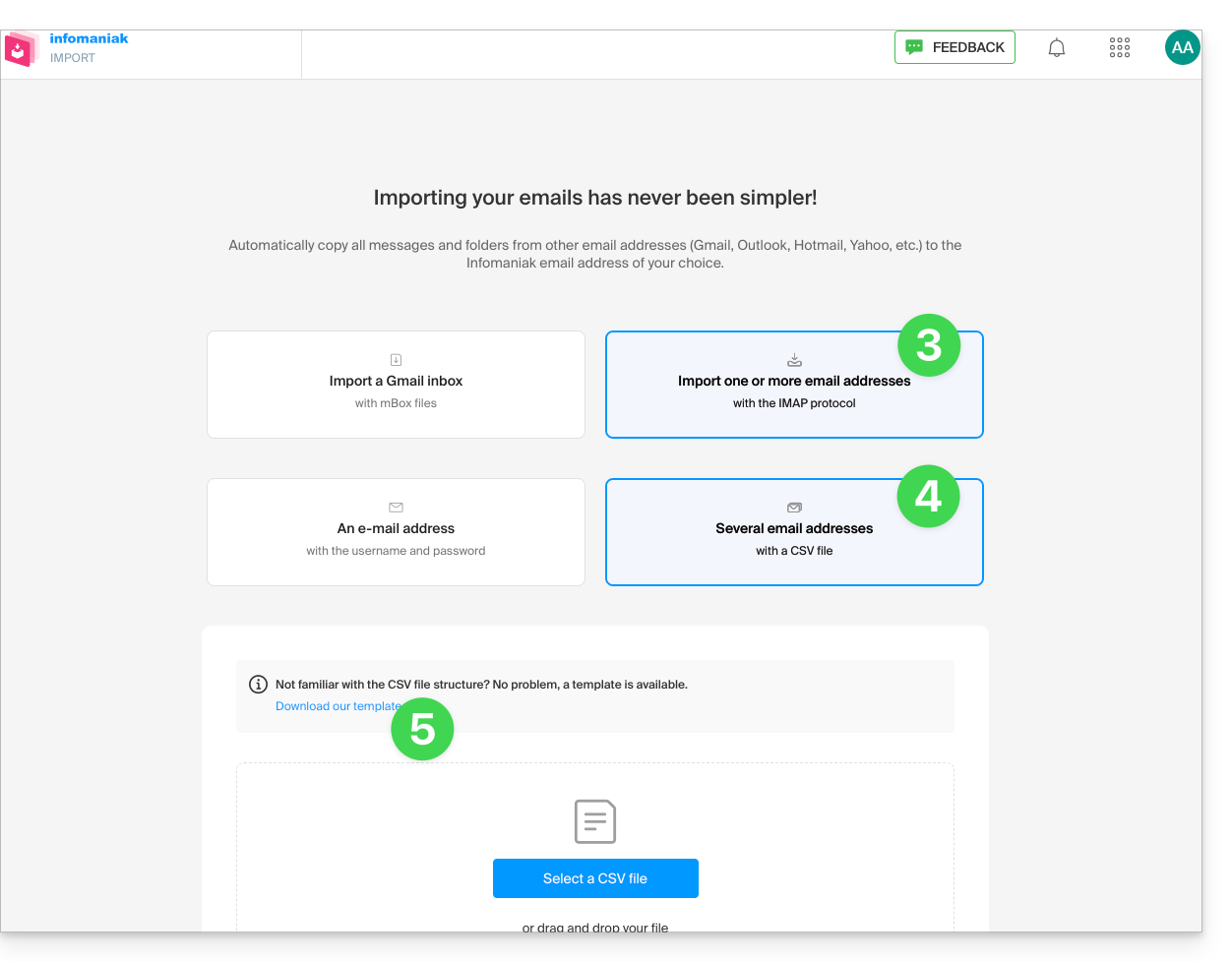
- The template has this format:
source-email@domain.com;sourcePassword;imap.source-host.com;sourcePort(993);sourceSsl(1or0);dest-email@domain.com - This means, in this case:
source email address;source email password;mail.infomaniak.com;993;1;destination email address, all without spaces (example below)
- The template has this format:
- Edit the
csvfile to create one with the correct information needed for the copy (see prerequisites):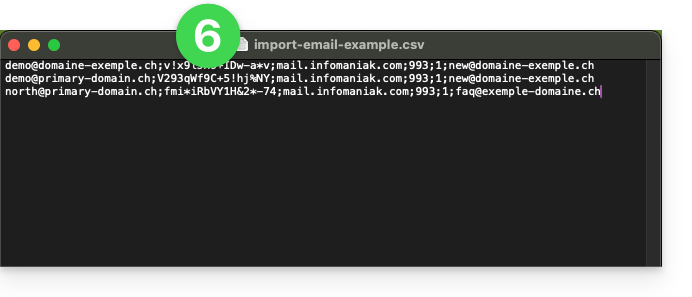
- Upload the file using the Select a CSV file button.
- Once the file has been uploaded to the tool's page, correct or ignore any errors; click on Import:
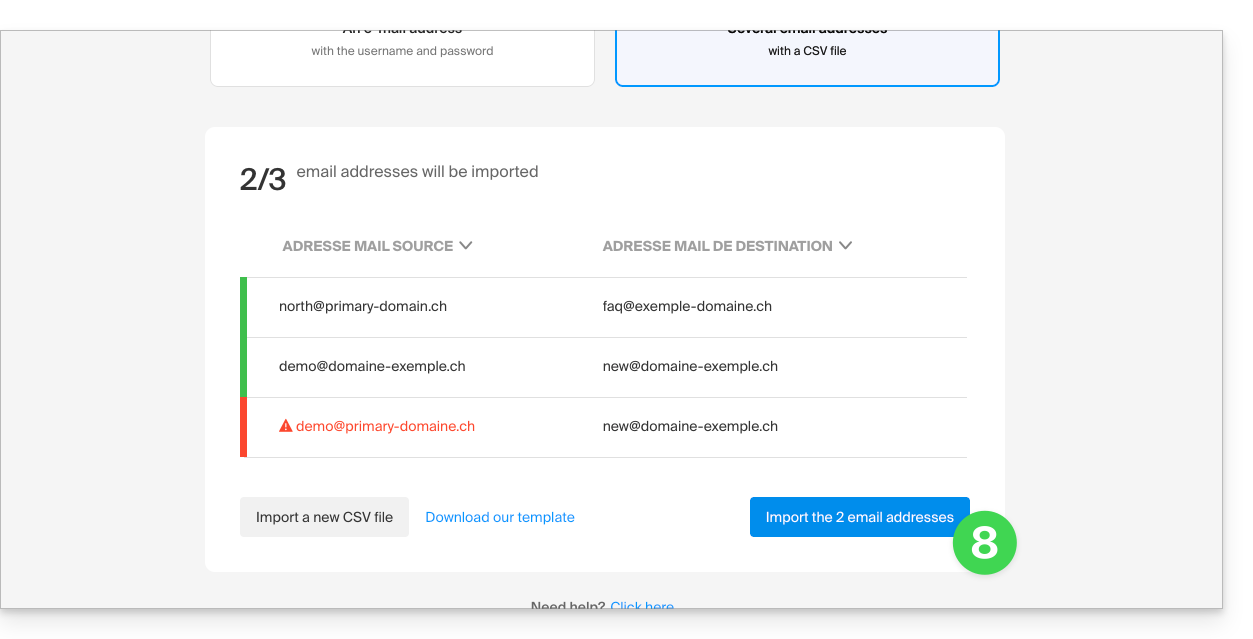
- The copy process has started. You can wait and view the results on the page once the import is complete, or close the window (the import will continue in the background, and you can track its progress - see below).
- A confirmation email will be automatically sent to all email addresses involved in the operation once the import is complete, indicating the number of messages copied.
- Tracking is available in the settings for the destination email addresses, on the web app Mail (online service ksuite.infomaniak.com/mail) only.
- Tracking allows you to view the import history:
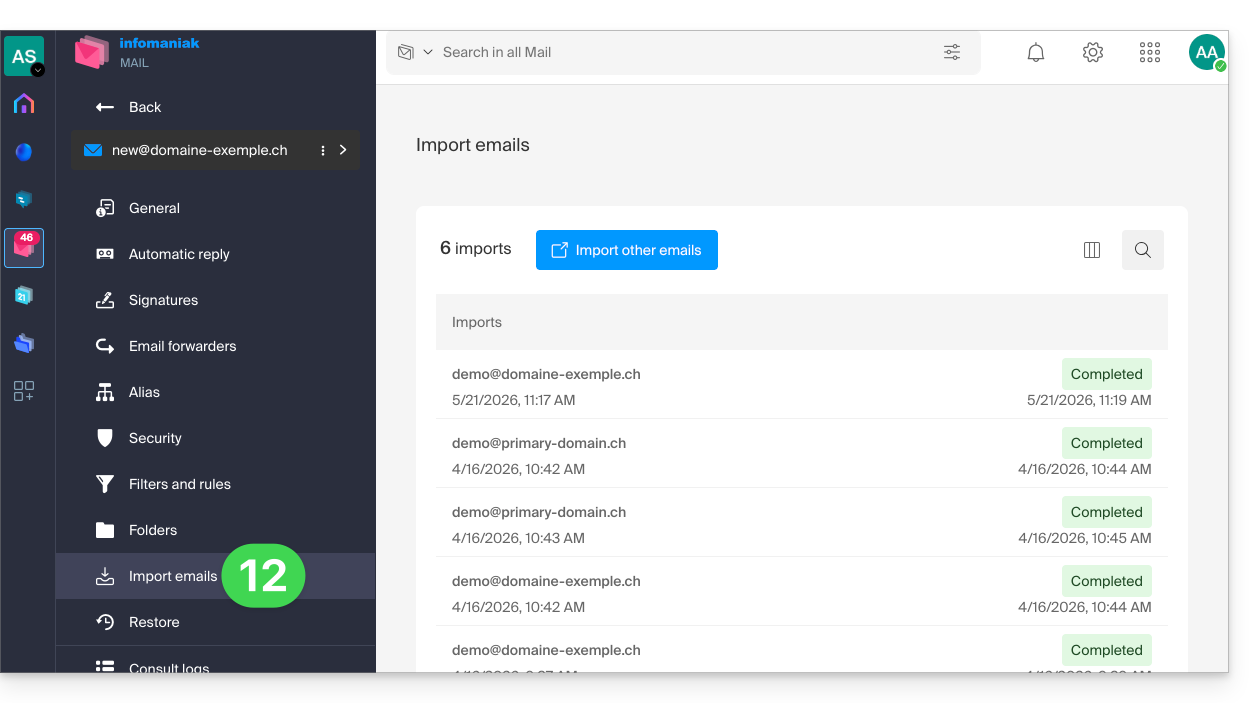
Link to this FAQ: https://faq.infomaniak.com/2826
Has this FAQ been helpful?