Knowledge base
1000 FAQs, 500 tutorials and instructional videos. Here, there are only solutions!
Back up Microsoft 365 with Acronis on Swiss Backup
This guide details how to back up a Microsoft 365 workspace using Acronis on Swiss Backup, the backup solution in an independent Swiss cloud.
Introduction
- What you can back up:
- Office
- OneDrive
- Exchange
- Teams
- SharePoint
- Emails
- By default, OneNote notebooks are included in backups of OneDrive files, Microsoft Teams, and SharePoint sites.
- It is also possible to back up other types of data.
Adding a Microsoft 365 organization
Prerequisites
- Own an Swiss Backup Infomaniak space with an available device quota (minimum 1) for a Acronis Microsoft 365 backup (1 license per Office 365 user (seat) to be backed up):
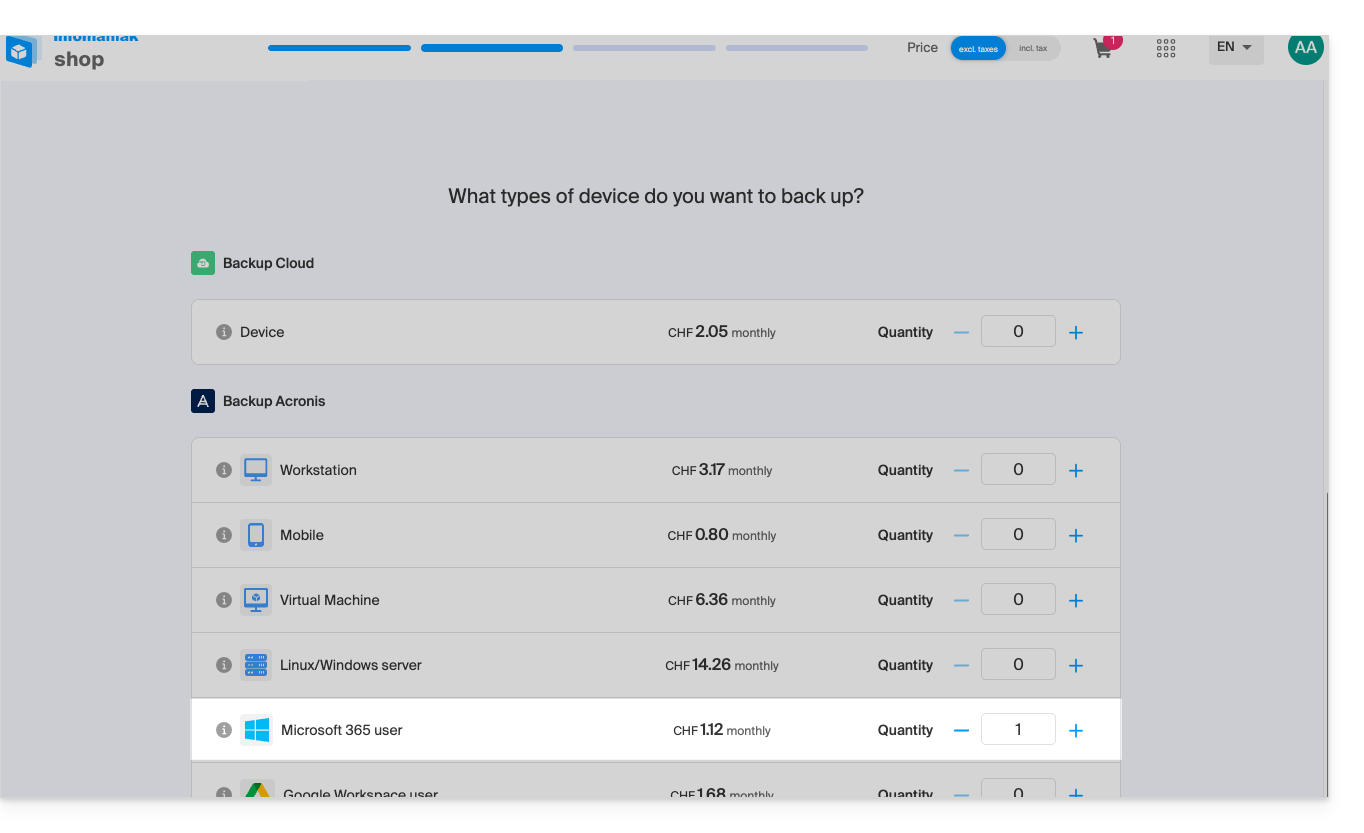
- If necessary, increase the device quota according to your needs.
- Add the device to the Infomaniak Manager to receive the login credentials.
- Your account must have global administrator privileges in Microsoft 365.
- Refer to the Acronis documentation for more information.
An administrator can add one or more Microsoft 365 organizations to a Swiss Backup account.
To add a Microsoft 365 organization:
- Click here to access the Acronis Console using the credentials obtained after adding the device (need help?).
- Click the "Add device" button to add a Microsoft 365 Business device:
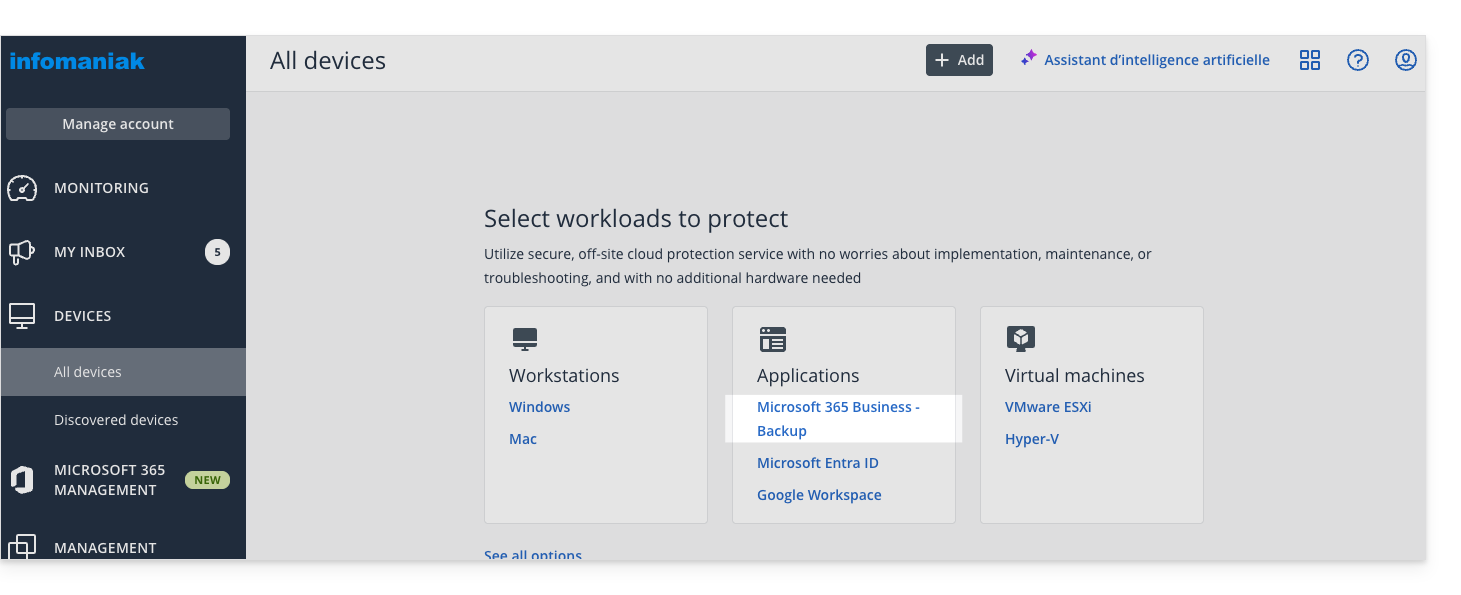
- The software redirects you to the Microsoft 365 login page:
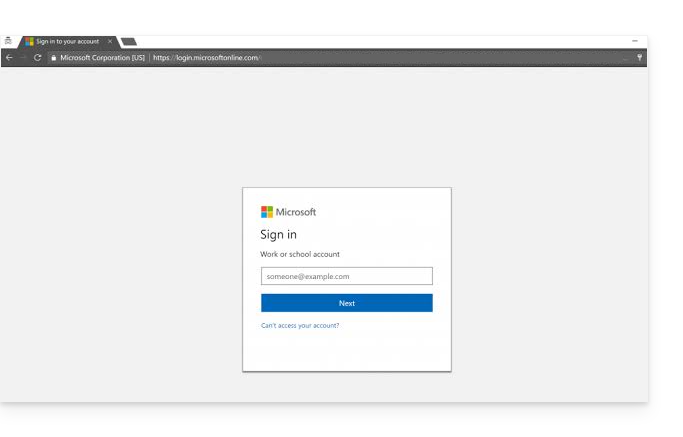
- Log in using the credentials of the Microsoft 365 global administrator.
- Microsoft 365 displays a list of the permissions required to back up and restore your organization's data:
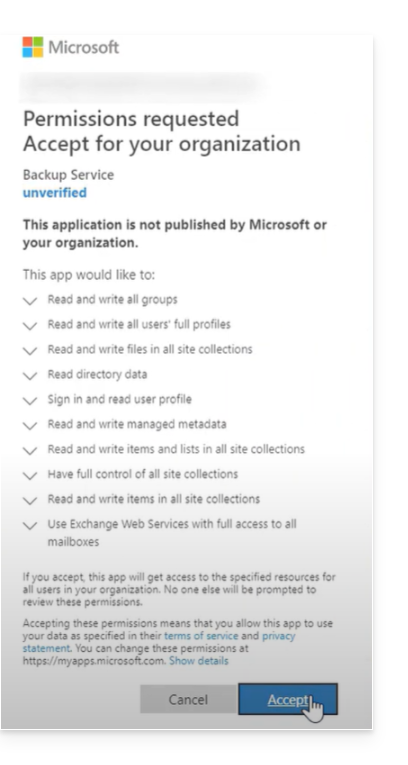
- Confirm that you are granting these permissions to the Cyber Protect service.
The Cloud agent does not connect to Microsoft 365. The agent obtains the necessary permissions directly from Microsoft 365. You only need to confirm the granting of these permissions once, while logged in as a global administrator. The agent does not store your account credentials and does not use them to perform backups and restores. Changing the password for this account, or disabling or deleting this account in Microsoft 365, will not affect the operation of the agent.
Your Microsoft 365 organization will then appear under the Devices tab in the Cyber Protect console: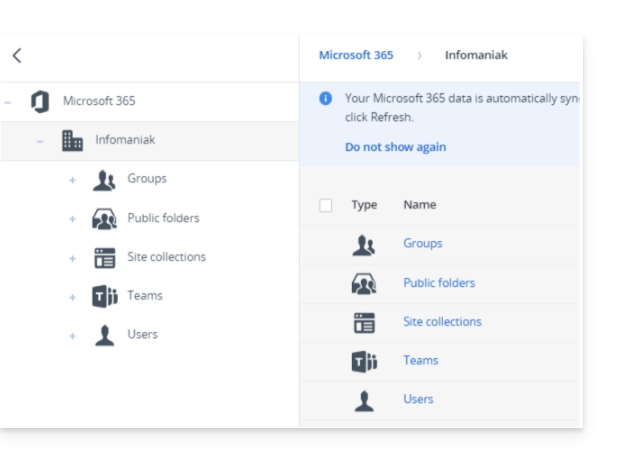
Backup/Synchronization Frequency
The Cloud agent synchronizes with Microsoft 365 every 24 hours, starting from the moment the organization is added to the Cyber Protection service. If you add or remove a user, group, or site, this change will not be immediately visible in the Cyber Protect console.
Immediate synchronization
To synchronize the changes immediately, select the organization on the Microsoft 365 page, then click Refresh.
If you have applied a protection plan to the All users, All groups, or All sites group, newly added items will only be included in the backup once the synchronization has been completed.
In case of slowdowns
If the Microsoft 365 Cloud-to-Cloud (C2C) backup or restore tasks are running slower than expected and taking a long time to complete, please refer to this other guide to temporarily disable the throttling of the Exchange Web Services API in order to improve performance when restoring Microsoft 365 items.
Deleted items
In accordance with Microsoft's policy, when a user, group, or site is deleted from the Microsoft 365 graphical interface, it remains available for a few days via the API. During this period, the deleted item is inactive (grayed out) in the Cyber Protect console and is not backed up.
When the deleted item is no longer available via the API, it will disappear from the Cyber Protect console. Its backups (if any) can be found under Backup Storage > Cloud Application Backups.
Learn more
Link to this FAQ: https://faq.infomaniak.com/2825
Has this FAQ been helpful?