Knowledge base
1000 FAQs, 500 tutorials and instructional videos. Here, there are only solutions!
Troubleshooting a Lite Sync error (kDrive v3.x Windows)
Update 10/20/2026
This guide explains how to troubleshoot errors related to the Lite Sync Windows extension in the desktop application kDrive v3.x.
Check if the extension is present
Before performing any operations, make sure that the extension is properly registered with the system:
- Open the Settings in Windows.
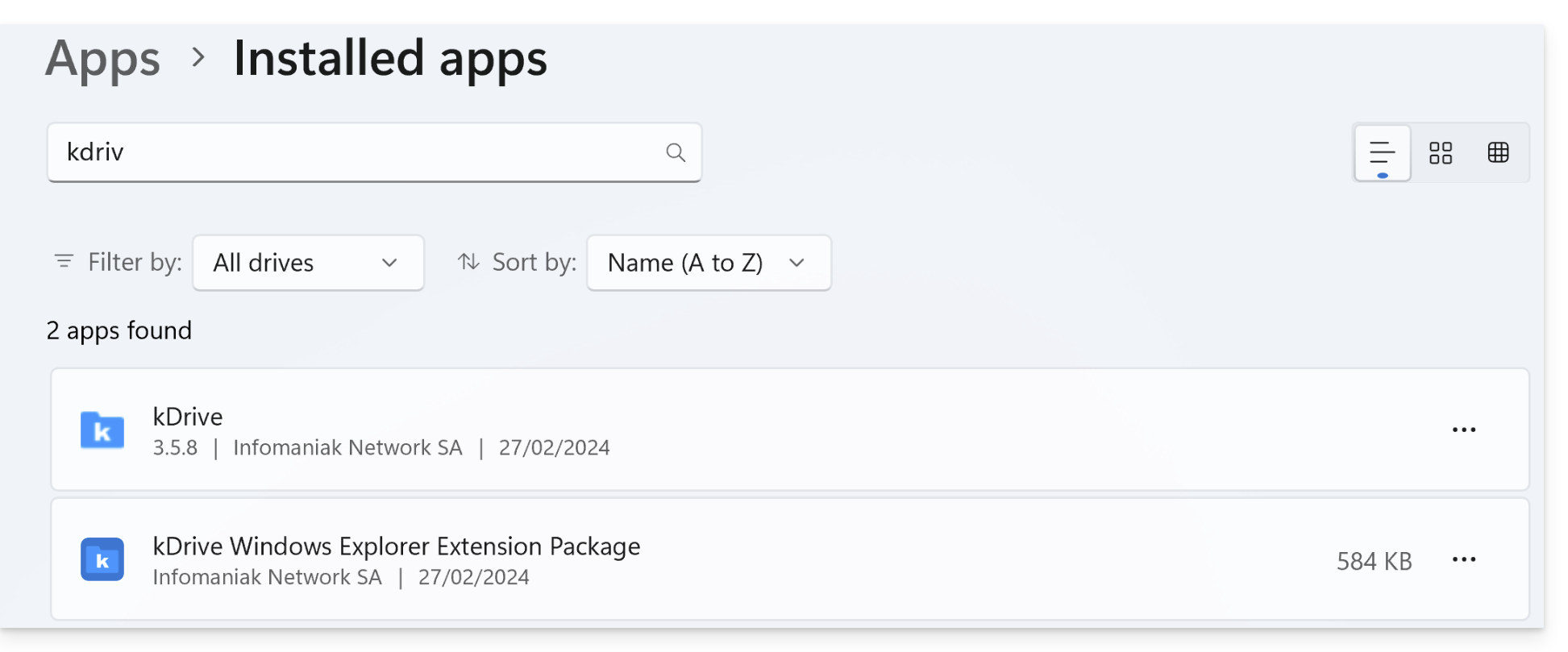
- Go to the Applications section, then Installed applications.
- In the search bar, type "kDrive".
- Make sure that the kDrive Windows Explorer Extension Package appears in the list:
Error of type "Unable to start Lite Sync"
This error usually occurs when the Windows Explorer extension is missing or corrupted.
Manually reinstalling the extension
If the extension does not appear or is not working, you can install it manually without reinstalling kDrive:
- Close the kDrive application completely (make sure it is no longer in the notification area).
- Open your file explorer and navigate to the following folder:
C:\Programs\kDrive\shellext\AppX\ - Double-click the following file:
FileExplorerExtensionPackage_3.8.1.0_x64_arm64.msixbundle - A specific installation wizard for the extension will open. Follow the steps.
- Restart your computer to complete the integration.
If the problem persists
If, despite manual installation, the LiteSync option remains unavailable:
- Antivirus: check that your security software is not blocking processes located in
C:\Programs\kDrive\. - Conflicts: Some other cloud services (like OneDrive) may sometimes conflict with kDrive's icon extensions.
- Logs: If necessary, send the kDrive logs (in Debug mode) to Infomaniak support.
Link to this FAQ: https://faq.infomaniak.com/2804
Has this FAQ been helpful?