Knowledge base
1000 FAQs, 500 tutorials and instructional videos. Here, there are only solutions!
Ticketing: Import a CAMT file to automatically validate orders paid by invoice
This guide explains how to use your bank's CAMT files to automatically validate orders paid by invoice (as part of the Infomaniak ticketing system).
Introduction
- If customers choose to pay an order by invoice, they will receive an invoice directly with your bank details.
- You will therefore need to check that the payment has been received and manually validate the customer's order.
- The following procedure automates a large part of this process, allowing you to simply validate orders with a few clicks.
Import the CAMT file
Prerequisites
- Make sure you have specified a QR-IBAN to generate QR Invoices.
- CAMT imports require the bank to record information related to the order, and this information is only available if the customer uses QR-Invoice when paying the invoice.
- Please contact your bank to find out how you can obtain a CAMT file (example of documentation).
Next:
- Click here to access the management of your product on the Infomaniak Manager (need help?).
- Click directly on the name assigned to the ticketing system for the event.
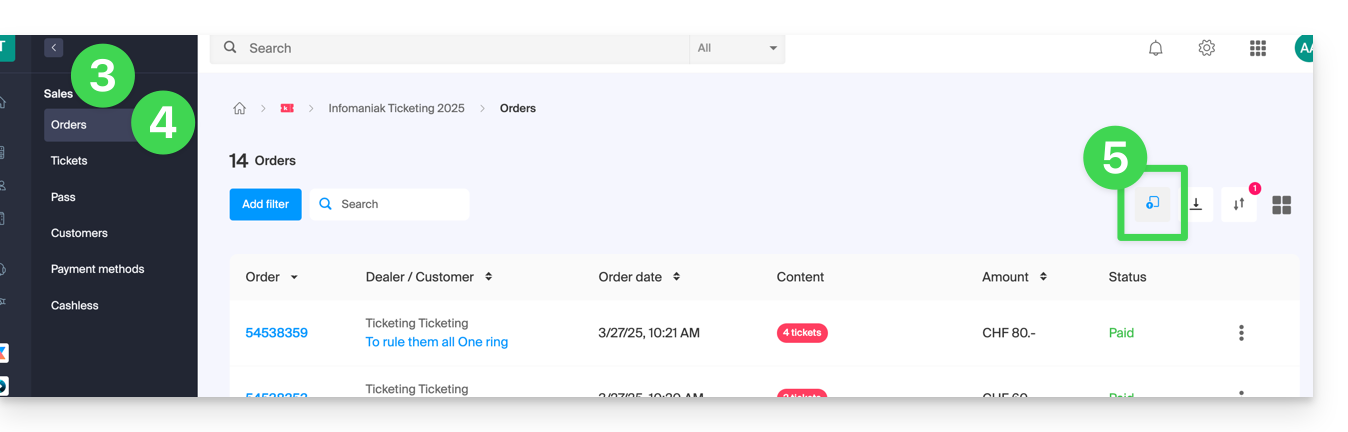
- Click on Sales in the left-hand menu.
- Click on Orders in the left-hand menu.
- Click on the button in the top right corner:
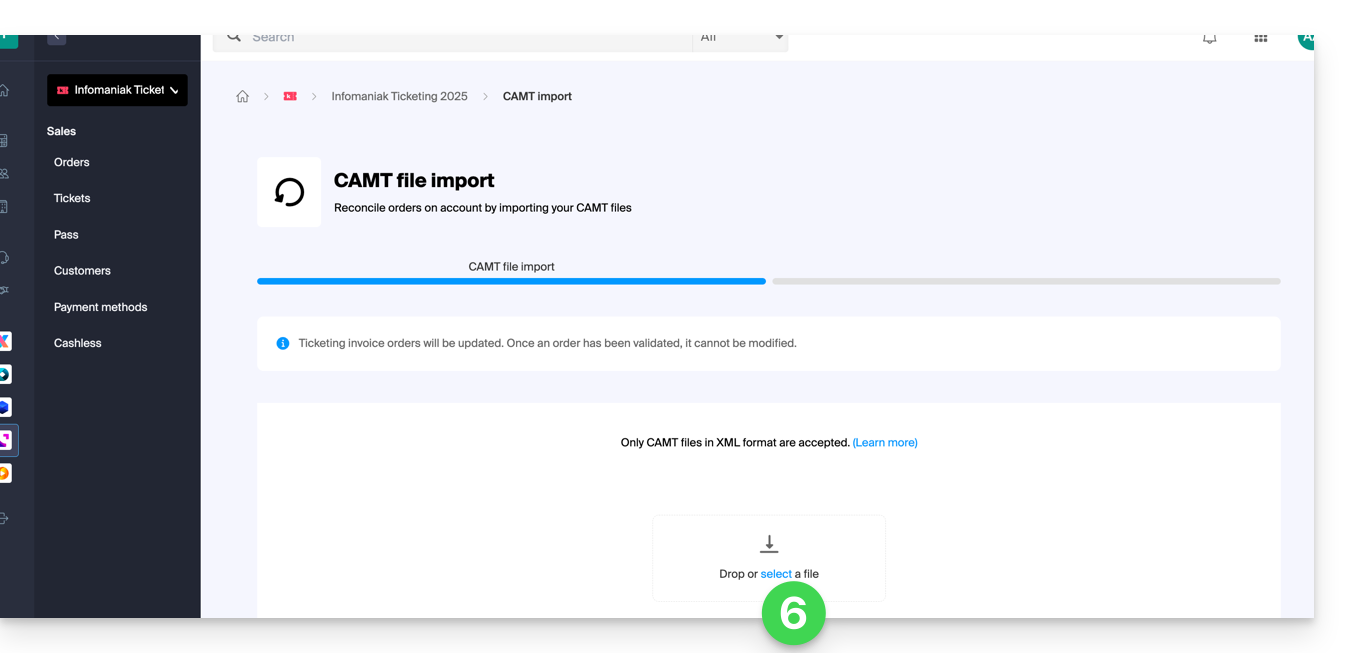
- Import the CAMT file:
- Choose the transactions to validate:
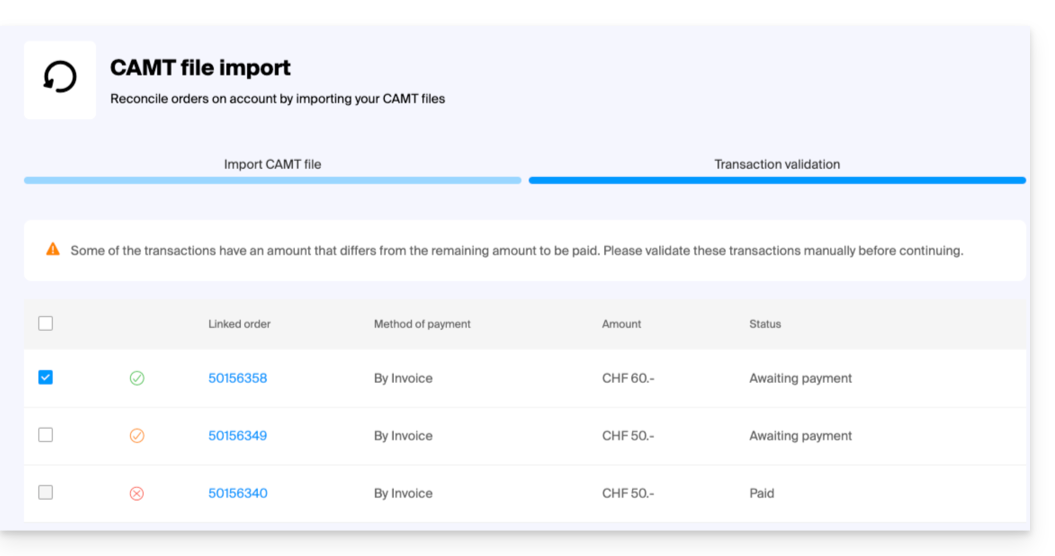
- Transactions whose payment corresponds to the invoice amount will be automatically selected.
- Transactions with partial payments can be validated manually, but will be recorded as complete in the ticketing system.
- Once you have selected the orders to validate, click on Validate selected transactions.
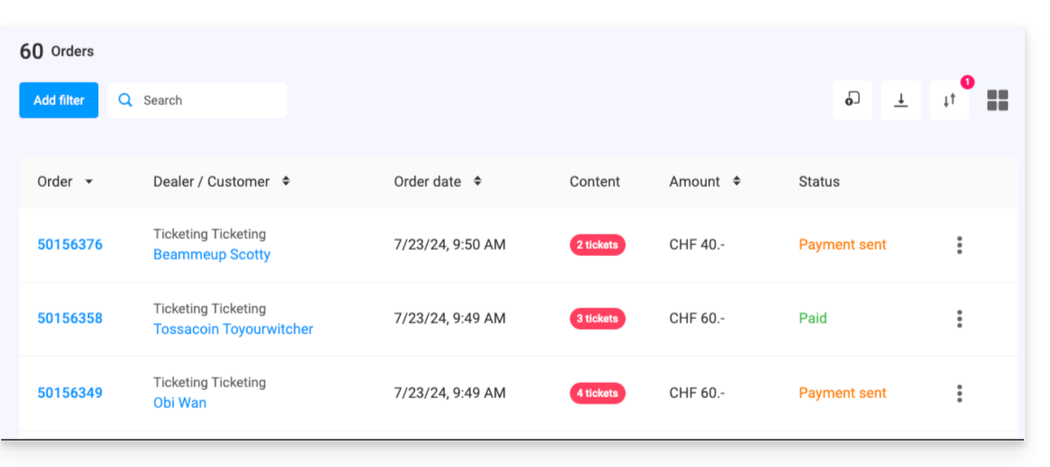
- The orders are automatically set to validated:
Link to this FAQ: https://faq.infomaniak.com/2802
Has this FAQ been helpful?