Knowledge base
1000 FAQs, 500 tutorials and instructional videos. Here, there are only solutions!
Ticketing: Split reservations
This guide explains how to split reservations with multiple tickets (within the Infomaniak ticketing system). This allows you to validate part of a reservation, in cases where the reservation may include multiple tickets, but only a portion needs to be validated at the counter.
Prerequisites
- This operation requires that an order is currently set to on-site payment.
- For more information about this payment method and how to enable it, please refer to this other guide.
Split payment from the web interface
To do this:
- Click here to access the management interface for your product in the Infomaniak Manager (need help?).
- Click directly on the name assigned to the ticket office for the event.
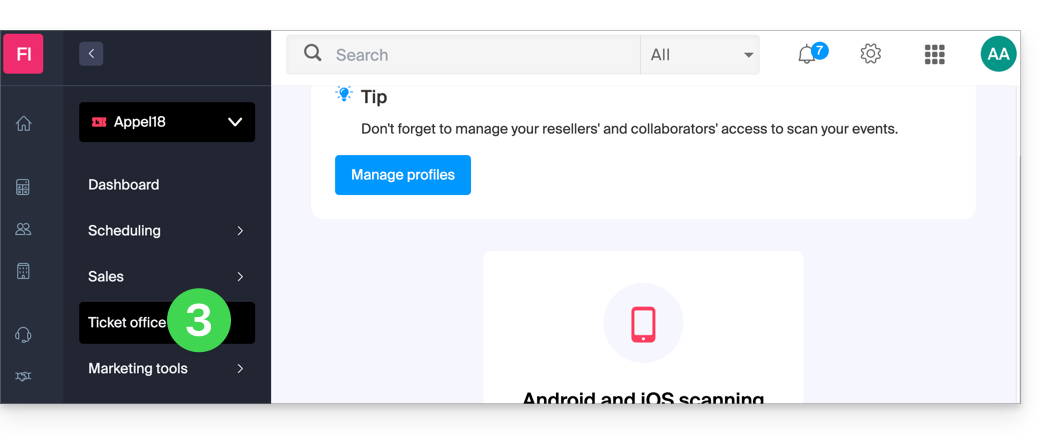
- Click on Ticket Office in the left-hand menu:
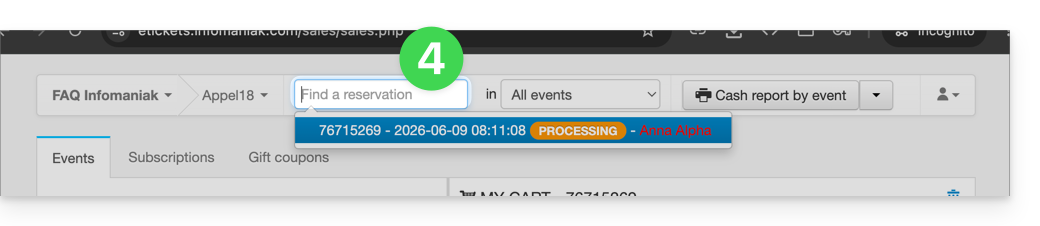
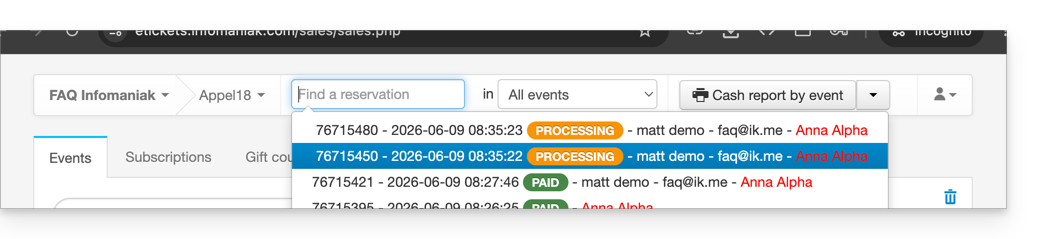
- Find the reservation using the search field at the top of the page; you can find the order using the order number or any other element related to the order:
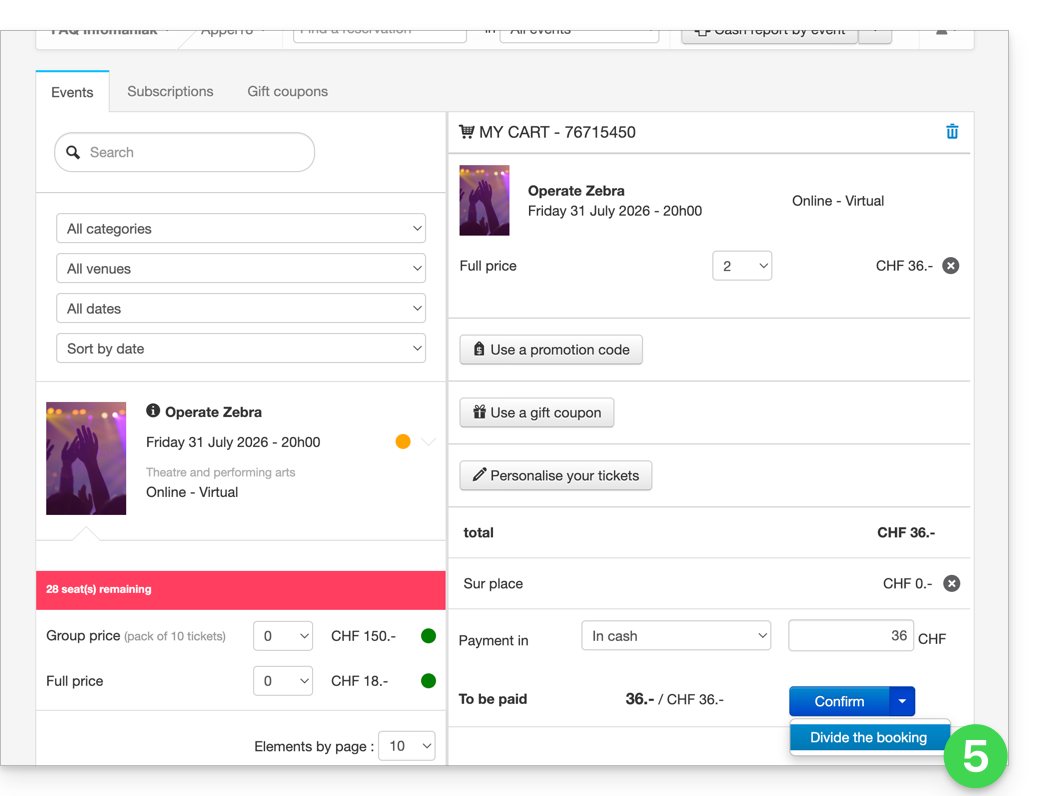
- The reservation is displayed in the right-hand column; if it is a reservation, you can click on the arrow to the right of the Confirm button and Split the reservation:
- The next screen allows you to select the tickets to validate:
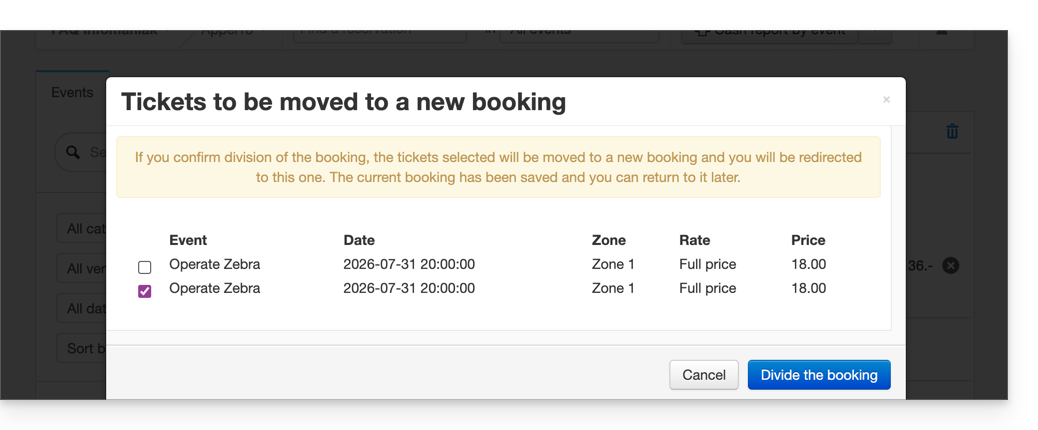
- Now, simply proceed with ordering the tickets to validate; you will see that this creates a new order, and the old order only contains the tickets that were not selected during the split:
Split an order from the sales tablet
The procedure for splitting an order on a tablet is similar to the procedure on the web interface:
- Log in to your Infomaniak account.
- Click on the Orders tab and find the order you want to split.
- Click on the Tickets tab in the order:

- Select the tickets to validate and click on Split:

- Continue with the order to validate it:

- The new order appears as validated, and the initial order shows the remaining tickets:

Link to this FAQ: https://faq.infomaniak.com/2781
Has this FAQ been helpful?