Knowledge base
1000 FAQs, 500 tutorials and instructional videos. Here, there are only solutions!
Rename ticketing service
This guide explains how to rename a ticketing system (within the Infomaniak ticketing system).
Introduction
- The name of the ticketing system appears, in particular, when publishing stores on the infomaniak.events portal.
- In the case of displaying multiple stores on the same page, it will be the name entered in the organizer's details on the last ticketing system created that has events for sale.
Modify the details of a ticketing system
To do this:
- Click here to access the management of your product in the Infomaniak Manager (need help?).
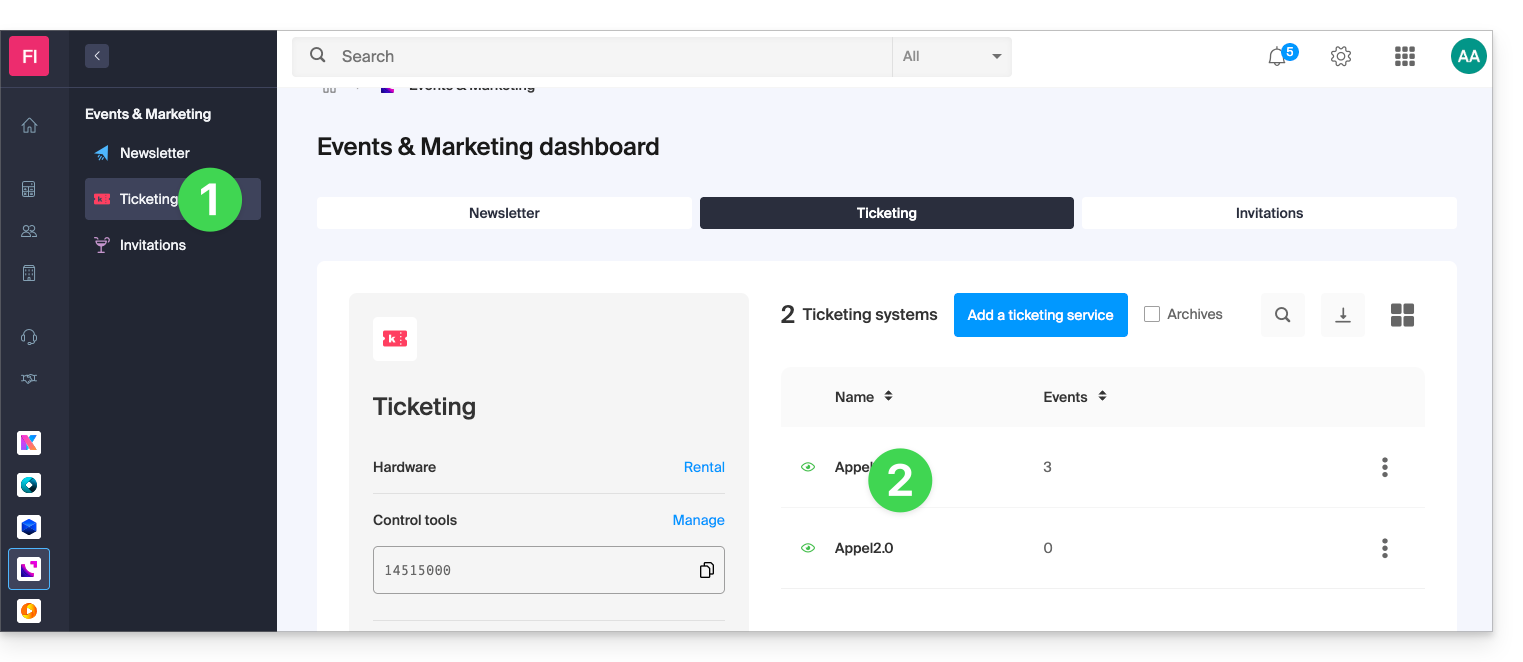
- Click directly on the name of the ticketing system in question:
- Click on Settings in the left-hand menu:
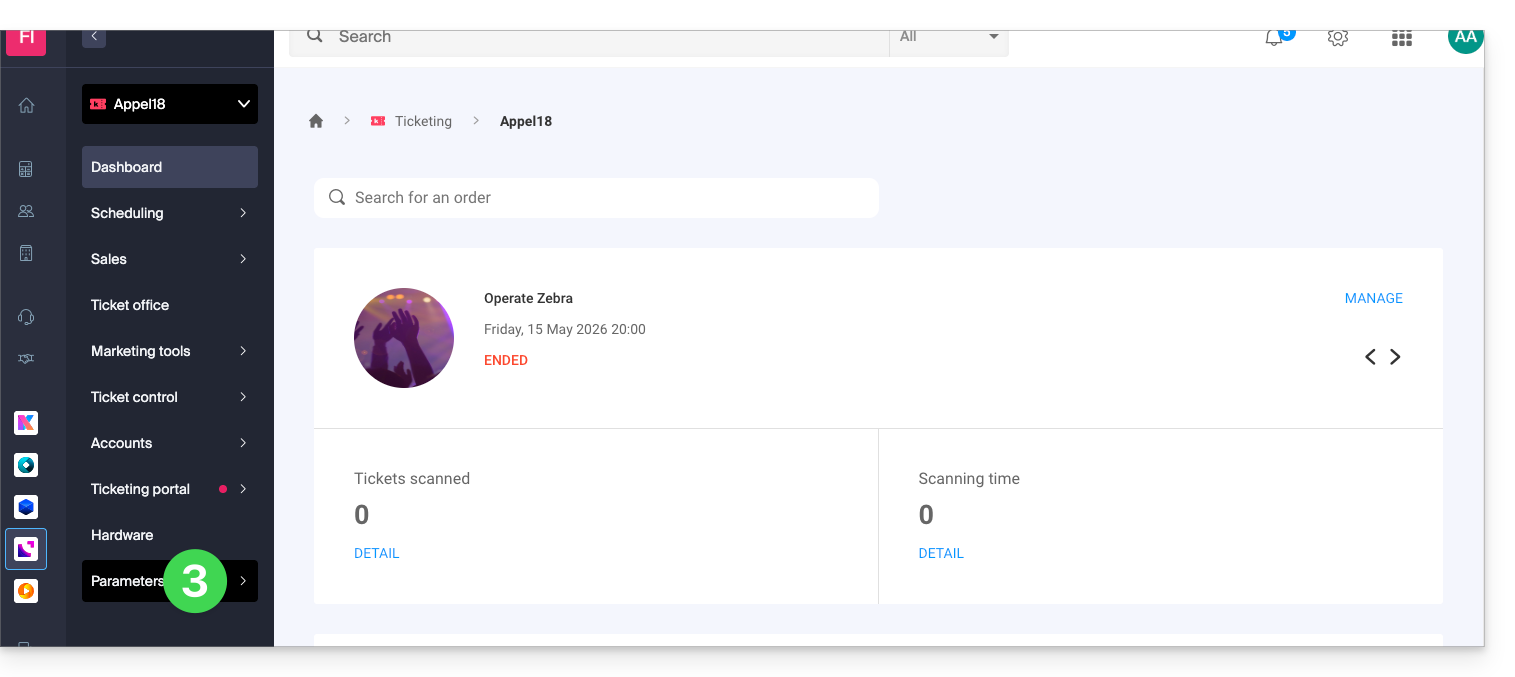
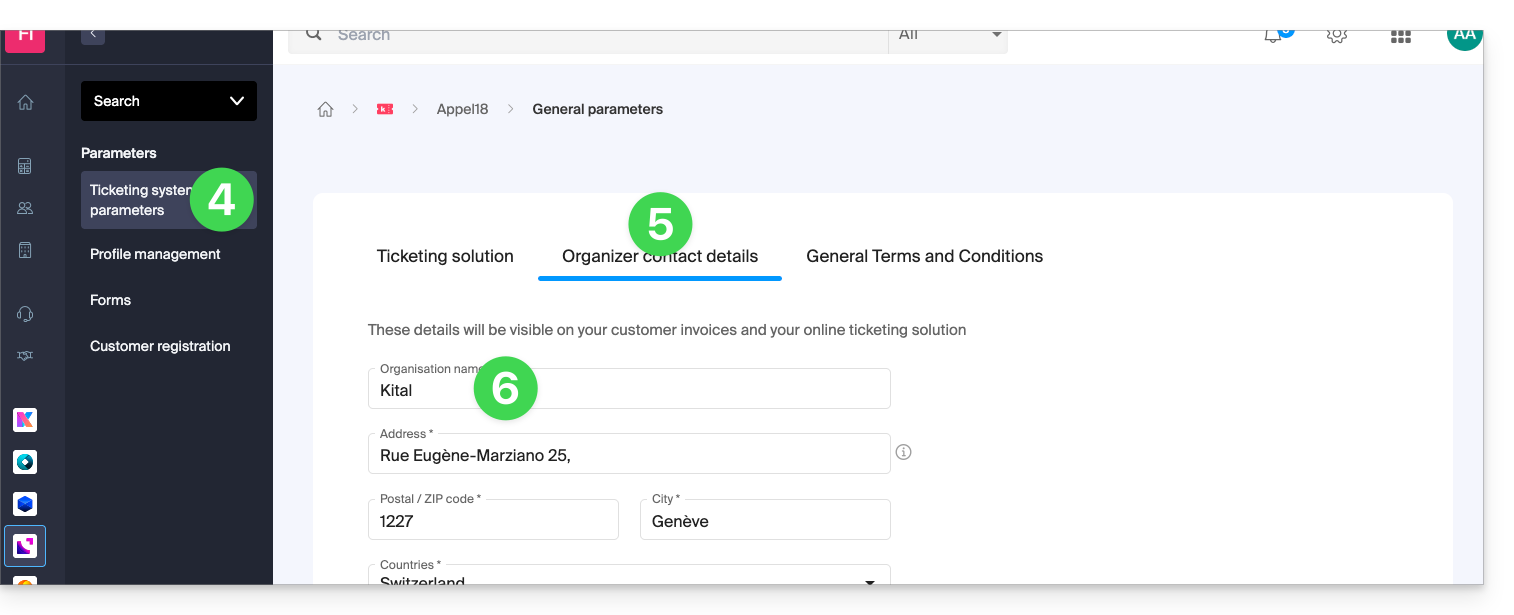
- Click on Ticketing System Settings in the left-hand menu.
- Click on the tab for Organizer Details.
- Modify the name in the first field of the form:
- Click on the Save button at the bottom of the page.
Example of a name change
The display before the modification:
Modifying the organizer's name using the procedure above:
The display is modified and becomes:
Link to this FAQ: https://faq.infomaniak.com/2779
Has this FAQ been helpful?