Knowledge base
1000 FAQs, 500 tutorials and instructional videos. Here, there are only solutions!
Understanding the Different Swiss Backup Identifiers (Cloud Backup)
This guide details how to obtain the configuration information for Swiss Backup(a free backup solution based on Openstack Swift, S3, SFTP, etc.) and explains the differences between the passwords available to you.
Login information (Cloud backup)
Accessing Information
To access information related to your free backup, which is of the Openstack Swift, S3, SFTP type, etc.:
- Click here to access the management interface for your product in the Infomaniak Manager (need help?).
- Click directly on the name assigned to the product in question:
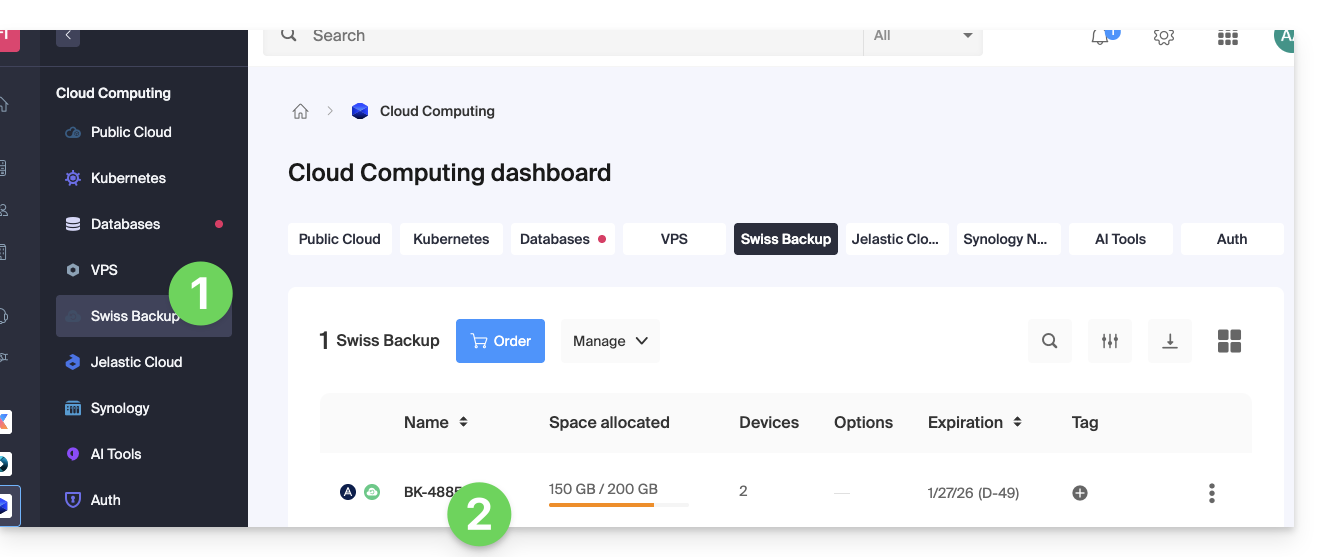
- Click on the blue Manage my devices button (in the Cloud storage space section):
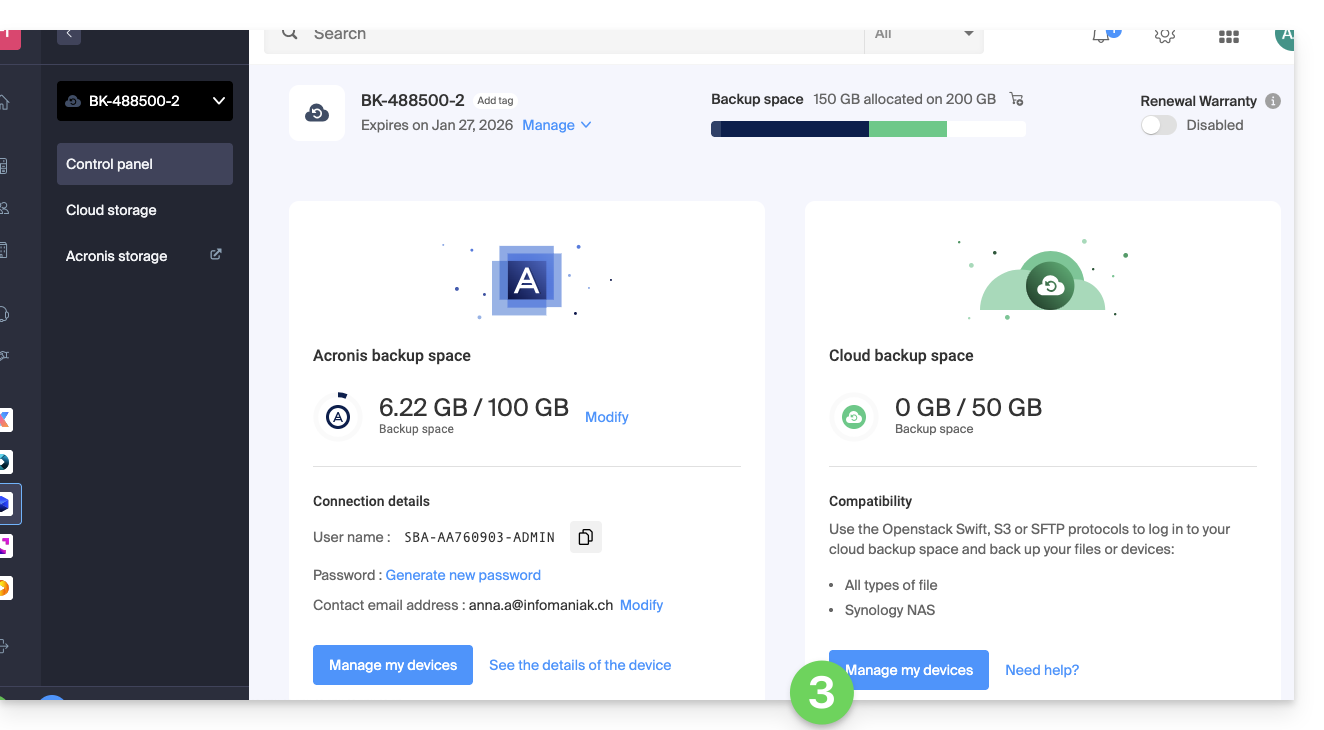
- Click on the name of the item in question in the table that appears:
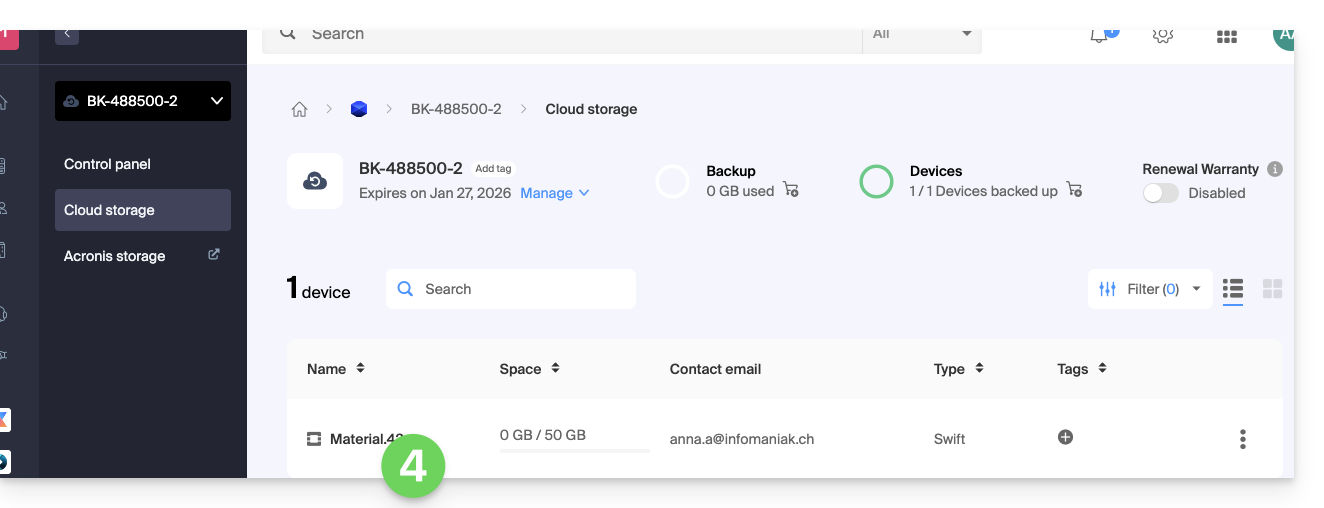
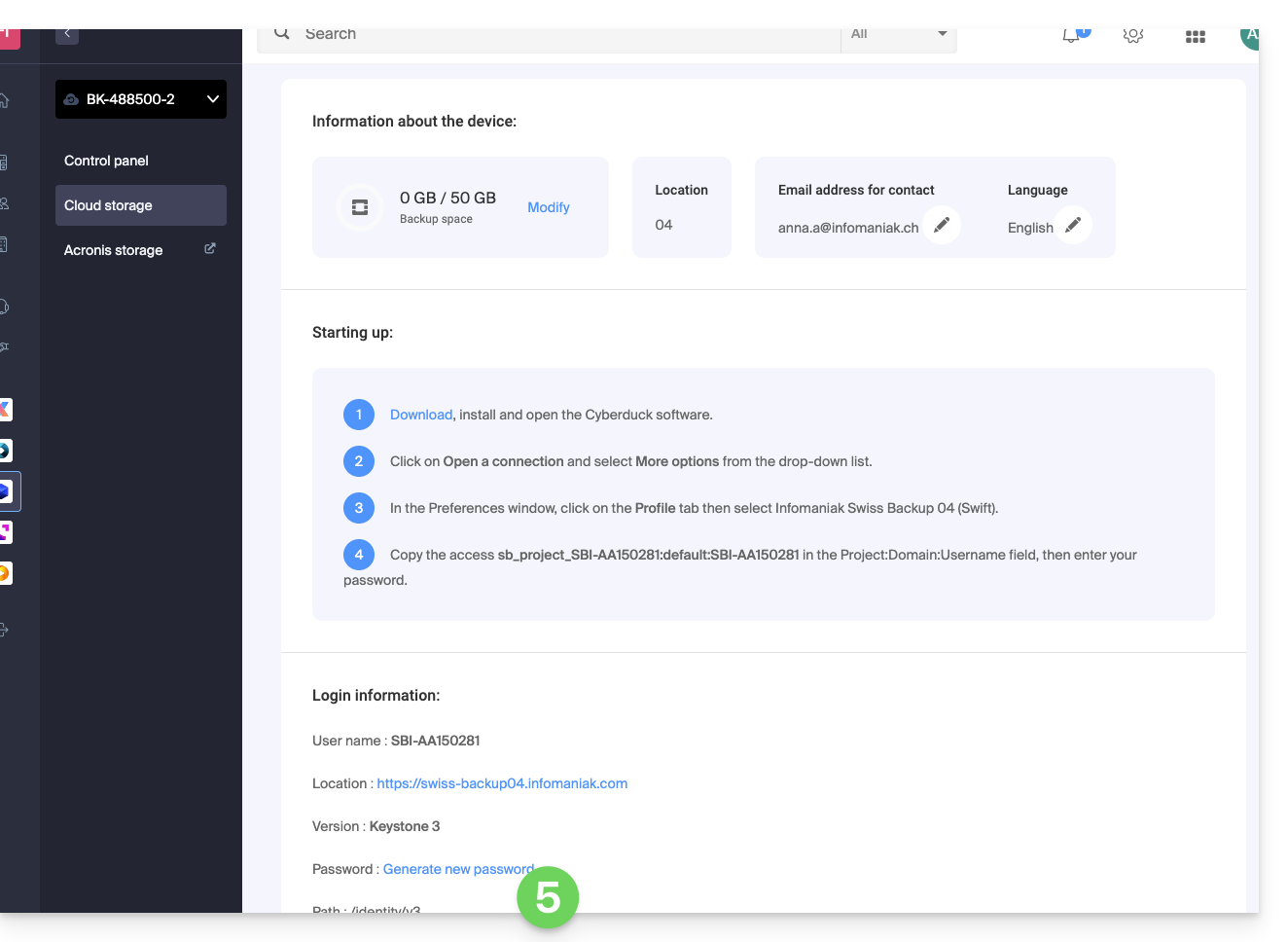
- The various information related to your device is displayed at the bottom of the page...
The various connection details (Swift, S3, etc.)
This information varies depending on the type of device chosen (Swift, SFTP, etc.), but it generally includes:
| requested information | content to be specified |
|---|---|
| username / login ID | usually in the format SBI-AB123456 |
| location | https://swiss-backup01.infomaniak.com or swiss-backup02... 03... etc. |
| version number | Keystone 3 |
| a password / access keys | ***** (see below for how to manage it) |
| path | /identity/v3 |
| Tenant / project name / project | most of the time in the form sb_project_ followed by the username, for example sb_project_SBI-AB123456 |
| domain name / domain | usually enter default |
| region | RegionOne |
| bucket | most of the time, enter default or /default |
| identity endpoint | most of the time, the location followed by the path (see above), for example swiss-backup01.infomaniak.com/identity/v3 |
Different passwords
Infomaniak Account
To access the Swiss Backup (Acronis or Cloud storage) product management, you need to log in to the Infomaniak Manager: please refer to this other guide for more information.
Cloud Backup - regenerating the login password
In order to establish a Swift / S3 / FTP/SFTP / etc. connection, a password must be generated the first time when creating a device on the Swiss Backup interface and activating the ID.
It is not possible to display a previously generated password. If you have forgotten it, you must generate a new one:
- Click here to access the management interface for your product in the Infomaniak Manager (need help?).
- Click directly on the name assigned to the product in question.
- Click on the blue Manage my devices button (in the Cloud storage space section):
- Click on the name of the item in question in the table that appears:
- Click on Generate a new password or access keys and follow the wizard:
Acronis Backup
To establish a connection with Acronis, a password for this type of backup is generated when creating a device in the Swiss Backup interface and activating the ID. There is also an encryption password.
Link to this FAQ: https://faq.infomaniak.com/2766
Has this FAQ been helpful?