Knowledge base
1000 FAQs, 500 tutorials and instructional videos. Here, there are only solutions!
Troubleshooting Infomaniak Authenticator
This guide explains how to regain access to Infomaniak services (including manager.infomaniak.com and ksuite.infomaniak.com/mail) if you are experiencing issues with the Infomaniak Authenticator mobile app (iOS/Android app), provided you chose this security method when activating two-factor authentication (2FA).
Before changing your mobile device
If you plan to change the iOS/Android device on which the Infomaniak Authenticator app is installed, before doing so:
- Log in one last time with 2FA to the Infomaniak Manager.
- Remove the security temporarily (or change the verification method to receive a code via SMS, for example).
- Then, on the new device, install and open the Infomaniak Authenticator mobile app tore-authenticate with 2FA via Infomaniak Authenticator !
After changing your mobile device
If it's too late and you haven't followed the method above, still check in the Infomaniak Authenticator mobile app to see if your account is still there; it's possible that you are no longer receiving the notification for the login authorization request (YES / NO).
If your account is displayed correctly in the Infomaniak Authenticator app, then when you open the app, a login confirmation request should appear if you attempt to log in from a browser or Infomaniak service.
If it's too late, and no accounts are displayed in the Infomaniak Authenticator mobile appno other option
- Click here to access the Infomaniak Manager login page.
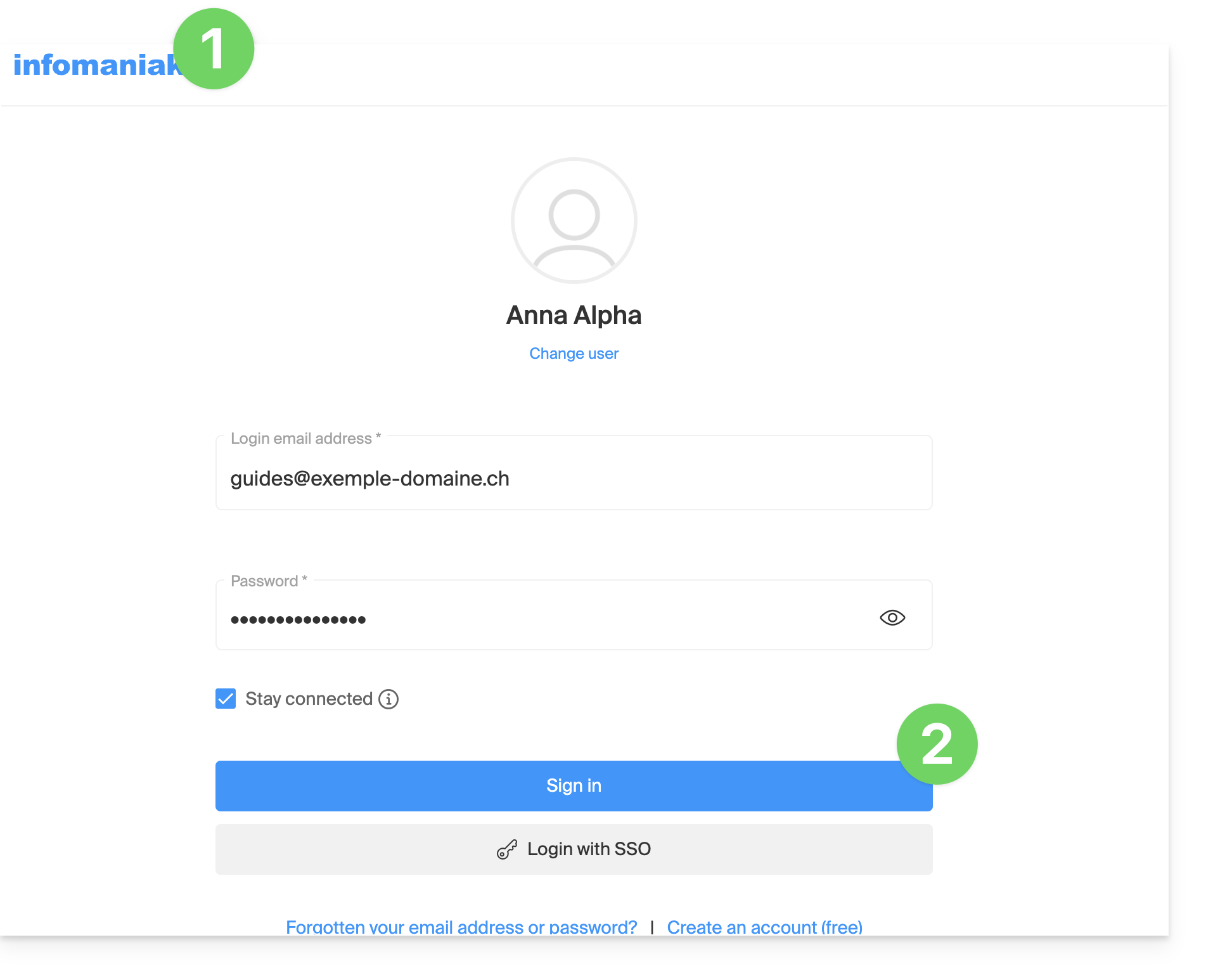
- Enter your username and your usual and correct password:
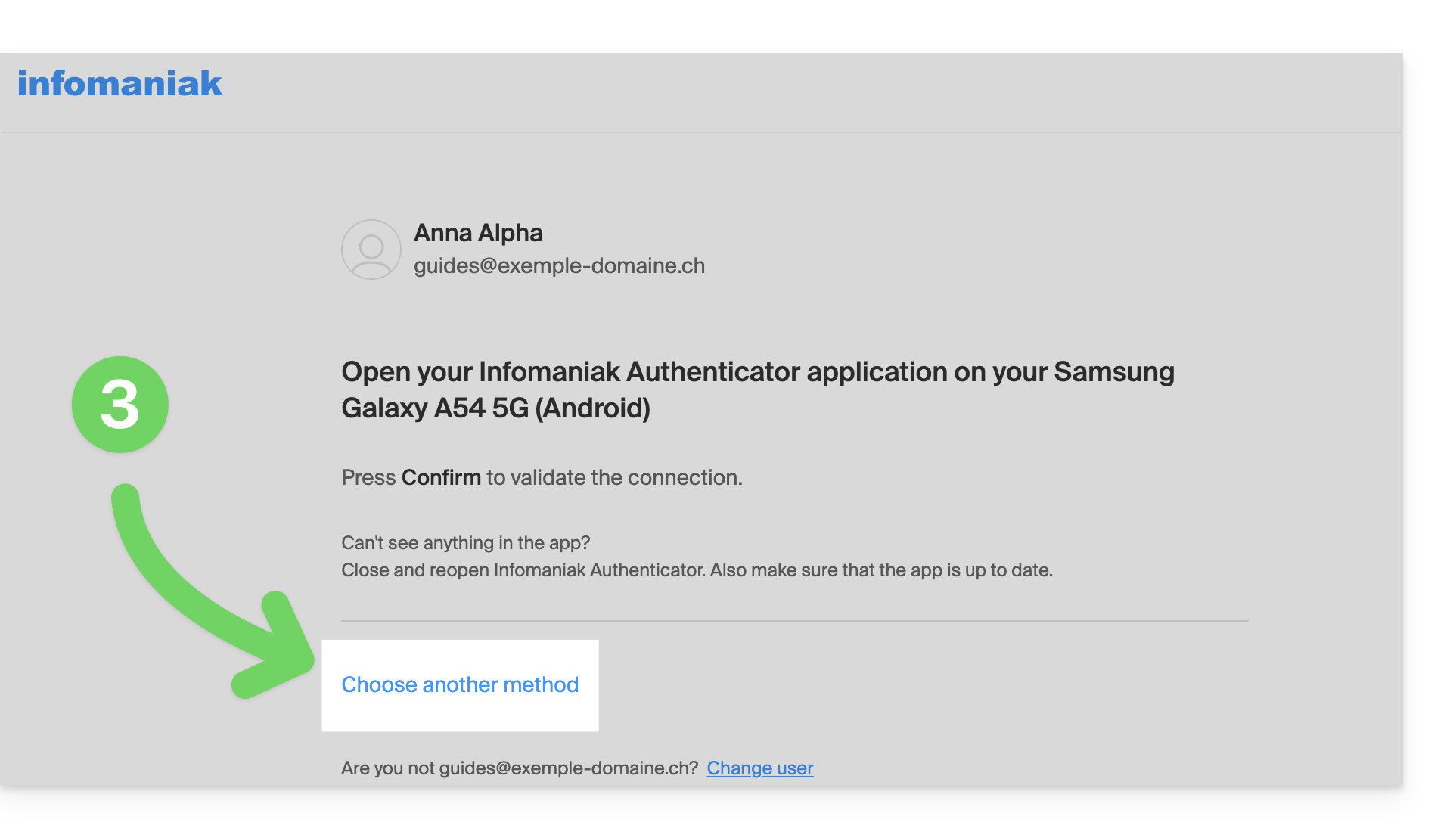
- When prompted for additional authentication, click on alternative methods:
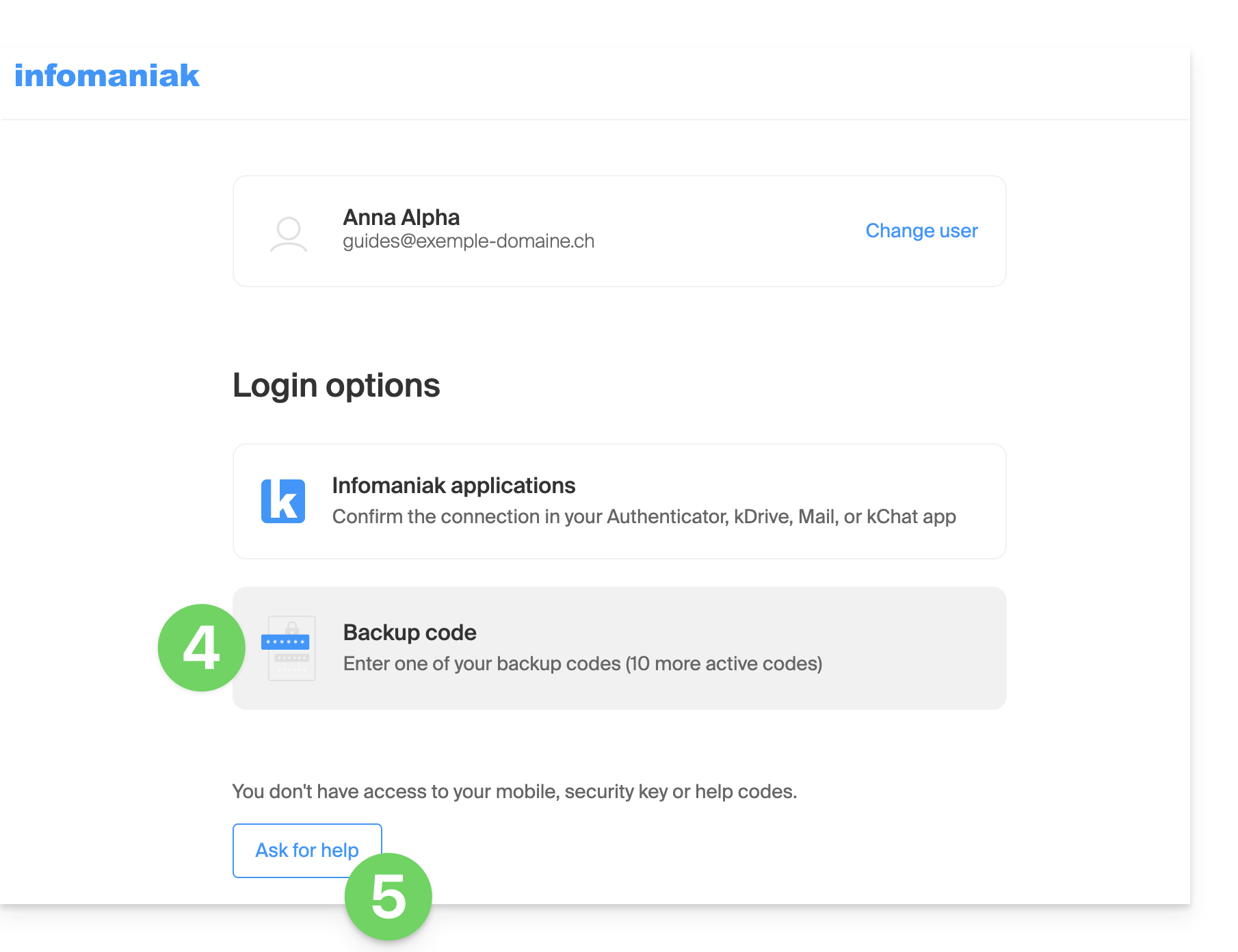
- Choose to enter one of your backup codes if you downloaded the sheet when activating 2FA.
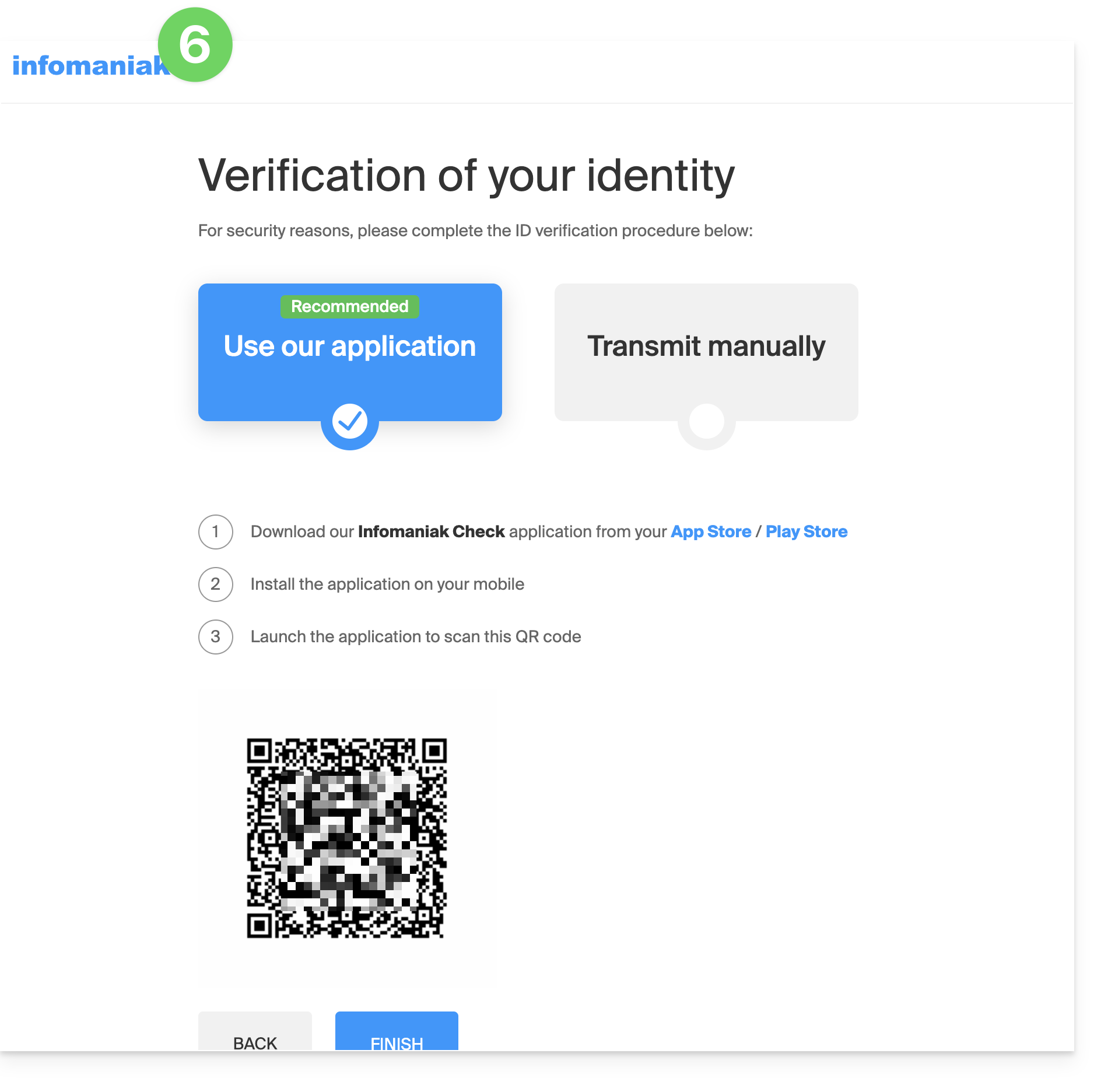
- Otherwise, select the last option to request assistance, which will take you to the form where you can submit your identification documents and a selfie for verification:
- Follow the procedure to the end and wait:
Link to this FAQ: https://faq.infomaniak.com/2762
Has this FAQ been helpful?