Knowledge base
1000 FAQs, 500 tutorials and instructional videos. Here, there are only solutions!
Insert media on a Site Creator page
This guide details how to use media in Infomaniak's Site Creator.
Please note that it is also possible to insert other elements, such as Infomaniak newsletter subscription form.
Prerequisites
- Access Site Creator:
- Click here to access the management of your product on the Infomaniak Manager (need help?).
- Click directly on the name assigned to the Site Creator in question.
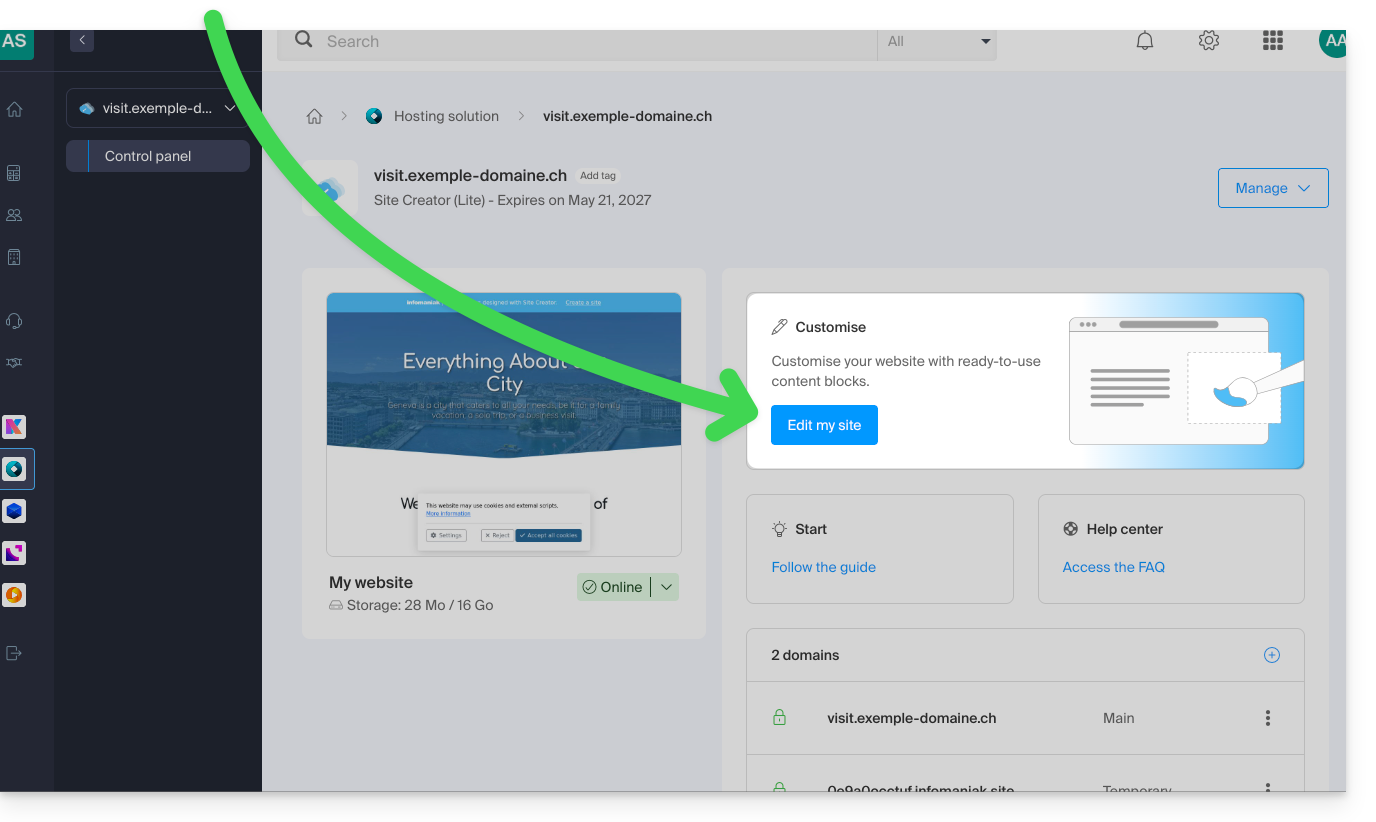
- Click on the Edit my site button to launch the editor:
Add an image
Media is managed in the file library:
- Add a new content block:
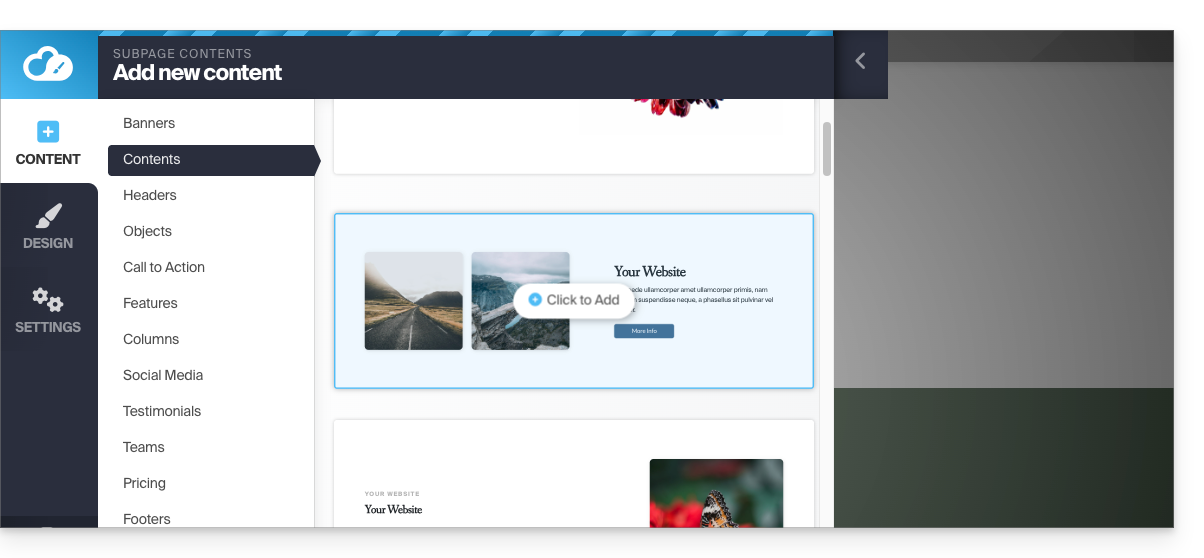
- The media can then be replaced or supplemented:
But also:
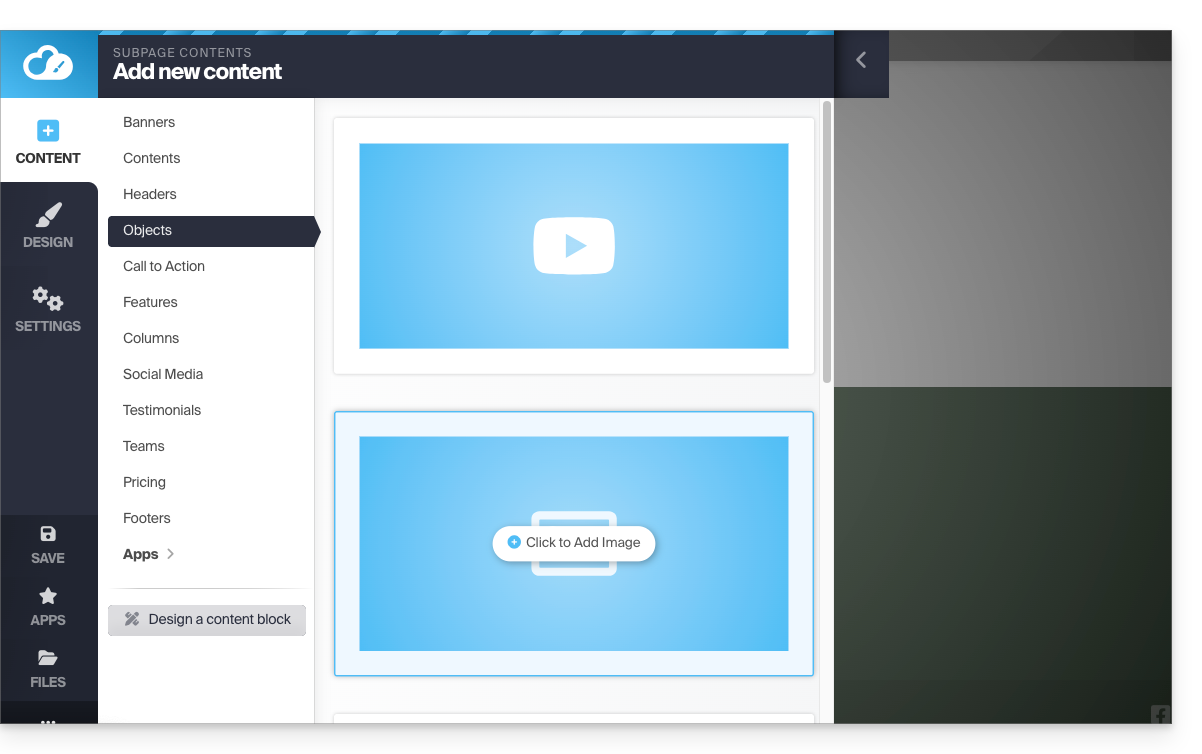
- Click on the Content button in the left-hand menu.
- Click on Objects in the list to insert a single image.
- Click on the IMAGE block on the right:
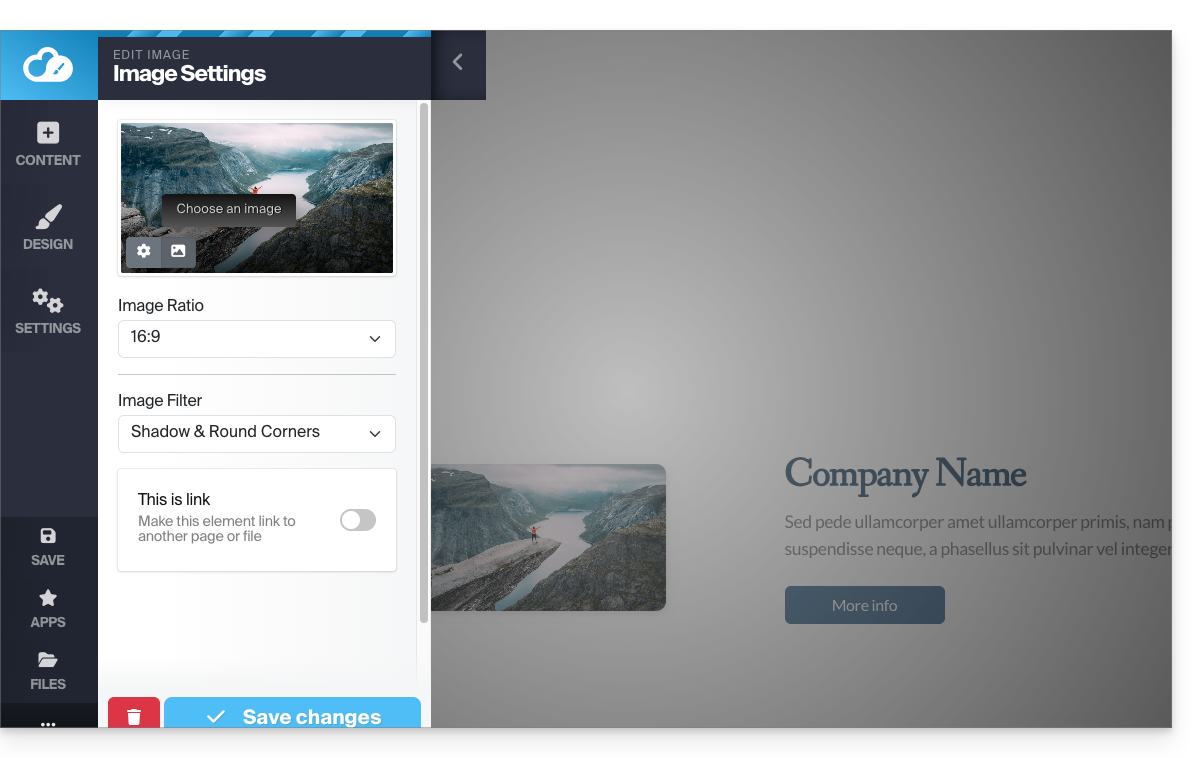
- Once the image has been added, you can also make it a clickable link or change its size in the image editor:
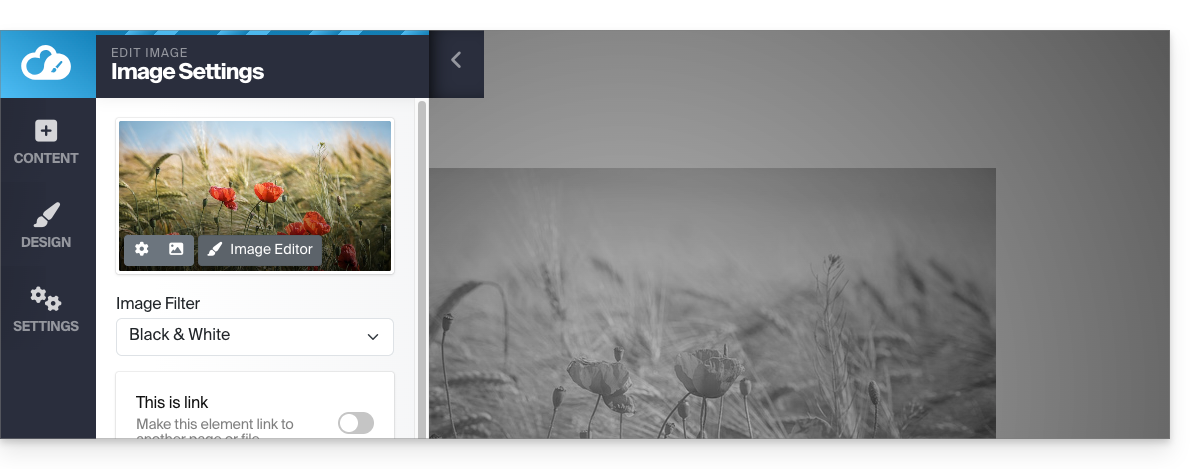
You can also add images as a Photo Gallery module.
Change image
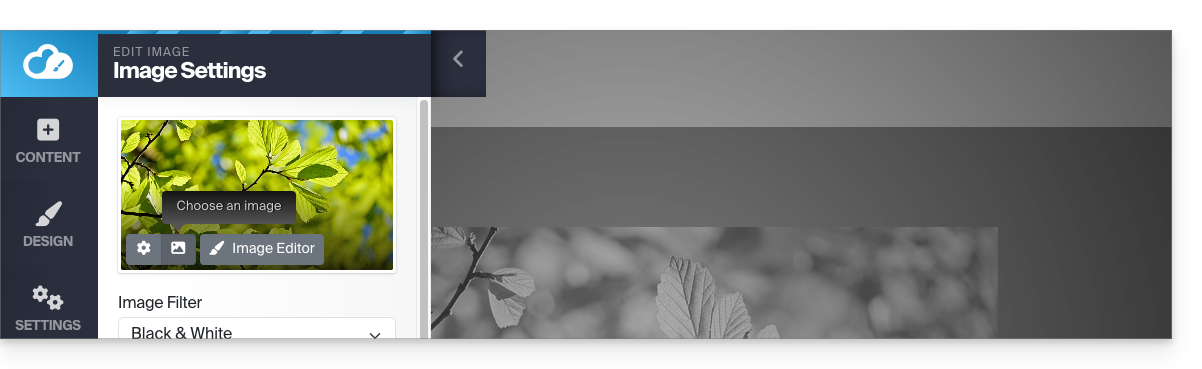
To replace an inserted image, which will retain the characteristics of the previous one:
- Click on an image to edit it.
- Click on the Picture frame button on the image thumbnail to select a new image that will replace the previous one:
Add a video
To add a video:
- Click on the Content button in the left-hand menu.
- Click on Objects in the list.
- Click on the VIDEO block on the right to insert a full-width video:
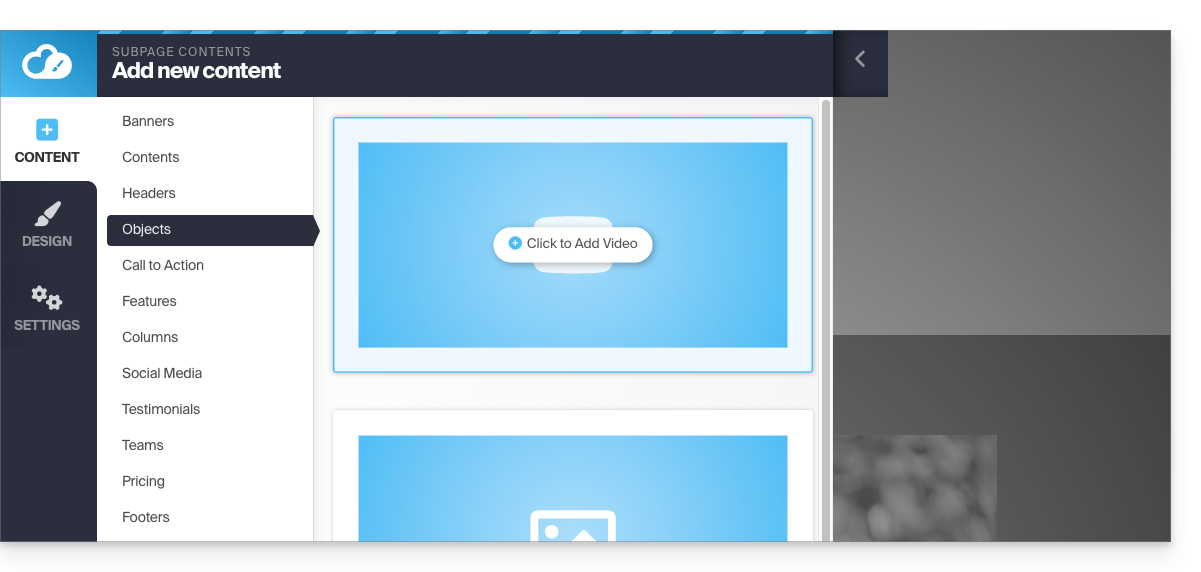
You can also apply a link to an image using a YouTube video as the URL: this will automatically create a PLAY-type icon that, when clicked, will open the video in a lightbox window.
Add an audio file
To add an audio file:
- Click on the Content button in the left-hand menu.
- Click on Applications at the bottom.
- The available content is displayed on the right.
- Click on the audio player to insert it into the page and select the files:
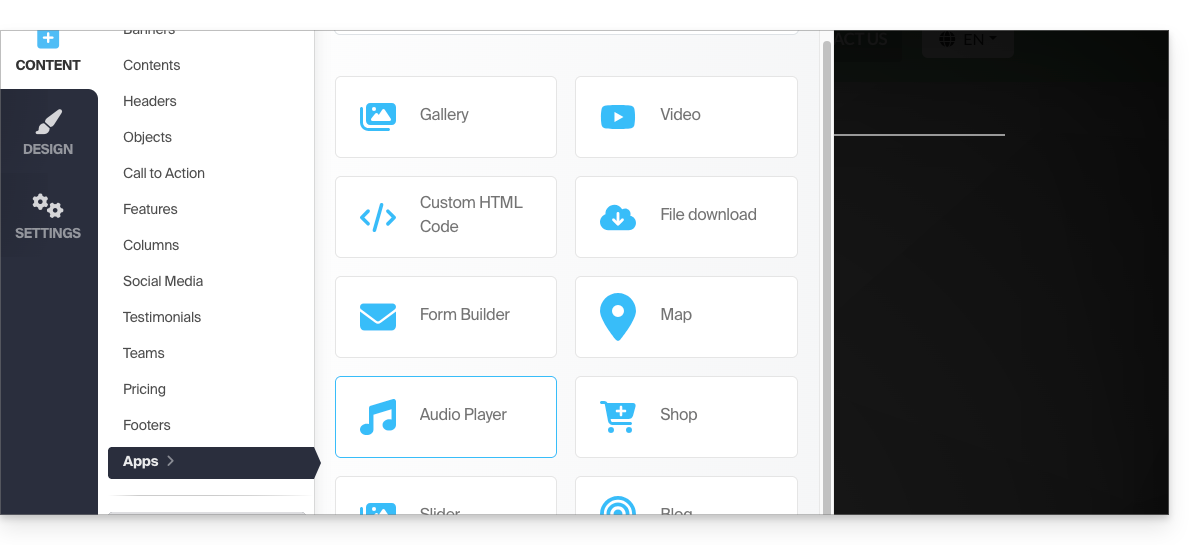
You can customize it further using the HTML editor.
Add a file to download
To easily offer a file for download:
- Click on the Content button in the left-hand menu.
- Click on Applications at the bottom.
- The available content is displayed on the right.
- Click on the File Download widget to insert it into the page:
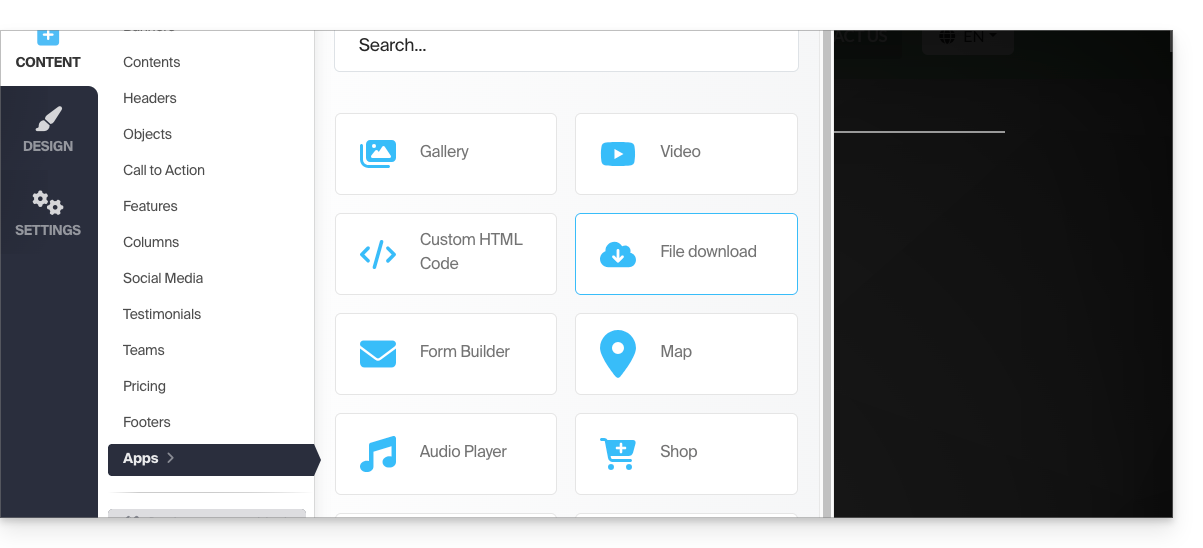
- Select the file from the library that your visitors will be able to download.
Link to this FAQ: https://faq.infomaniak.com/2729
Has this FAQ been helpful?