Knowledge base
1000 FAQs, 500 tutorials and instructional videos. Here, there are only solutions!
Manage publishing and drafts in Site Creator
This guide explains how to avoid directly publishing changes to a page in Infomaniak's Site Creator.
Introduction
- Draft mode prevents the following changes from being published:
- Adding a new content block via the Content menu
- Visual or textual modifications to a content block
- Deletion of a content block
- Draft mode does not apply to:
- Global design changes, via the Design menu (colors, fonts, etc.)
- Content modifications related to applications (question/answer, e-commerce, etc.)
- Modifications of global settings, via the Settings menu (Pages, languages, etc.)
- Subpages of the page you are unpublishing
1. Back up without publishing
Prerequisites
- Access Site Creator:
- Click here to access the management of your product on the Infomaniak Manager (need help?).
- Click directly on the name assigned to the Site Creator in question.
- Click on the Edit my site button to start the editor:
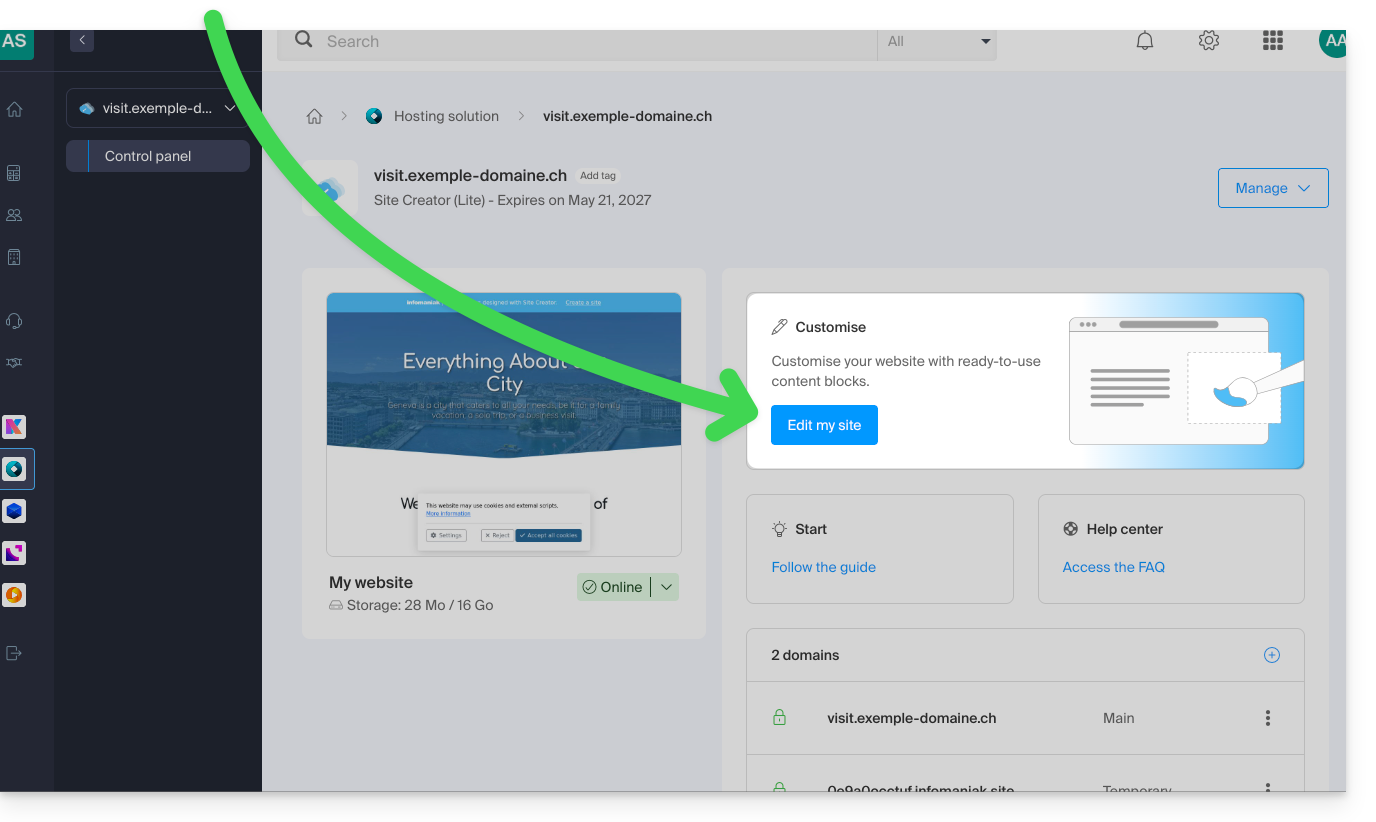
You can switch a page to draft mode to make text changes or other content changes that will not be visible live, until you decide to switch the site back to live publishing mode:
- Click on the ... button at the very bottom of the left-hand menu to expand the publishing and preview options.
- Click on Live to switch to Unpublished mode:
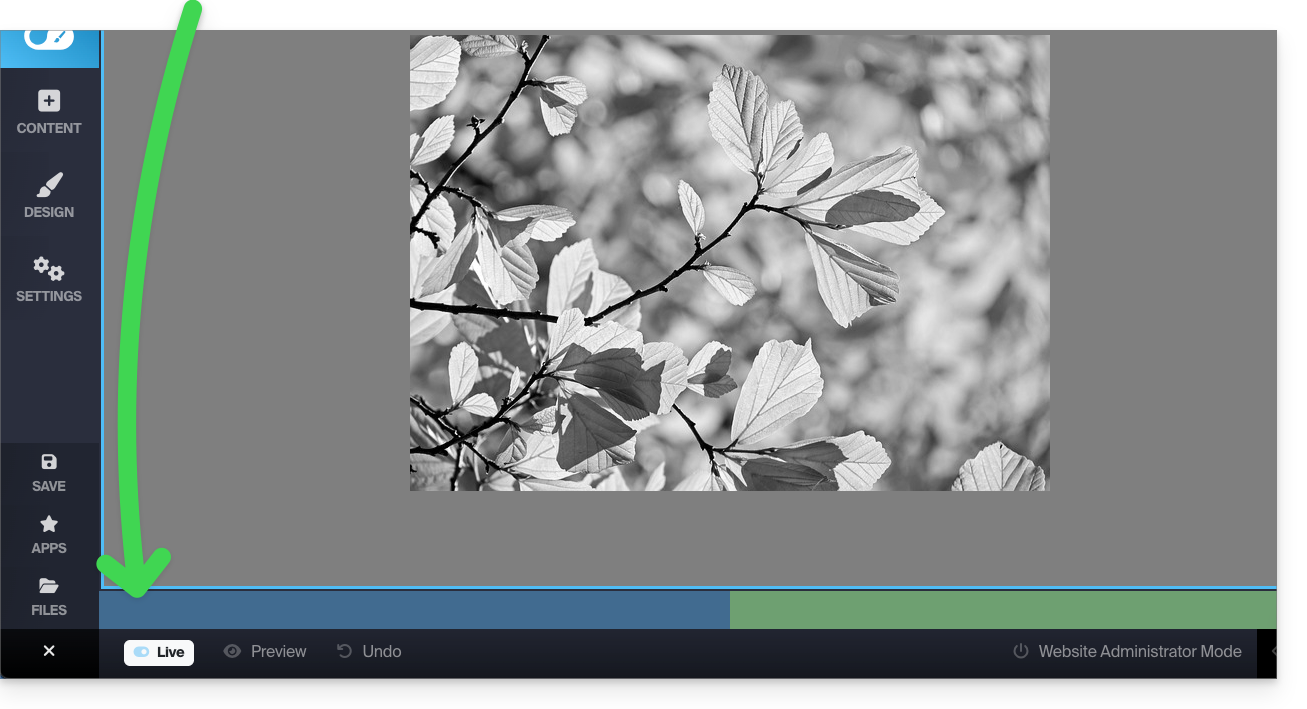
- Now, the yellow mode displayed at the bottom indicates that all your changes (on this page only) will not be displayed live (unlike Live mode) because they will not be automatically published:

- Changes will be saved in a draft even if you leave the page or the editor…
- In draft mode, you can work on the page, add text, save it, leave, come back to continue editing, and this work will not be published until you explicitly decide (see below):
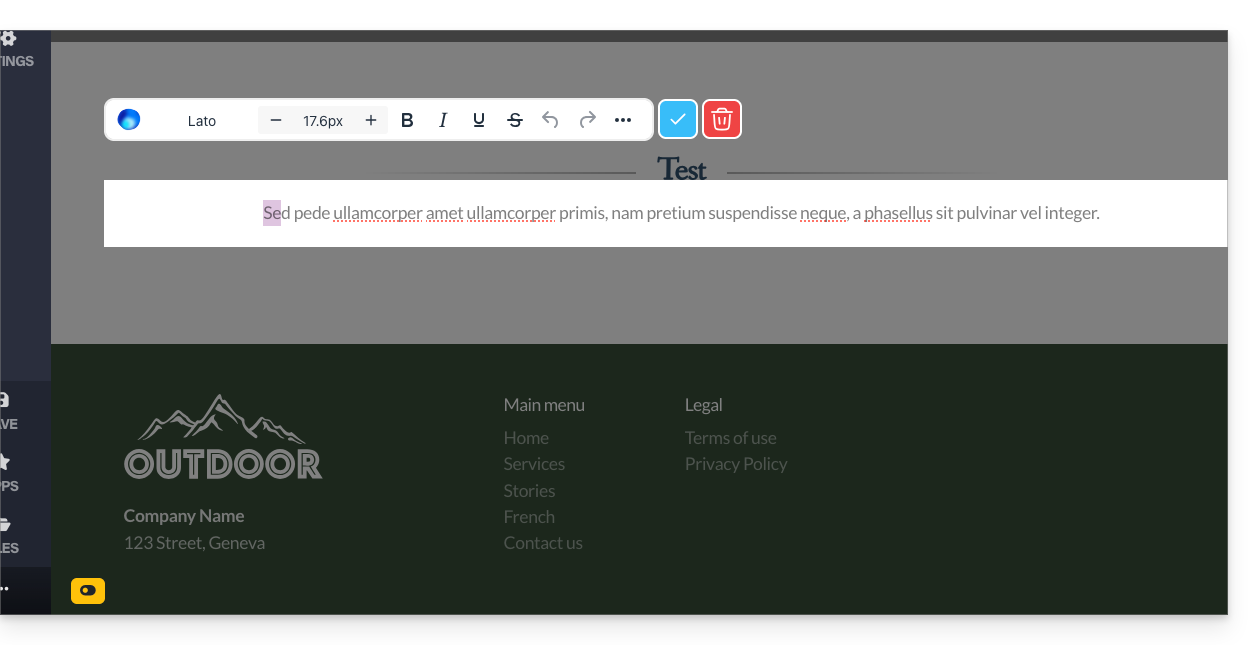
- Depending on the changes made (e.g., adding a content block), remember to edit the text to validate your changes and save them.
- To check and confirm that your current changes are not being published as you make them, simply go to your site's address from another browser page in incognito mode, for example.
2. Publish the changes or delete the draft
You can exit Draft mode to revert to instant publishing:
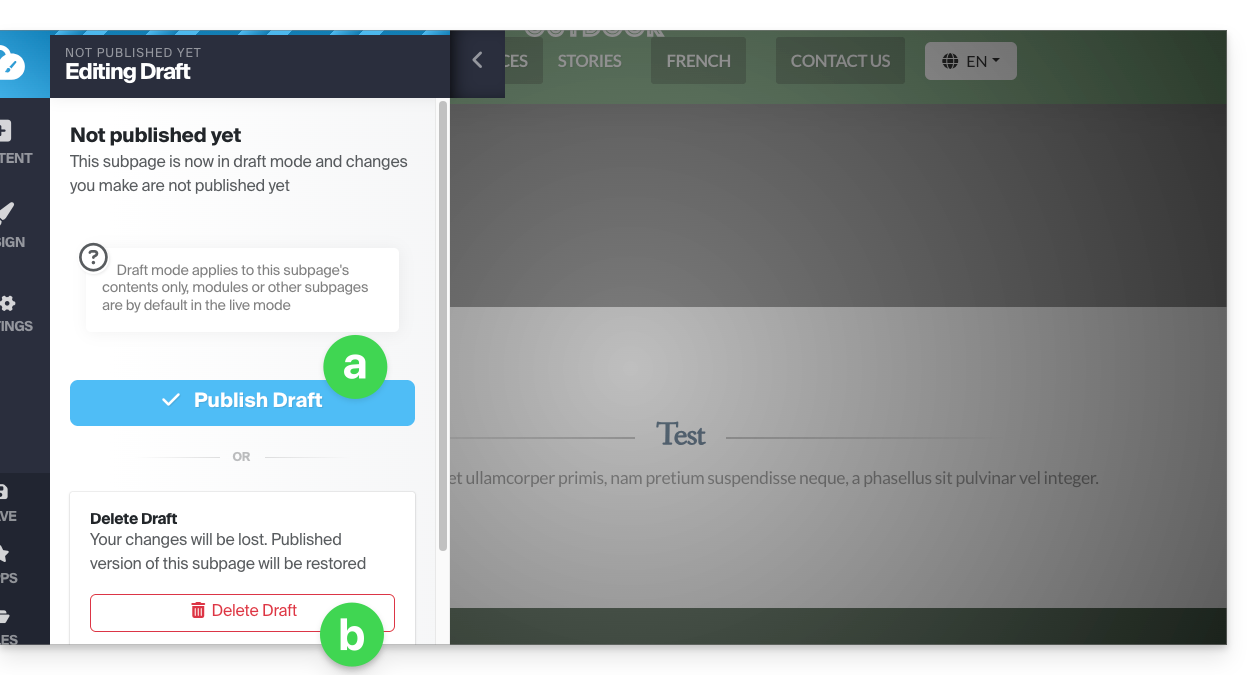
- When the Draft mode is active, click on the yellow button in Draft mode to display a settings panel:
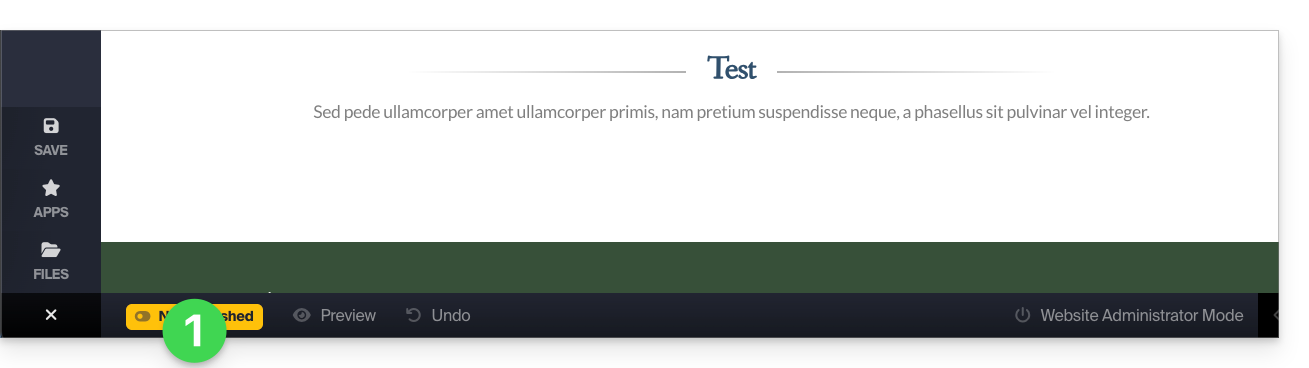
- The settings panel opens so you can:
- publish your changes,
- or delete the current draft and revert to the page's initial state:
Example
- With the Live mode (visible at the bottom of the screen), any modification is immediately visible to the page's visitors.
- With the Unpublished / Draft mode (identifiable by a yellow symbol at the bottom of pages in this mode), your changes are not visible in real time.
- Leave the page to work on another page; the mode reverts to the default mode, i.e., the Live mode, because the page is different, and the mode only applies to the selected pages.
- Go back to the draft page; a symbol at the bottom of the page always indicates that draft mode is enabled.
- Click on it to choose whether to publish or delete the changes and revert the page to its state before your draft modifications.
Link to this FAQ: https://faq.infomaniak.com/2728
Has this FAQ been helpful?