Knowledge base
1000 FAQs, 500 tutorials and instructional videos. Here, there are only solutions!
Create a blog with Site Creator
This guide explains how to add and configure a blog module on your website created with Site Creator Infomaniak.
Introduction
- There is no functionality to manage multiple users in the Blog section (or in Site Creator).
- Several users from the same Organization who have access to Site Creator (via their web hosting access permission, for example) can publish on the blog, but the author's identity will remain the same for all.
- There is no way to write and save entire blog pages in "draft" mode.
Start a blog on Site Creator
Start by logging into the Infomaniak Manager with your credentials (user with the necessary rights for the product in question):
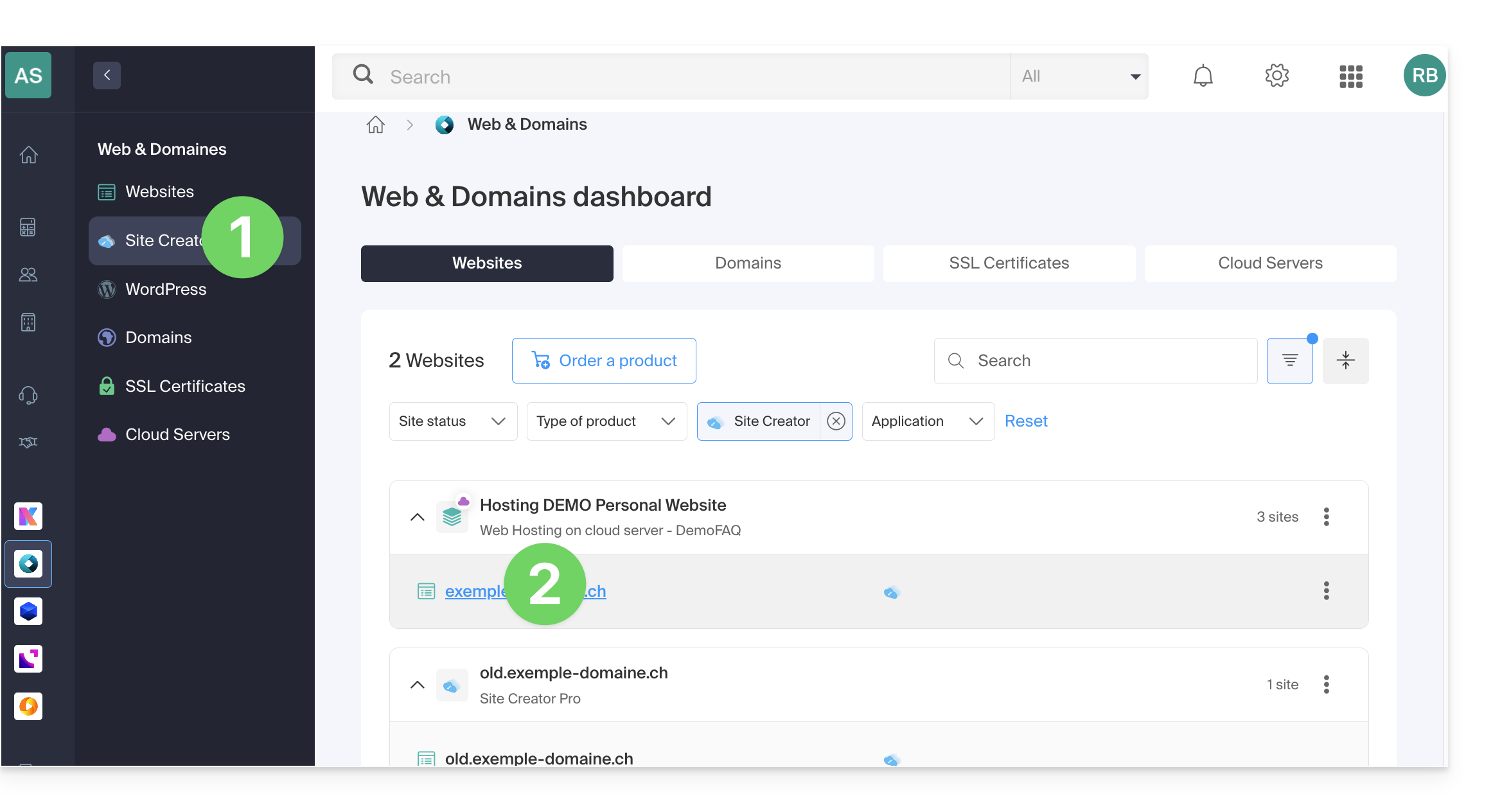
- Click here to access the hosting & site management section (filtered to display only Site Creator).
- If nothing is displayed, you may not be in the Organization to which your site is linked (❓: help).
- Click on the name of the Site Creator in question:
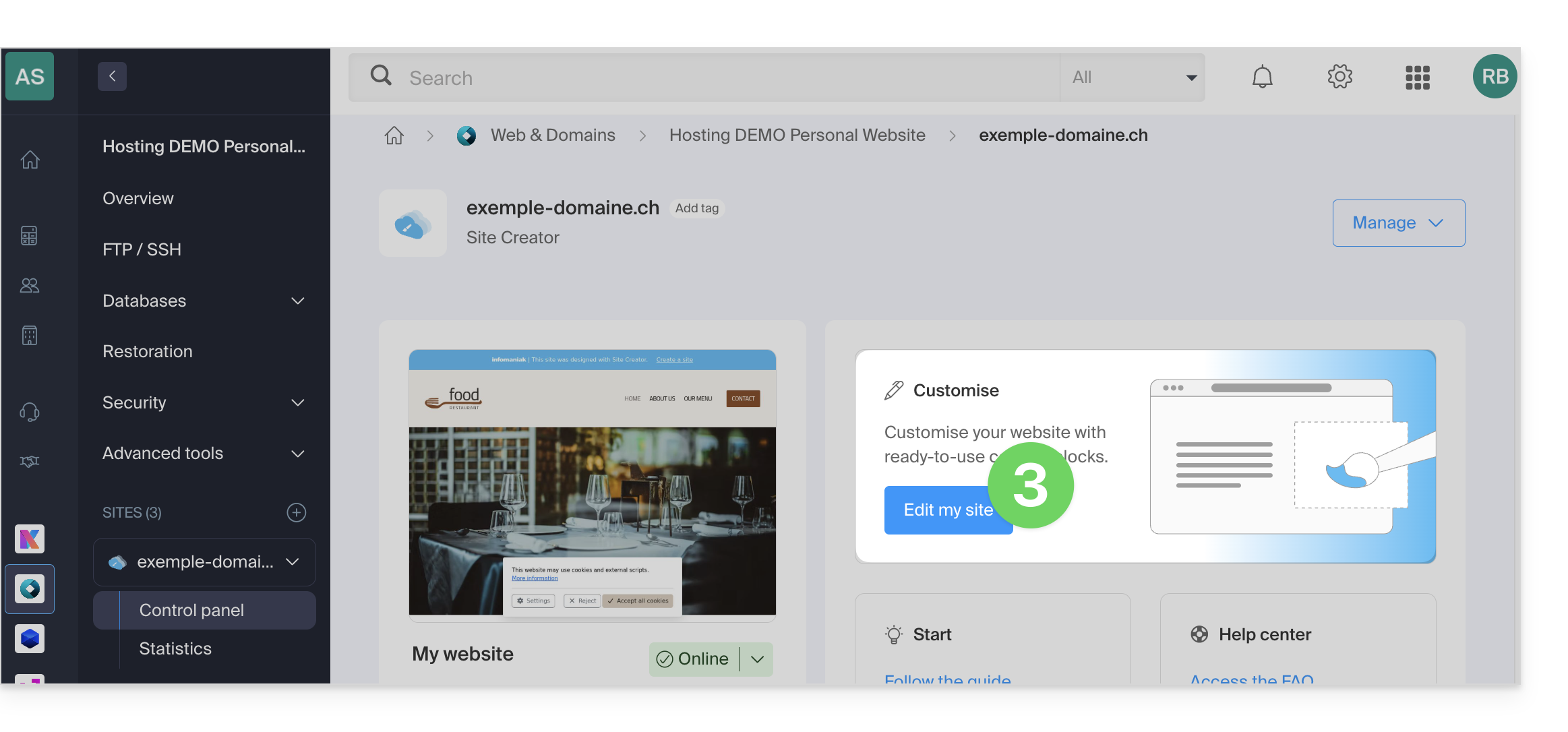
- Click on the button to edit your site:
Once in Site Creator, on the page where you want to insert your future blog posts:
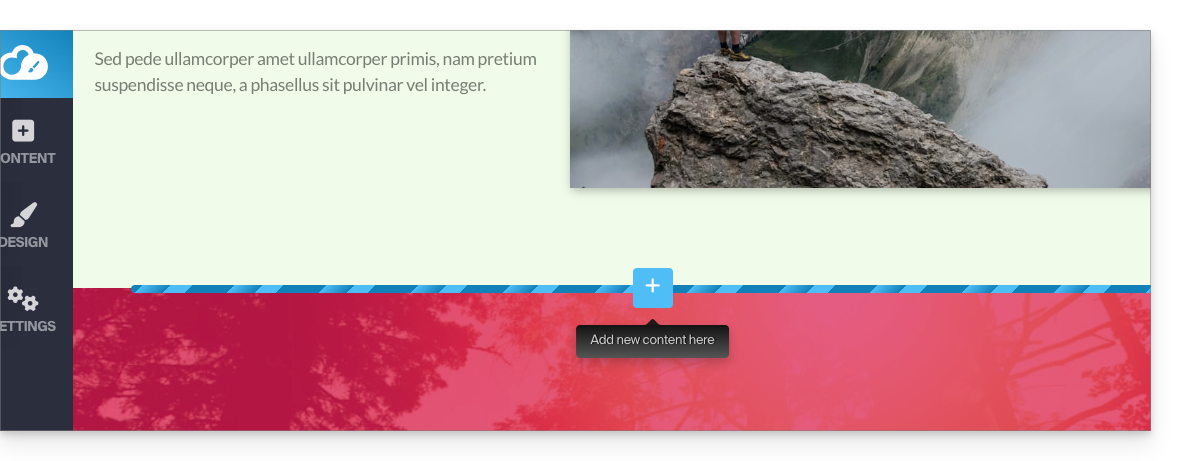
- Click on the + button located below an already inserted block:
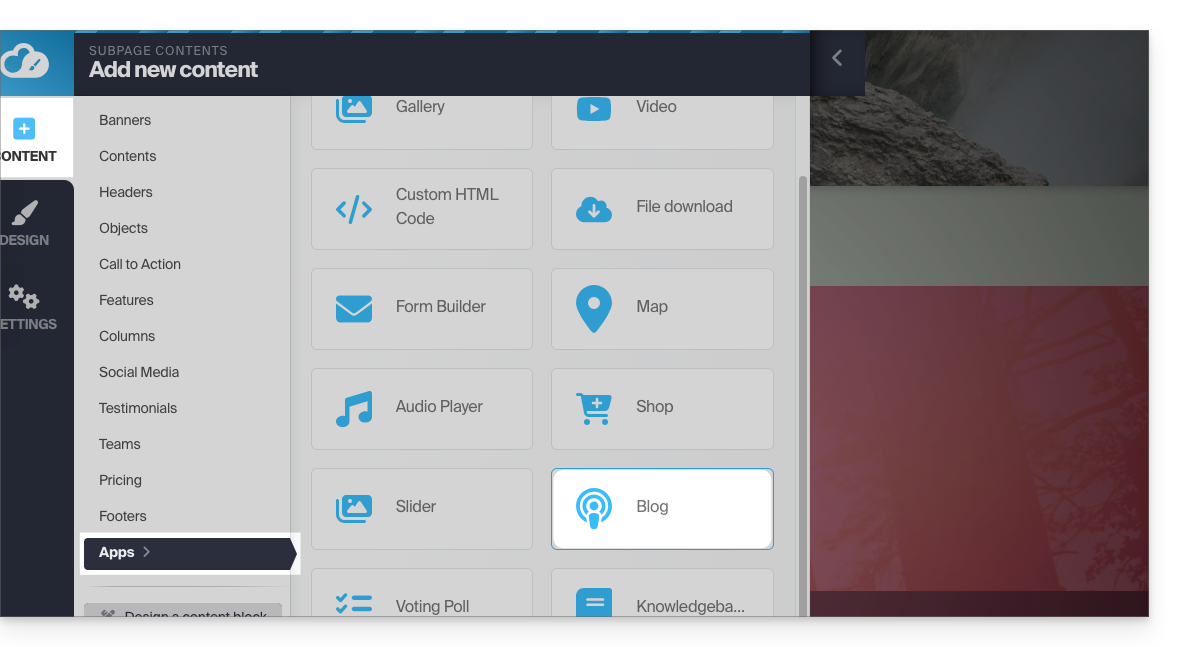
- Click on Applications (in the Content tab that opened when you clicked to add the visual block).
- Click on the Blog module:
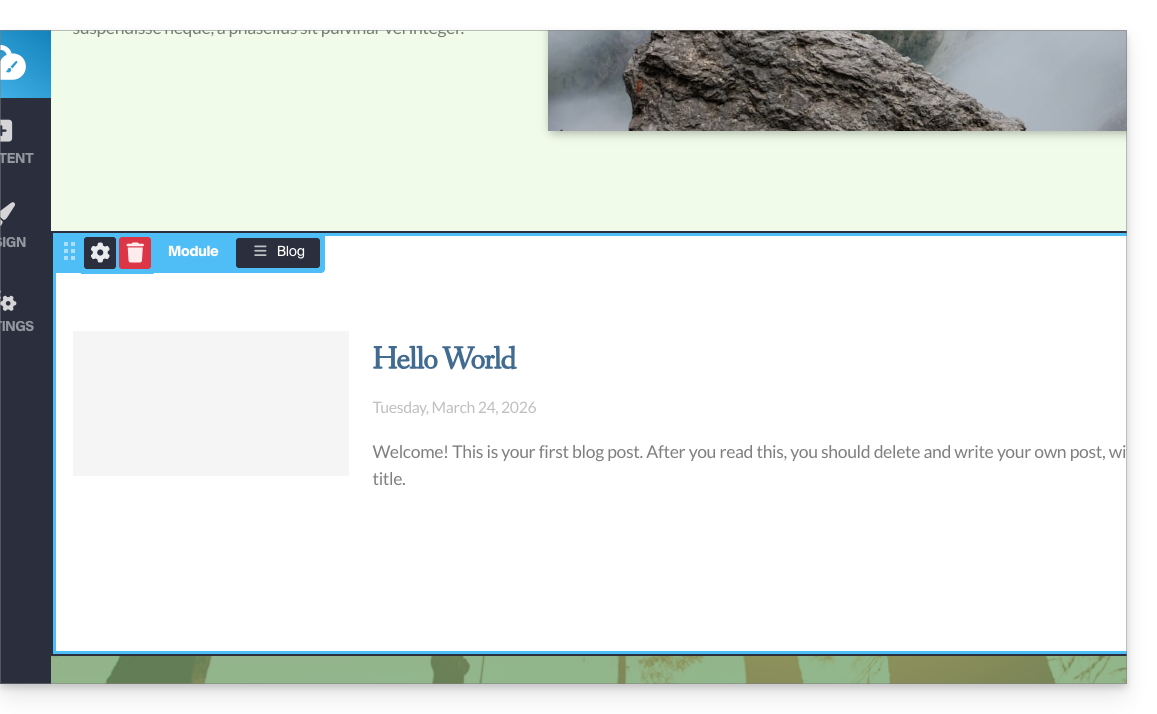
- If this is the first time you are inserting this module, you will see the following visual block with an example of the first article published (go to point 4 below):
- If you have already tested the Blog module and removed it from your pages, you will see this:
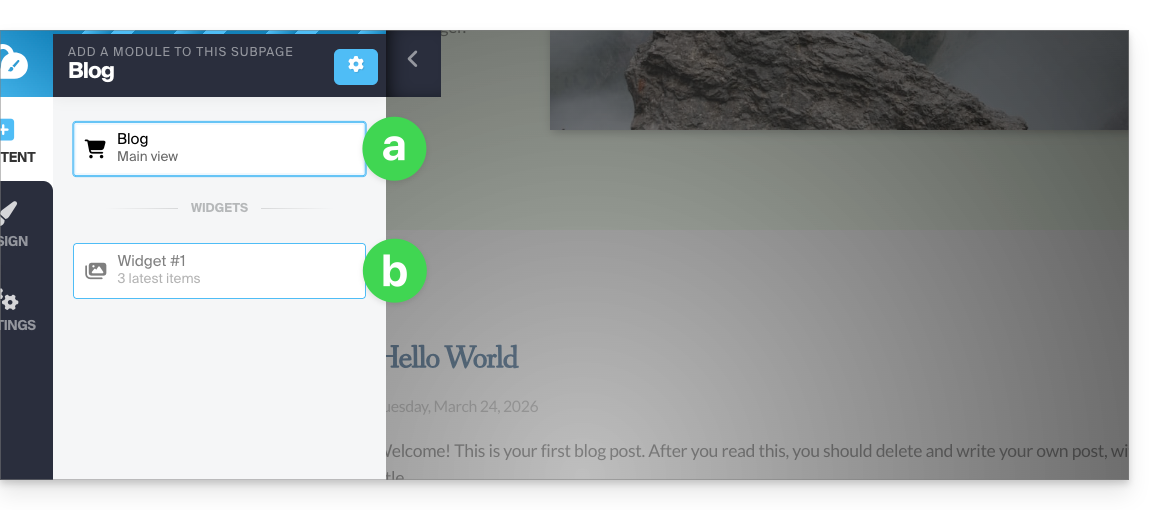
- Press the top option to insert the main block.
- Press the second option to display a block with the 3 most recent articles publishedonly if you have already inserted a main block elsewhere on the site.
- If this is the first time you are inserting this module, you will see the following visual block with an example of the first article published (go to point 4 below):
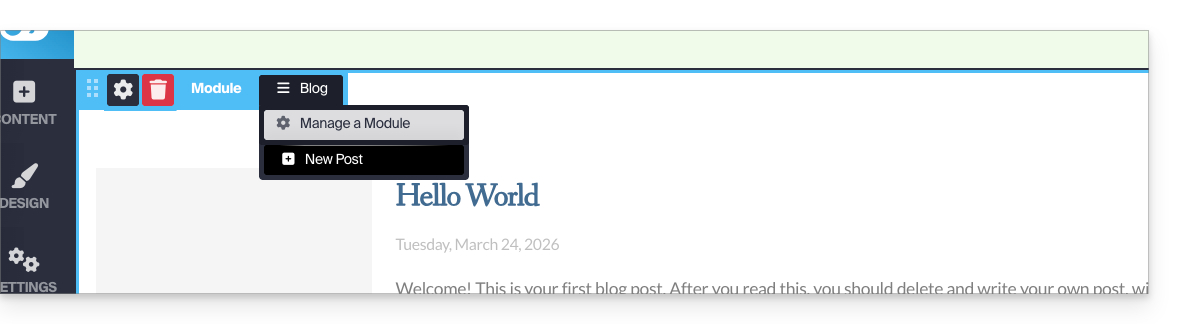
- Once the Blog module is inserted, hover over the block and click on the menu button with three horizontal lines ☰ Blog, then click on New article to insert a blank article:
Publish content using artificial intelligence
To write content and, if necessary, improve your drafts, you can use the Euria artificial intelligence, as is the case on the other pages of Site Creator. Learn more in this other guide about the model used by the writing assistant and the responsibilities of each party:
- Choose an image for the banner, enter a title, an optional subtitle, and the body of the article with different formatting options:
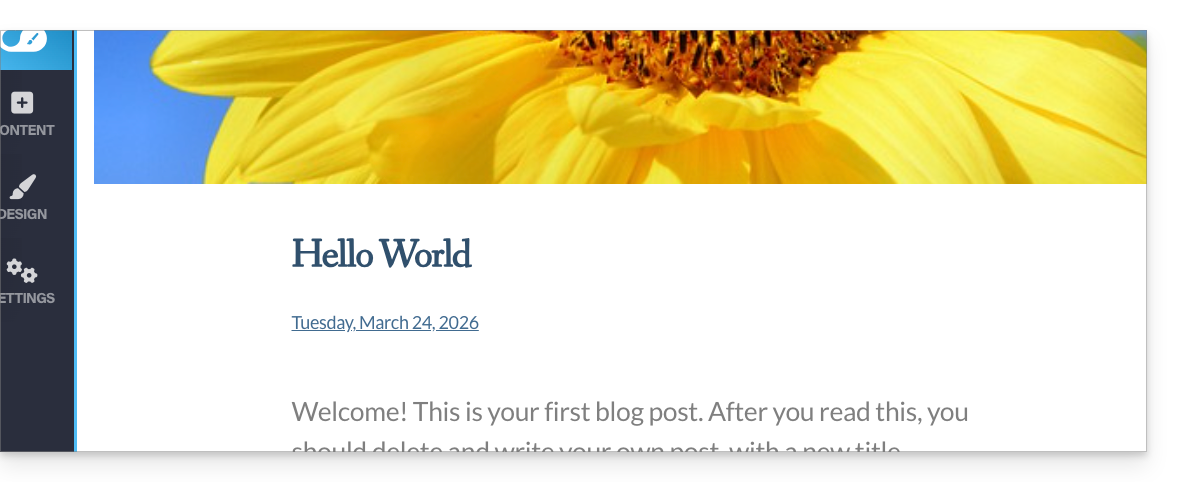
- Press the + sign next to the article text or use the Tab key on your keyboard:
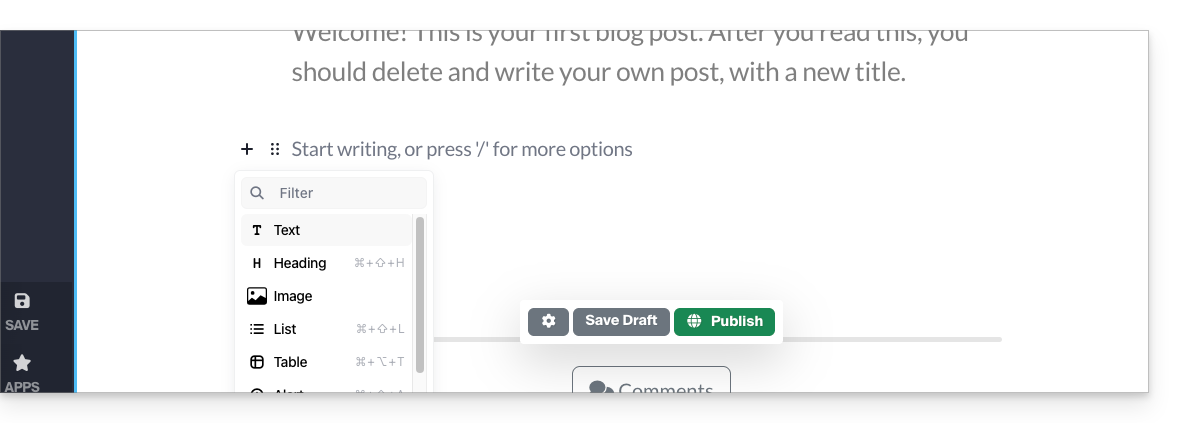
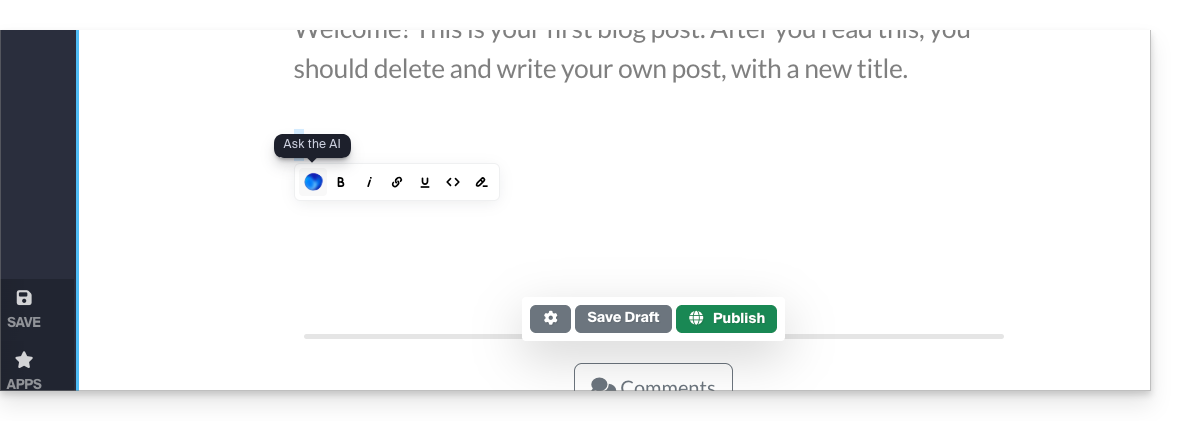
- Select the content, then click on it to display a text formatting toolbar.
- From this toolbar, access the AI-powered features (translation, rewriting, correction, etc.):
- Publish by clicking the Publish button (or save the draft for later).
Edit the blog
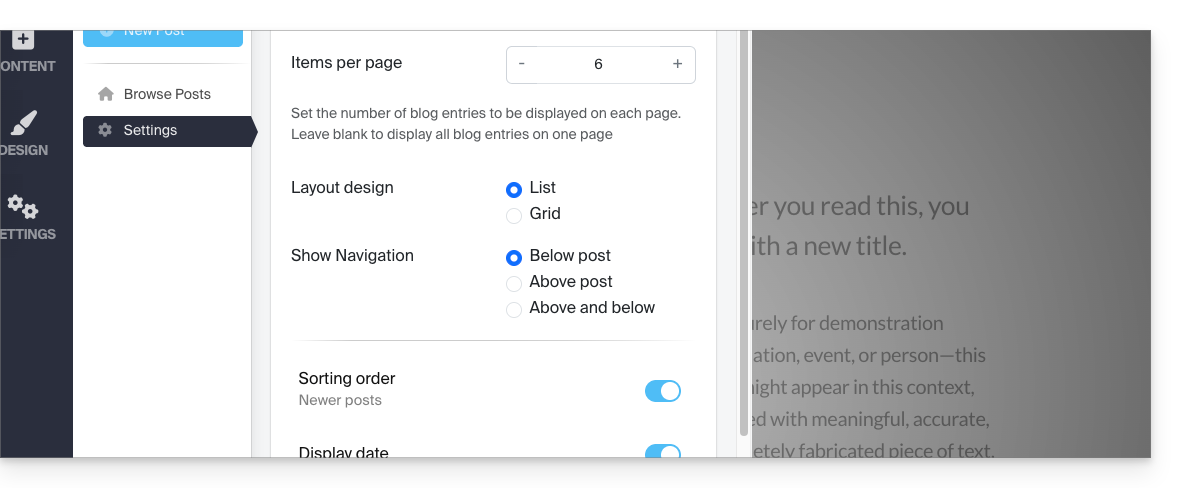
To enable comments, email notifications, list view, and sorting, etc.:
- Click on Applications in the left-hand menu.
- Click on Blog.
- Click on Settings and adjust your preferences, remembering to save at the bottom of the page:
Edit blog posts
No matter where you are on your site, simply go to the Applications menu in the bottom left corner, then click on Blog: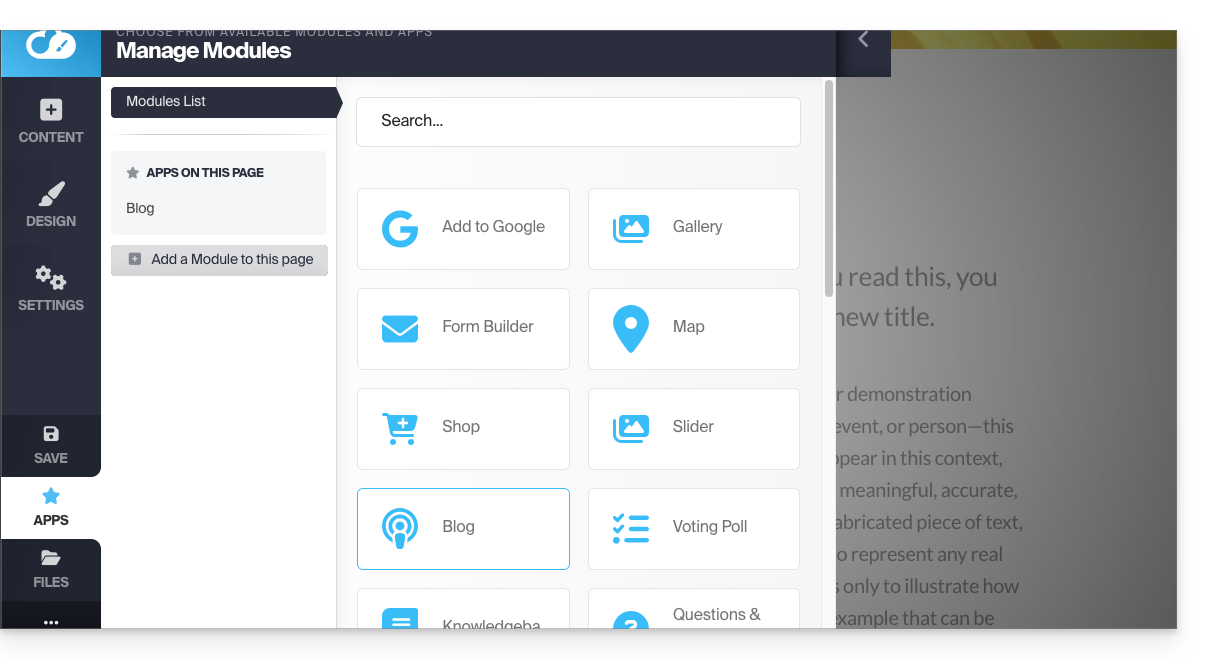
To edit the content of your article, click on Browse articles in the left-hand menu, then hover over and click on the pencil icon ✎: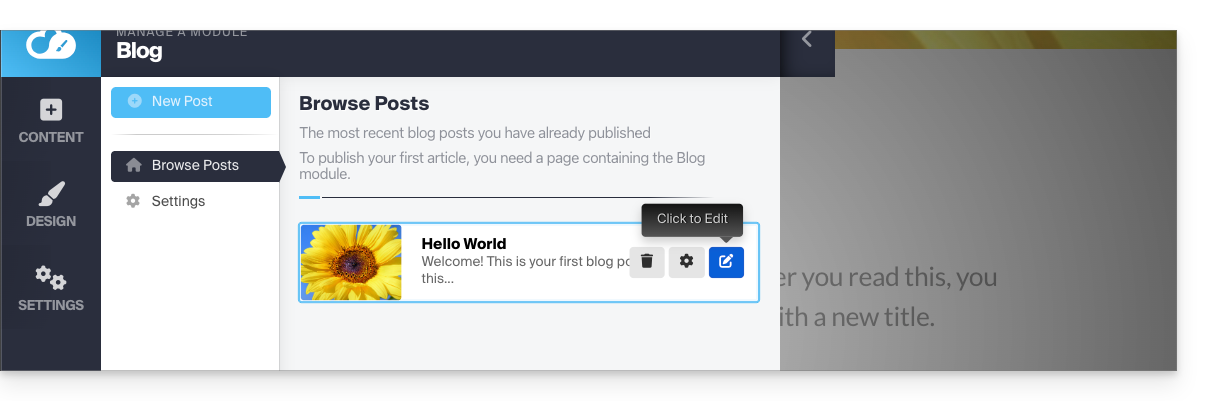
To configure (see below) one of the articles, hover over and click on the gear icon: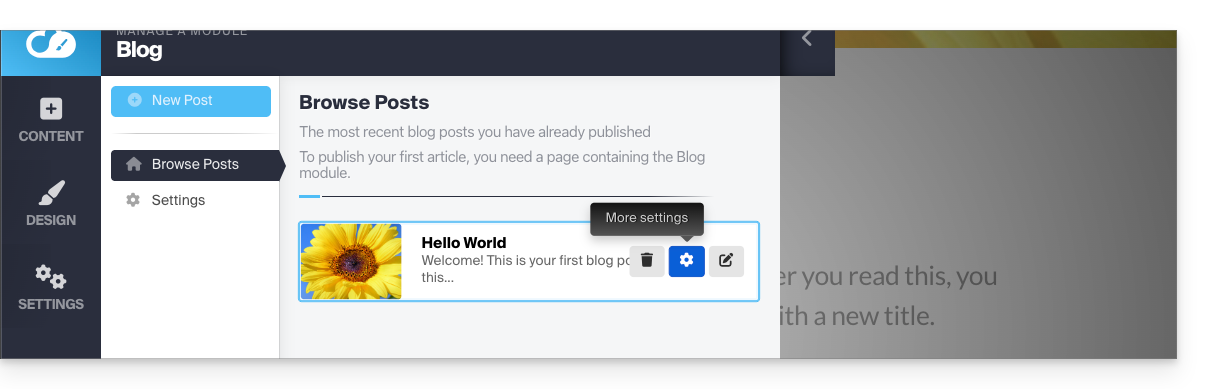
Label, archive, or set an expiration date for an article
A blog article can be removed from your list of articles by setting an expiration date or archiving it immediately. It is also possible to add a tag that will be clickable for the visitor, making it easier to navigate through the posts: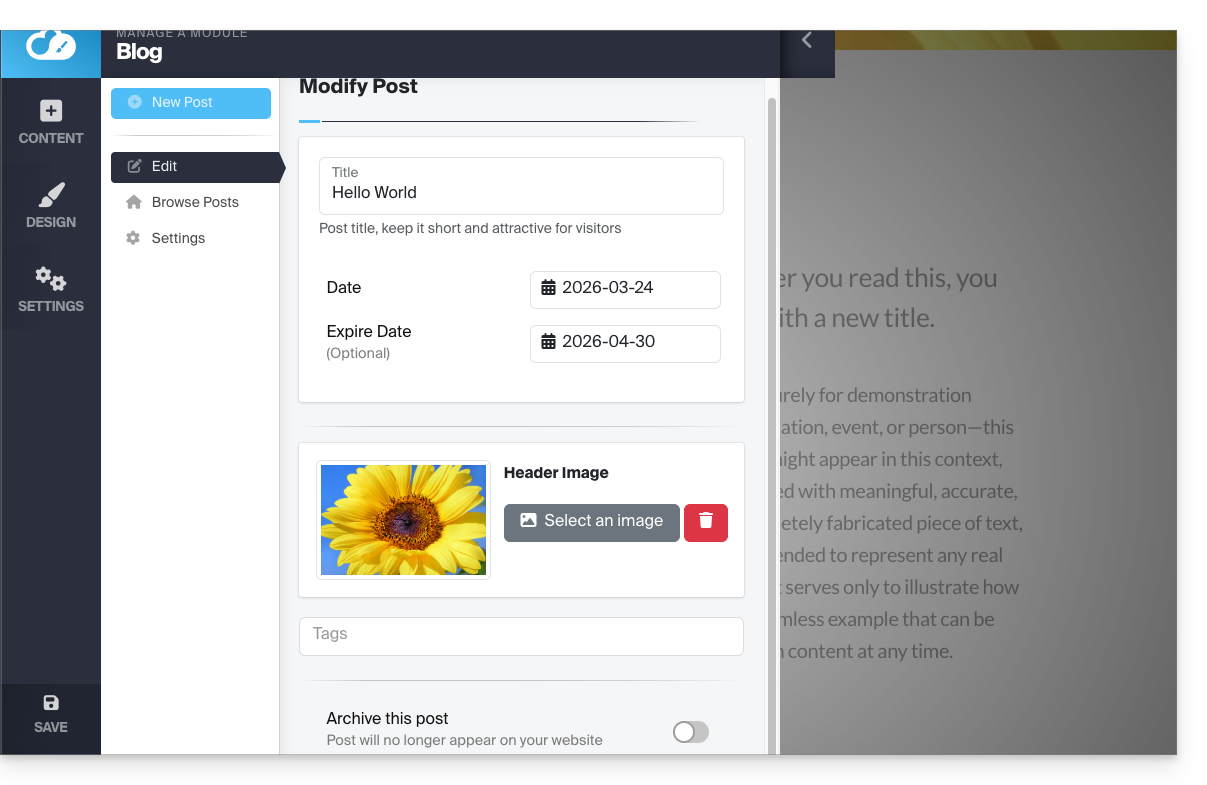
Don't forget to save the changes at the bottom of the page.
Article dates
By default, new blog posts will be added with the current date, but you can change it:
- Hover over and click on the date link (directly on the post):
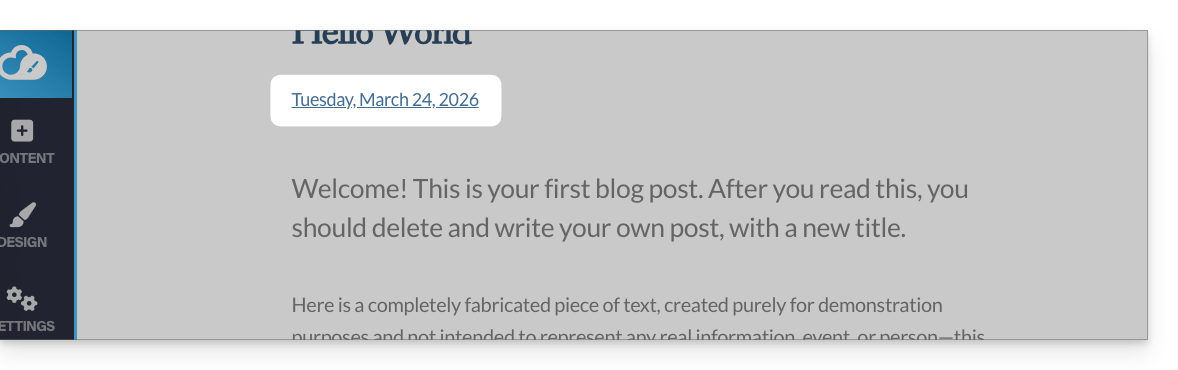
- Choose a new date.
Link to this FAQ: https://faq.infomaniak.com/2726
Has this FAQ been helpful?