Knowledge base
1000 FAQs, 500 tutorials and instructional videos. Here, there are only solutions!
Customize transfers with SwissTransfer Pro
Update 10/15/2026
This guide details the use of SwissTransfer Pro, the Infomaniak service that you will find within kSuite & my kSuite+, which allows you to customize the appearance of your sent files.
✘ UNAVAILABLE with
kSuite Free
my kSuite (ik.me, etik.com, ikmail.com)
Introduction
- Possible customizations:
- kSuite Standard = background (1 image)
- kSuite Business = background (5 images) + About and Social Media text
- kSuite Enterprise = background (10 images) + About and Social Media text
- my kSuite+ = background (1 image)
Customize transfers with SwissTransfer Pro
To send files while customizing the transfer's appearance:
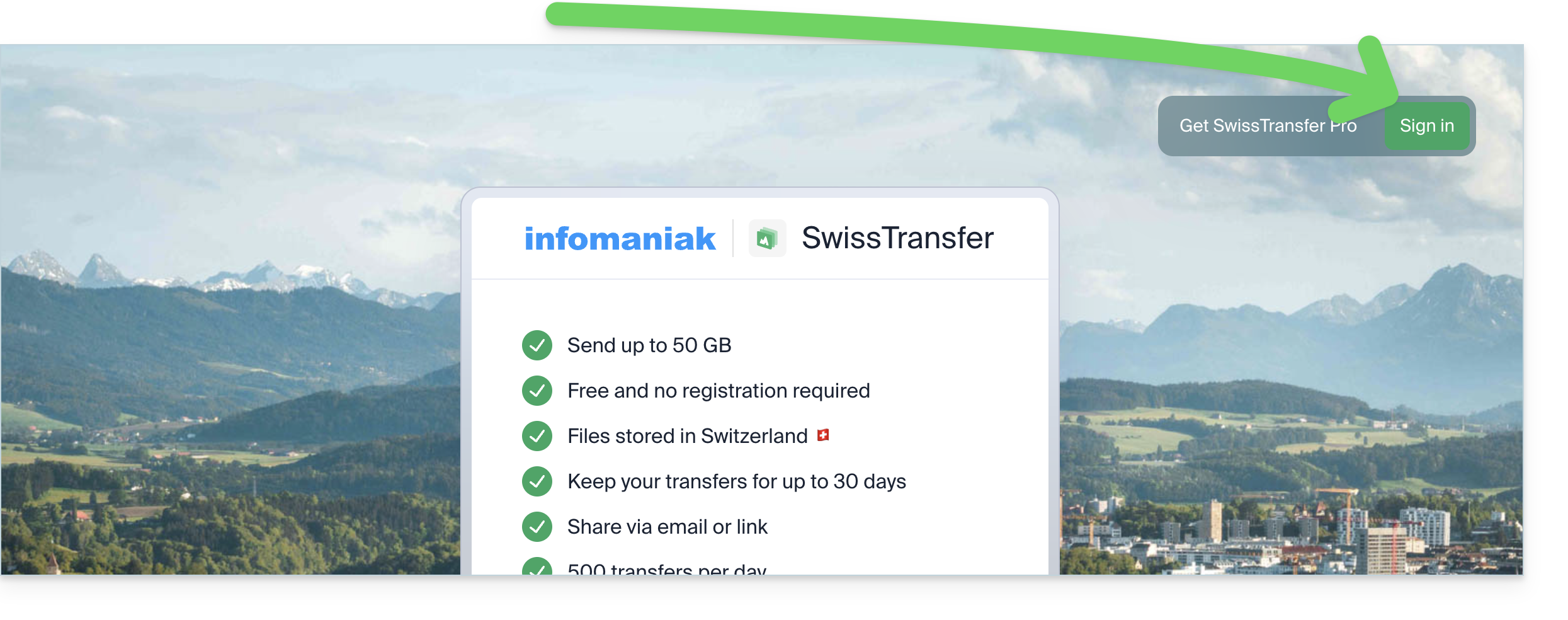
- Click here to access the SwissTransfer Infomaniak web app (online service swisstransfer.com) and click the button to log in:
- Enter your login ID and password, and complete the two-factor authentication if required.
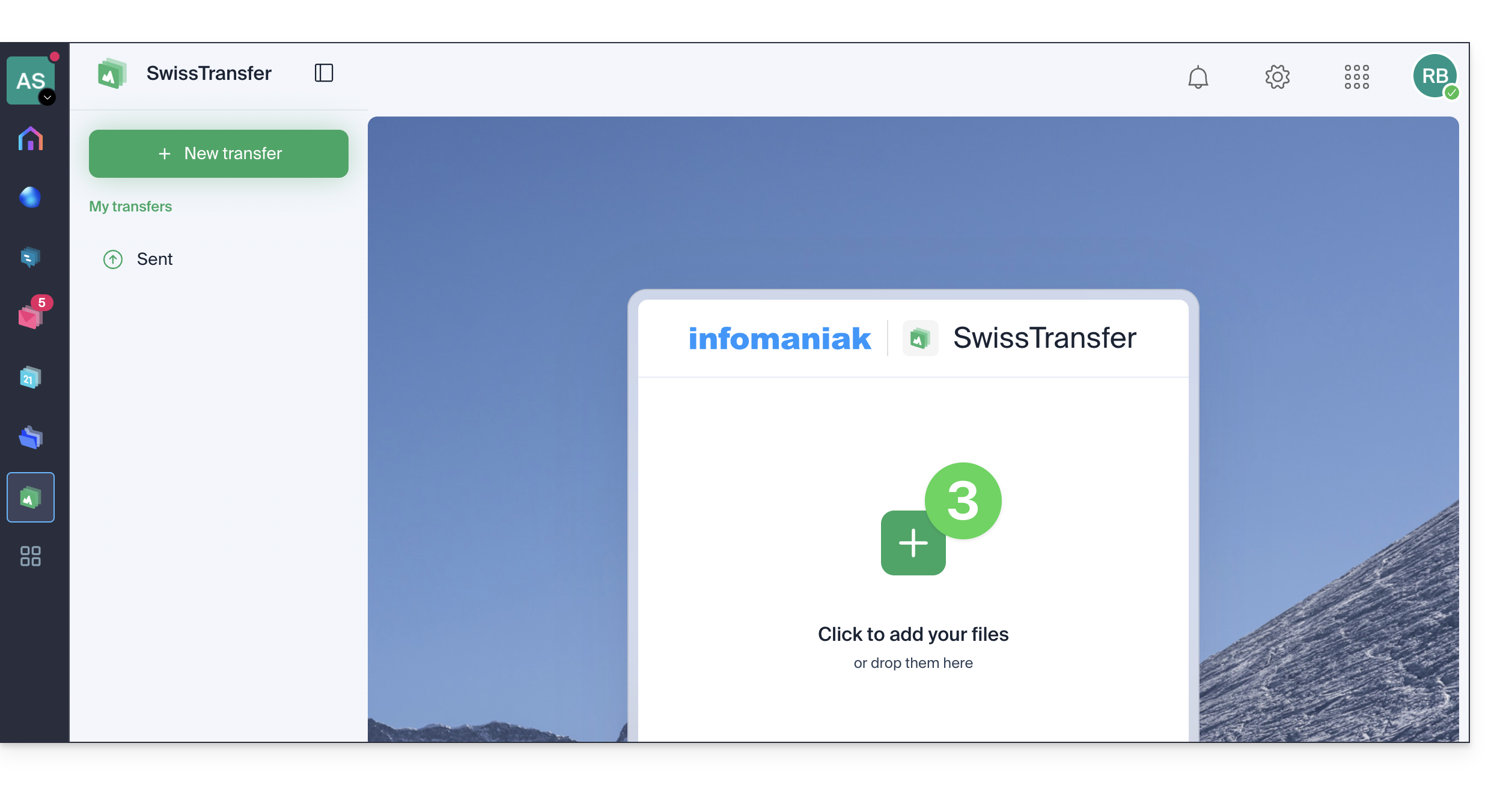
- Once logged in, click the button to add the documents to transfer (the service accepts large files up to 50 GB); you can also drag and drop your data into this area:
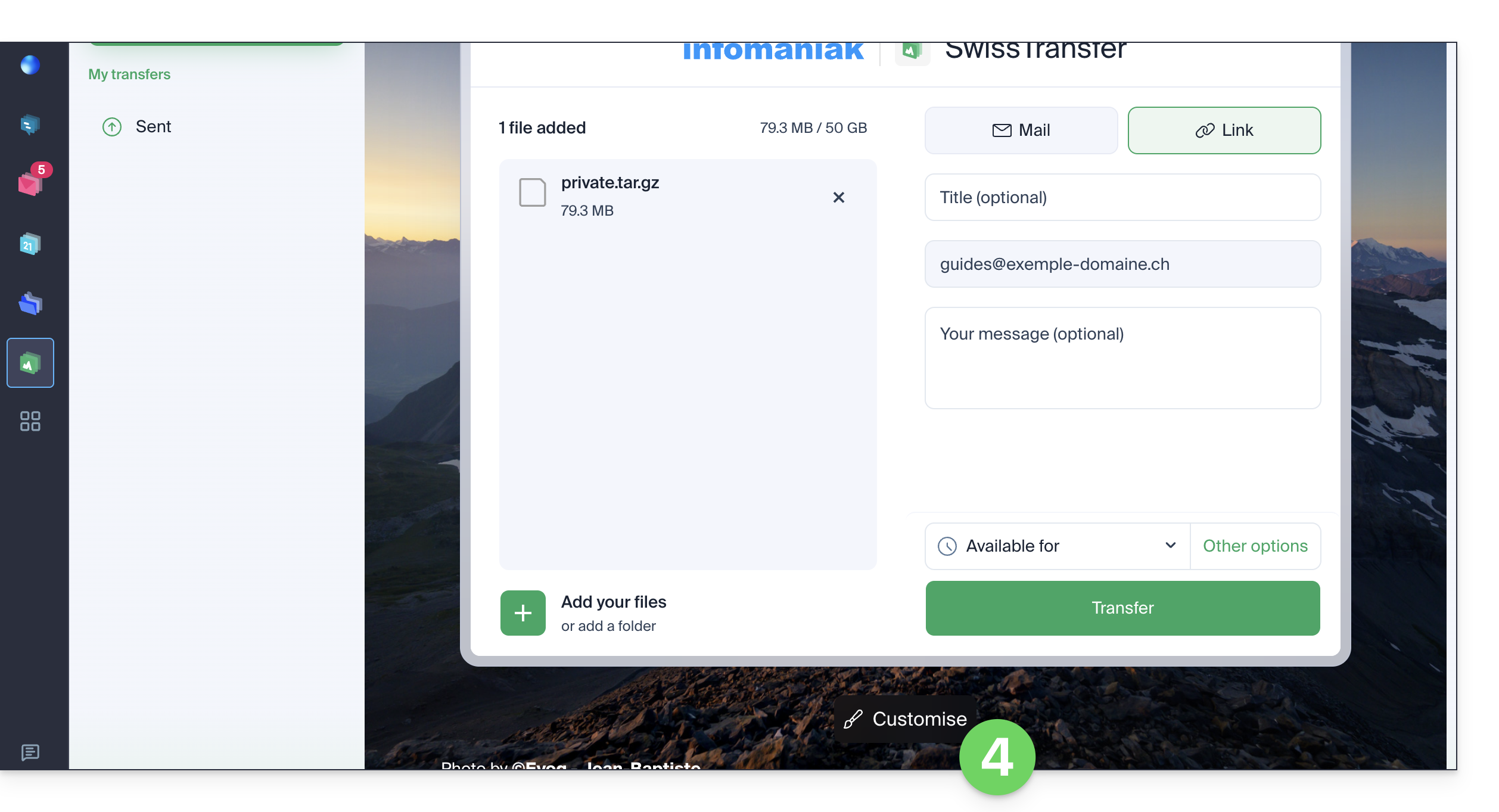
- Click on Customize below the frame:
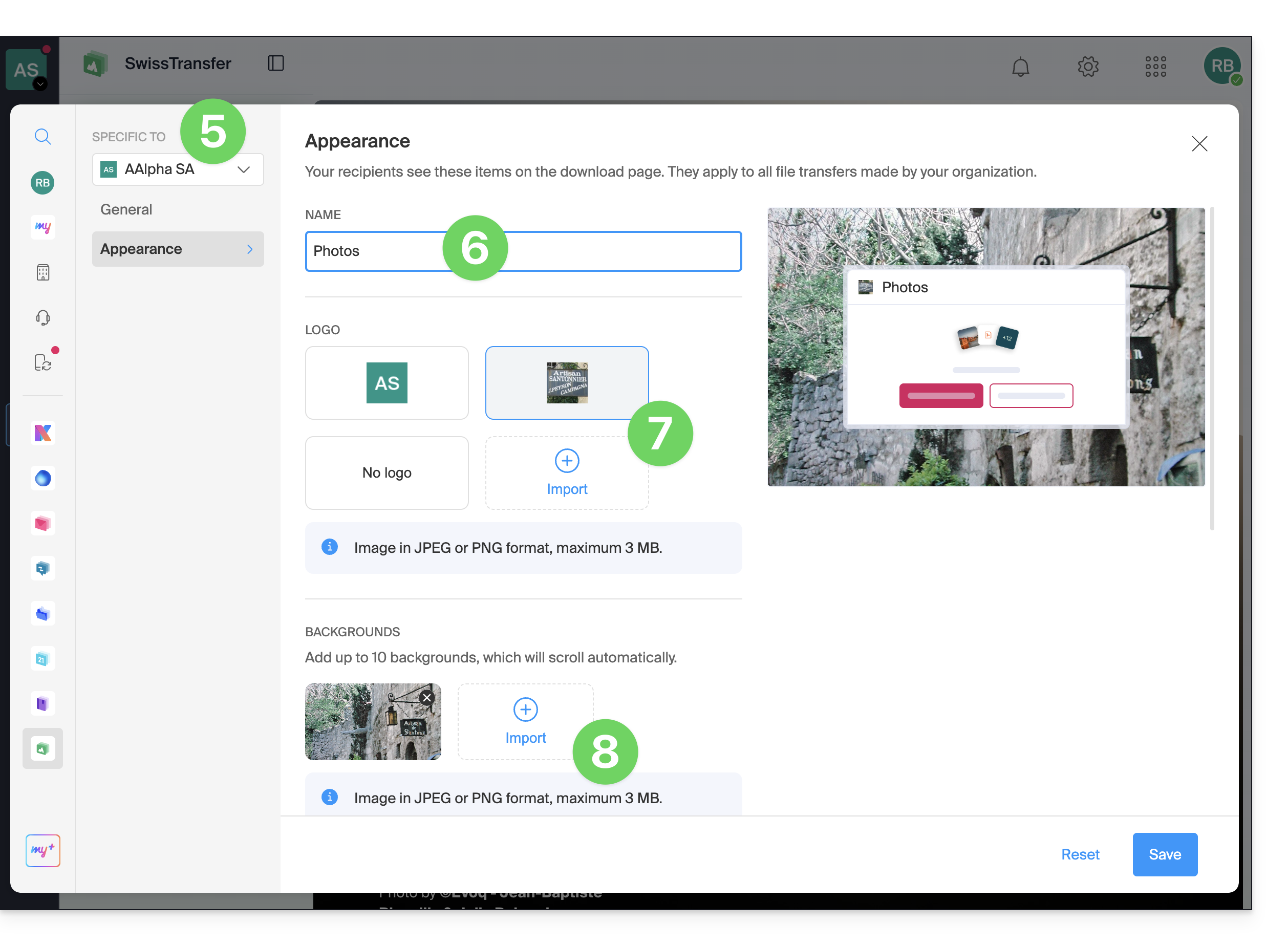
- Check or select the relevant Organization from the dropdown menu in the left sidebar.
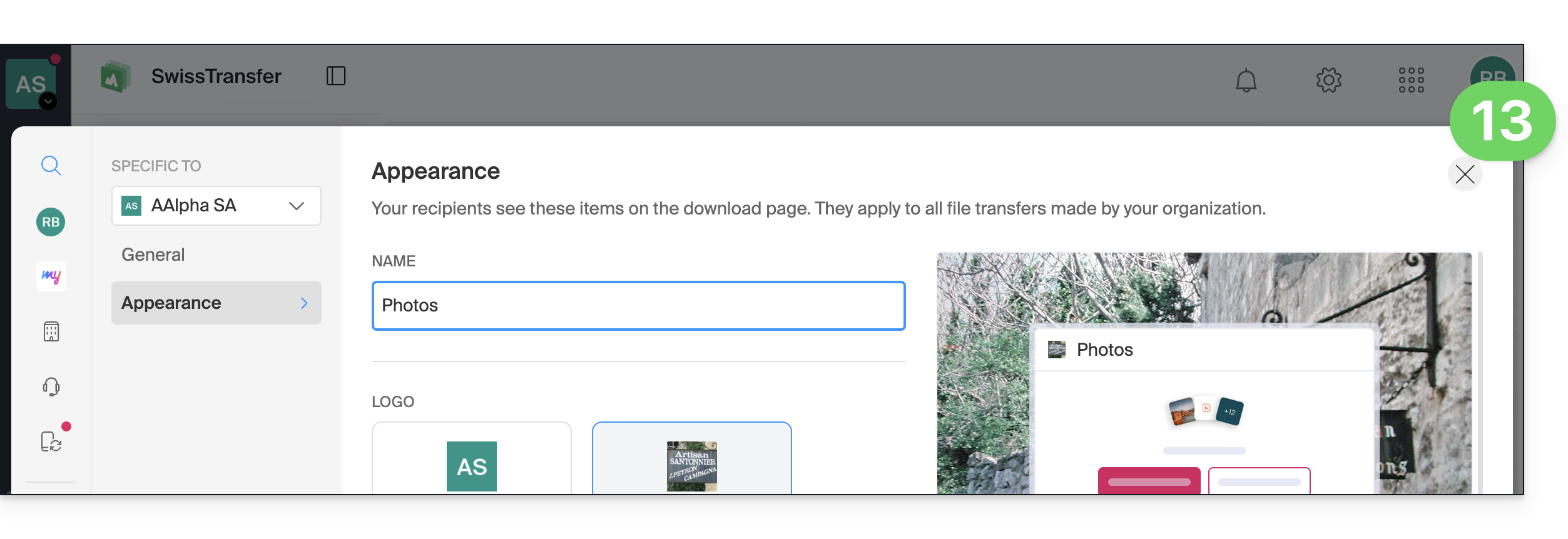
- Enter a display name.
- Import and select a square or rectangular logo.
- Choose the background images:
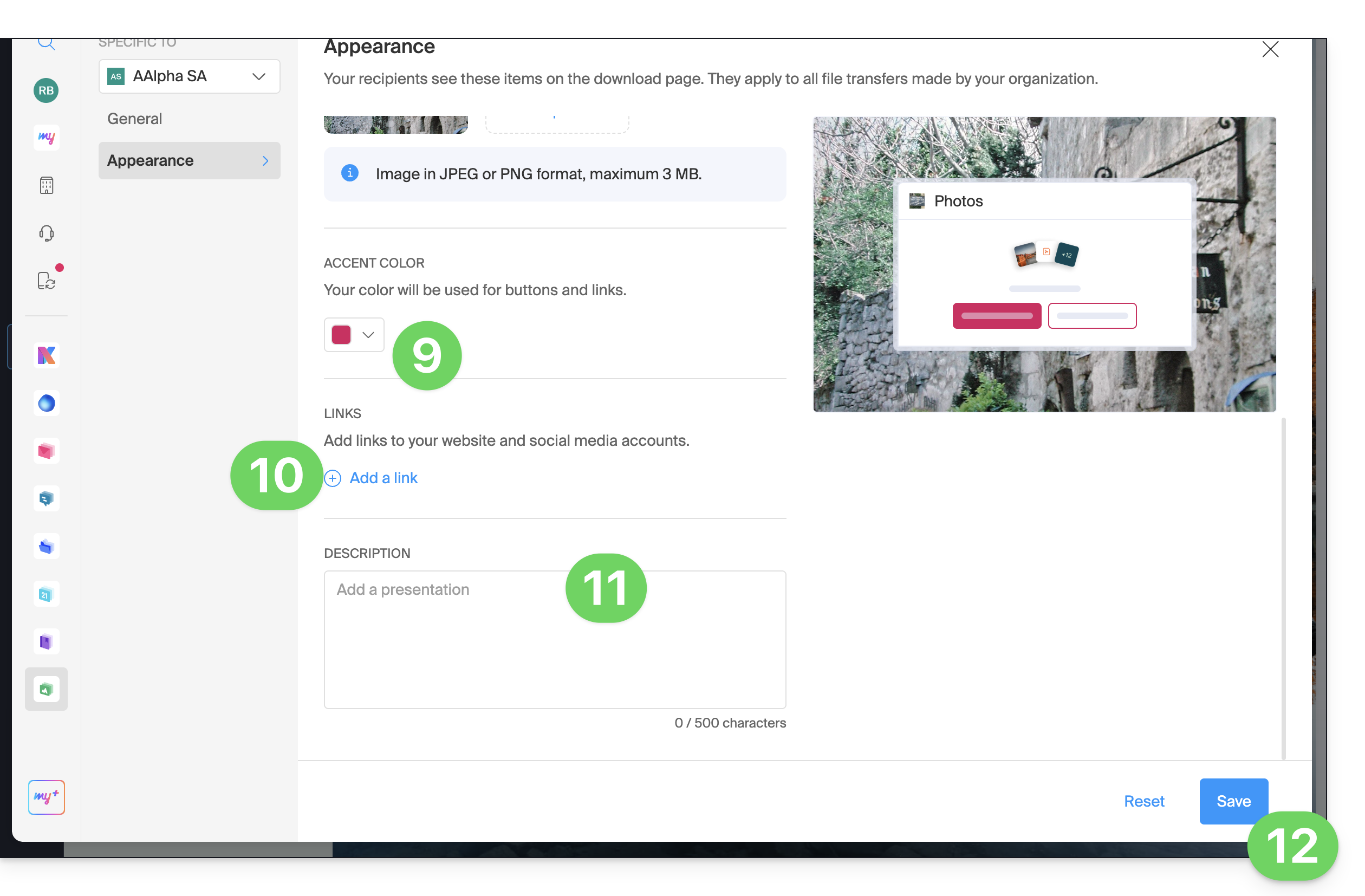
- Further down, choose the color of the buttons & links.
- Add links to your social networks.
- Enter an optional description.
- Save your preferences:
- Close the customization window:
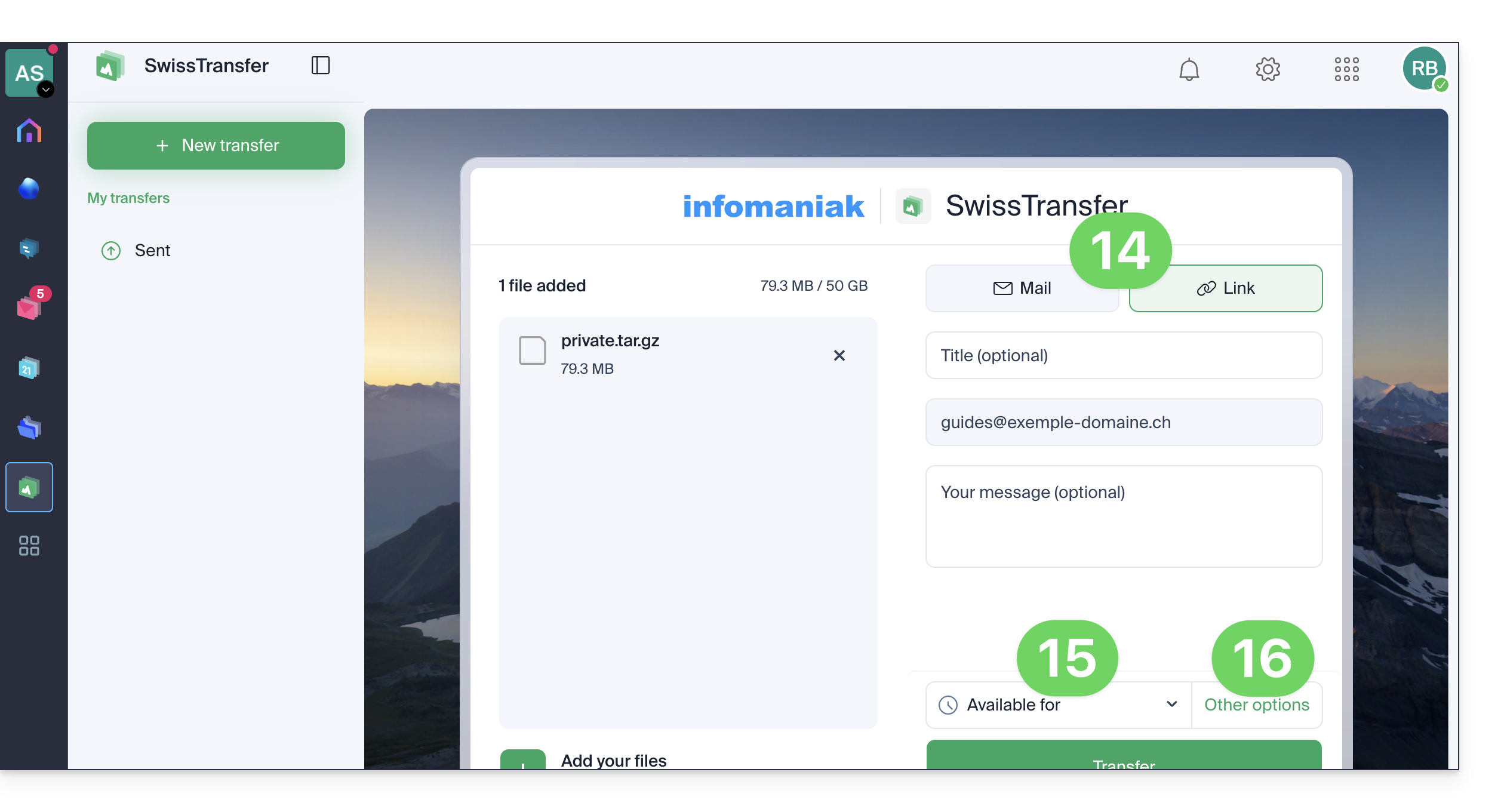
- Then decide whether you want to create an email to the address of your choice, or get a link that leads to your transfer (without sending it to anyone).
- Also, choose the duration for which your data will be available for download (between 1 and 60 days depending on the plan).
- In the options, you can also restrict, if needed, the maximum number of times the content can be downloaded by your recipients (between 1 and 250) or leave it unlimited, add a possible password protection, and, depending on the plan, customize your sends (❓: help):
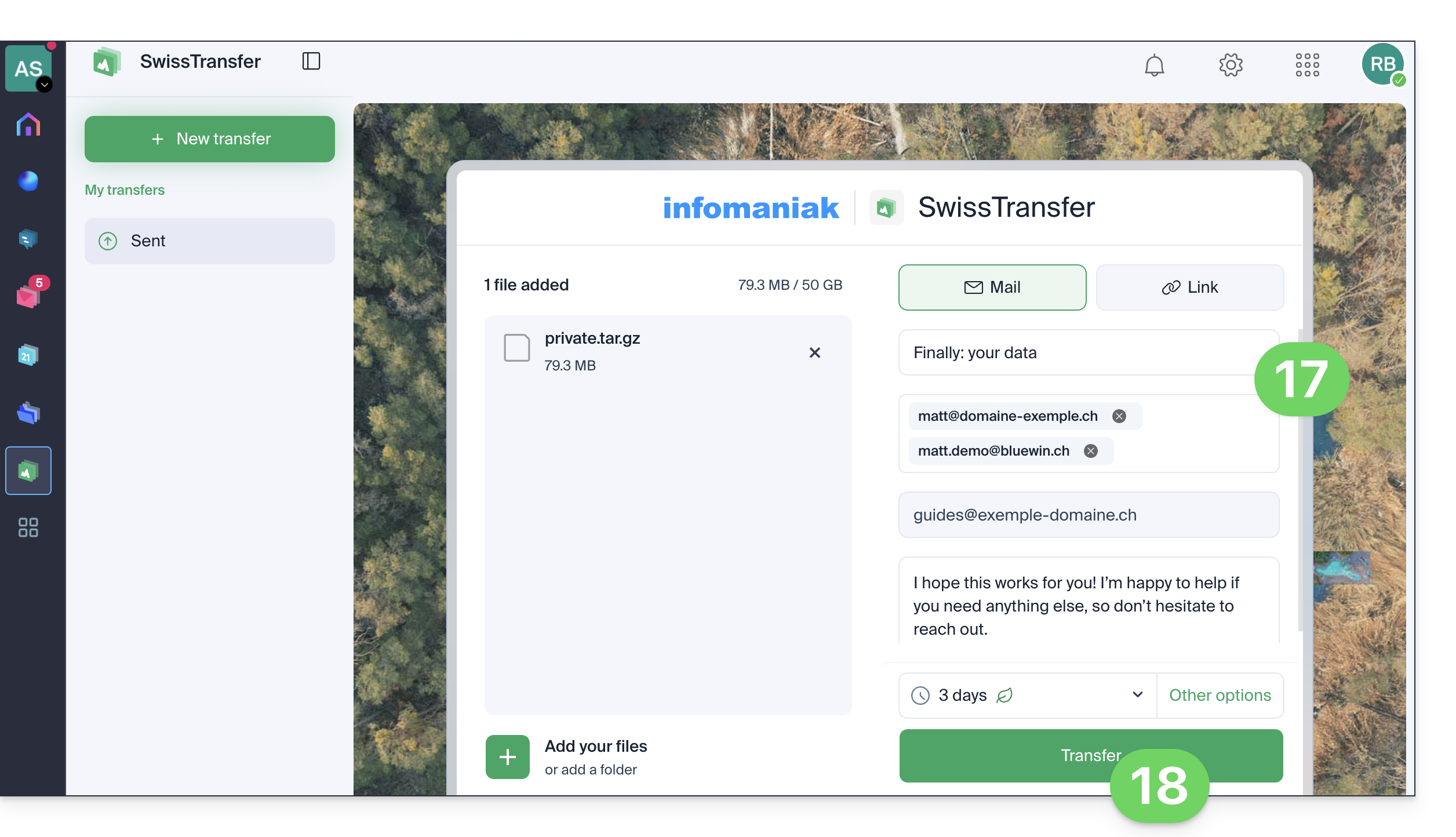
- Complete your information:
- Title and message
- Sending by email requires adding one or more destination email addresses.
- The sender is automatically taken from your login ID for the Organization.
- Click the button to Send:
- Do not close the browser window until you see the confirmation message; if necessary, you can cancel the current sending process:
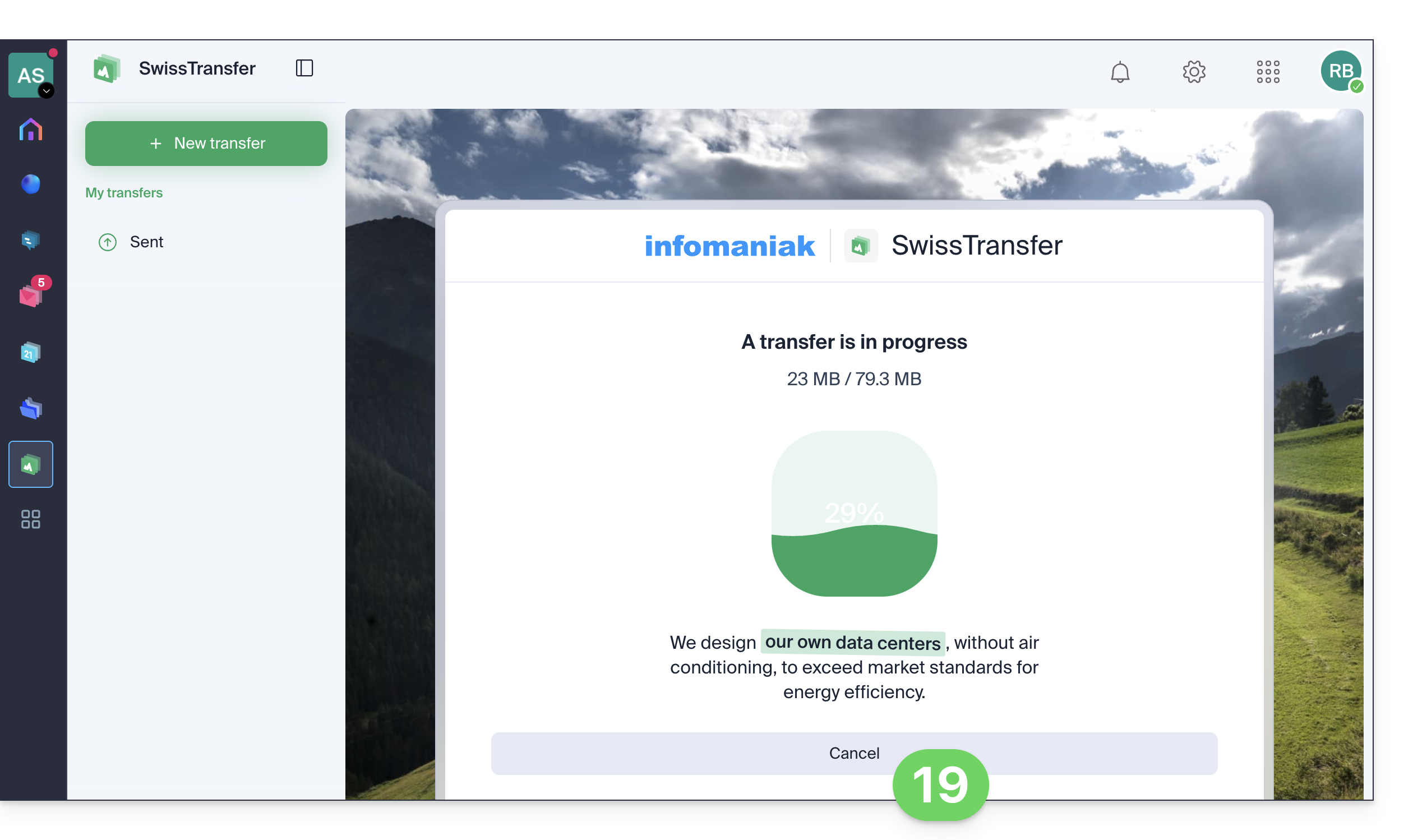
The recipient receives the email and clicks to access the data. The user can then see the details of the sending process and download the files on the interface customized by the sender: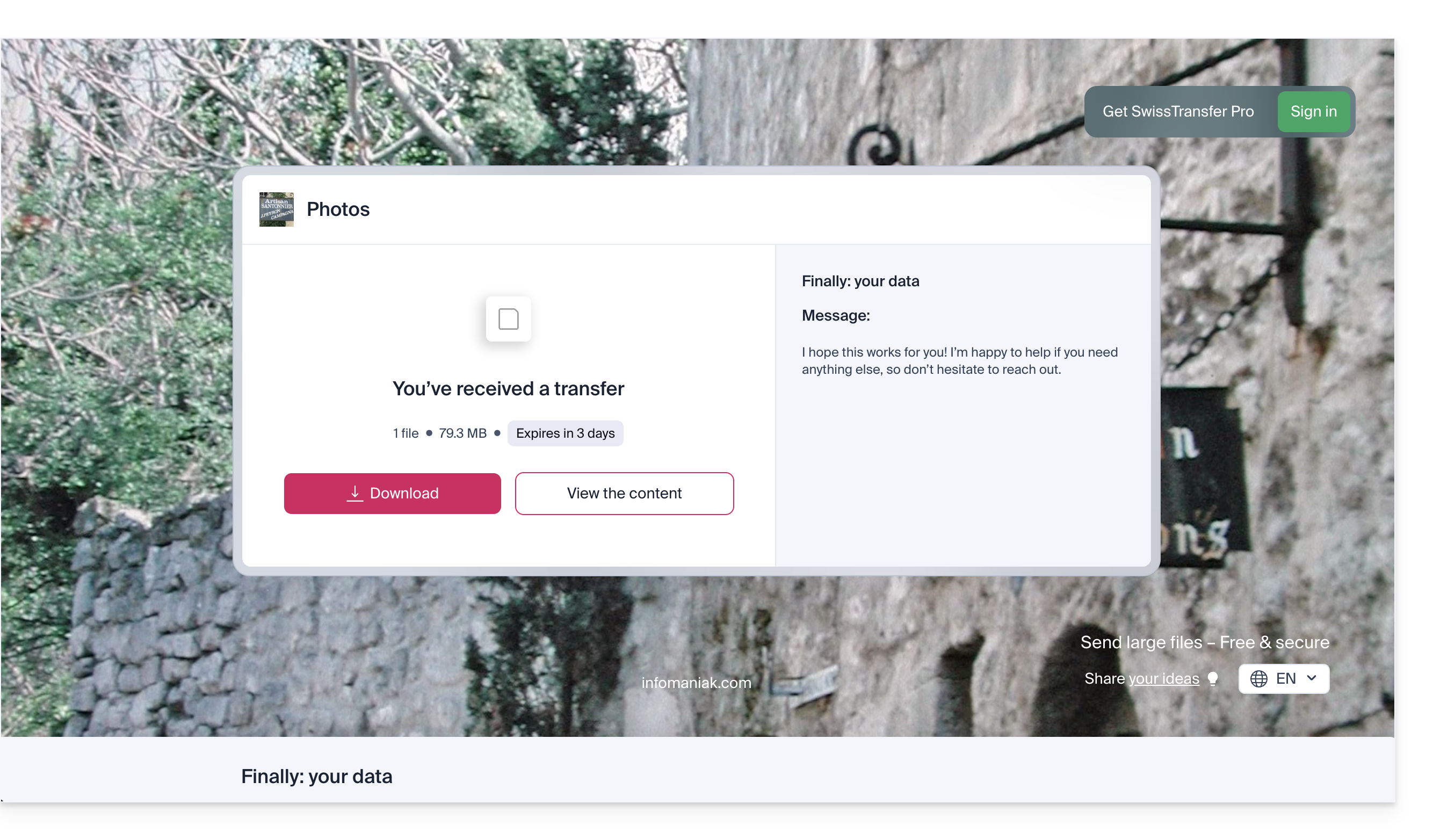
When a recipient downloads the file, an email is sent to the sender to notify them.
Link to this FAQ: https://faq.infomaniak.com/2722
Has this FAQ been helpful?