Knowledge base
1000 FAQs, 500 tutorials and instructional videos. Here, there are only solutions!
Troubleshooting connection issues between Joomla and the database
Update 10/13/2026
This guide details the "Database connection error: could not connect to mysql" error that may occur when making changes to an Infomaniak hosting environment on which the Joomla web application is installed.
Introduction
- To get the site working again, you need to check and update certain information in the
configuration.phpfile of Joomla:- The database name — this is often a prefix that has been added to the existing database name and username (for example,
dbnamebefore,abcd_dbnameafter). - The host server of the database (for example,
mysql.domain.xyzbefore,abcd.myd.infomaniak.comafter). - The username that accesses the database (for example,
dbuserbefore,abcd_dbuserafter). - The path to two directories,
/tmpand/logs.
- The database name — this is often a prefix that has been added to the existing database name and username (for example,
Get the updated information
For points 1, 2 and 3 of the preamble above:
- Click here to access the hosting & website management section in your Infomaniak Manager (❓: help).
- Click on the name of the relevant hosting.
- Click on Database in the left-hand menu.
- Find and save your current MySQL information (❓: help).
Regarding point 4 in the introduction above:
- Click here to access the hosting & website management section in your Infomaniak Manager (❓: help).
- Click on the name of the website in question.
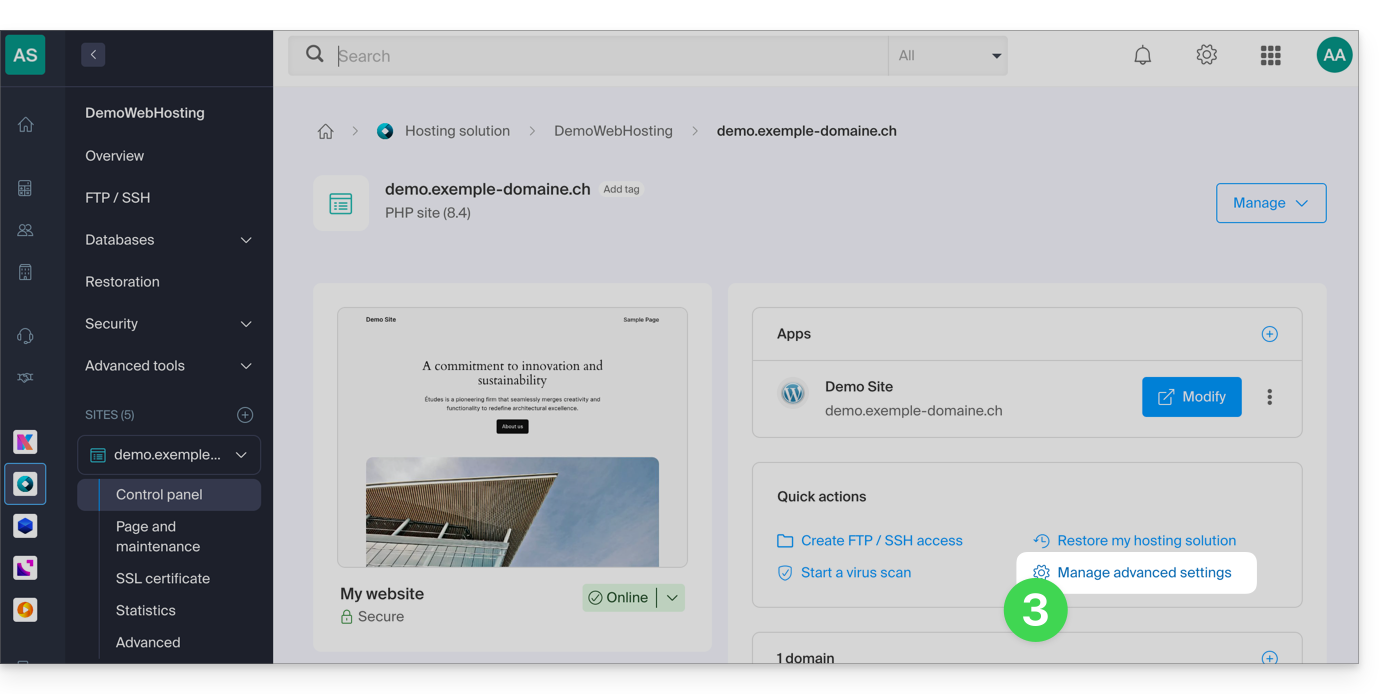
- Click on Manage advanced settings:
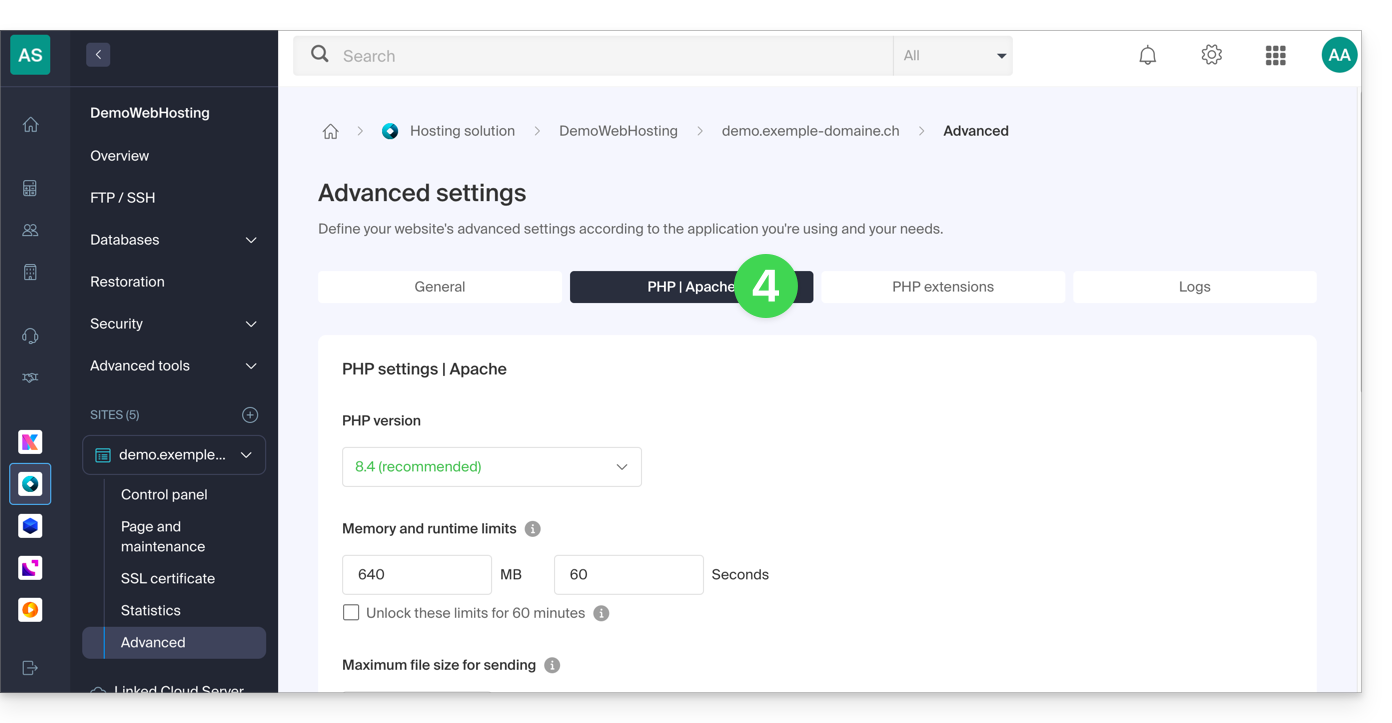
- Click on the PHP / Apache tab:
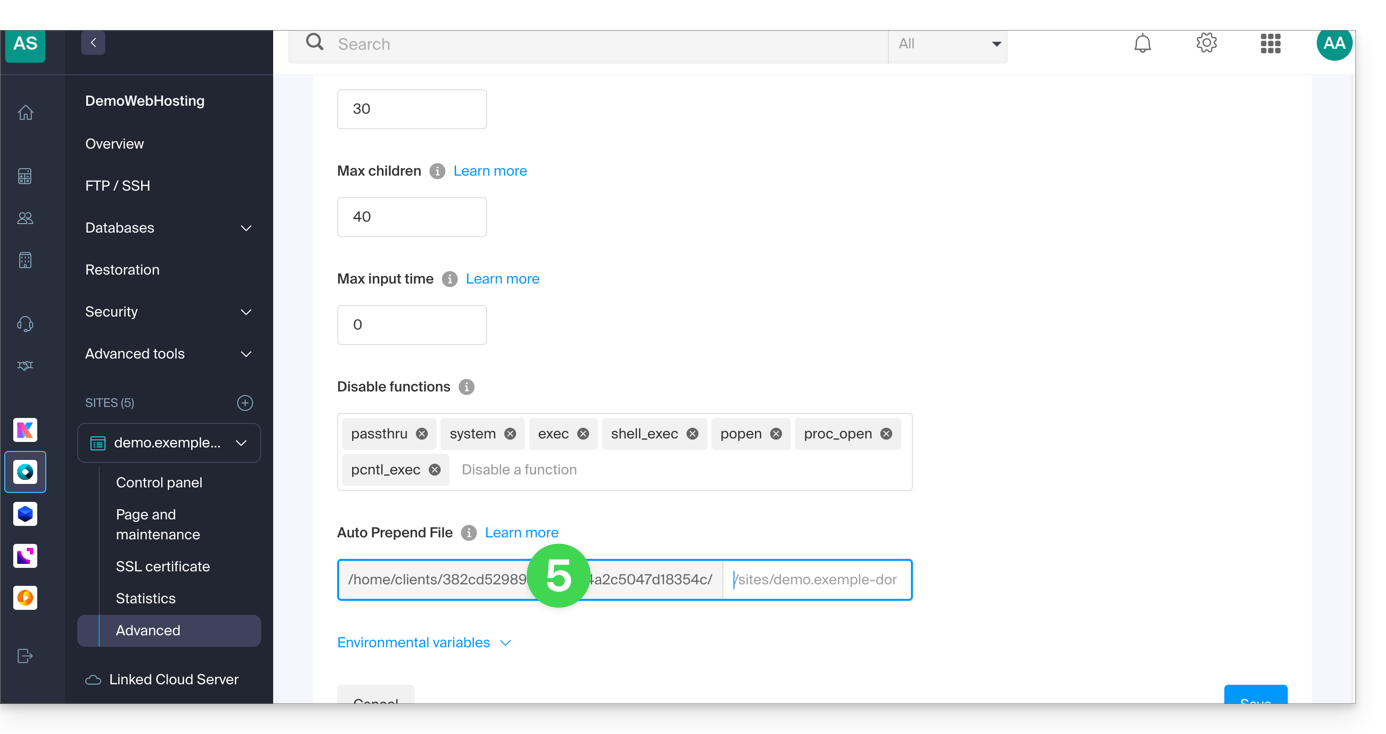
- Copy the path displayed in the first field under Auto Prepend File at the bottom:
Modify the configuration.php file for Joomla
Prerequisites
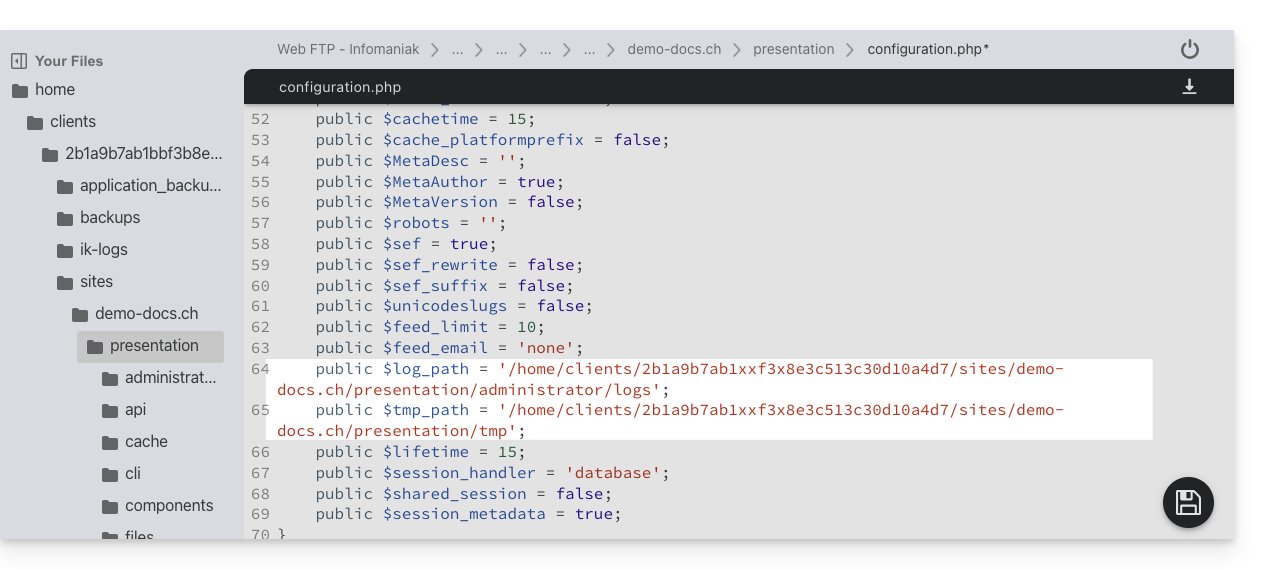
Then, edit the configuration.php file, which is located in the root directory of your Joomla:
- Replace the old log and tmp paths with the new path:
- Find the relevant paragraphs for the remaining information from the introduction above:

- Save the file; your Joomla will now connect to the correct database.
Check the changes made
In the Joomla interface, you can check the paths of the /logs and /tmp folders:
- For the
/logsfolder: go to System / Configuration then Logs: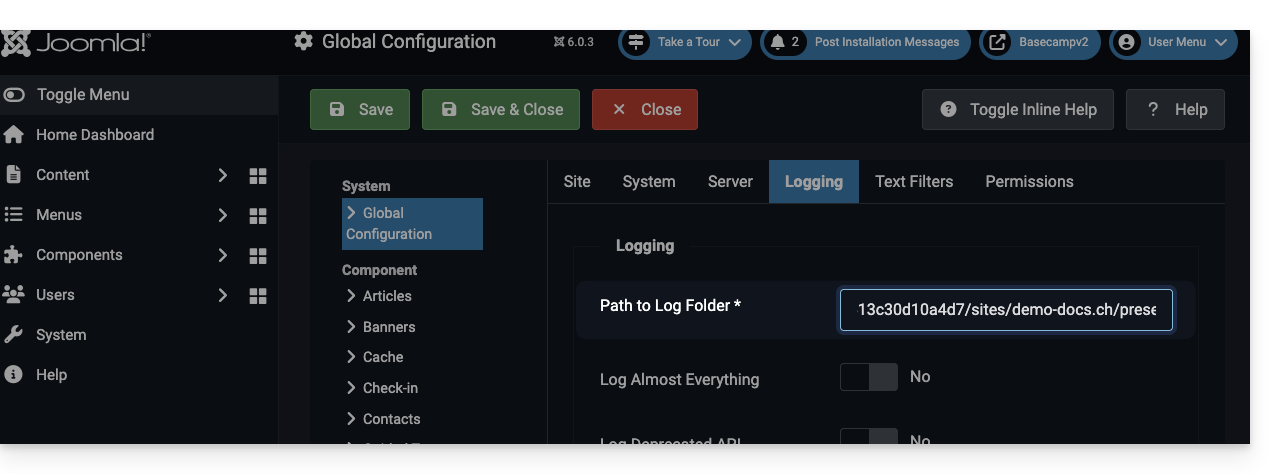
- For the
/tmpfolder: go to System / Configuration, then Server: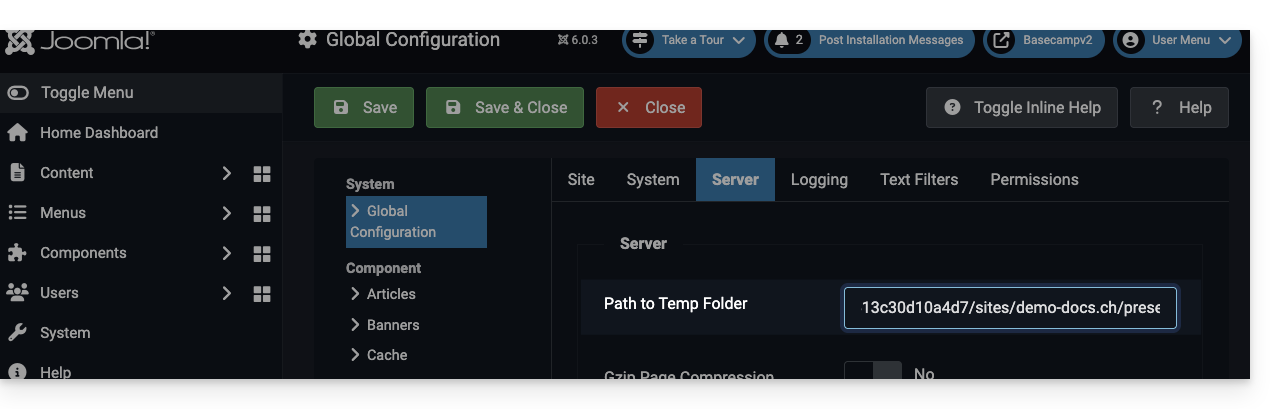
Link to this FAQ: https://faq.infomaniak.com/272
Has this FAQ been helpful?