Knowledge base
1000 FAQs, 500 tutorials and instructional videos. Here, there are only solutions!
Add a button to Site Creator
This guide explains how to add and customize a button on your Site Creator page in Infomaniak, including a fixed button that allows you to return to the top of the page.
Prerequisites
- Access Site Creator:
- Click here to access the management of your product on the Infomaniak Manager (need help?).
- Click directly on the name assigned to the Site Creator in question.
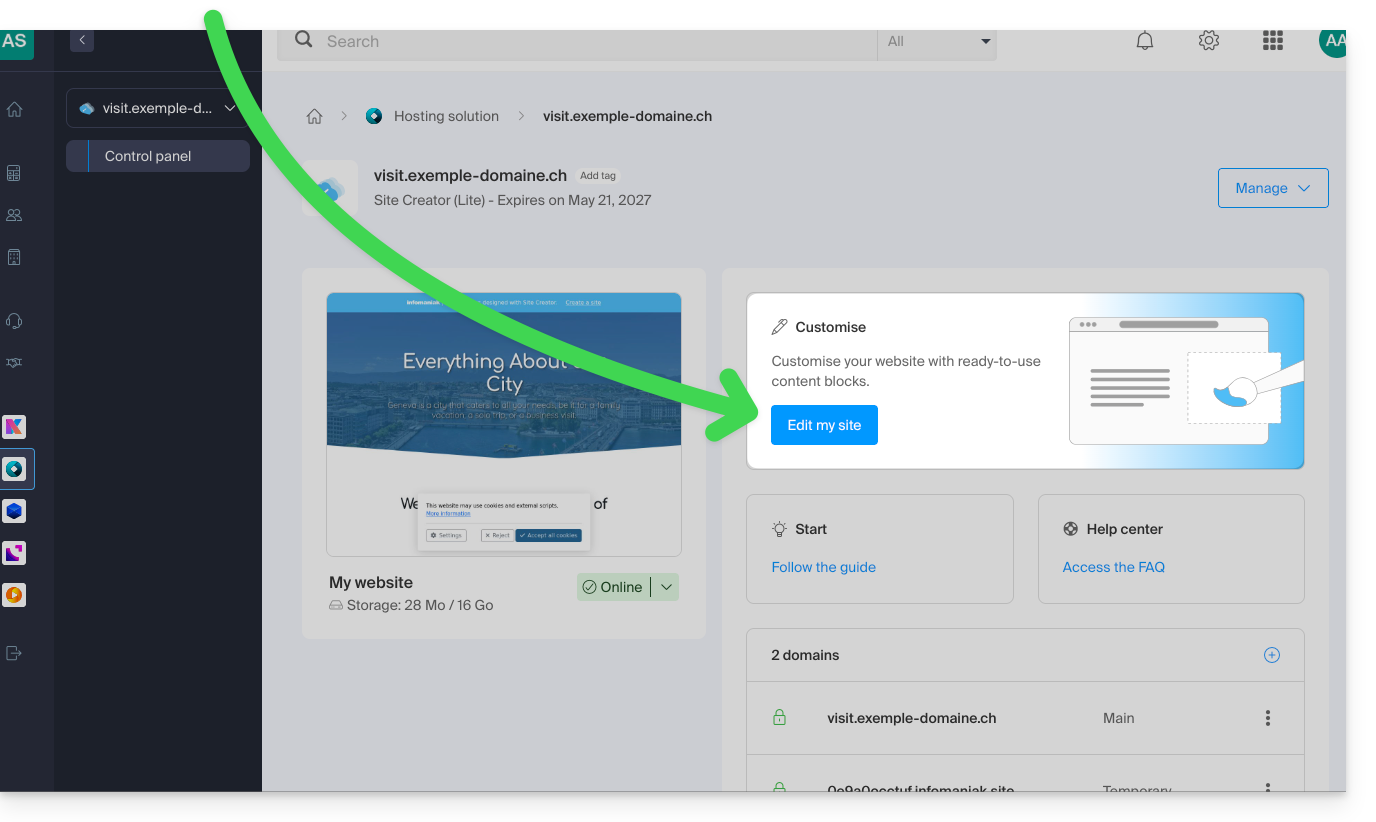
- Click on the Edit my site button to launch the editor:
Add a link in the form of a button
To add a button (which links to the URL of your choice when clicked):
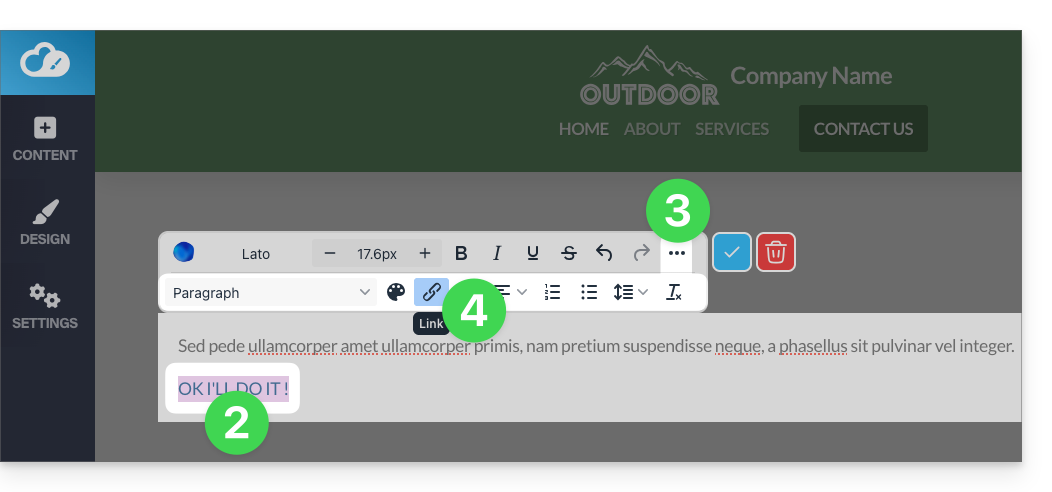
- Write the text for the button.
- Select the text.
- Tap the ••• button to the right of the toolbar to access additional options.
- Then, click on the chain icon to open the section where you can specify the link type and associated options:
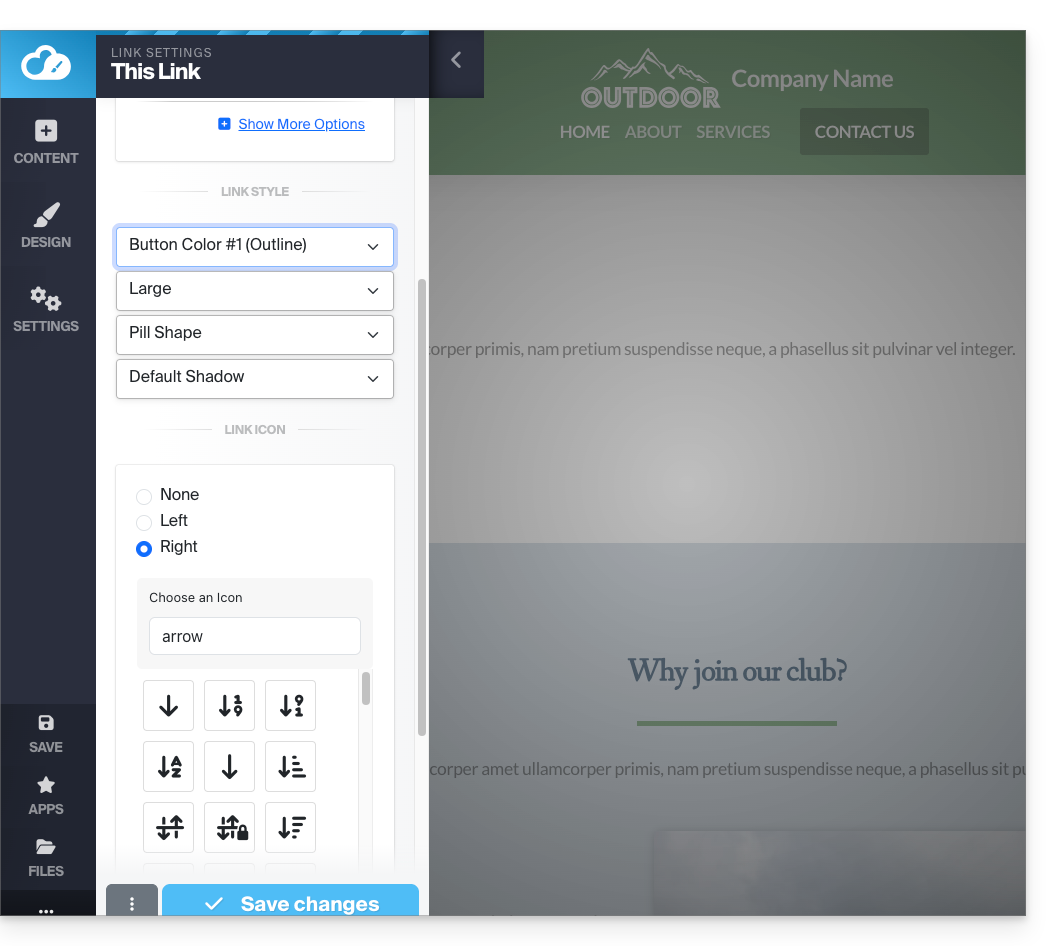
- Configure the destination page and the button's appearance.
- Save the changes at the bottom of the tab:
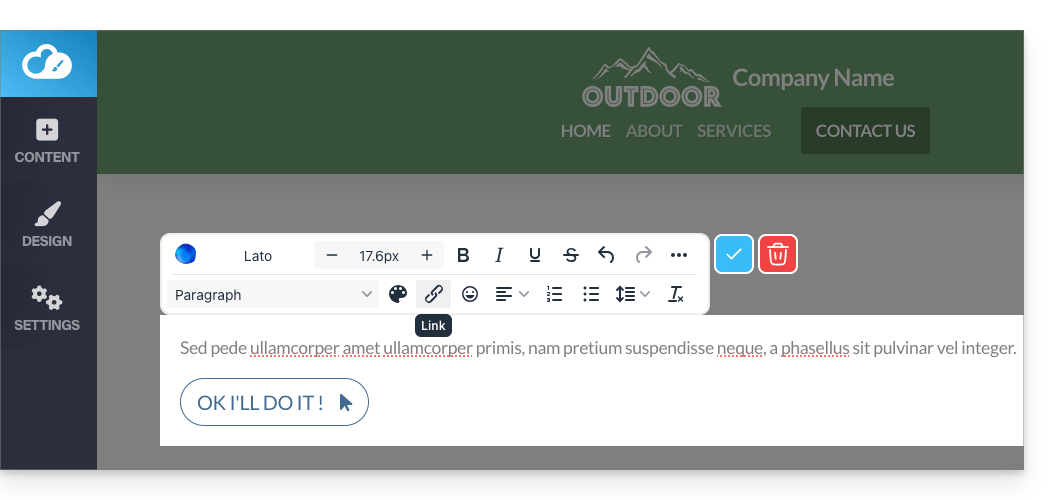
- View the button on your page.
- Click the button to return to the editor if needed:
Add a “Back to top” button
To add and customize a button that takes the visitor back to the top of your Site Creator page as soon as the page scrolls:
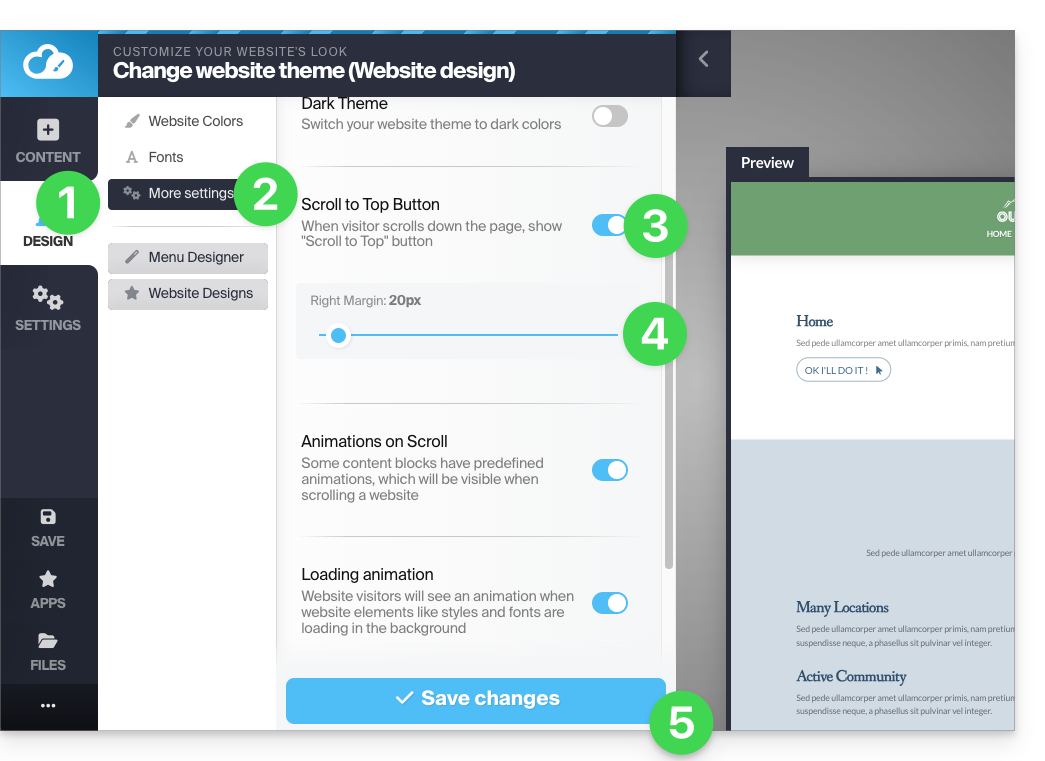
- Click on the Design button in the left-hand menu.
- Click on More settings.
- Enable the option to display the back button at the top.
- Adjust the spacing from the right edge.
- Save the changes at the bottom of the page:
Refresh the page if necessary to see the change: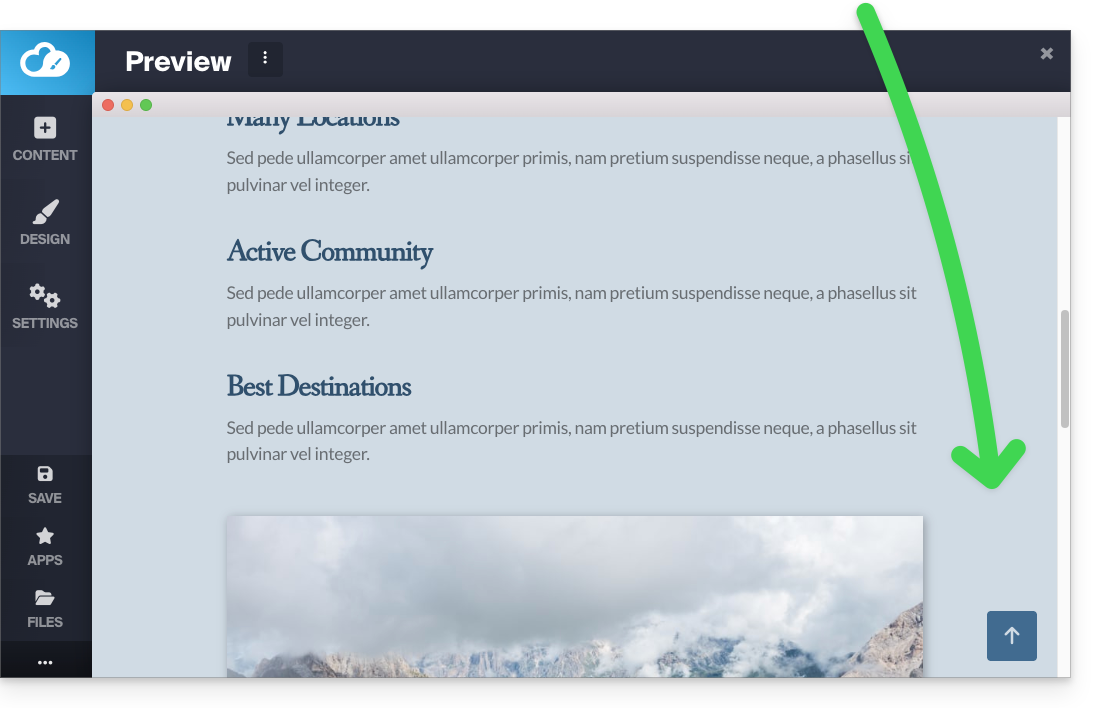
Refer to this other guide for an alternative solution.
Link to this FAQ: https://faq.infomaniak.com/2718
Has this FAQ been helpful?