Knowledge base
1000 FAQs, 500 tutorials and instructional videos. Here, there are only solutions!
Edit a Site Creator page using advanced features
This guide is intended for users of the Site Creator tool who wish to go further in editing their pages.
Open the HTML editor
Start by logging in to the Infomaniak Manager with your credentials (user account with the necessary rights for the relevant product):
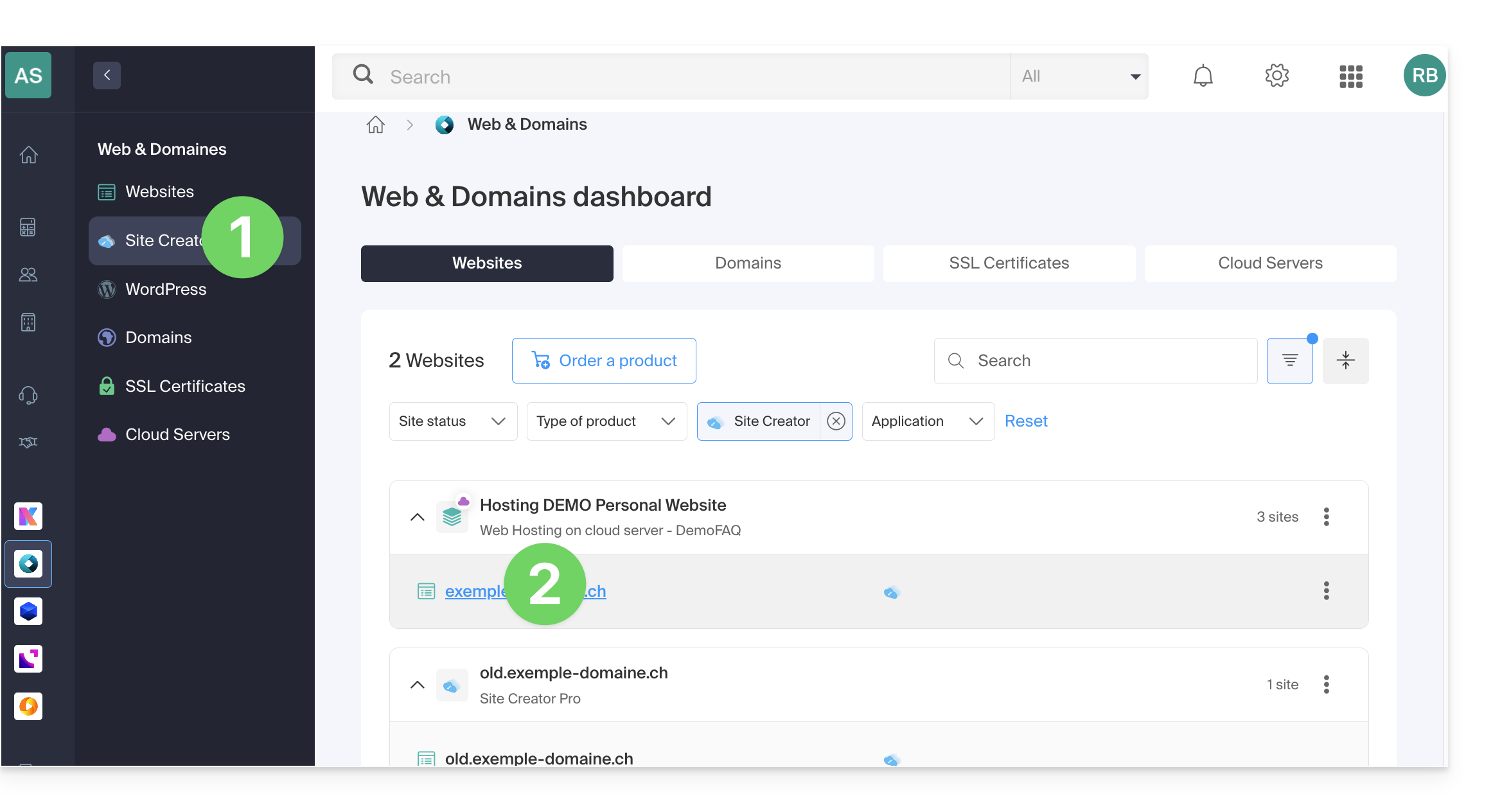
- Click here to access the hosting & website management interface (filtered to display only Site Creator).
- If nothing is displayed, you may not be in the Organization to which your website is linked (❓: help).
- Click on the name of the Site Creator in question:
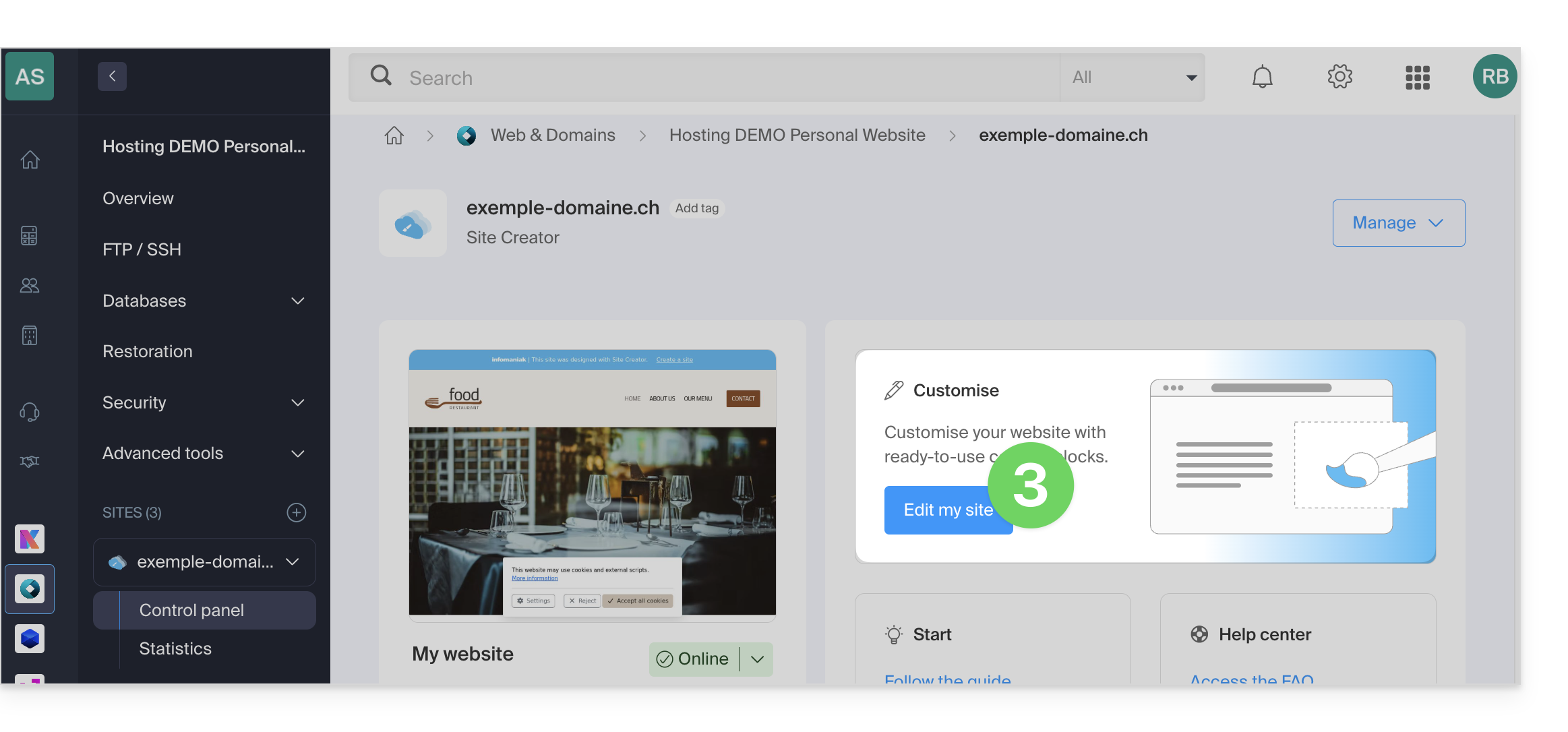
- Click on the button to edit your site:
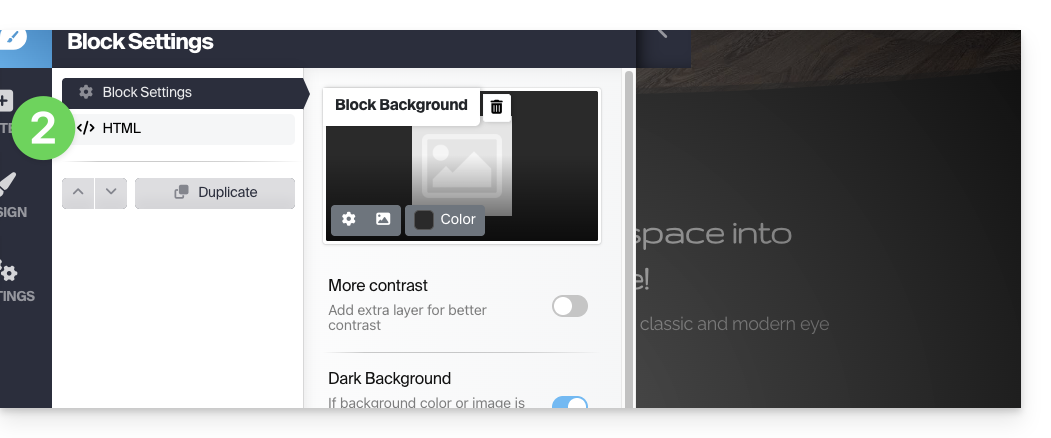
Once in Site Creator, you can modify the HTML code (recommended for advanced users only) if you need more control over any content block:
- Hover over the block you want to edit on your page and click on the gear icon that appears on hover:

- Click on the HTML element in the left sidebar to edit the HTML code of the block:
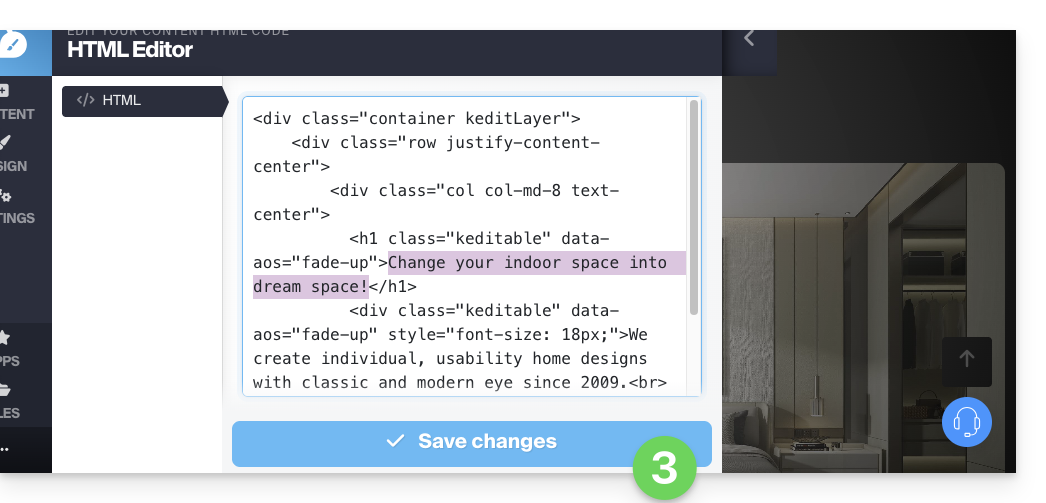
- Remember to save your changes:
Add an HTML block
To start from scratch with a blank HTML block, you can insert the Custom HTML Code module onto your page from the Apps list: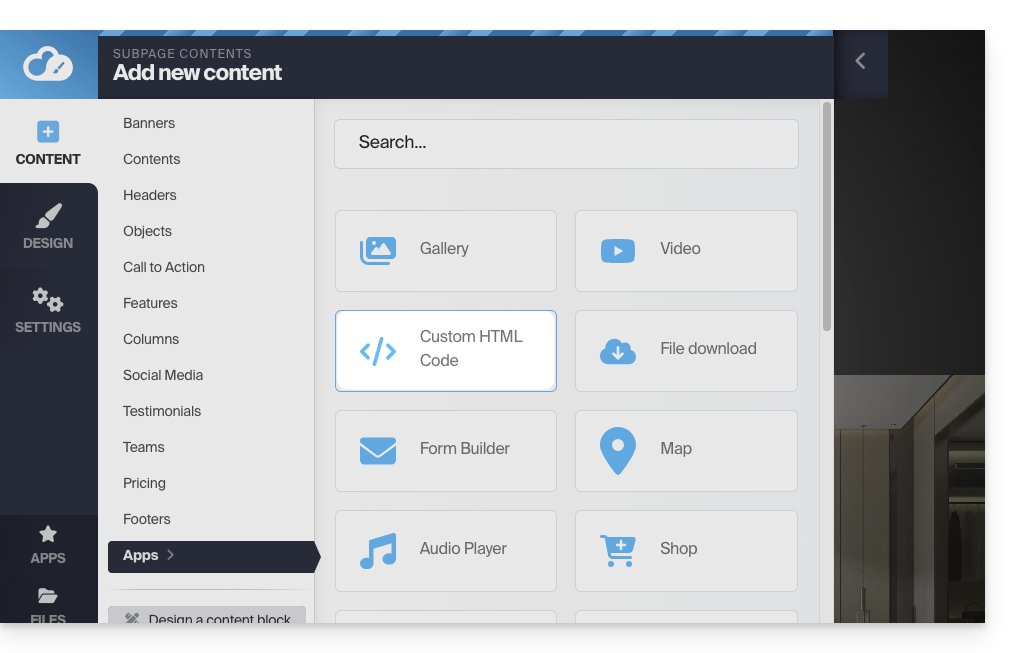
The text can then be edited using the HTML CODE button, which opens the HTML editor:
You can also add code outside of the blocks.
It is strongly recommended that you never insert tags such as html, head, or body, as these could conflict with the application's source code.
Link to this FAQ: https://faq.infomaniak.com/2710
Has this FAQ been helpful?