Knowledge base
1000 FAQs, 500 tutorials and instructional videos. Here, there are only solutions!
Easily edit a Site Creator page
This guide helps you understand how to create and edit pages in Infomaniak's Site Creator.
Simple page editing
Start by logging in to the Infomaniak Manager with your credentials (user account with the necessary permissions for the relevant product):
- Click here to access the hosting & site management interface (filtered to display only Site Creator).
- If nothing is displayed, you may not be in the Organization to which your site is linked (❓: help).
- Click on the name of the Site Creator in question:
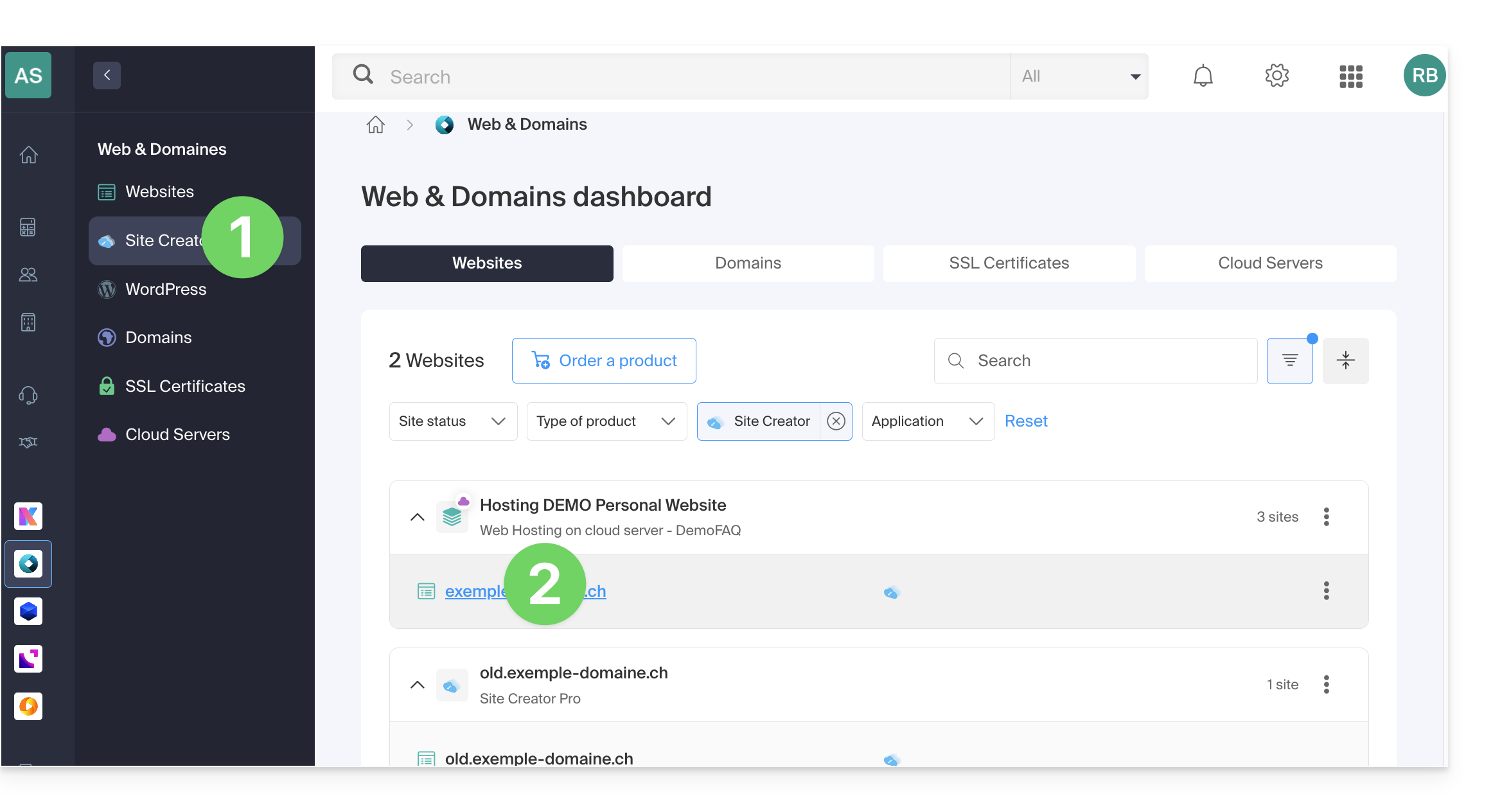
- Click on the button to edit your site:
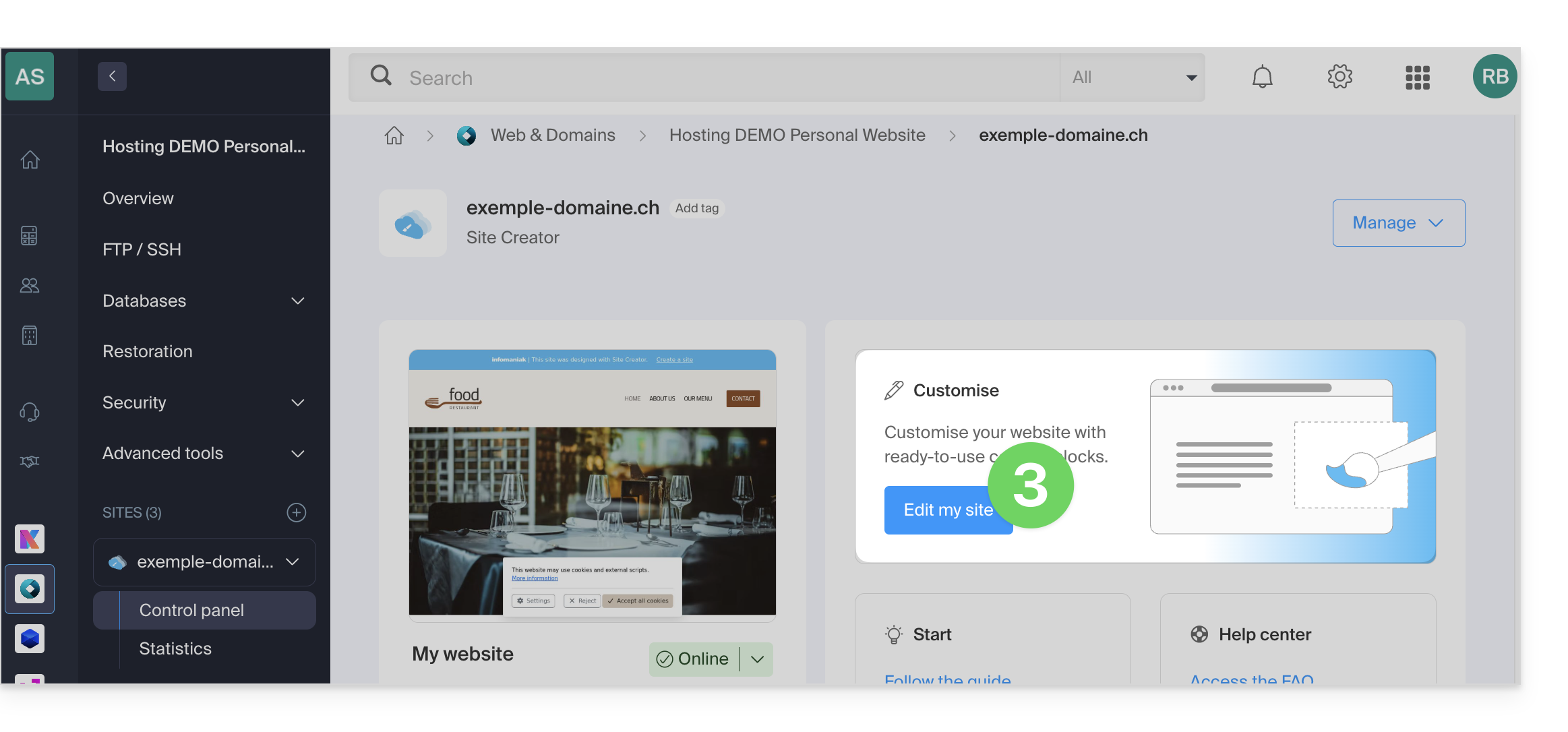
Once in Site Creator, editing a page happens in real time, and your changes are saved as you go while you edit the content of your blocks. You can undo your changes if needed.
Create a link
Create a link from an image or text by selecting the object directly. On the toolbar that appears, click on the action menu •••.
Then, click on the chain icon to open the section where you can specify the type of link and the associated options: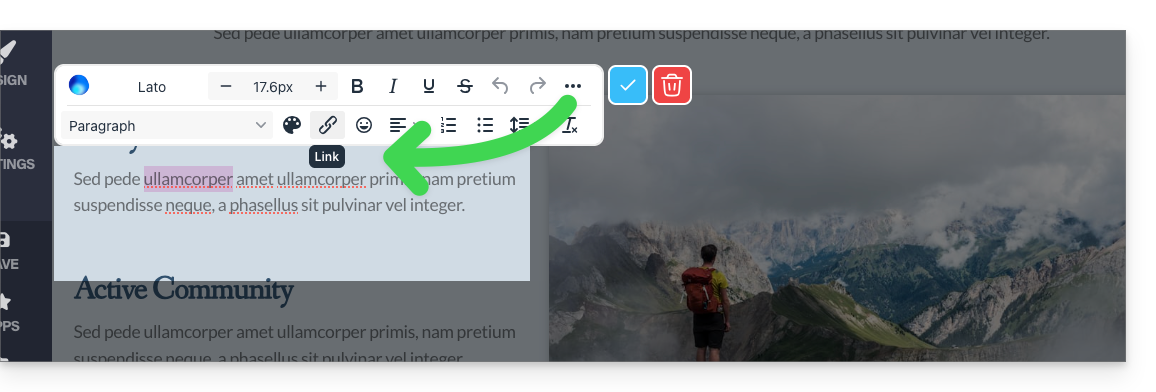
Turn a link into a button
In your link settings, you can choose its style (button, rounded, solid, etc.), the associated icon, etc.: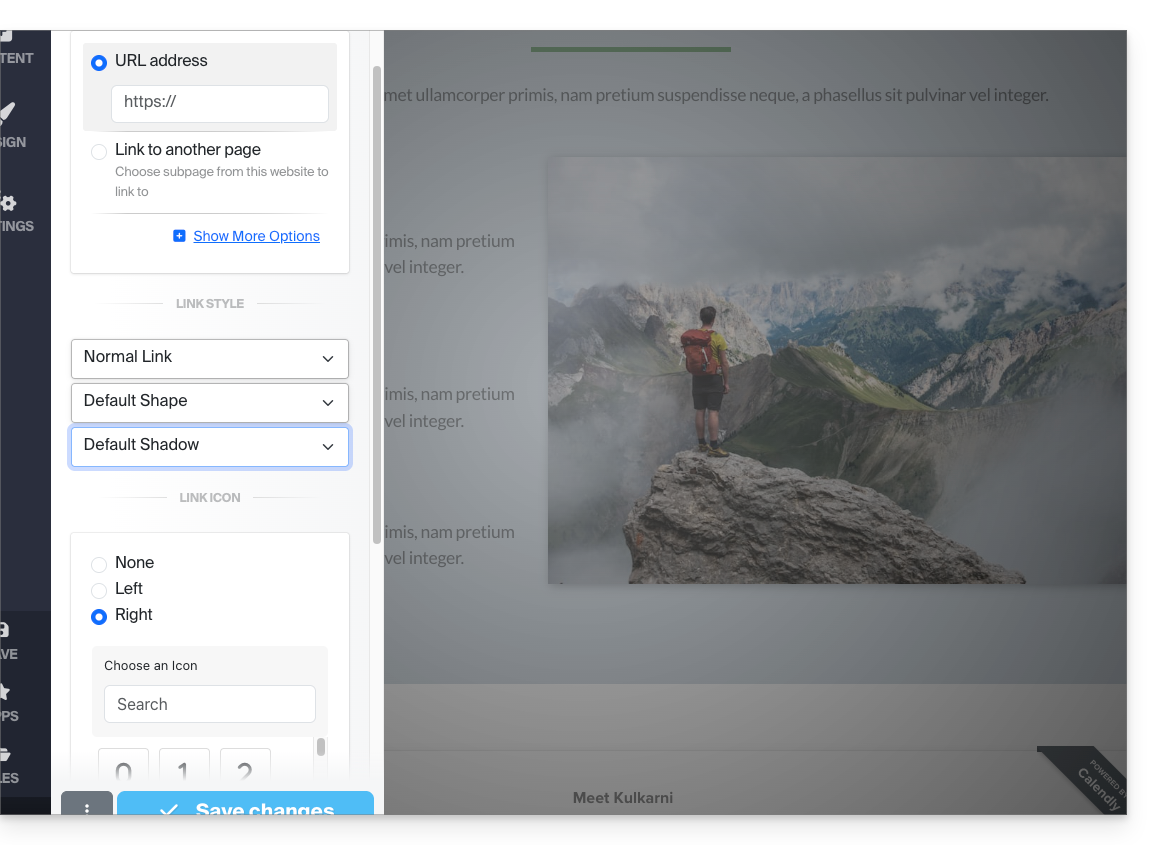
Edit a link
Edit a link by clicking on it, then clicking on the chain icon: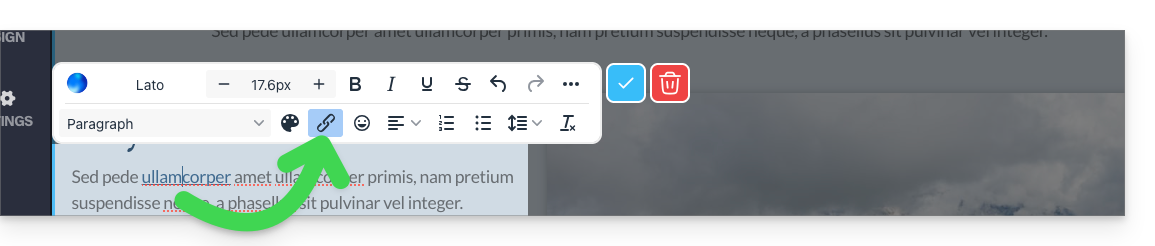
Create a link to a file
To allow your visitors to download a file from a link on an object, click on Show more options in your link settings.
Then, choose the “File” type, which will allow you to upload the corresponding file to the server, so that you can offer it for download to your visitors: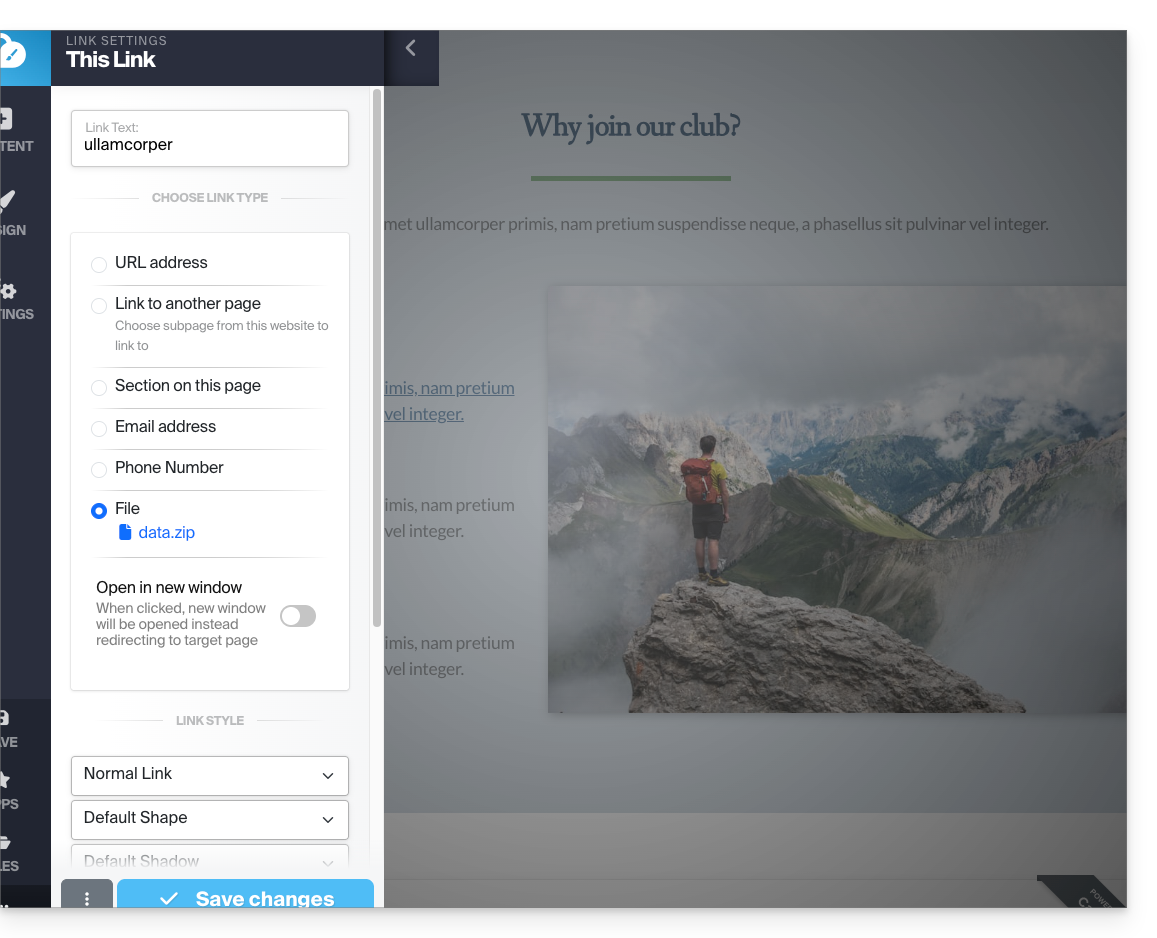
Create a link to an email
Choose the "Email address" type in your link settings. Clicking the link will open the visitor's default email application and start composing an email with the pre-filled email address: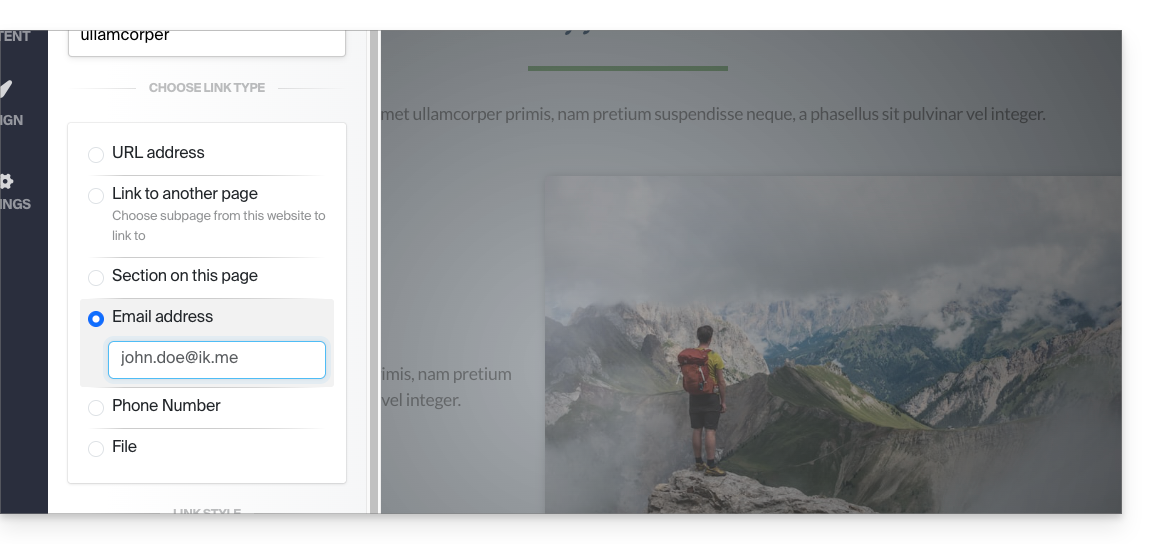
To avoid hardcoding the email address on your page, insert a contact form.
Create a link to a specific section
To direct visitors to a specific section of your site or another site, use the anchor system.
Create a link from an image
When you click on an image to edit it, simply activate the "This is a link" button below the image to specify the URL that will be displayed when a visitor clicks on it: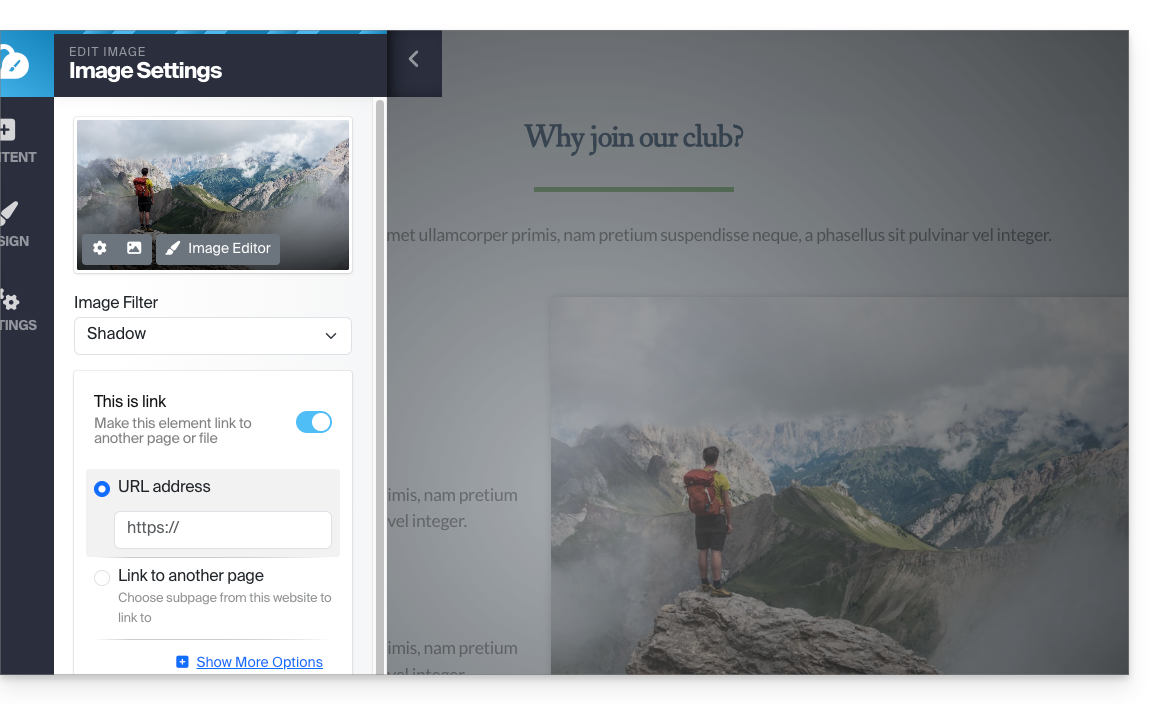
You can also apply a link to an imageby using a YouTube video as the URL: this will automatically create a PLAY-type icon that, when clicked, will open the video in aLightbox window.
Create a list, insert an emoticon... and save
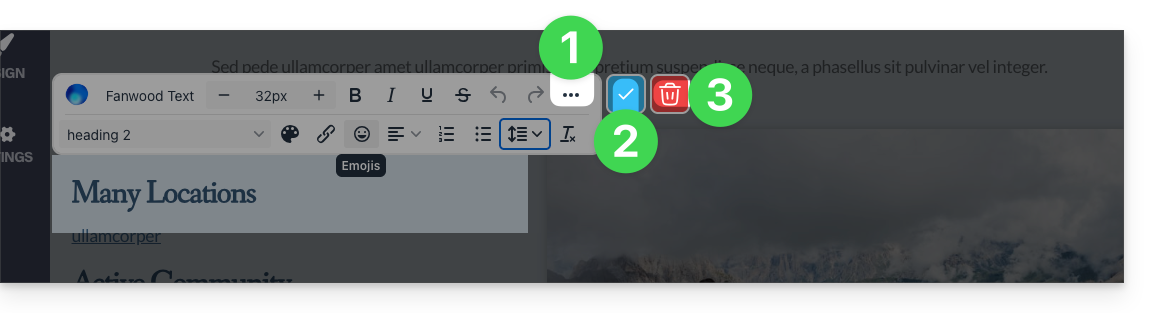
The different text formatting options are located above the text selection:
- Additional options (bulleted lists, alignment, emojis, etc.) are available via the ••• action menu.
- Apply and save the changes using the ✓ symbol.
- Warning: the trash can deletes the text you are currently editing:
Link to this FAQ: https://faq.infomaniak.com/2709
Has this FAQ been helpful?