Knowledge base
1000 FAQs, 500 tutorials and instructional videos. Here, there are only solutions!
Ticketing: Export customer and participant information
This guide explains how to export customer and participant information from events (within the Infomaniak ticketing system).
Introduction
- Exports allow you to download a file in
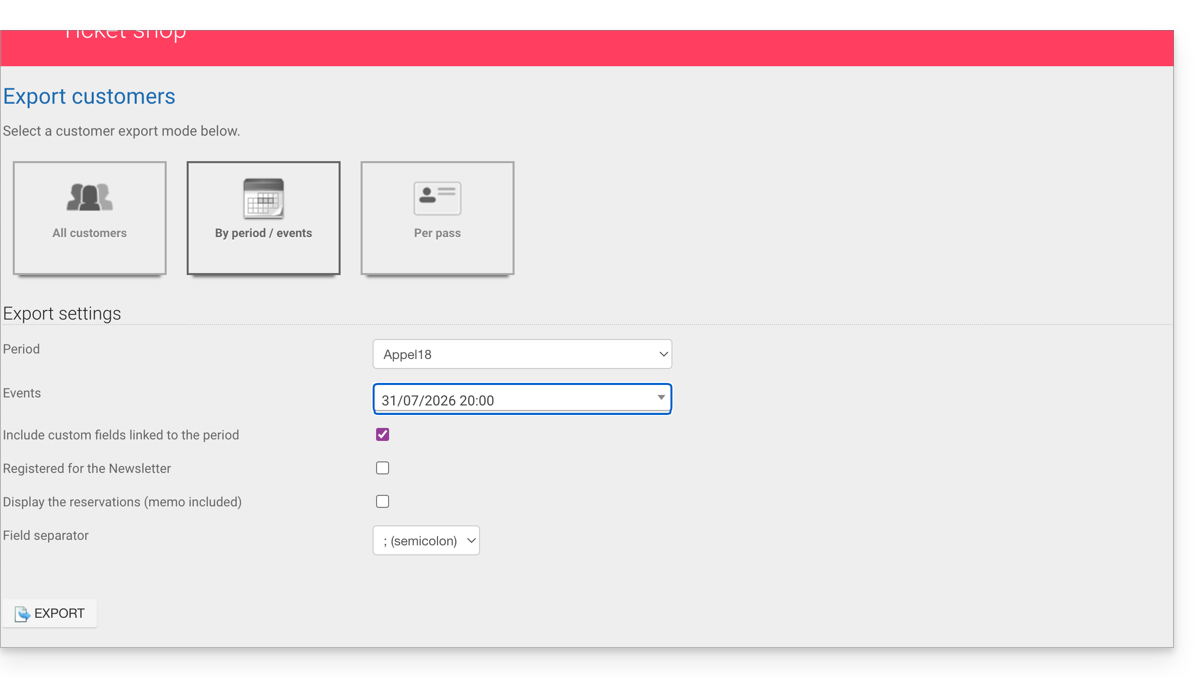
CSVformat containing the collected information; in some cases, such as the one illustrated below, the field separator type can be modified (e.g., semicolon). - For any information regarding the protection of personal data, please refer to this other guide.
Retrieve customer information
Customers are the individuals who provided information when placing an order through your online ticketing system:
- Click here to access the management of your product in the Infomaniak Manager (need help?).
- Click directly on the name assigned to the ticketing system for the event.
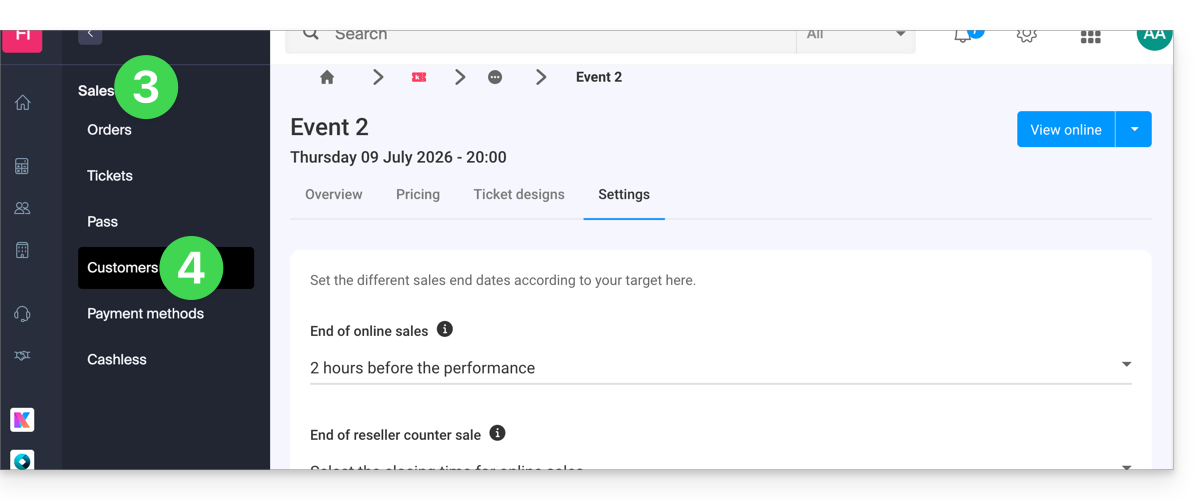
- Click on Sales in the left-hand menu.
- Click on Customers in the left-hand menu:
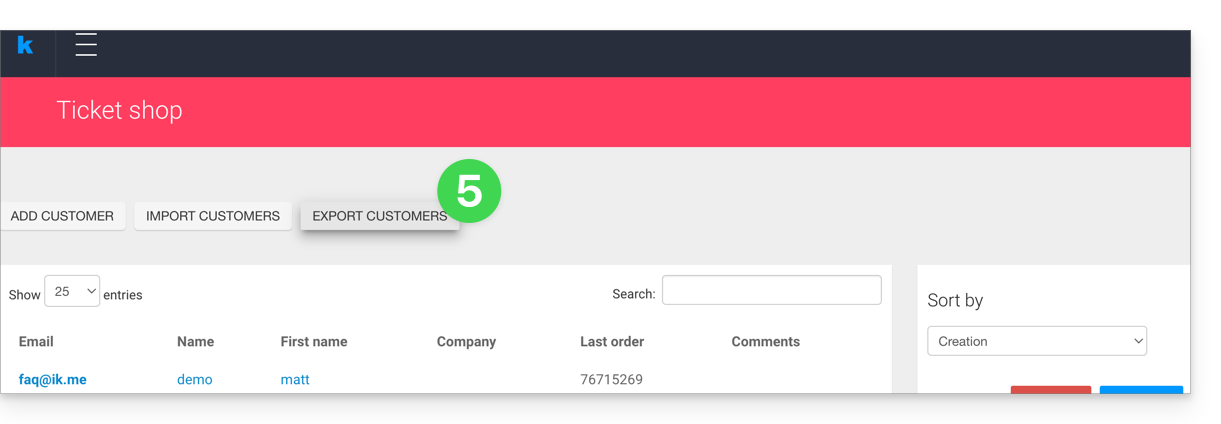
- Click on Export customers
- Choose the criteria for the export:
Retrieve participant information
Participant information can be retrieved from two locations:
- at the form by price level: this allows you to retrieve an Excel file with all the responses from participants, regardless of the date.
- at the level of a specific event, date, or session: this retrieves all the forms used for the event or the chosen date.
For a form
To do this:
- Click here to access the management of your product in the Infomaniak Manager (need help?).
- Click directly on the name assigned to the ticketing system for the event.
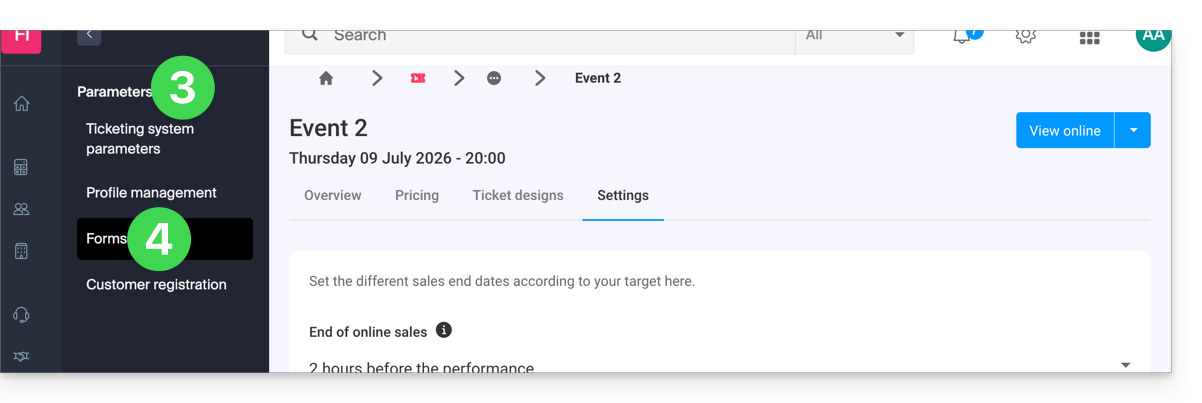
- Click on Settings in the left-hand menu.
- Click on Forms in the left-hand menu:
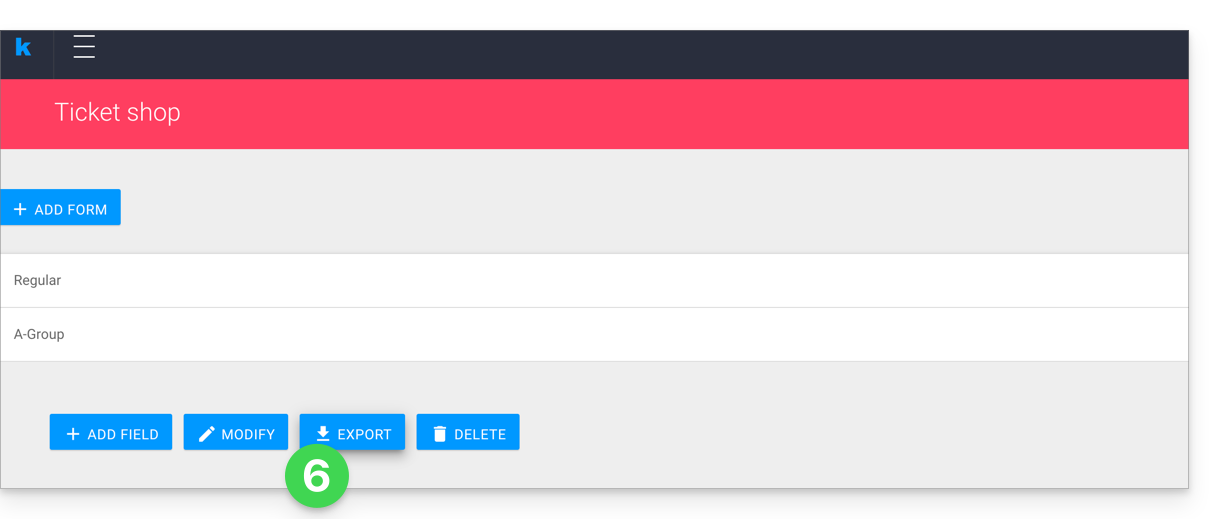
- Select the form to export.
- Click on Export:
For a specific date
To do this:
- Click here to access the management of your product in the Infomaniak Manager (need help?).
- Click directly on the name assigned to the ticketing system for the event.
- Click on Scheduling in the left-hand menu.
- Click on Events in the left-hand menu.
- Choose the event for which to export the information; in the case of a multi-date event, select the desired date.
- At the bottom of the page, click on the Export form data link to retrieve a file in
csvformat: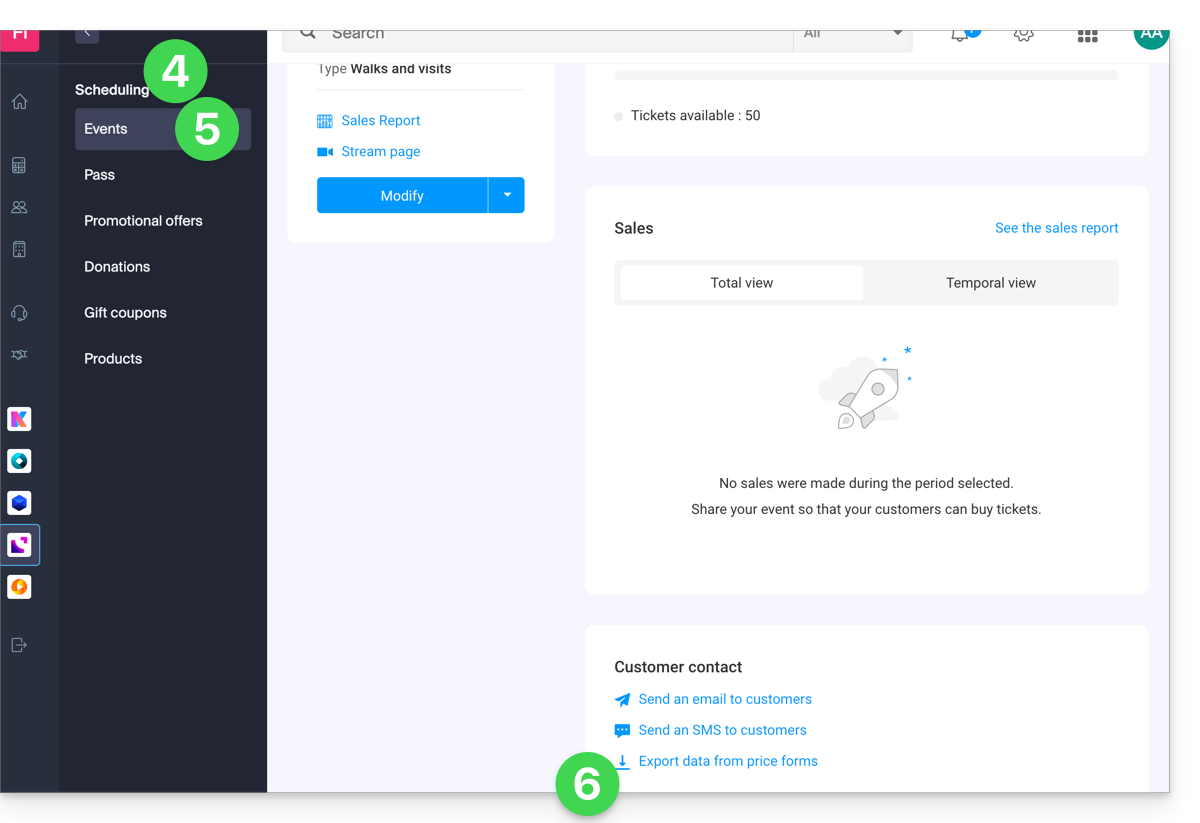
Link to this FAQ: https://faq.infomaniak.com/2699
Has this FAQ been helpful?