Knowledge base
1000 FAQs, 500 tutorials and instructional videos. Here, there are only solutions!
Ticketing: Display events with multiple dates/performances
This guide explains how to modify the display of your events (within the Infomaniak ticketing system).
Accessing the options to configure the display
To do this:
- Click here to access the management interface for your product in the Infomaniak Manager (need help?).
- Click directly on the name assigned to the ticketing system for the event.
- Click on Schedule in the left-hand menu.
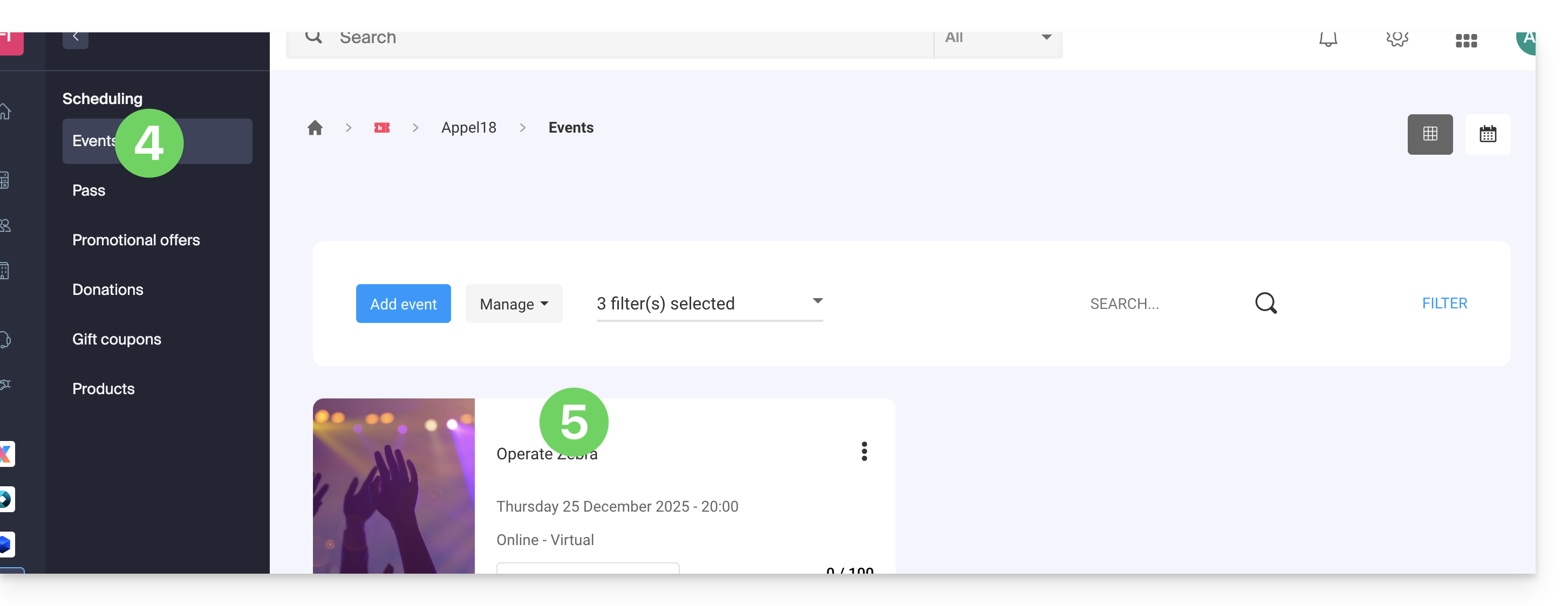
- Click on Events in the left-hand menu.
- Click on the name of the event in question:
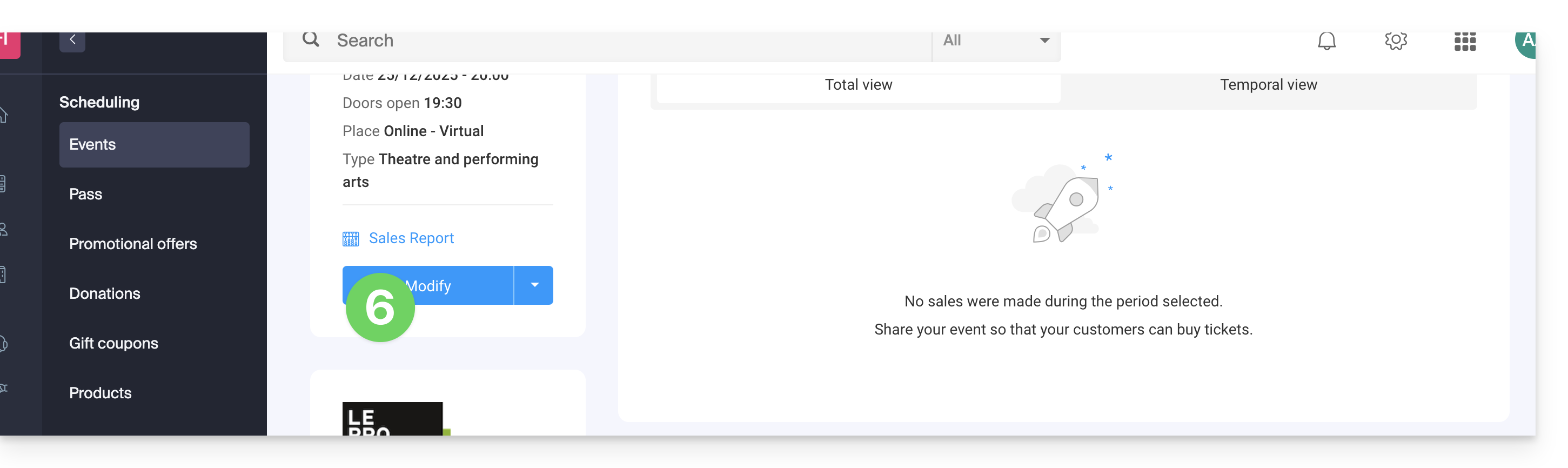
- Click on the Edit button:
Choose a display mode for multi-date events
To do this:
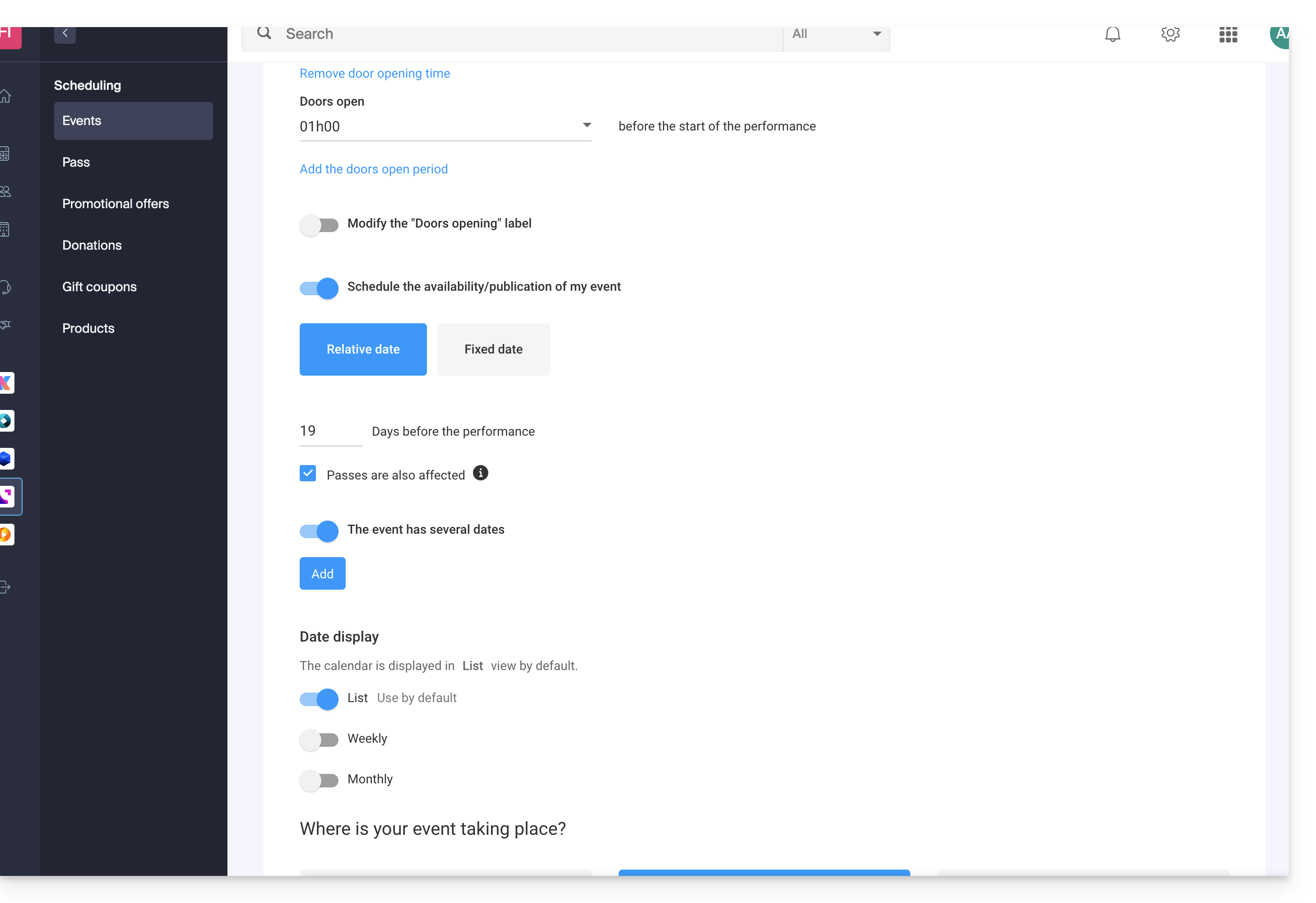
- Add any new possible dates…
- Choose the display methods for these dates on the calendar; these modes will be available on the online ticketing system and will allow your customers to switch between the different display modes they prefer (see below)…
- Choose which display mode will be used by default…
Available display options
List view
The list view is useful if the dates are spaced out over time with empty periods (e.g., weekly or monthly) and/or if the ticketing system needs to offer multiple dates or sessions without displaying them on a calendar.
The monthly calendar
The monthly calendar view allows you to display events on a monthly calendar. This is an effective display, but it can become very cluttered if there are many sessions per day.
The weekly calendar
Very useful if you want to display the dates by week, especially if there are several events per day, or in the case where the event only lasts for a short period, and you want to display the days of the week.
Link to this FAQ: https://faq.infomaniak.com/2696
Has this FAQ been helpful?