Knowledge base
1000 FAQs, 500 tutorials and instructional videos. Here, there are only solutions!
Automatically check SPF/DKIM/DMARC
This guide presents the Global Security tool, which allows you to check and optimize the security of the connection between a domain name and an Infomaniak Mail Service.
Introduction
- The Global Security tool checks the compliance of SPF, DKIM, and DMARC records and allows you to adjust their configuration if necessary.
- Any DNS addition or modification may require up to 48 hours to propagate (❓: help).
Accessing the Global Security Diagnostic Tool
To access the Global Security interface:
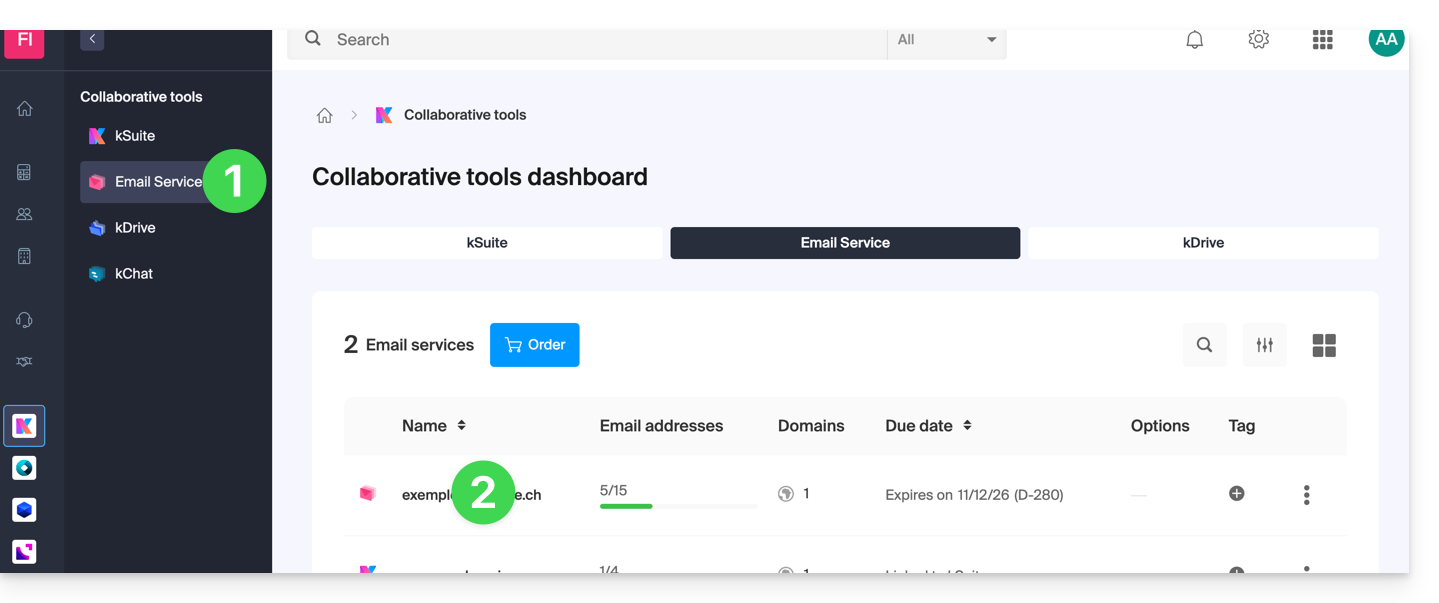
- Click here to access the Mail Service management in your Infomaniak Manager (❓: help).
- Click on the name of the Mail Service in question:
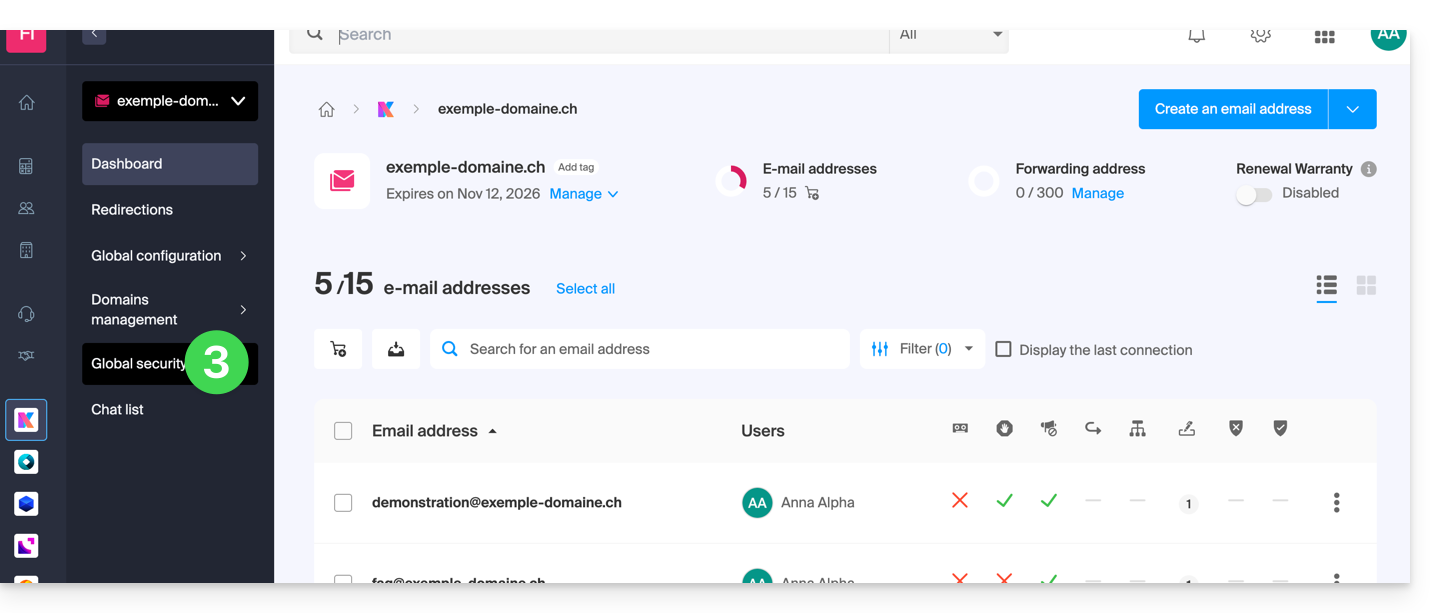
- Click on Global Security in the left-hand menu:
Check that the email service is working correctly
Once on the Global Security page, check the status of the three essential email security mechanisms: SPF, DKIM, and the DMARC policy. All of these indicators should be displayed in green: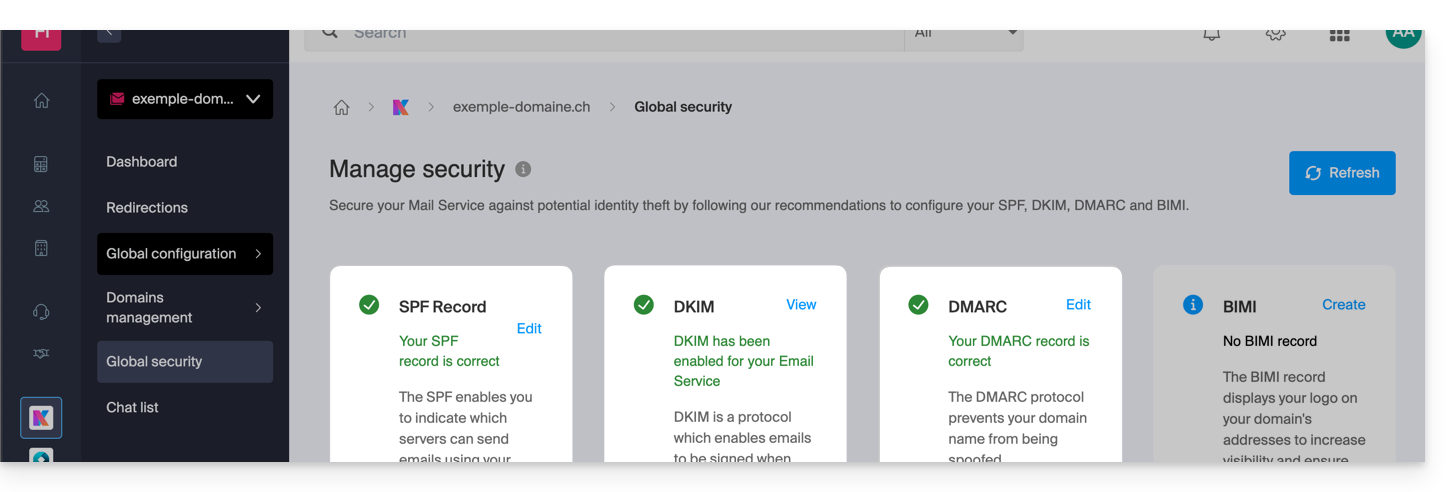
An invalid or missing status may explain why legitimate emails are being incorrectly classified as spam by your recipients.
Click on Edit or Create to configure SPF, DKIM, and DMARC according to the recommendations below in order to protect the Mail Service against identity spoofing attempts:
SPF (Sender Policy Framework)
The SPF protocol (❓: help) allows the owner of a domain name to define the servers authorized to send emails on their behalf. The recipient's email server consults the DNS records of the sending domain to verify this authorization, which reduces the risks of spam and phishing: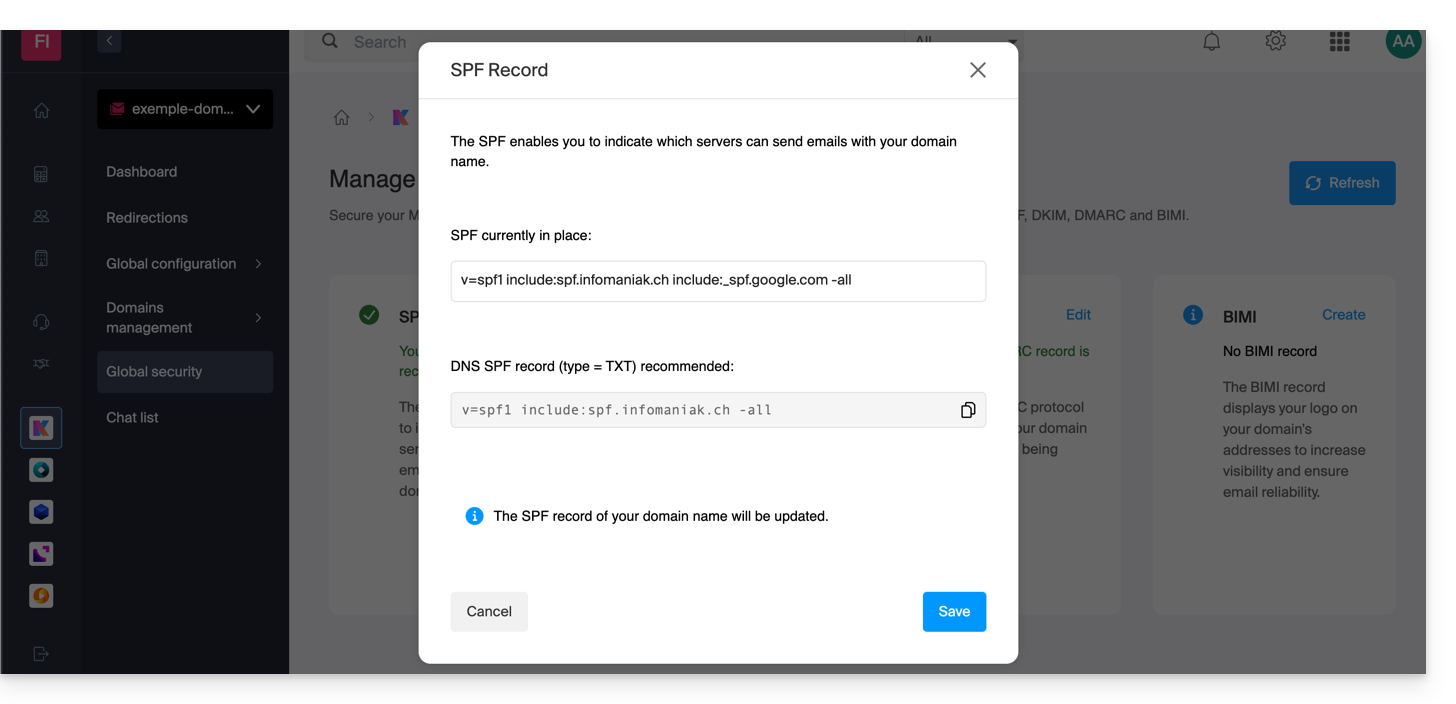
The analyses provided by the Global Security tool are only relevant if the domain name is hosted with Infomaniak and is configured to direct mail traffic to its servers.
Under these conditions, if a problem is detected, the Correct button allows you to automatically update the SPF record.
If automatic correction is not possible, the modification must be made directly in the DNS zone by the owner or technical manager of the domain name.
If the domain name is hosted with another provider (e.g., Wix), the SPF record must be configured with that provider (❓: help).
DKIM (Domain Keys Identified Mail)
The DKIM protocol (❓: help) allows you to cryptographically sign emails when they are sent.
When the domain name (or its DNS zone) is managed by another provider, the Global Security > DKIM section provides the DKIM record to be added to the remote DNS zone: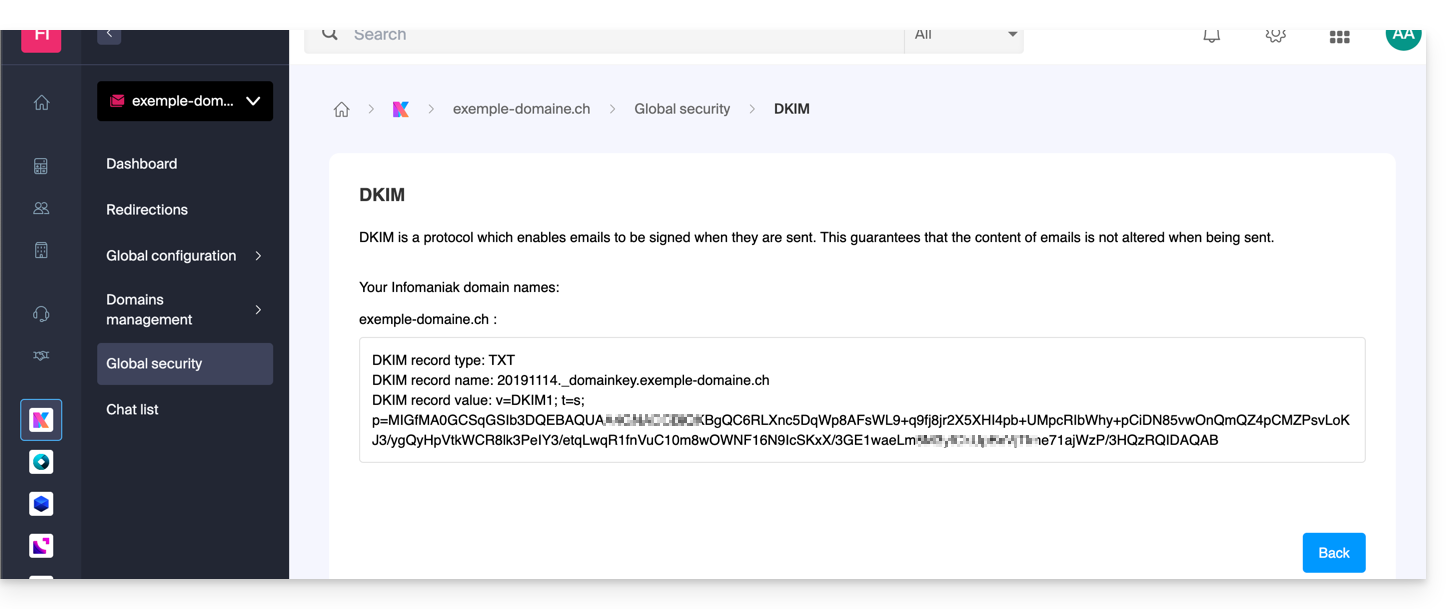
Unlike SPF or DMARC records, you can configure multiple DKIM records without restriction on the same domain, which is essential when using complementary third-party email providers.
DMARC (Domain-based Message Authentication, Reporting, and Conformance)
The DMARC protocol (❓: help) tells remote email servers what policy to apply when they receive a suspicious or unauthenticated email from your domain. You can also receive a summary DMARC report (❓: help) detailing recent email activity.
DMARC requires valid SPF and DKIM records. An assistant helps you configure the DMARC policy according to Infomaniak's recommendations in simple mode, or customize it in advanced mode (this expert mode allows you to enter the rule of your choice):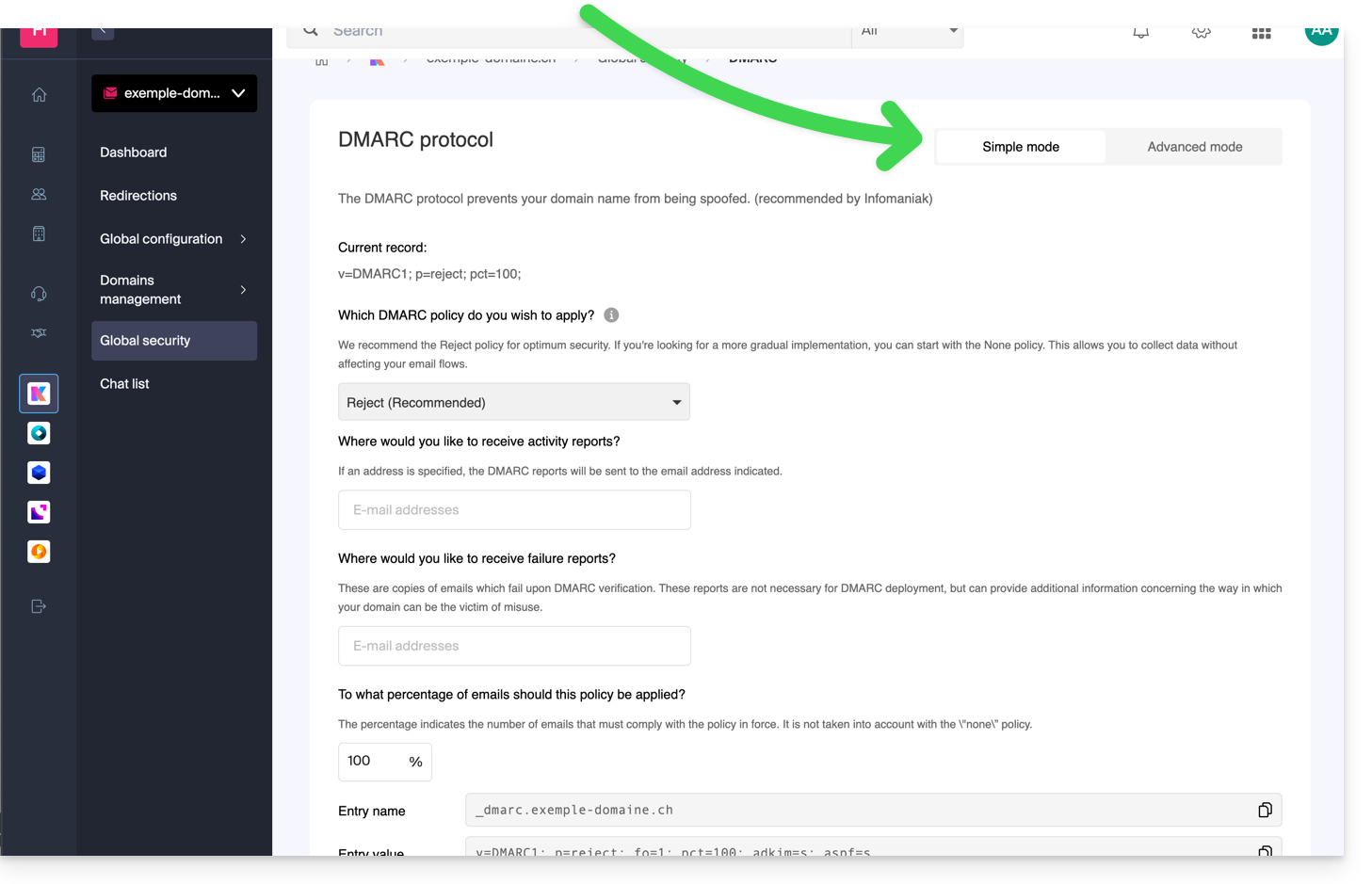
The corresponding TXT records are then automatically applied to the DNS zone of the domain name in question (if the organization has the required administrative rights).
Infomaniak is unable to analyze your DMARC reports and records, or to comment on their validity or compliance, as these are solely your responsibility.
To verify the validity of your DNS records, you can also use an external and free service, such as the one presented at the bottom of this other guide.
To learn more about the fourth indicator available on the Global Security page, please refer to this other guide.
Link to this FAQ: https://faq.infomaniak.com/2692
Has this FAQ been helpful?