Knowledge base
1000 FAQs, 500 tutorials and instructional videos. Here, there are only solutions!
Write an email using Euria within the Infomaniak Mail apps
This guide will quickly introduce you to the essential features of Euria, the artificial intelligence available within kSuite. It performs particularly well with the Infomaniak Mail web app (online service ksuite.infomaniak.com/mail). The assistant is also available on the Infomaniak Mail mobile app (application for iOS/Android smartphones or tablets).
✘ UNAVAILABLE with
kSuite Free
my kSuite (ik.me, etik.com, ikmail.com)
Accessing the assistant
Prerequisites
- Read and understand this other guide about the model used and the responsibilities of each party.
To access the writing assistant:
- Click here to access the Infomaniak Mail web app (online service ksuite.infomaniak.com/mail).
- Log in with the credentials of your Infomaniak account (not the password for your email address).
- If necessary, associate the email addresses to be managed with Mail Infomaniak.
The writing assistant helps you write text using artificial intelligence, on the topic of your choice, including if it needs to be based on elements present in the current email conversation; use it, for example, to write:
- a new message that must contain specific elements,
- a reply to a received message,
- a reformulation of a text excerpt,
- grammatically correct syntax,
- etc.
You can also summarize the content of any email.
Using Euria when composing a new message
You can ask Euria to write a text based on your ideas, which you will need to provide to it:
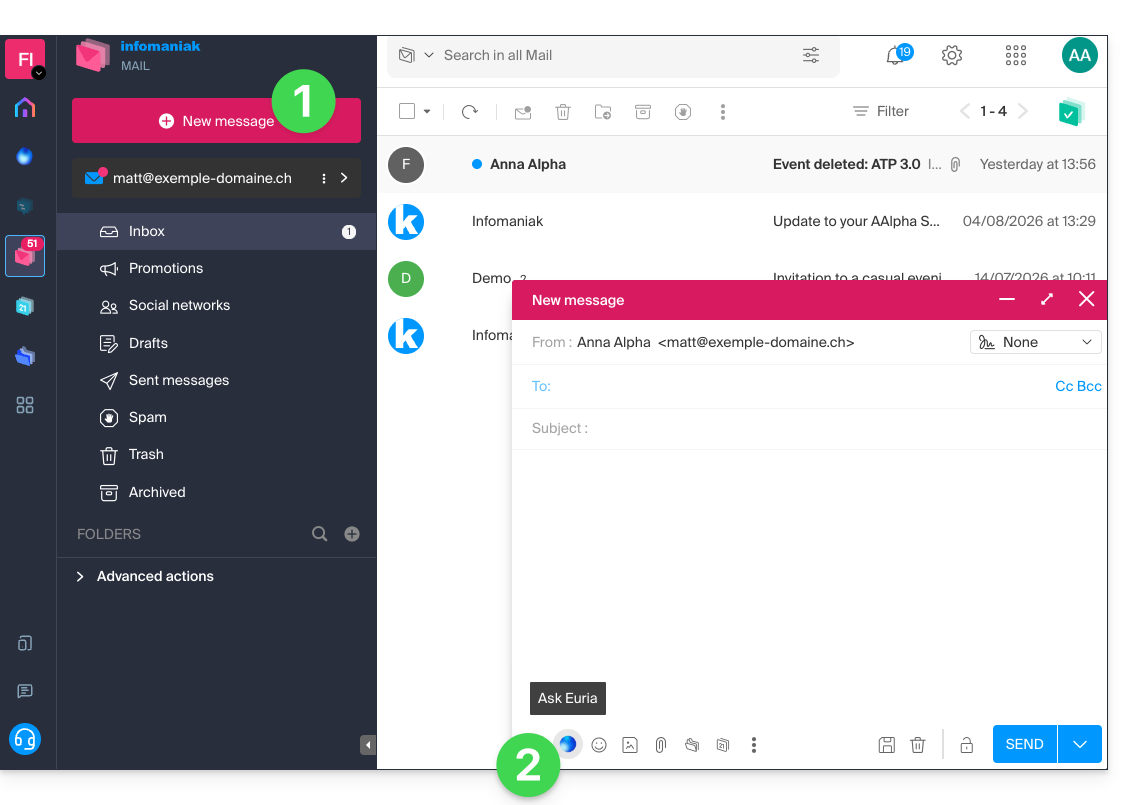
- Click on New message in the upper left corner of the Mail interface.
- Click on the Euria icon in the editing bar to open the assistant:
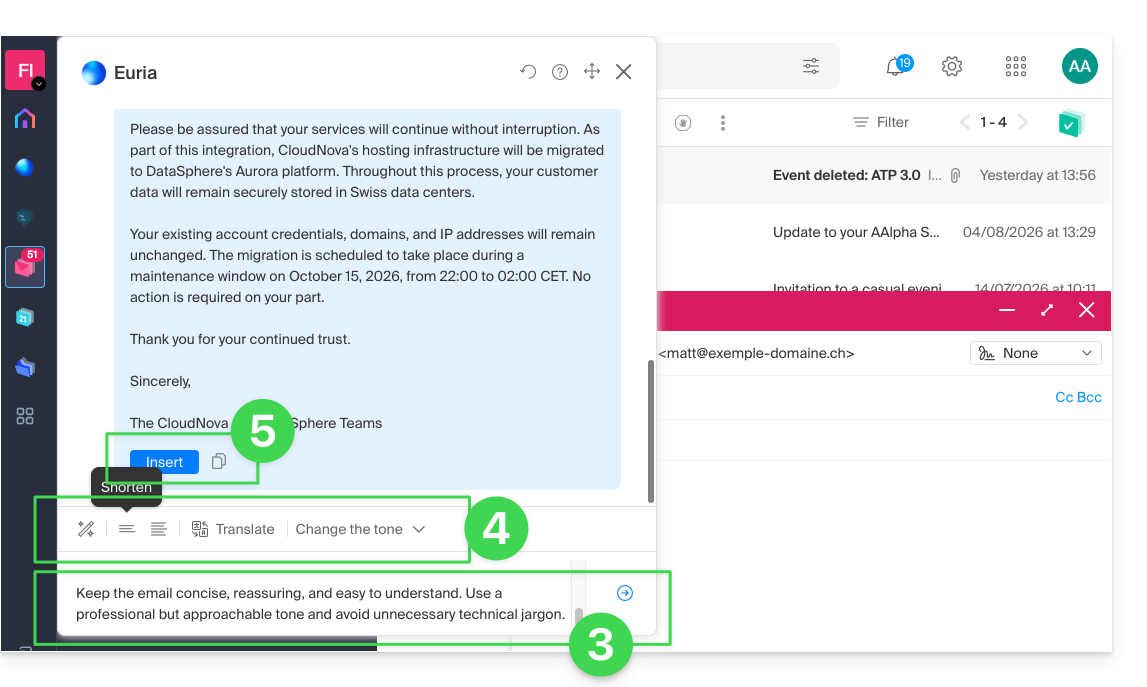
- Tell the assistant what you want to write, as if you were talking to a human.
- Once the AI displays a suggestion, adjust the length and change the tone if necessary to get a more familiar response.
- Insert the suggestion into your message or copy the text to the clipboard:
Using Euria while writing the message
You can also use the writing assistant by selecting a passage from your text and then choosing the desired option from the context menu that appears: 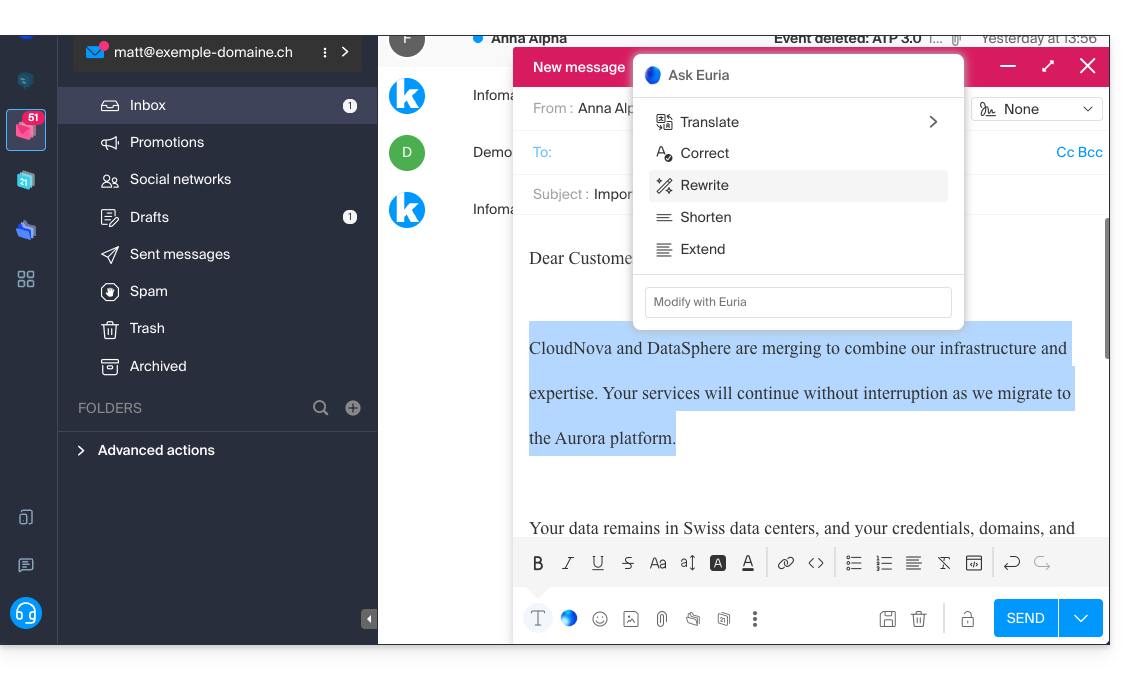
- Open the assistant to request suggestions.
- Correct the grammar.
- Rephrase the sentence to obtain a new one.
- Shorten the suggested text by removing some unnecessary elements.
- Write more text, expand the conversation.
Suggest a reply with Euria while reading an email
You can launch Euria while viewing a received message to which you want to quickly reply:
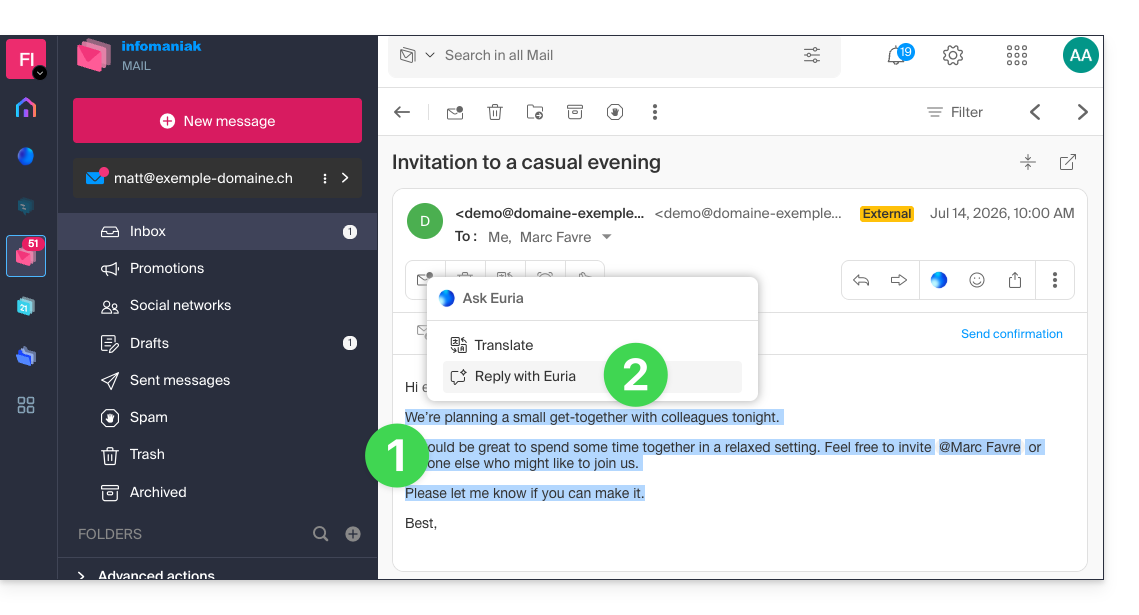
- Select the text you want to use as the basis for the response using your mouse.
- Choose to respond with Euria from the context menu that appears:
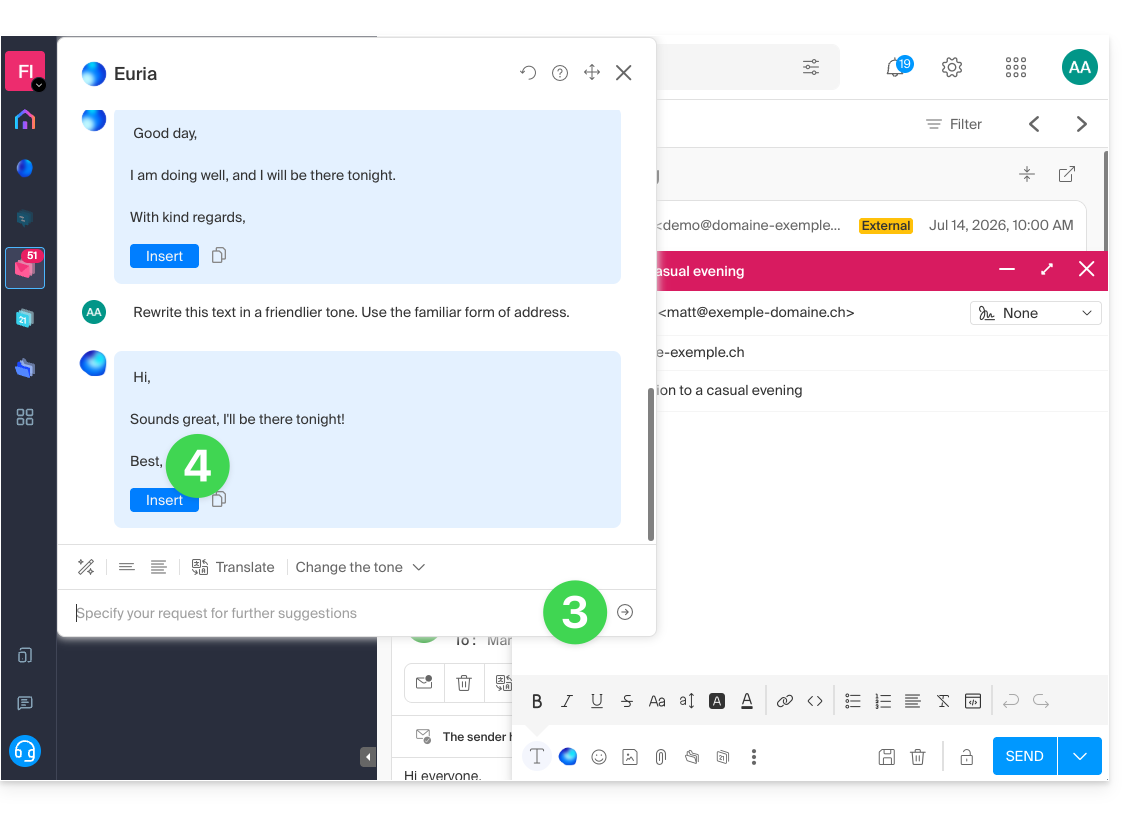
- Tell the assistant what you want it to respond with, as if you were having a conversation with a human.
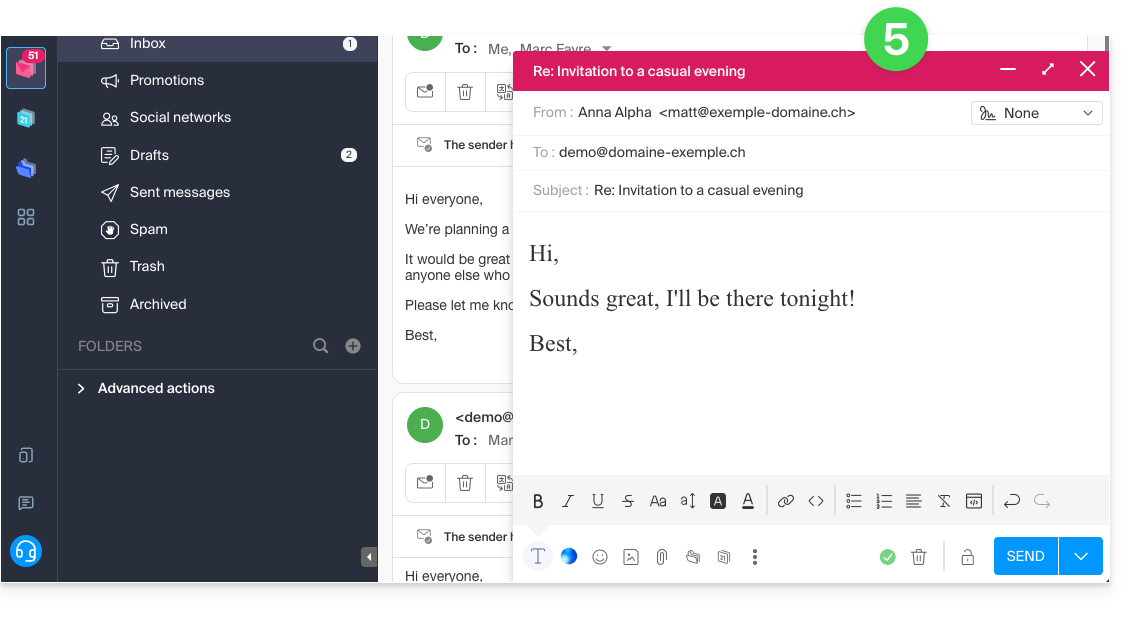
- Insert the suggestion that will appear in the automatically generated reply message:
- All that's left to do is review it and send it:
Suggest the email subject with Euria
When you start writing a new message, the assistant can automatically enter a suitable title for your message in the Subject field:
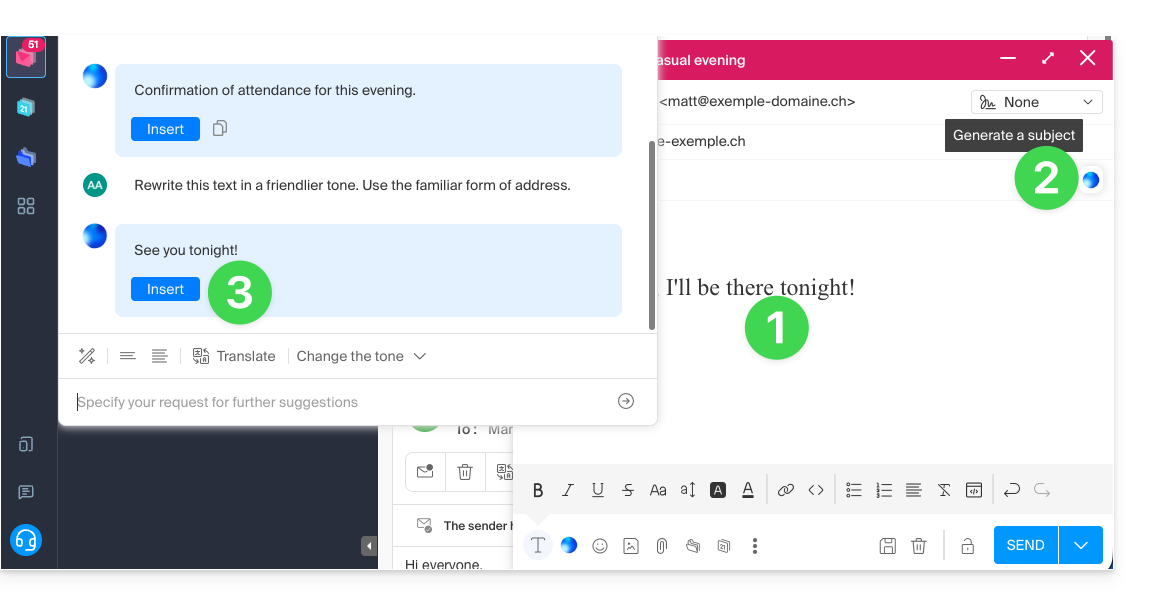
- Enter text.
- Click on the Euria icon to the right of the Subject field:
- Insert the suggestion if it suits you:
- If a subject is already entered in the field (for example, because you inserted a new message + subject composed by the assistant and then requested a new message from the assistant), the assistant will offer to replace it with a more appropriate subject.
Disable the assistant
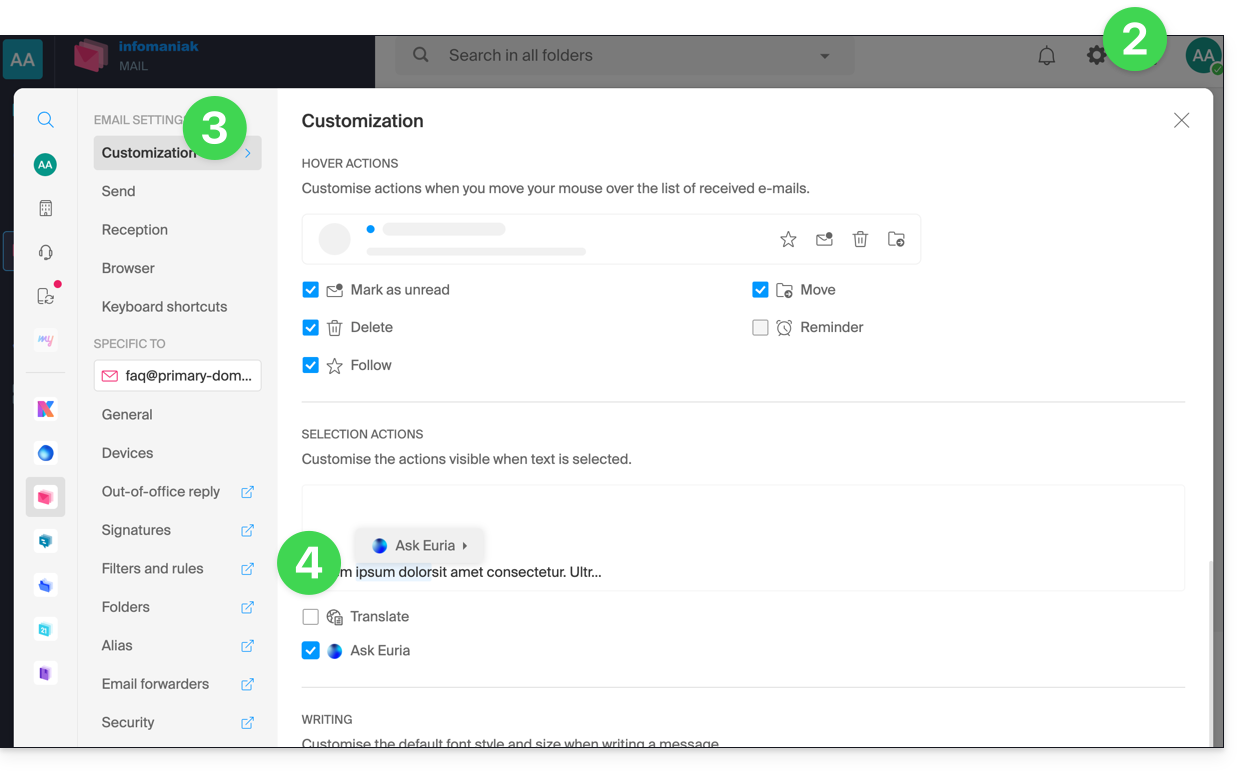
You can configure the elements (translations / Euria) that are displayed when you click on your message:
- Click here to access the Infomaniak Mail web app (online service ksuite.infomaniak.com/mail).
- Click on Settings in the top right corner.
- Click on Customization in the left-hand menu.
- Check or uncheck the actions you want to trigger with a click:
Link to this FAQ: https://faq.infomaniak.com/269
Has this FAQ been helpful?