Knowledge base
1000 FAQs, 500 tutorials and instructional videos. Here, there are only solutions!
Partnerships: Manage billing methods
This guide explains the differences between the two types of payment methods available within a partnership (with full access granted to the partner).
Indeed, in the context of adding a Partner to manage your products, if you grant all rights, you will need to decide whether to also entrust them with the entirety of the billing process.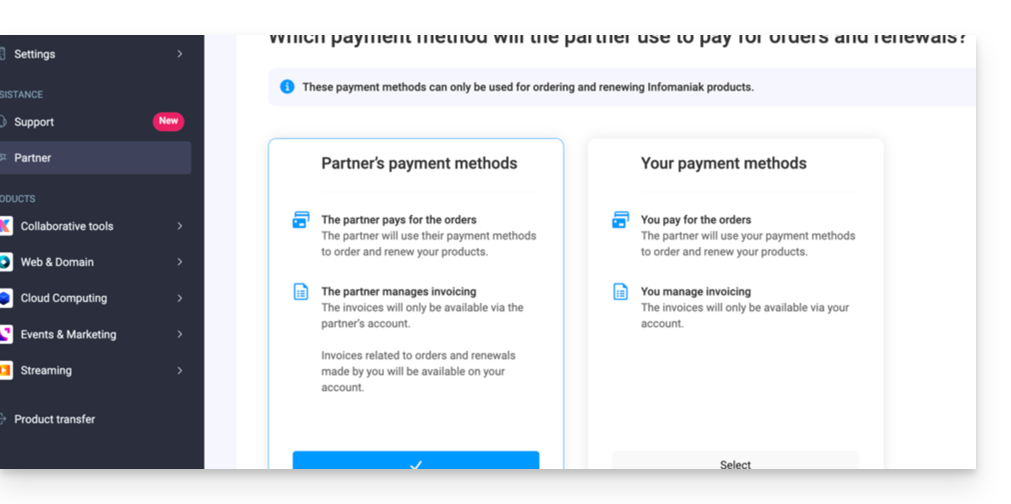
Payment methods ...
... for the Customer
In this case:
- The Customer manages the billing and handles the orders and renewals made by the Partner.
- The Partner:
- Pays the list price and will receive revenue (cashback) in their account based on the benefits they receive as an Infomaniak reseller.
- Also receives revenue (refund) for any order and any renewal made directly by their customer.
- Invoices will only be accessible within the Customer's organization, and the Partner will not have access to them.
- The products will be installed directly within the client's organization.
... from the Partner
In this case:
- The partner
- Manages billing and handles orders and renewals made for their client.
- Directly benefits from reseller discounts when placing orders and renewals on behalf of their client.
- Also receives revenue (reimbursement) for any orders and renewals made directly by their client.
- Invoices will only be available within the Partner's organization, and the Client will not have access to them.
- The products will be installed directly within the client's organization.
Change the payment method
As part of granting full access to a partner, the Customer can change the type of payment method used in the partnership at any time:
- Log in to the Infomaniak Manager (manager.infomaniak.com).
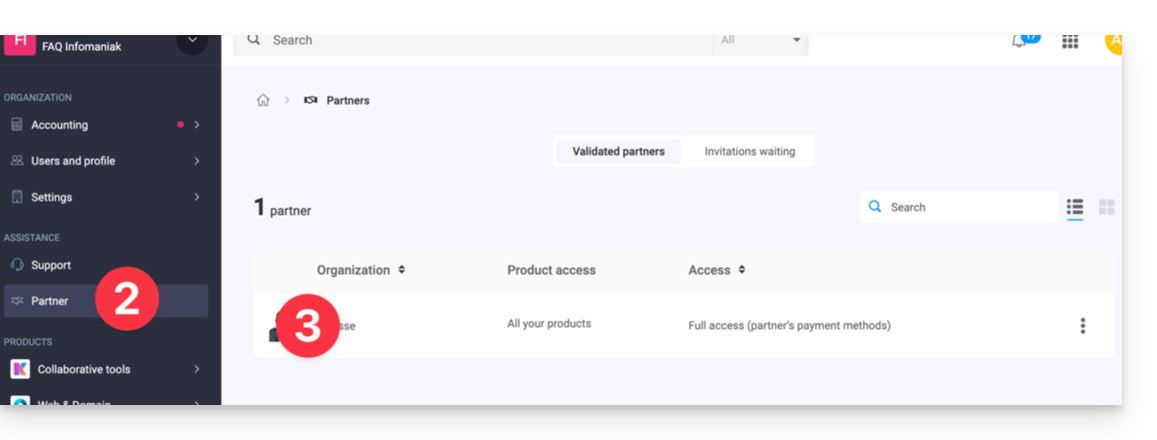
- Click on Partner in the menu on the left sidebar.
- Click on the name of the partner concerned:
- Click on the pencil icon at the top of the page, to the right of Payment:
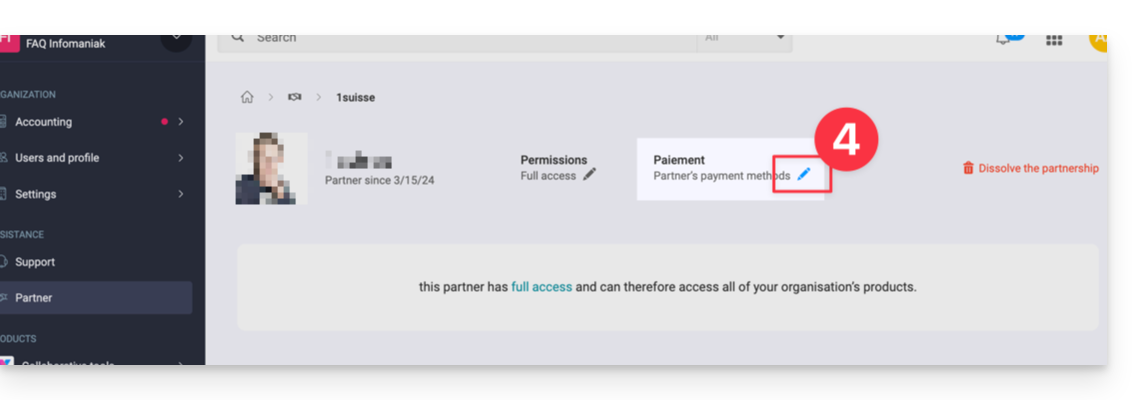
- Edit and verify the desired information.
The Partner will receive a notification about the change via email.
You may also find this other guide helpful: this other guide.
Link to this FAQ: https://faq.infomaniak.com/2679
Has this FAQ been helpful?