Knowledge base
1000 FAQs, 500 tutorials and instructional videos. Here, there are only solutions!
Partnership: Add a Client to access their products
Update 10/12/2026
This guide explains how to add a Client within the Infomaniak Partner Program.
Prerequisites
- Be the Legal Representative within the Partner Organization.
Add a "Managed" Client
To add a Client as part of your Partner activity:
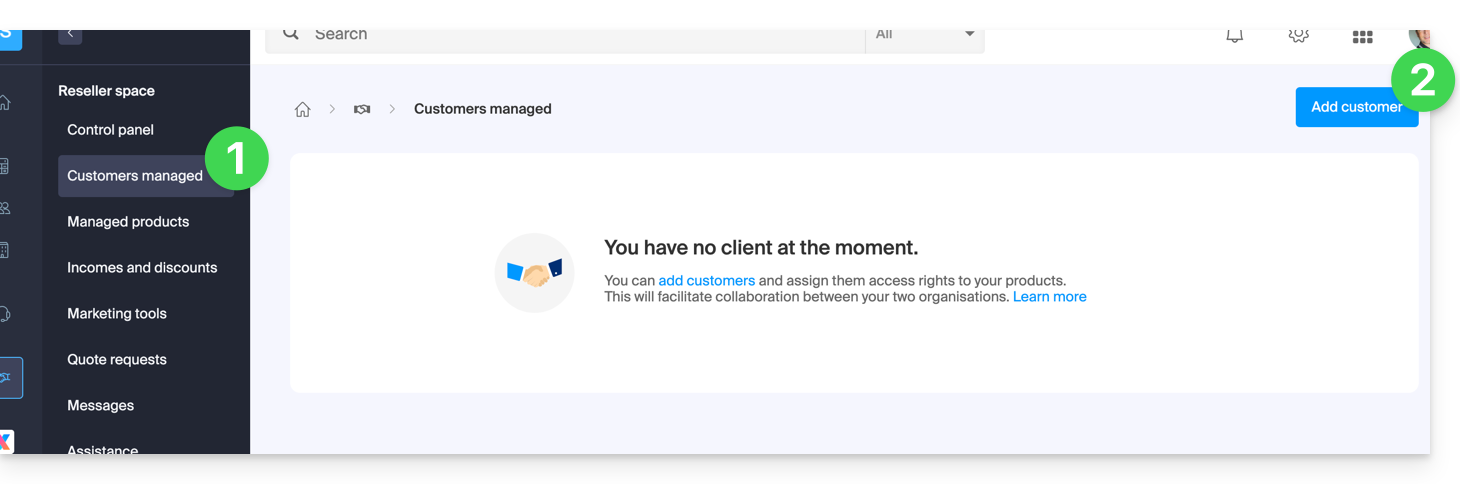
- Click here to access your Managed Clients in the Reseller Area of the Infomaniak Manager (need help?).
- Click on the blue “Add a client” button in the top right corner:
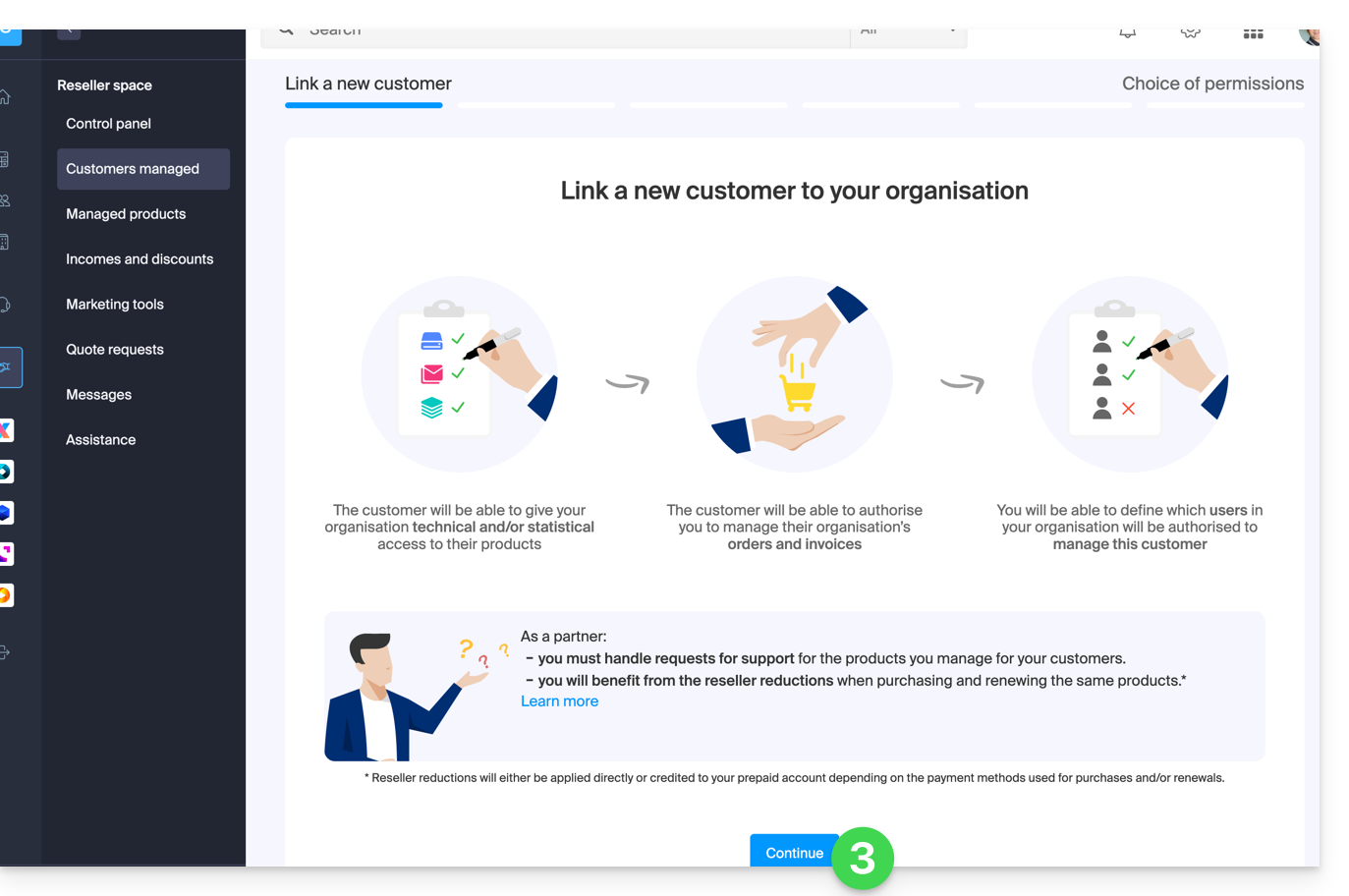
- Follow the procedure to complete:
- The pending request will be visible in your Manager:
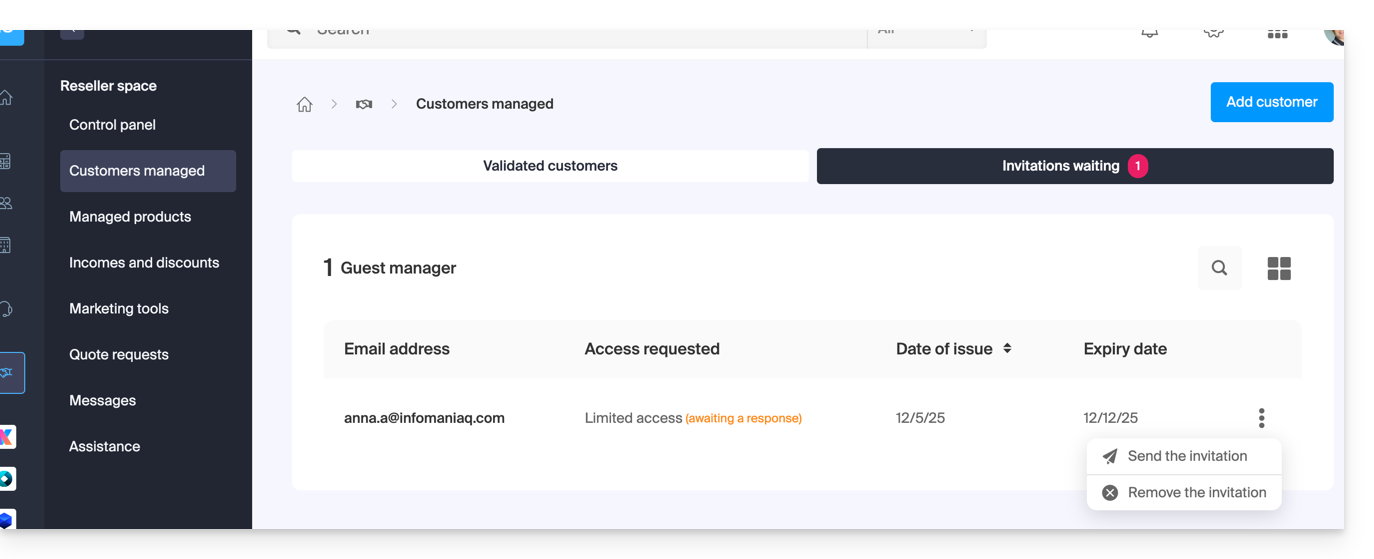
- The Client will receive an email with the request for the various access permissions and will have the option to grant different access rights than those requested by the Partner.
- Once an invitation has been accepted by a Client, check the access rights granted as well as the payment methods used (if applicable) in your Client's profile.
Accessing the Client's account and products…
... as a legal representative or Partner administrator
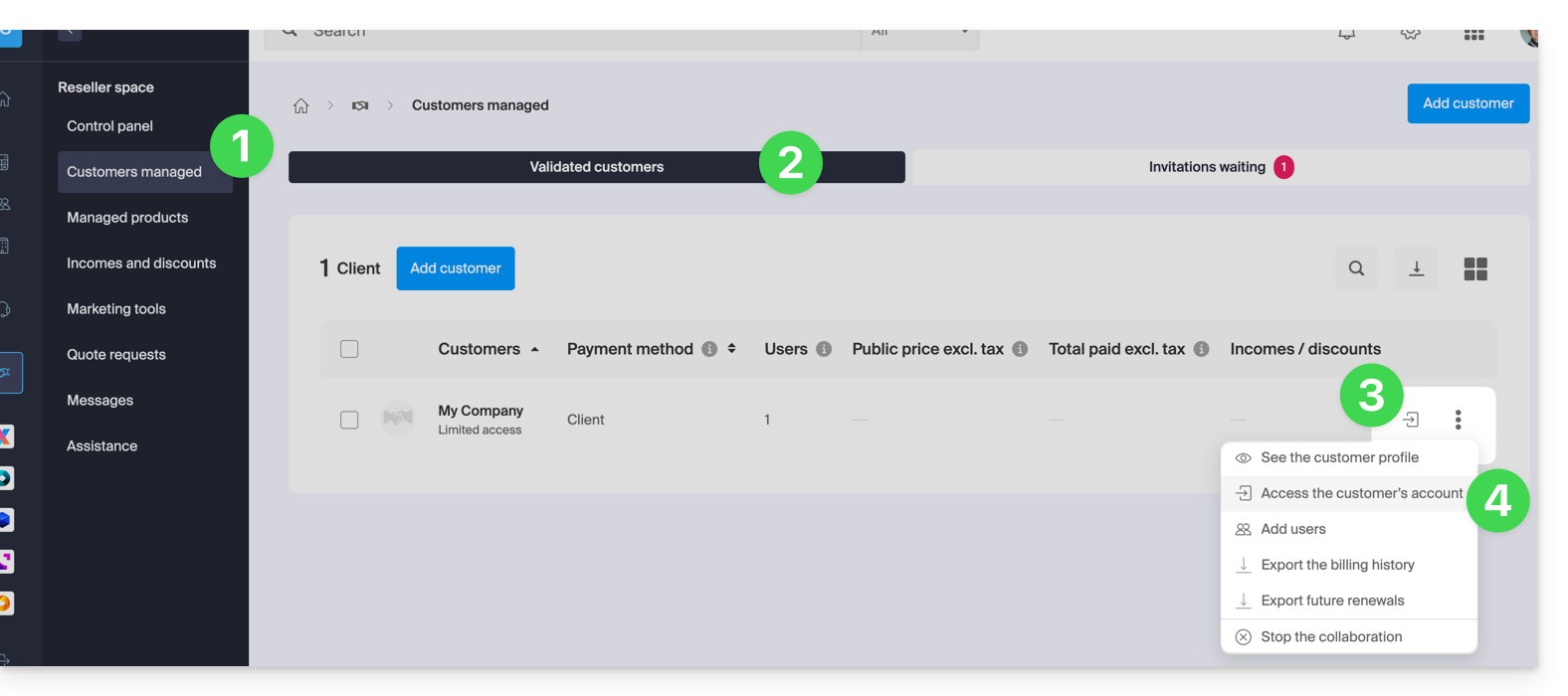
- Click here to access your Managed Clients in the Infomaniak Manager Reseller Area (need help?).
- If necessary, click on the Verified Clients tab.
- Click on the icon to the right of the relevant client in the table that appears to access their Manager.
- Click on the action menu ⋮ to the right of the relevant client in the table to access more options (such as exporting data to a CSV file (format .csv) for example):
… as a collaborator of the Partner Organization
- Click here to access the Infomaniak Manager.
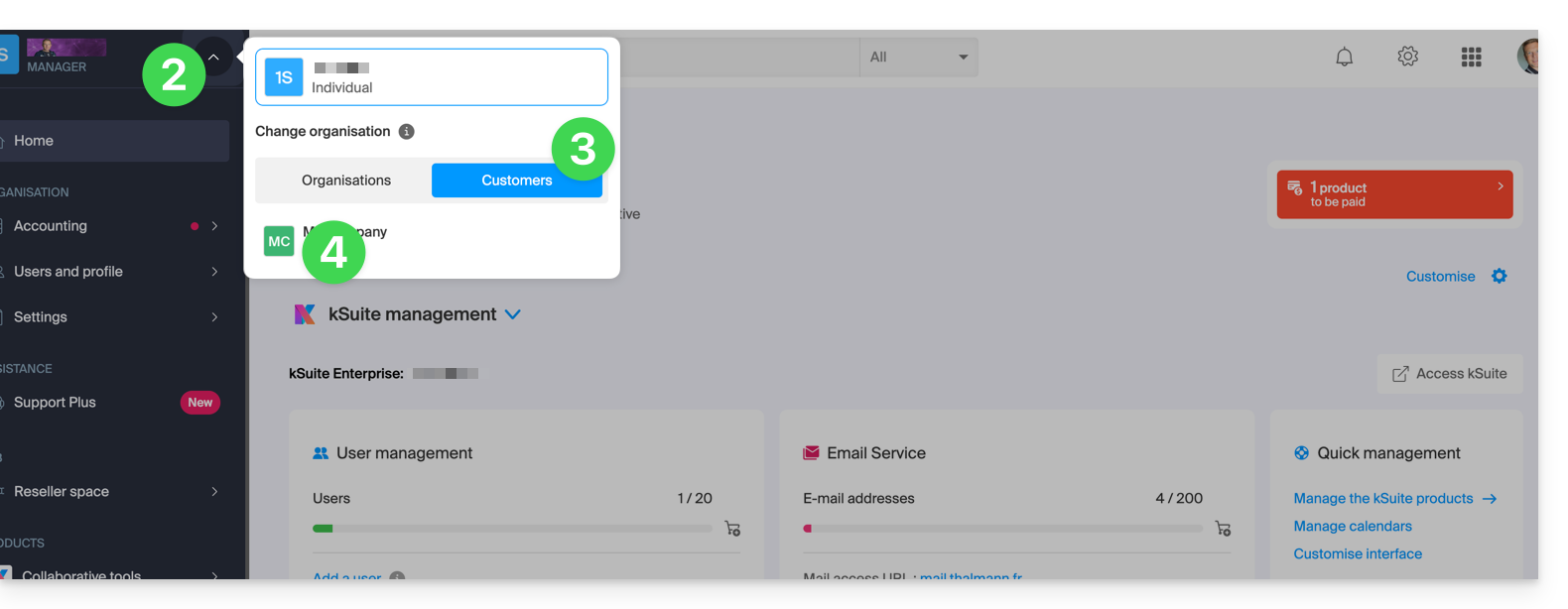
- Click on the chevron at the top left of your left-hand menu.
- Click on the Clients tab.
- Click on the relevant client in the menu that appears to access their Infomaniak Manager:
Link to this FAQ: https://faq.infomaniak.com/2668
Has this FAQ been helpful?