Knowledge base
1000 FAQs, 500 tutorials and instructional videos. Here, there are only solutions!
Ticketing: manage "Buy tickets, get tickets free" promotions
This guide explains how to activate and set up promotions for visitors in order to thank them or encourage their loyalty (as part of the Infomaniak ticketing system).
Introduction
- This option allows you to offer a feature that works like loyalty cards, for example, "buy 4 tickets and get the 4th one free."
- The x=y promotion allows you to automatically apply a promotion to the shop/ticket office cart based on a tiered number of tickets, without using a promotional code.
- Example:
- This offer is activated for the following condition: For every 3 tickets purchased, one of these tickets benefits from a 50% discount.
- If the customer purchases three tickets at once, the promotion is applied directly to the tickets in their cart.
- If the customer first places an order for a single ticket, and then a second order for two tickets, the offer will be activated on the ticket from this second order; the total number of tickets purchased will be saved!
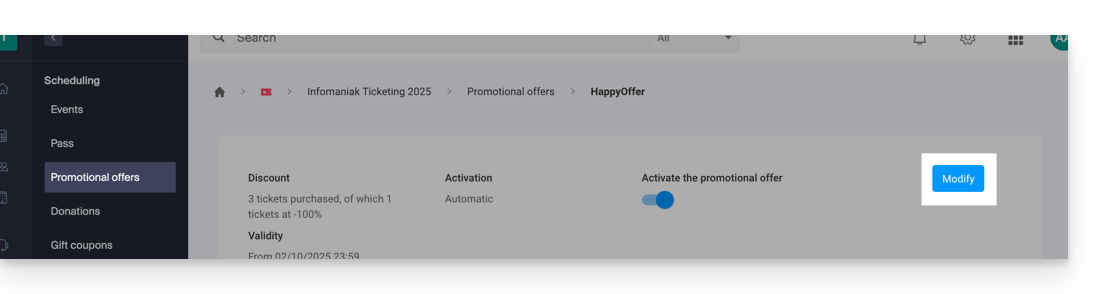
- All parameters can be modified later by clicking on "Edit" on the promotional offer page:
Enable the option in your ticketing system
To do this:
- Click here to access the management of your product in the Infomaniak Manager (need help?).
- Click directly on the name assigned to the ticketing system for the event.
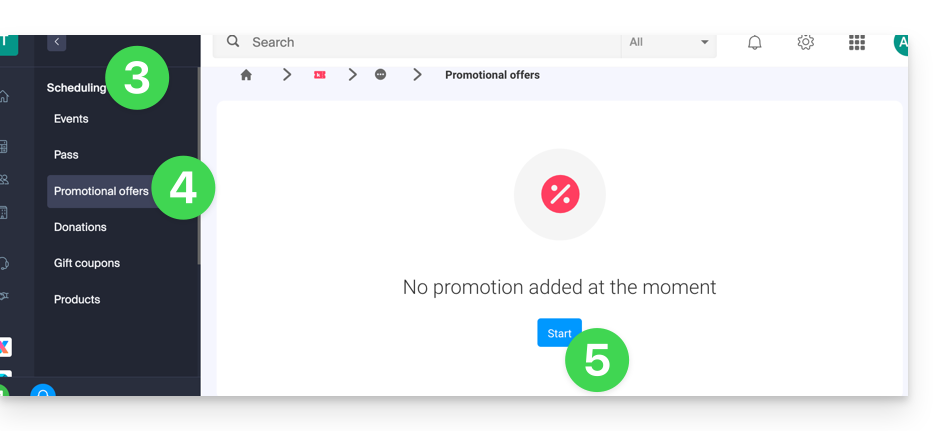
- Click on Scheduling in the left-hand menu.
- Click on Promotional Offers in the left-hand menu:
- Click on the blue Add button:
Configure the offer
Promotional Offer
- Enter a name for the offer to be proposed; this name will be visible to the customer (when using a promo code, for example).
- In Discount, choose the type of promotion, for example: Tickets purchased, tickets offered.
- Then, indicate the number of tickets required to activate the offer…
- … followed by the number of tickets that can benefit from the offer.
- Finally, indicate the type of promotion applied to these tickets, as a percentage or a fixed price.
Once an order has been placed, it is no longer possible to modify the type of discount, the number of tickets to purchase, or the number of discounted tickets, or the value of the discount.
- Enter the discount value:
- If the discount value is higher than the ticket price, the ticket will be free.
- Specify the application strategy; this defines the priority of tickets benefiting from the offer: more expensive tickets first or less expensive tickets first.
- Specify the validity dates:
The start date of validity is required for the promotion to work; tickets purchased before the specified date will not be counted in this promotion.
- Click the button to Continue:
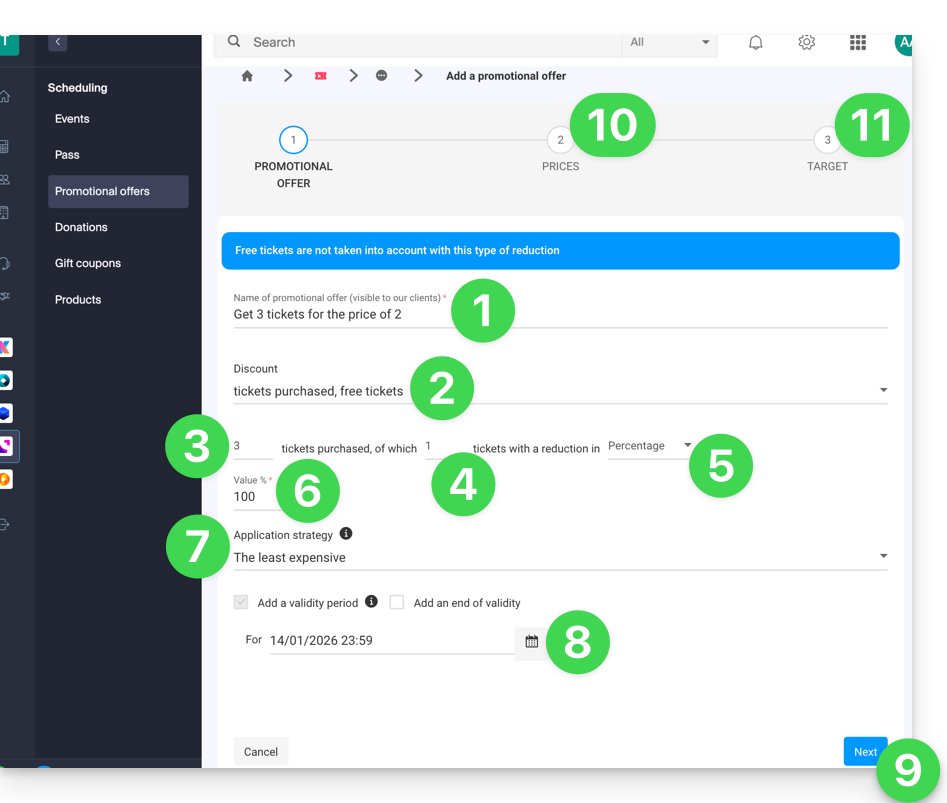
10. Pricing
This step allows you to configure the events, zones, and pricing for which this promotion will apply (it is also possible to set maximum quotas and limits per order per item).
11. Target
This step allows you to configure the following conditions for which this promotion will apply:
- Limit to specific customers (limit to customers who have already placed an order through the ticketing system and are therefore already on the customer list, to those who have subscribed to the newsletter, or to a manually selected customer list...)
- Limit to specific ticket counter profiles
Once activated, the promotion will be applied immediately from the start date.
Link to this FAQ: https://faq.infomaniak.com/2656
Has this FAQ been helpful?