Knowledge base
1000 FAQs, 500 tutorials and instructional videos. Here, there are only solutions!
Ticketing: print a pass from a computer
This guide explains how to install the driver for the badge printer (as part of the Infomaniak ticketing system) and how to print from a computer using the USB cable.
Install the drivers
Installing the drivers is only necessary when using the web interface to print passes. Using the mobile interface on a tablet is Plug&Play:
- Turn on and connect the printer to the computer with the USB cable.
- Go to the downloads page under the Support and Download tab.
- Select Product: SMART-51 Series and Product model: SMART-51S…
- For Mac and Linux, click on EXPAND ALL + to choose the correct version for your operating system:
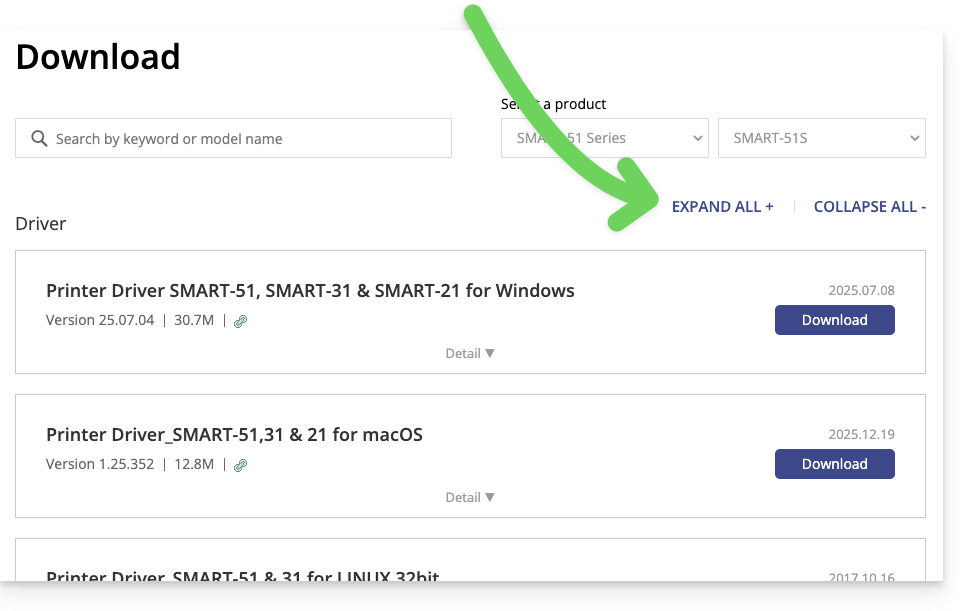
- For Mac and Linux, click on EXPAND ALL + to choose the correct version for your operating system:
Configure the printer
For optimal printer usage, it is recommended to configure the printer before using it.
Printing passes from a computer
Once the printer driver has been installed:
- Connect the printer to the computer.
- Open the front of the printer and insert the badges with the side to be printed facing upwards:

- On your computer, go to the Ticket Office.
- Search for an order with a pass; you can click on Search for a reservation at the top of the ticket office for a quick search:

- In the left-hand section of the window that opens, click Print passes to generate the PDF:
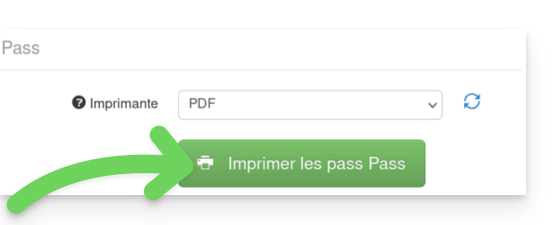
- From the generated PDF, start printing by selecting the Smart 51S printer.
Link to this FAQ: https://faq.infomaniak.com/2652
Has this FAQ been helpful?