Knowledge base
1000 FAQs, 500 tutorials and instructional videos. Here, there are only solutions!
Ticketing: User guide for the on-site sales package
This guide explains how to set up and use your sales pack with the Zebra printer for tickets in the format for shows and cinemas (as part of the Infomaniak ticketing system).
Installation and setup of the sales pack
Connecting the devices
- Plug in the power adapter for the Samsung TabS tablet.
- Plug in the Zebra printer's power supply.
- Plug in the Wi-Fi or 4G terminal and ensure it is connected to the other devices.
- Make sure the tablet is connected to the Infomaniak network.
Setting up the printer
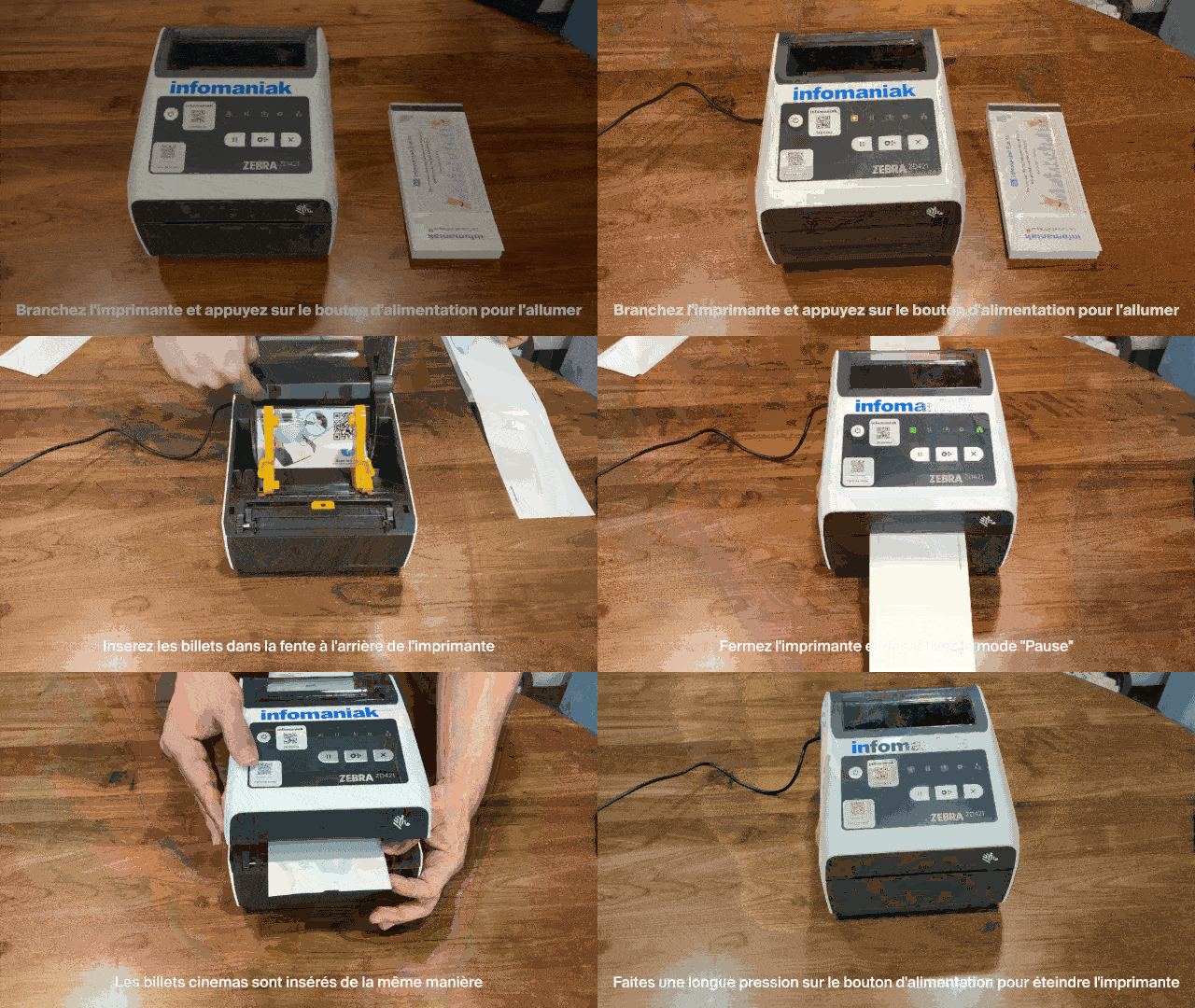
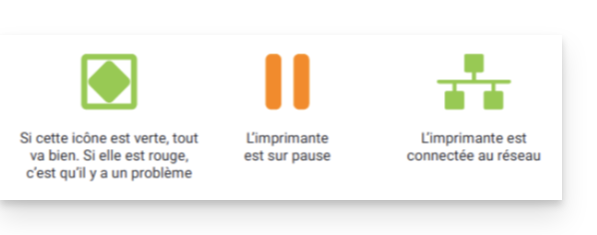
- Connect the printer and press the power button to turn it on, then wait until both indicator lights turn green.
- Open the printer using the opening latches located on the sides:


Insert the tickets into the slot at the back of the printer:
- Event tickets: make sure the detachable tab is positioned towards the back of the printer. Take the Infomaniak logos into account: the first one comes out on the left, the second on the right (the ticket should be facing the right way when it comes out).
- Movie tickets: they are inserted in the same way.


- Close the printer and then press the "Pause" button to disable pause mode. The printer is ready to use:

- To turn off the printer, press and hold the power button.
Printing tickets with the printer
Format Verification
The printers are already configured for the ordered ticket format. If necessary, you can check the configuration by opening the menu in the upper left corner and going to Options. The Cinema ticket format option should only be enabled if the tickets will use this format (see below regarding calibration when changing the format).
Printing a ticket
To start printing, log in to the ticketing account from the tablet using the Infomaniak account username and password. The tablet will automatically connect to the ticket counter interface.
- Perform a “test” print or use a command in the “Command” menu.
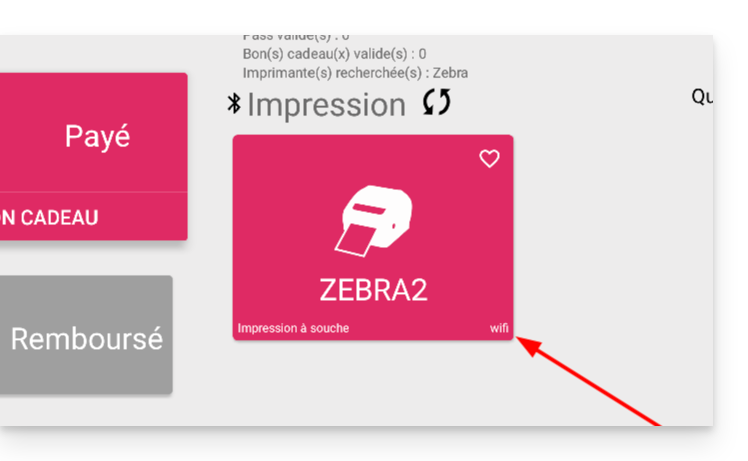
- The printer should appear (ZEBRAXX) on the right side of the tablet.
- Tap the printer icon to start printing:
Configure the correct ticket on the printer
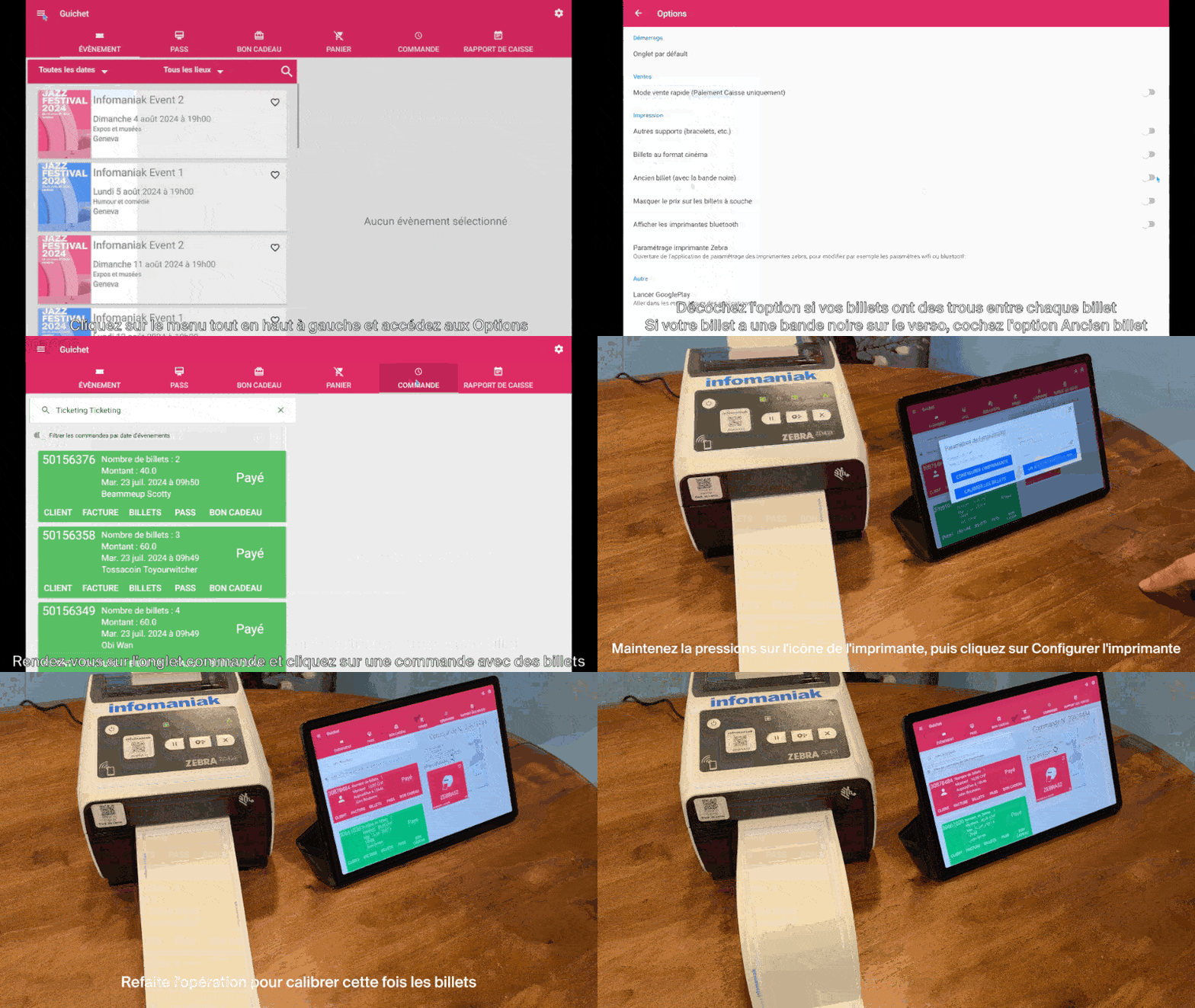
This section only applies to users who ordered tickets before July 2024…
Since July 2024, Infomaniak has been providing tickets featuring new separators in the form of a notch. If you still have older types of tickets, please watch the animation below to configure your tickets correctly:
Learn more
Link to this FAQ: https://faq.infomaniak.com/2645
Has this FAQ been helpful?