Knowledge base
1000 FAQs, 500 tutorials and instructional videos. Here, there are only solutions!
User guide for badge printers
Update 10/06/2026
This guide explains how to install an IDP PVC badge printer to print passes (as part of the Infomaniak ticketing system).
Introduction
- Badge printers are designed to work with both the mobile point-of-sale system on a tablet and the online ticketing system on your computer.
- They can be connected to your local network or directly to a computer via a USB cable.
- These printers are designed to print only on PVC cards in CR80 format; any other use or printing format should be avoided.
Setup and connection
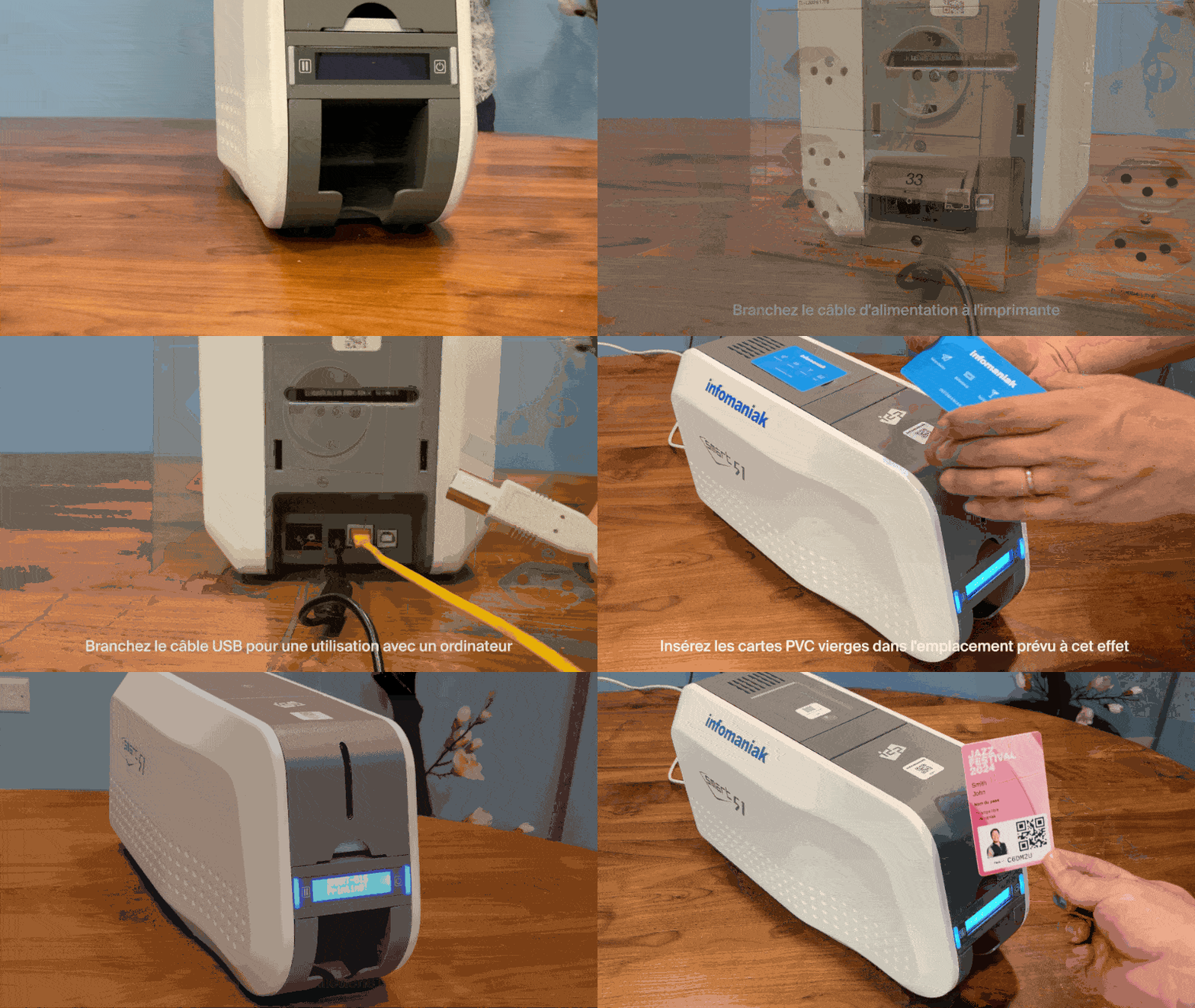
- Plug the power cable into the back of the printer and connect it to a power outlet.
- Connect the printer according to the desired usage mode:
- Network usage: plug the network cable (RJ45) into the printer and connect it to your network port.
- Computer usage (USB): plug the USB cable into the back of the printer and connect the other end to your computer.
- Open the loading tray and insert the blank PVC cards into the designated slot.
- Start a test print from the ticketing system or mobile terminal to verify proper operation.
User guides and maintenance
- Printing a pass from a computer
- Printing passes from the tablet (mobile kiosk)
- How to replace the printer ribbon
Learn more
Link to this FAQ: https://faq.infomaniak.com/2644
Has this FAQ been helpful?