Knowledge base
1000 FAQs, 500 tutorials and instructional videos. Here, there are only solutions!
Set Infomaniak Mail as the default application for handling mailto: links
Update 10/13/2026
This guide explains how to set the Infomaniak Mail web app (online service ksuite.infomaniak.com/mail) as the default email provider in a browser such as Brave, Chrome, Edge, Firefox, Vivaldi… with the exception of Safari.
Configure Infomaniak as the default email provider
To configure your browsers to automatically use the Infomaniak email management interface when you click on email links (e.g., mailto: links) and/or when you try to send an email from a web page:
- Click here to access your Infomaniak kSuite emails (❓: help).
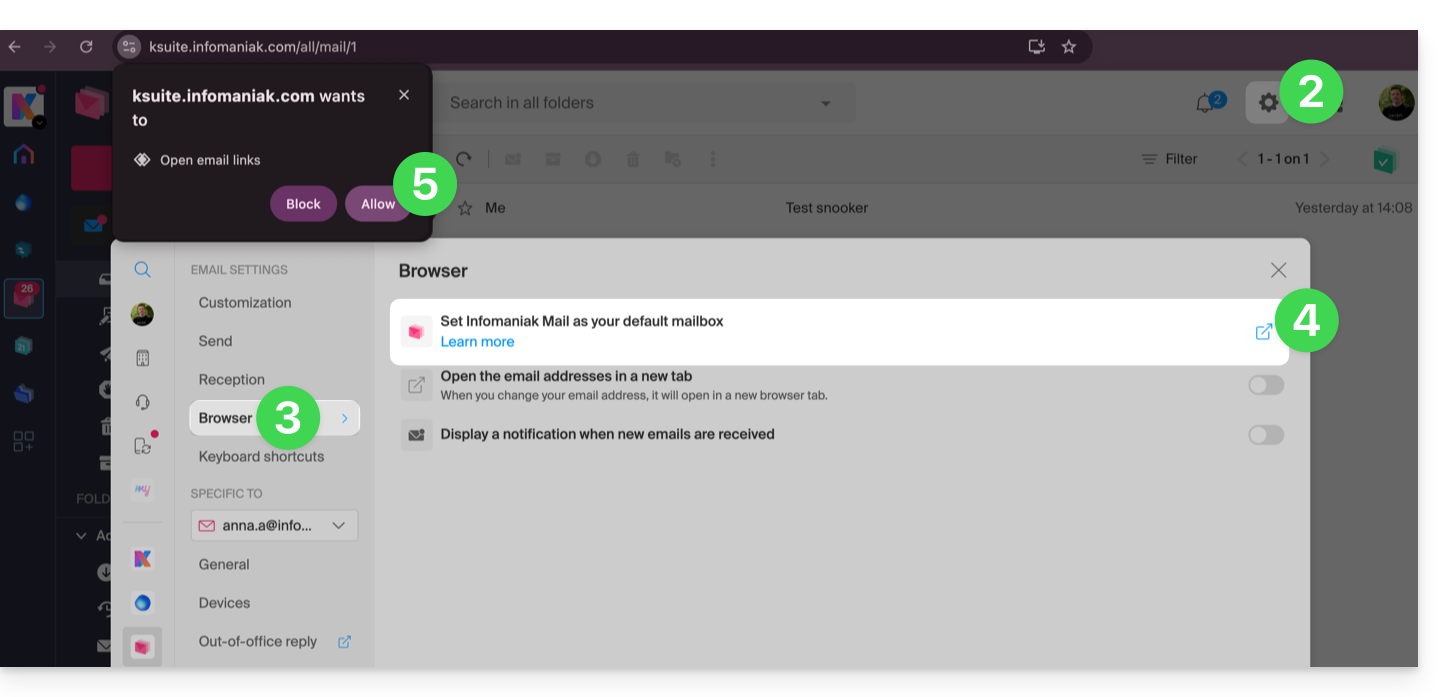
- Click on Settings in the top right corner.
- Click on Browser.
- Click on Set default mail.
- Follow the instructions provided by the browser (a notification should appear at the top of the window):
If you encounter any issues…
To resolve issues with using Mail Infomaniak as your default email client, follow the manual instructions for your preferred browser:
…on Firefox
- Open Firefox.
- In the menu bar, enter about:preferences
- In the sidebar, go to General, then Applications
- In the "Type and Content" column, select mailto.
- Click on Always ask and select "
ksuite.infomaniak.com" as the email handler.
… on Google Chrome
- Open Google Chrome.
- In the menu bar, enter chrome://settings/handlers.
- In the sidebar, go to Privacy and Security.
- In the Protocol Manager, authorize and select “
ksuite.infomaniak.com” as the default email manager: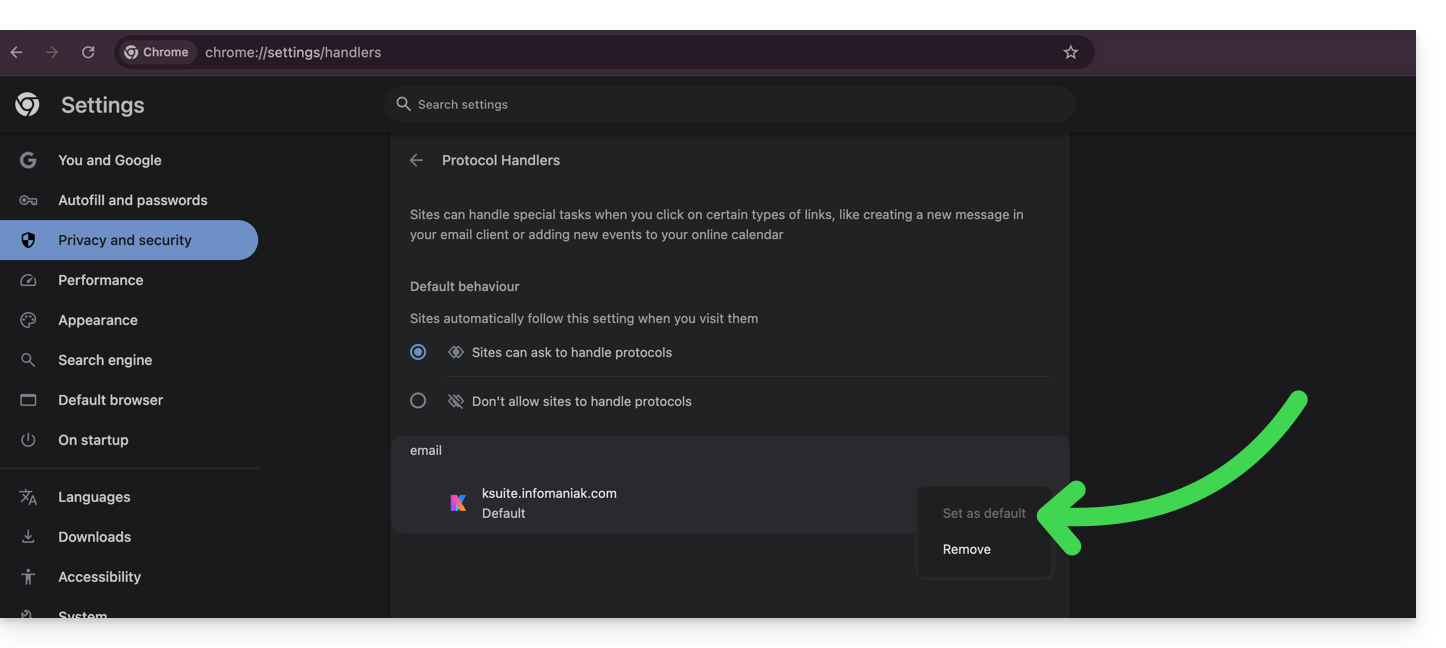
Link to this FAQ: https://faq.infomaniak.com/2639
Has this FAQ been helpful?