Knowledge base
1000 FAQs, 500 tutorials and instructional videos. Here, there are only solutions!
Set a new default homepage for Site Creator
This guide explains how to manage the first page of an Infomaniak Site Creator, i.e., the homepage that is displayed when you enter your website's address (e.g., www.domain.xyz).
Introduction
- The homepage is mandatory, but you can easily define a new one from your existing pages at any time.
- Refer to this other guide to manage additional pages.
Modify the website's homepage
Prerequisites
- Access Site Creator:
- Click here to access the management of your product on the Infomaniak Manager (need help?).
- Click directly on the name assigned to the Site Creator in question.
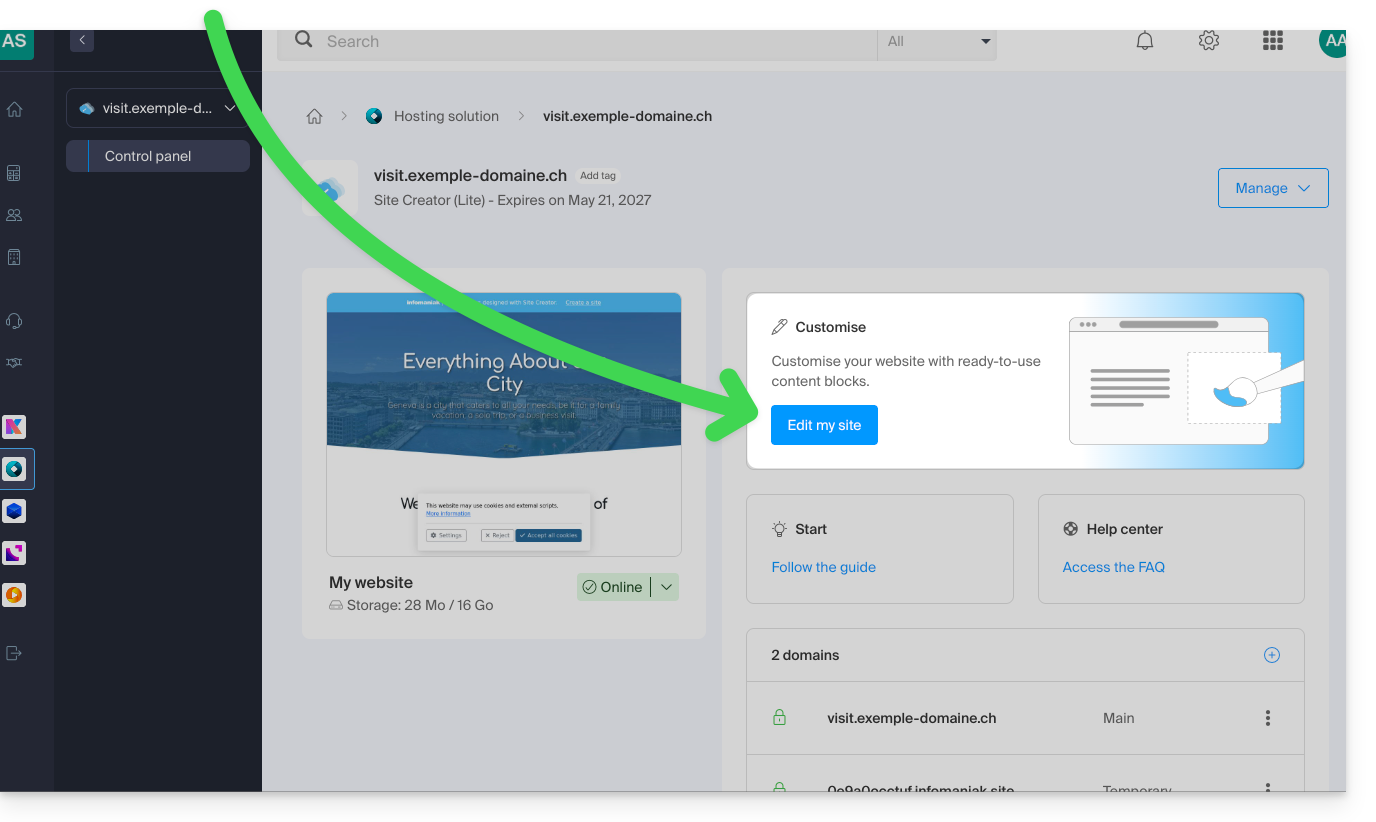
- Click on the Edit my site button to launch the editor:
Once in Site Creator:
- Click on the Settings button in the left-hand menu – the list of your pages will appear:
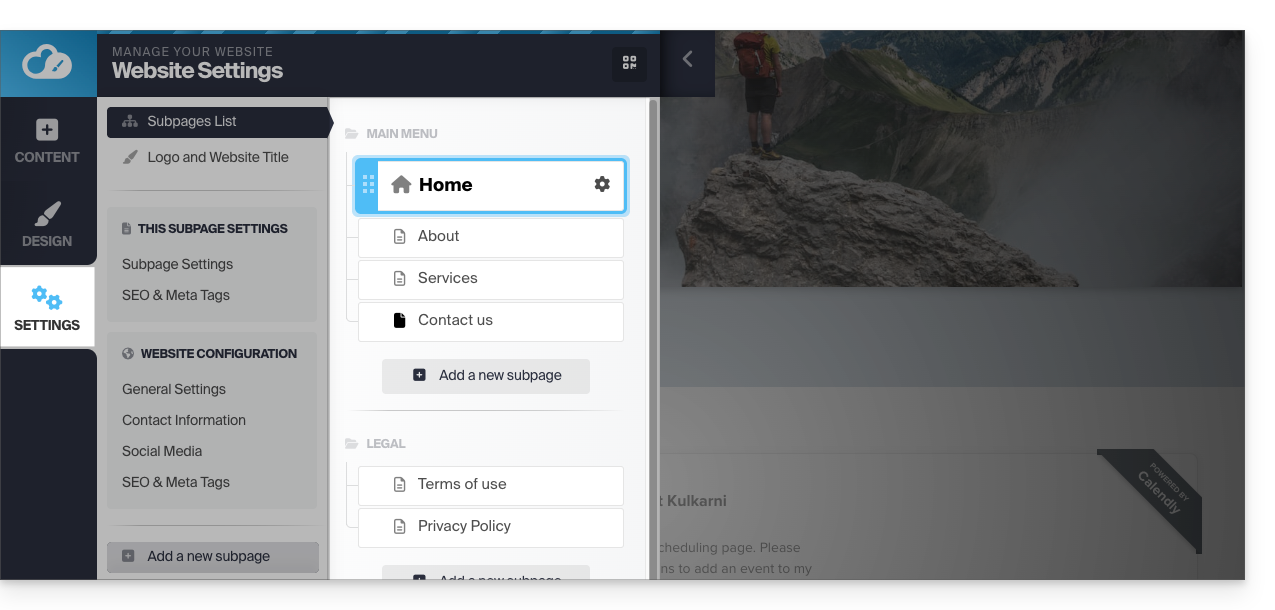
- Click, then drag and move the current homepage (represented by a house icon) to the bottom of the list:
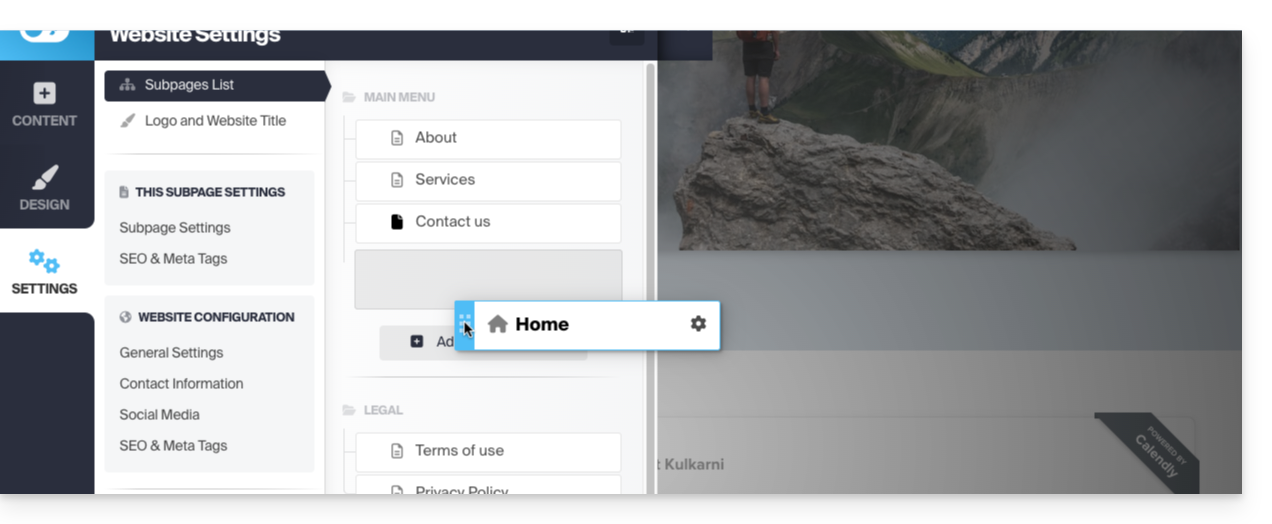
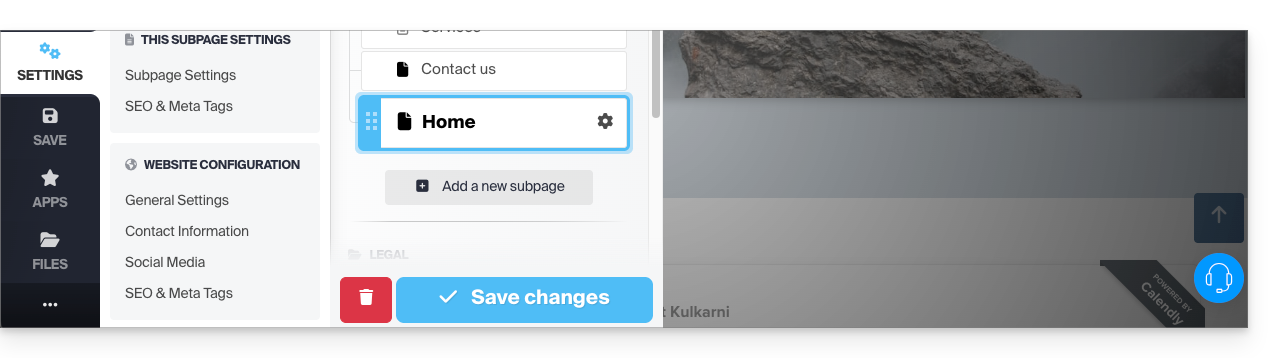
- Click on the icon on this page to change its page type to a standard page.
- Save the changes:
- Go back to the settings and click on the Settings icon on the page that will become the new homepage:
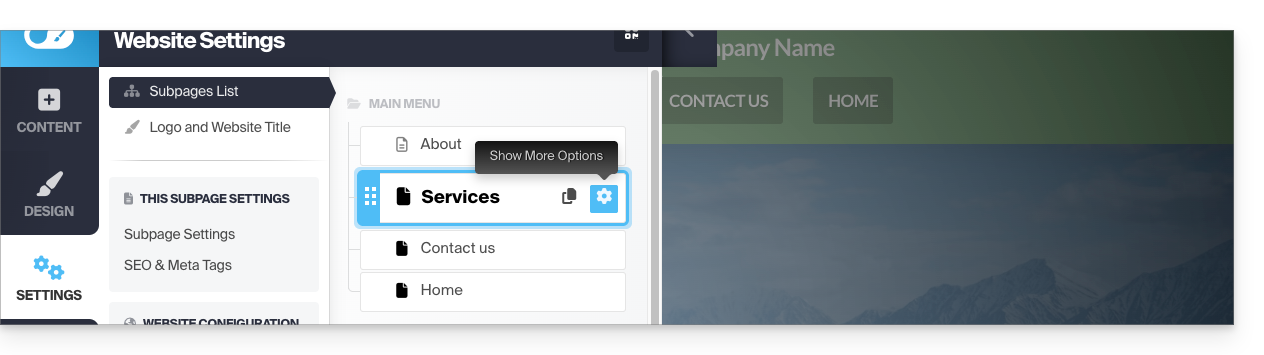
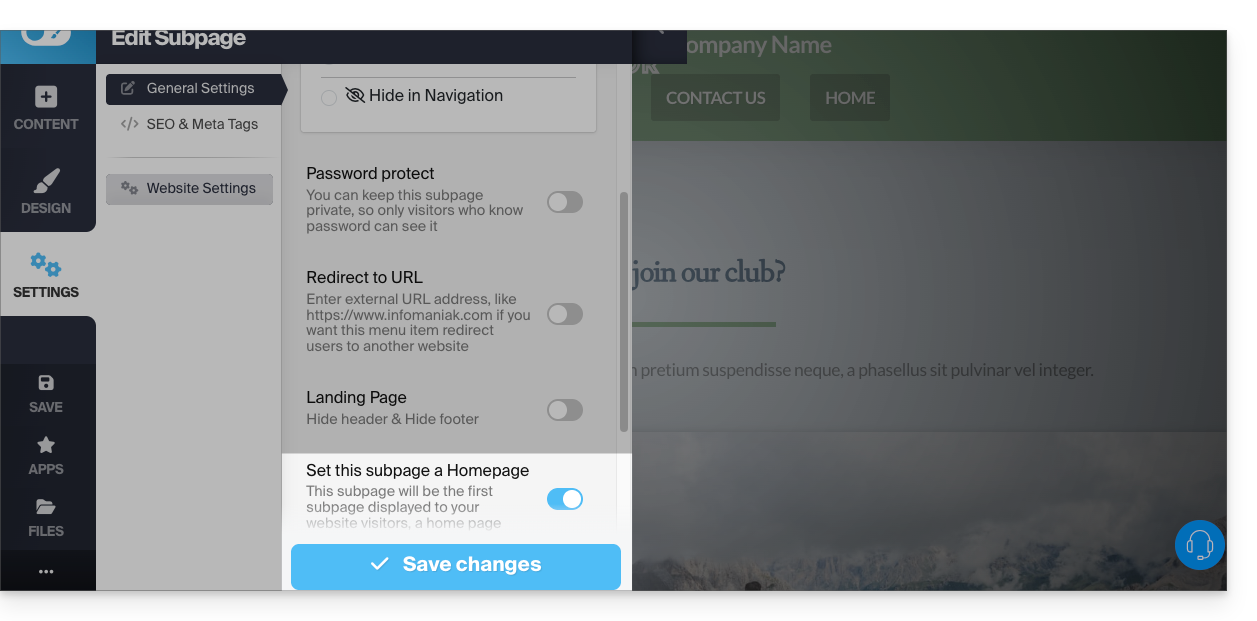
- Click the toggle switch to set this page as the homepage of your website.
- Save the changes:
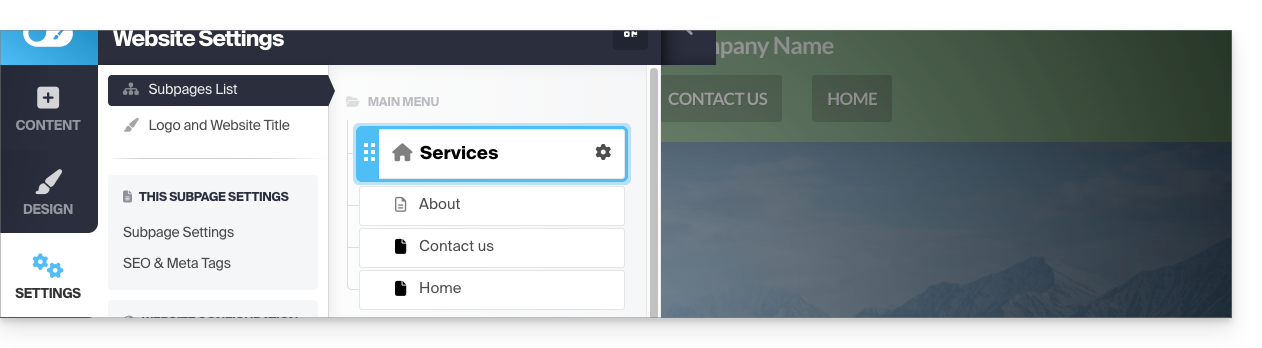
- Go back to the settings and click on the icon of this page to change its page type to a homepage and position it first:
- Save the changes and test the effect of the change by visiting your site, which will no longer have the same default homepage:
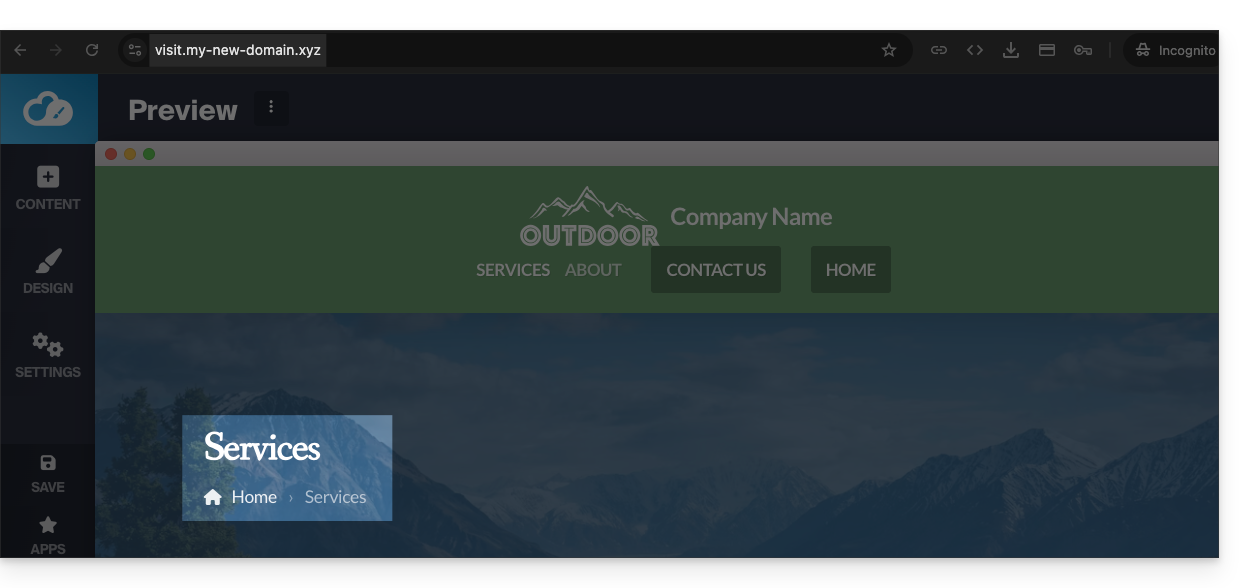
- Before, the homepage was the default one:
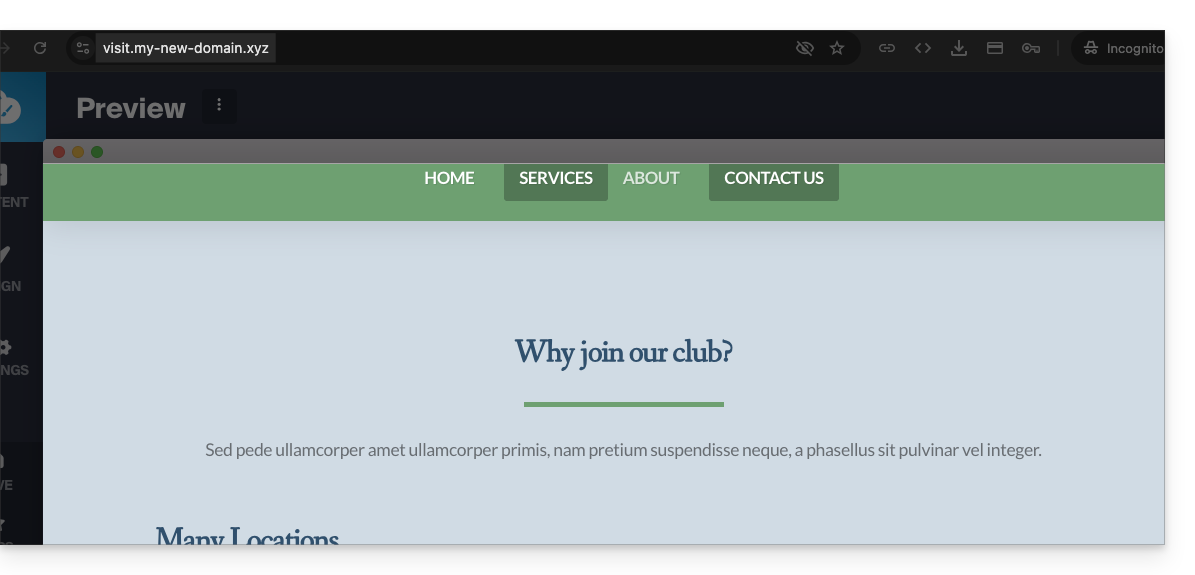
- Before, the homepage was the default one:
Link to this FAQ: https://faq.infomaniak.com/2638
Has this FAQ been helpful?